
Looking for the best free spy apps for Android? Most are not unlimited free trackers: VigilKids, mSpy, and KidsGuard Pro offer dashboard demos, Bark offers a seven-day trial, and Google Family Link provides basic parental controls at no cost.
This guide compares five options by Android features, setup requirements, and real free access so parents can choose the right demo, trial, or permanently free tool.
Part 1. Quick Comparison: What Is Actually Free?
“Free” describes four different offers in this category: a live demo with sample data, a time-limited trial installed on a real phone, a permanently limited plan, or a free parental-control tool. VigilKids, mSpy, and KidsGuard Pro let readers inspect sample dashboards; Bark advertises a seven-day trial; FlexiSPY does not publish a clearly verifiable free trial in the sources reviewed for this update. If everyday limits are the real priority, compare these offers with dedicated ways to check screen time on Android.
| Android capability | VigilKids | mSpy | KidsGuard Pro | FlexiSPY | Bark |
|---|---|---|---|---|---|
| Free dashboard demo | ✅ | ✅ | ✅ | ❌ | ❌ |
| Live screen or screen capture | ✅ | ✅ | ✅ | ✅ | ❌ |
| Remote camera + ambient audio | ✅ | ✅ | ✅ | ✅ | ❌ |
| AI media risk flags + live context | ✅ | ❌ | ❌ | ❌ | ❌ |
| Keyword or risk alerts | ✅ | ✅ | ✅ | ✅ | ✅ |
| App + website controls | ✅ | ✅ | ✅ | ❌ | ✅ |
| No-root Android option | ✅ | ✅ | ✅ | ❌ | ✅ |
 Quick answer
Try a dashboard demo when you need to understand the interface. Try Bark when a real-device trial and safety alerts match your goal. Use Google Family Link when you need free screen-time limits, app approvals, content settings, and family location rather than detailed message records.
Part 2. Best 5 Free Spy Apps for Android
The original five-app list is retained, but the ranking scores have been removed because no controlled head-to-head test supported them. Each mini-review now answers the questions that matter before installation: what can be tried for free, what the Android setup requires, which monitoring model the app uses, and when another option is a better fit. Parents focused on chat safety can also review the site’s guide to WhatsApp parental monitoring before comparing full dashboards.
1. VigilKids — Best Demo for a Full Android Dashboard
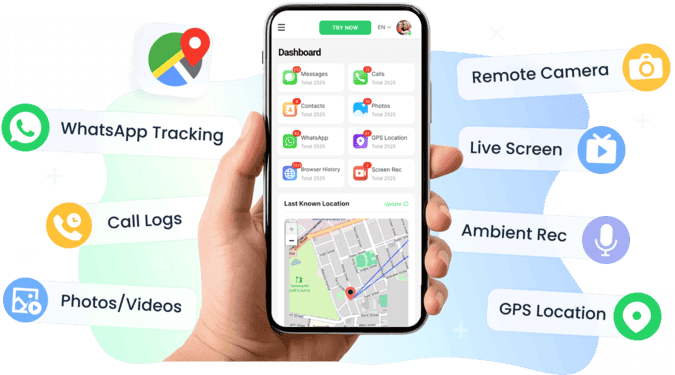
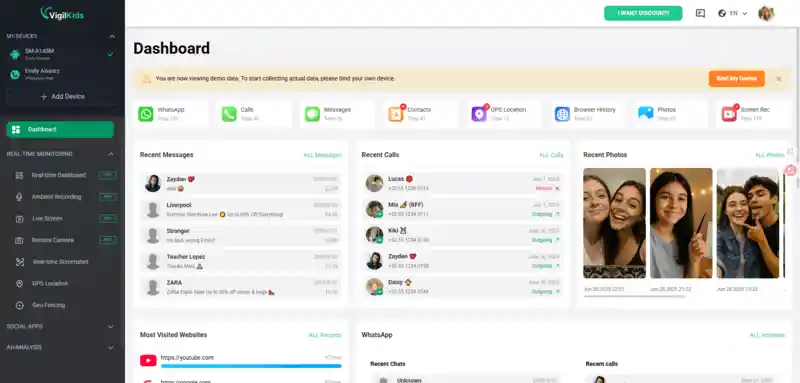
VigilKids supports monitoring on both Android and iOS, with the parent able to review available data through one web dashboard. Android currently has the broader feature set, while iOS monitoring uses platform-specific setup methods and can provide a different range of data. The free entry point is a populated demo; monitoring a parent-managed child device requires the appropriate setup, permissions or account connection, and a paid subscription.
What parents can evaluate
- Android and iOS monitoring through one web dashboard, with platform-specific feature differences
- Available calls, messages, social-app, browser, media, and Android screen-recording context based on device and setup
- GPS location, route history, and geofence context for a supported connected phone
- Keyword and risk alerts that help prioritize review instead of opening every activity category
- Android uses an installed no-root option; iOS requirements should be confirmed for the intended feature
Pros
- Free demo shows how a broad dashboard is organized
- No root required for the documented core Android setup
- Combines location, communication, social, and screen context
- Supports parent-managed Android and iOS devices
Cons
- The demo contains sample data, not data from your phone
- Full use requires platform-appropriate setup, connectivity, and a subscription
How to Use VigilKids on Android
- Step 1. Create a VigilKids account, choose Android as the monitored platform, and select the appropriate plan.
- Step 2. Get physical access to the parent-managed Android phone, then download and install VigilKids by following the account setup guide.
- Step 3. Complete the on-device setup and grant the required Android permissions. The documented core Android setup does not require rooting.
- Step 4. Sign in to the VigilKids Control Panel from a browser, select the connected device, and review available messages, social activity, screen context, locations, alerts, and controls.
2. mSpy — Best Interactive Demo for Feature Exploration
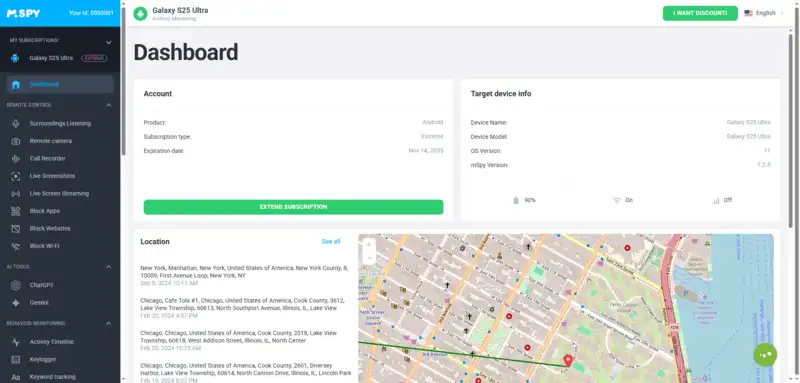
mSpy is useful when you want to click through a detailed online dashboard before paying. Its official pages advertise an interactive demo covering social chats, calls, contacts, messages, media, browser history, GPS, and keyword tools. For Android, mSpy says physical access is required and the app is installed directly on the phone; it also says social-media monitoring is available without rooting. The company’s FAQ currently states that a free trial is not available, so “try for free” refers to the demo, not live monitoring of your own device.
Best reasons to try the demo
- See how detailed logs are grouped before committing to a subscription
- Check whether social, GPS, calls, browser history, and keylogger categories match your use case
- Understand the difference between a sample dashboard and data collected after Android installation
Pros
- Interactive demo is more useful than static marketing screenshots
- Broad category coverage for comparison shoppers
- Official Android requirements are documented
Cons
- No current free trial according to the official FAQ
- Physical access and direct installation are required on Android
- Available records can vary by device, permissions, and app updates
3. KidsGuard Pro — Best Demo for Social-App Coverage
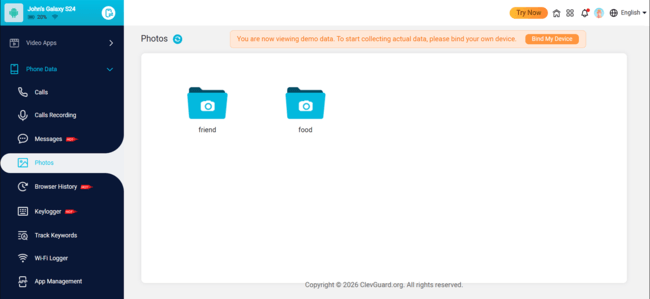
KidsGuard Pro provides a public demo with sample calls, messages, social apps, screenshots, live-screen tools, media, and keylogger categories. ClevGuard’s official FAQ says Android installation needs one-time physical access, no root, an internet connection for uploads, and a paid license for the full service. That makes it a practical demo for checking menu coverage, but not a permanently free Android monitoring app.
What the sample dashboard shows
- Calls, messages, photos, videos, browser history, installed apps, and GPS categories
- Social-app sections for services such as WhatsApp, Messenger, Instagram, Facebook, Snapchat, LINE, and Telegram
- Live-screen and capture tools whose availability should be checked against the exact Android device and plan
Pros
- Free demo displays sample data across many categories
- No root is required according to the official Android FAQ
- Clear physical-access, license, and connectivity requirements
Cons
- Full service is paid
- Compatibility information on the cited FAQ may lag newer Android releases
- Coverage should be confirmed for the exact social app and phone model
4. FlexiSPY — Best for Advanced Users Comparing Specialist Tools
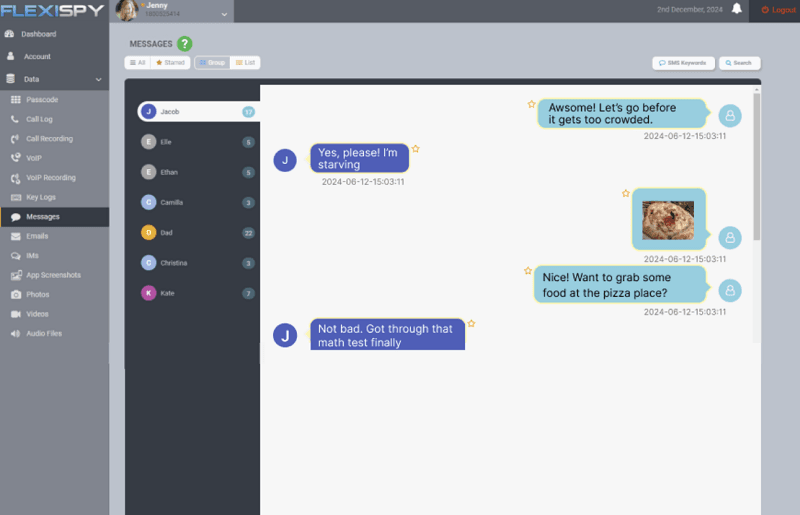
FlexiSPY is the most specialist option retained from the original list. It is marketed around deeper capabilities such as call recording and ambient audio on supported configurations, but those functions are more device-, plan-, permission-, and jurisdiction-dependent than ordinary screen-time or location tools. The supplied competitor comparisons also position FlexiSPY as a higher-complexity, premium product. A current official free-trial offer could not be verified for this update, so do not select it because the article title contains “free.”
Questions to answer before considering it
- Does the exact Android model and OS support the feature you need?
- Does that feature require root, additional setup, or a higher plan?
- Can a simpler alert, filtering, or location tool solve the same problem?
- Is the proposed use permitted by local law, workplace policy, and device ownership rules?
Pros
- Designed for advanced feature comparison
- Useful benchmark for understanding specialist monitoring categories
Cons
- No verified free trial in the sources reviewed
- Higher setup complexity than mainstream parental-control tools
- Advanced functions can carry additional technical and legal constraints
5. Bark — Best Free Trial for Safety Alerts and Controls
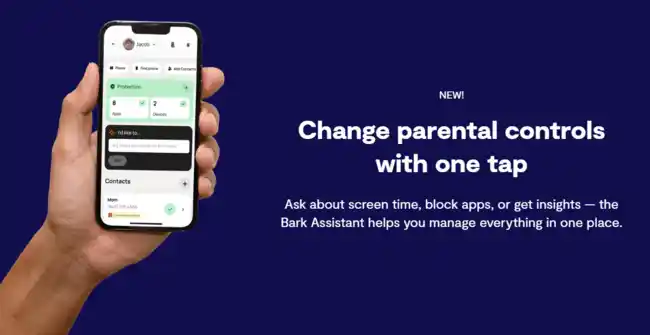
Bark is different from the four dashboard-oriented tools above. It scans supported activity for potential safety issues and sends alerts with context; it also provides screen-time schedules, website and app blocking, and location features. Bark’s official page currently advertises a seven-day free trial for its app plans. On Android, the Bark Kids app is installed on the child’s phone, and some account-based monitoring requires connecting the relevant accounts during setup.
Why Bark belongs in a different category
- Prioritizes safety alerts instead of presenting every item as a raw activity log
- Adds screen-time schedules, web filters, app blocking, and location tools
- Supports Android without root according to Bark’s official FAQ
- Availability and product details vary by country and device platform
Pros
- A real seven-day trial is currently advertised
- Alert-led approach can reduce unnecessary review of ordinary activity
- Combines monitoring signals with everyday parental controls
Cons
- Not designed as a read-everything dashboard
- Some platforms need account connections or different setup steps
- The Bark app is currently limited to listed markets
Part 3. How Android Monitoring Apps Work
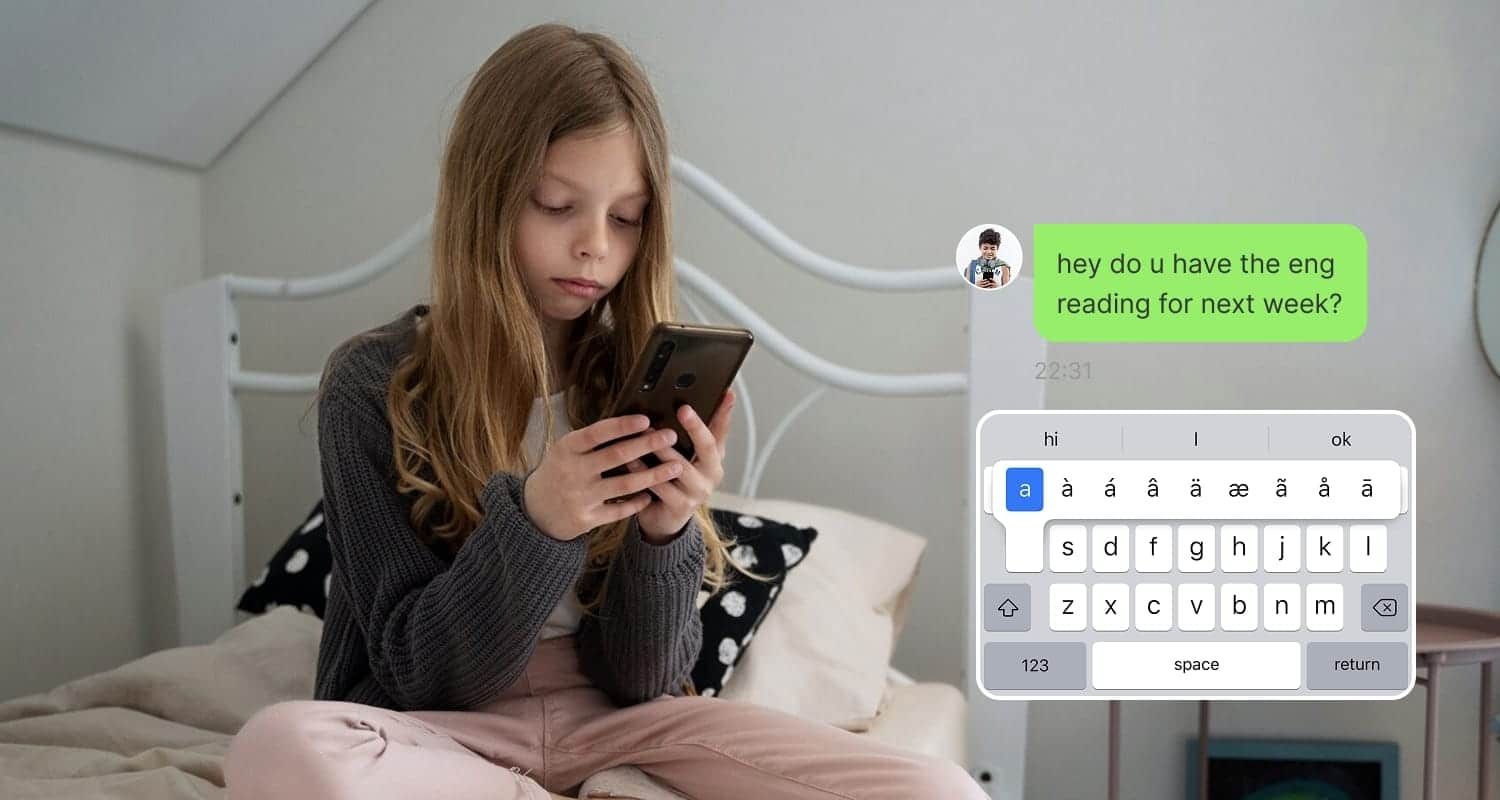
Most Android monitoring products follow the same basic flow: a parent creates an account, gets physical access to the child’s phone, installs or connects the service, grants the requested Android permissions, and then reviews uploaded data in a parent app or web dashboard. Data collection depends on the phone being powered on, connected, and allowed to run the necessary services.
Free Demo vs. Free Trial vs. Free Parental Controls
- Dashboard demo: lets you explore sample data without installing an app. It proves the interface is accessible, not that every feature will work on your phone.
- Free trial: temporarily activates a product on a real device. Check whether payment details are required and when renewal begins.
- Free parental controls: offer ongoing basics such as time limits, app approvals, content settings, and location, but generally do not provide a monitoring suite’s detailed records.
Google Family Link parental controls are the clearest free starting point for many Android families. Google documents screen-time limits, app management, Google-service content controls, location, and arrival or departure alerts. Family Link is not a replacement for detailed social-message monitoring, but it may be the better choice when the real goal is routines, downloads, filtering, and location.
Root vs. No-Root Android Setup
No-root setup is simpler and avoids modifying the Android security model, but feature depth still depends on OS permissions, phone-maker settings, and the individual app. Root access can unlock deeper data for some specialist products while increasing setup difficulty, security exposure, update problems, and warranty concerns. Do not root a family phone merely to obtain one optional monitoring category.
If typed-search context is the deciding feature, review what an Android keylogger can and cannot show before choosing a broad subscription solely for that function. For visual context instead, the separate guide to screen recording on Android explains the narrower workflow.
Part 4. How to Choose and Verify an Android Monitoring App
App reviews can reveal recurring questions about setup, support, billing, battery use, and missing data, but they cannot prove that a feature will work on your exact Android phone. The original article’s quoted anecdotes and fixed scores have therefore been removed: no review sample, collection method, or controlled test supported them.
Use a Five-Question Review Checklist
- Was the reviewer using Android, and did they name the OS version and phone model?
- Was the complaint about installation, missing permissions, syncing, a specific social app, billing, or support?
- Was the review written before or after a major Android or social-app update?
- Does the vendor’s current official documentation confirm the claimed feature and setup requirement?
- Can a demo, compatibility checker, or short trial answer the question before purchase?
The two supplied competitor pages added a useful decision distinction: start with the intended outcome—controls, safety alerts, detailed activity records, or location—rather than starting with the app that publishes the longest feature list. The site’s hands-on VigilKids review shows how feature claims can be checked against actual dashboard evidence. For location-first needs, a dedicated Android GPS tracking comparison may be more useful than paying for a full monitoring suite.
Frequently Asked Questions
Are any Android spy apps completely free?
Most detailed monitoring suites are not completely free. They usually offer a sample dashboard, limited access, or a short trial before requiring payment. Google Family Link is a genuinely free option for common parental controls, but it does not provide the same detailed record categories as a monitoring suite.
Which apps in this list have a free demo?
VigilKids, mSpy, and KidsGuard Pro provide sample dashboard demos. A demo lets you explore the interface and sample records; it does not collect live data from your Android phone.
Which app offers a real free trial?
Bark currently advertises a seven-day free trial for its app plans. Trial terms can change, so confirm the signup page, renewal date, supported country, and Android requirements before starting.
Does mSpy have a free trial?
No current free trial is listed in mSpy’s official FAQ. mSpy offers an interactive online demo, which uses sample data and is different from installing the service on your own Android device.
Do Android monitoring apps need root access?
Not always. VigilKids, mSpy, KidsGuard Pro, and Bark document no-root paths for core Android use, but available features still vary by device, OS, permissions, plan, and connected app. Some specialist features may require more invasive setup.
Can I install a monitoring app without touching the Android phone?
Usually not. The official Android instructions reviewed for VigilKids, mSpy, and KidsGuard Pro require physical access for installation or connection and permission setup. Be cautious of sites that promise detailed Android monitoring by phone number alone.
Conclusion: Which Free Option Should You Try First?
Start with Google Family Link when free app limits, content controls, and location are enough. Choose Bark’s trial when you prefer safety alerts and parental controls. Use the demos from mSpy or KidsGuard Pro to inspect their dashboards, and treat FlexiSPY as a specialist paid option rather than a free recommendation. For parents who need a broader dashboard across Android or iOS and can complete the platform-appropriate setup, VigilKids is the most balanced first demo to evaluate because it combines communication, social, screen, and location context while acknowledging that feature availability differs by platform.
Open the VigilKids phone monitoring page to confirm current Android and iOS compatibility, setup conditions, and plan details before making a decision.
Authoritative Sources
- mSpy Features and mSpy FAQ — Android physical access, installation, demo, no-root social coverage, and current no-free-trial statement
- KidsGuard Pro Demo and ClevGuard Product FAQ — demo categories, physical access, no-root setup, internet requirement, and paid license condition
- Bark App — seven-day trial, Android setup, alert model, controls, location, regional availability, and current plan information
- Google Family Link — screen time, app management, content controls, family location, and device conditions
- FTC: Keeping Your Kid Safer Online — practical parental-control categories
- Impulsec Parental Monitoring Comparison — demo-versus-trial distinction and use-case criteria
- StartDigital Comparison Table — controls, alerts, detailed monitoring, platform, and complexity distinctions
Hot Topics for Phone Monitoring
Best Geofencing Software for Families 2026: 5 Apps Compared
Compare VigilKids, Life360, FamiSafe, Qustodio, and Family Link for geofence alerts, location history, parental controls, and family safety.
Untraceable Spying Apps: 7 Best Discreet Phone Trackers for 2026
Compare the 7 best untraceable spying apps and cell phone trackers for Android & iPhone — features, pros & cons, and how to monitor a phone legally.
Best Location Tracker Apps 2026: Accurate & Safe Picks
Discover the best location tracker apps for real-time tracking, safety alerts, and privacy. Compare top tools to find the most accurate option.