
Google Family Link parental controls help parents set boundaries for kids' Android devices — from screen time and app approvals to content filters and location checks. But when kids spend more time online, many parents need more context than Family Link provides.
Start by checking your device setup, then follow this guide to make the right controls work for your family.
- Table of contents
- Is Google Family Link Right for Your Devices?
- How to Set Up Google Family Link Parental Controls
- 6 Family Link Settings Worth Adjusting
- What Google Family Link Cannot Do
-
How VigilKids Simplifies Parental Monitoring

- Google Family Link FAQs
Is Google Family Link Right for Your Devices?
Family Link manages a child's supervised Google Account and applies controls on compatible devices. It works best in Android and ChromeOS households. Installing the parent app on an iPhone does not mean Family Link can fully supervise a child's iPhone.
| Family device setup | Compatibility | Best use | Main limitation |
|---|---|---|---|
| Parent Android / child Android | ✅ Strong | Time, apps, content, and location | No complete message or browsing history |
| Parent iPhone / child Android | ✅ Strong | Remote Android supervision from iPhone | Parent app must meet current iOS requirements |
| Child Chromebook | ✅ Supported | Web, app, and time rules | School and personal accounts work differently |
| Child iPhone or iPad | ⚠️ Limited | Some Google Account settings | No full app, location, or device-time control |
| Child Windows PC or Mac | ❌ Not full supervision | Some web-based account settings | No Android-style whole-device management |
Google currently lists Android 6.0 or later, iPhone or iPad with iOS 16 or later, and compatible Chromebooks as parent-side options. A supervised child primarily needs Android 6.0 or later, ChromeOS 71 or later, or a compatible Fitbit device. Availability and individual controls can still vary by device, system version, account, and region.
If the child uses Android, Family Link is a practical first layer. If the child uses an iPhone, begin with Apple Screen Time instead. A parent being able to install Family Link on an iPhone is different from Family Link being able to supervise a child's iPhone.
How to Set Up Google Family Link Parental Controls
Prepare a personal Google Account for the parent and child, keep both devices connected to the internet, and place the devices together. Google Workspace for Education accounts cannot be managed through Family Link. Set up the parent phone first, then complete supervision on the child's Android phone.
Situation 1: Set Up Family Link on the Parent's Phone
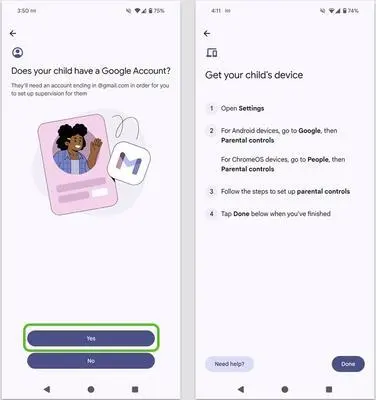
- Step 1. Install Google Family Link from Google Play or the App Store, then sign in with the parent's personal Google Account.
- Step 2. Select the child to supervise. If a younger child does not have an account, follow the prompts to create a supervised Google Account.
- Step 3. Confirm the parent role, family group, and country information shown during setup.
- Step 4. Keep Family Link open and move to the child's Android phone to finish connecting supervision.
Situation 2: Enable Supervision on the Child's Phone
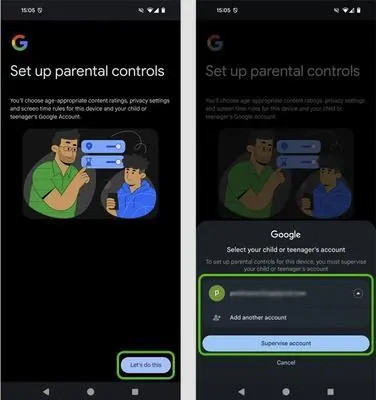
- Step 1. On the child's Android phone, open Settings > Google > All services > Kids & family > Parental controls. Menu wording can differ by Android version.
- Step 2. Start the setup and select the child's Google Account.
- Step 3. Let the child review the supervision information, then verify the setup with the parent's Google Account when prompted.
- Step 4. Review the initial content, app, and screen-time controls before applying them.
- Step 5. Return to the parent phone and confirm the device appears under Screen time, Controls, and Location.
When supervision is added to an existing Google Account, the child needs to participate in the setup. After connecting the device, test one app request, one time rule, one website restriction, and one location update before relying on the configuration.
Confirm that the child signed in to the device with the supervised account and that both devices are online. Seeing a child in the family group does not necessarily mean the child's phone has finished device supervision.
6 Family Link Settings Worth Adjusting
Connecting the account is only the beginning. Build rules around the child's school schedule, sleep, communication needs, and age instead of switching on every restriction at its strictest level.
1. Daily Limits, Downtime, and Bonus Time
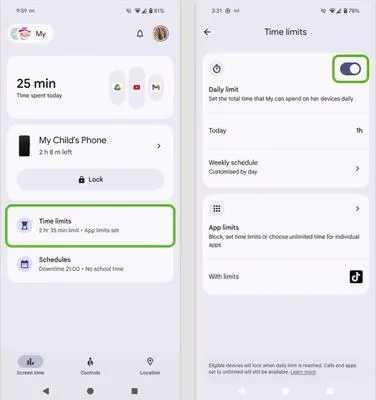
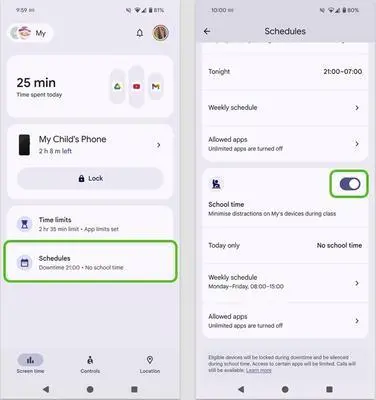
Open Screen time > Time limits to create a weekly daily-limit schedule, and use Schedules for Downtime. Bonus time handles exceptions without rewriting the normal routine. If you want to compare the controls available on other platforms, use this guide to set time limits on apps.
2. App Approval, Blocking, and Permissions
Family Link can approve eligible Google Play downloads, block or allow installed apps, apply individual app limits, and manage selected permissions such as camera, microphone, and location. A blocked app may take about five minutes—or until the device reconnects—to become unavailable. Some system apps cannot be blocked. For additional approaches, see how to block apps on Android.
3. Chrome, Google Search, YouTube, and Play Controls
Under Controls, parents can manage supported Chrome site restrictions, SafeSearch, Google Play content levels, and supervised YouTube experiences. These filters reduce exposure; they do not guarantee that every unsuitable page, video, or in-app browser will be classified correctly.
4. Device Location and Place Alerts
After location sharing is enabled on a supported child's device, Family Link can show its location and provide arrival or departure notifications for saved family places. The phone must be powered on, recently active, and connected through Wi-Fi or mobile data for location to update.
5. School Time and Unlimited Apps
On supported Android devices, School time can limit apps and silence notifications during a scheduled period. Parents can keep calling, transportation, learning, or emergency apps available as unlimited apps. Test the schedule before a school day so an essential app is not accidentally restricted.
6. Parent-Managed Contacts
On supported Android 14 or later devices, parents can add or approve contacts for certain calling and messaging apps. These restrictions do not govern every third-party communication service. WhatsApp, Instagram, Snapchat, and similar apps need their own safety settings and family rules.
What Google Family Link Cannot Do
Family Link is built primarily for account supervision, device rules, and Google-service controls. It is not a dashboard that reveals every conversation, screen, search, or action on a child's phone.
- App limits, approval, and blocking
- Daily limits, Downtime, and School time
- Supported Android device location
- Selected Google content filters
- Some account, privacy, and app permissions
- A live view of the child's screen
- Past Google Search or Chrome browsing history
- YouTube watch history
- Email, text, or social-message content
- Every activity inside third-party apps
Daily Limits Apply Per Device
If a child has both an Android phone and a Chromebook, a two-hour daily limit can provide two hours on each device rather than two hours shared across both. Multi-device families should review each device instead of treating the dashboard total as one universal allowance.
Purchase Approval Does Not Cover Every Transaction
Family Link purchase approval applies to purchases made through Google Play's billing system. Updates, previously approved apps, Family Library items, and transactions using other billing systems can behave differently.
Content Filters Can Miss or Misclassify Content
SafeSearch, Chrome restrictions, Play ratings, and supervised YouTube settings are useful safeguards, not perfect classifiers. Test school resources and the child's common apps after changing filters. If exposure becomes a repeated issue, our guide on what to do when a child watches inappropriate content focuses on both immediate safety and follow-up conversation.
A Stale Location Does Not Always Mean a Setting Was Disabled
A dead battery, weak connection, a device that has not been used recently, or a permission problem can stop location updates. Check the last-updated time and connection status before assuming the child deliberately changed a setting.
Reaching the Applicable Age Does Not Automatically End Everything
When a child reaches the applicable age to manage their own Google Account, Google notifies the family about updating the account. If no action is taken, existing supervision can continue. Rules and required parent approval vary by age and country, so use the transition as a reason to review boundaries together rather than relying on one universal birthday rule.
How VigilKids Simplifies Parental Monitoring
Family Link is well suited to free app approval, screen-time rules, Google content controls, and basic location tools. On an authorized and compatible device, VigilKids can add supported activity context when a family has a defined concern that Family Link's usage totals or controls do not answer.
| Capability | Google Family Link | VigilKids |
|---|---|---|
| Primary child device | ✅ Android / Chromebook | ✅ Android* |
| Cost model | ✅ Free | ⚠️ Demo + paid plans |
| Screen time and app controls | ✅ Supported | ✅ Supported* |
| Web activity | ⚠️ Google and Chrome controls | ✅ Supported history and blocking* |
| Screen and social context | ❌ Not provided | ✅ Supported activity* |
| Location tools | ✅ Location + place alerts | ✅ History + geofencing* |
For ordinary household rules, start with Family Link. Consider an additional service only when a specific concern—such as risky social contact, repeated late-night use, unsafe websites, or location safety—requires more context. Compare the best parental-control apps by device and family need before choosing.
VigilKids for Android
- Unified Activity Dashboard: View supported app, browsing, social, and device activity in one parent dashboard after connection and authorization.
- More Context Beyond Screen Time: Combine Android screen-time insights with supported activity details to better understand how time is spent.
- Location & Safety Insights: Check supported current and historical location data, with geofencing available when device support, permissions, and plan requirements are met.
- Complete Parental Control Comparison: Explore Android parental-control apps to decide whether Family Link alone is enough for your family.
Use VigilKids only on a device you own or are authorized to manage, and explain the purpose and scope in age-appropriate language. No service guarantees complete safety or universal access. Supported information depends on the device, operating system, permissions, connection, region, and plan, and a service cannot recover information that was never available or captured.
Google Family Link FAQs
Q1: Is Google Family Link free?
Yes. Google provides Family Link without a subscription for supervised Google Accounts and compatible devices. Its core features include screen-time limits, app management, selected Google content controls, and supported device location. Data, devices, and third-party services may still have their own costs.
Q2: Can a parent use an iPhone to manage a child's Android phone?
Yes. A parent can install Family Link on a compatible iPhone or iPad and remotely manage the child's supervised Android device. Google currently lists iOS 16 or later for the parent device, but families should confirm the current App Store requirement before setup.
Q3: Can Family Link fully control a child's iPhone?
No. A supervised child can sign in to some Google apps on an iPhone or iPad, but Family Link screen-time limits, device location, app activity, app blocking, app permissions, and Chrome restrictions do not provide full iPhone supervision. Use Apple Screen Time for device-level iPhone controls.
Q4: Can Family Link read texts, social messages, or browsing history?
Family Link does not directly read a child's emails or messages, and it does not provide past Chrome browsing history, Google Search history, or YouTube watch history. App-usage time shows how long an app was used; it does not reveal every action or conversation inside the app.
Q5: Does Family Link automatically stop when a child turns 13?
Not everywhere and not automatically in every case. Google uses the applicable age in the child's country and notifies the family when the account becomes eligible for an update. If no action is taken, supervision may continue. Review Google's current country and age rules for the account involved.
Conclusion
Google Family Link parental controls are most useful as a free first layer for Android and Chromebook families: confirm compatibility, connect both accounts, test the essential rules, and remember that time controls do not reveal every activity. When a defined safety concern requires additional supported context, VigilKids for Android can complement native controls on an authorized device, subject to device, permission, connection, and plan limits.
Sources
- Google For Families Help: Get started with Family Link
- Google For Families Help: Sign your child in on an iPhone or iPad
- Google Blog: New Family Link features for families (February 12, 2025)
Research checked on July 31, 2026. Family Link and VigilKids features may vary by version, region, device, operating system, account age, permissions, connection, and plan. Confirm the current interface before publication.
Hot Topics for Parental Control
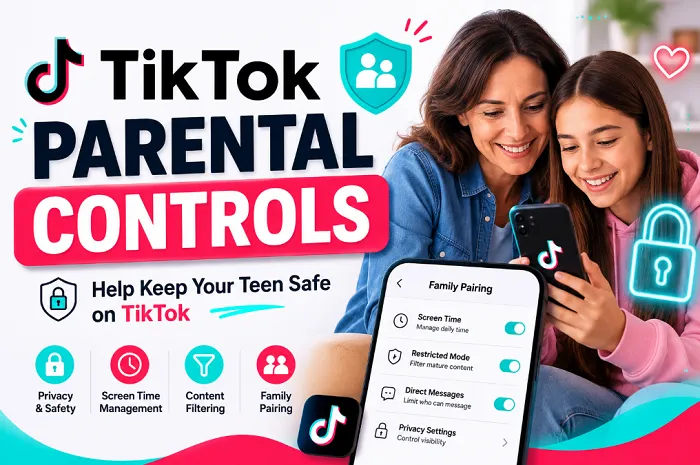
TikTok Parental Controls: A Complete Guide for Parents
Learn everything about TikTok parental controls, including Family Pairing, screen time limits, and privacy settings to help keep your kids safe online.
Snapchat Parental Controls: A Parent Guide for 2026
Learn how Snapchat parental controls work, what Family Center can and can’t do, and which settings parents should check to help keep teens safer online.
Instagram Parental Controls: The Complete Parent's Guide
Learn how to set up Instagram parental controls, manage Teen Accounts, and understand the monitoring gaps that many parents discover too late.