Before You Start
This guide will help you register, install, and connect VigilKids so you can start using the monitoring and safety features included in your plan.
Create the parent account you will use to access the VigilKids dashboard, then choose the plan that matches the Android features you need.
This part includes actions on both the parent device and the child’s Android device. The labels below show where to complete each action.
Log in to the VigilKids dashboard from your phone or computer.
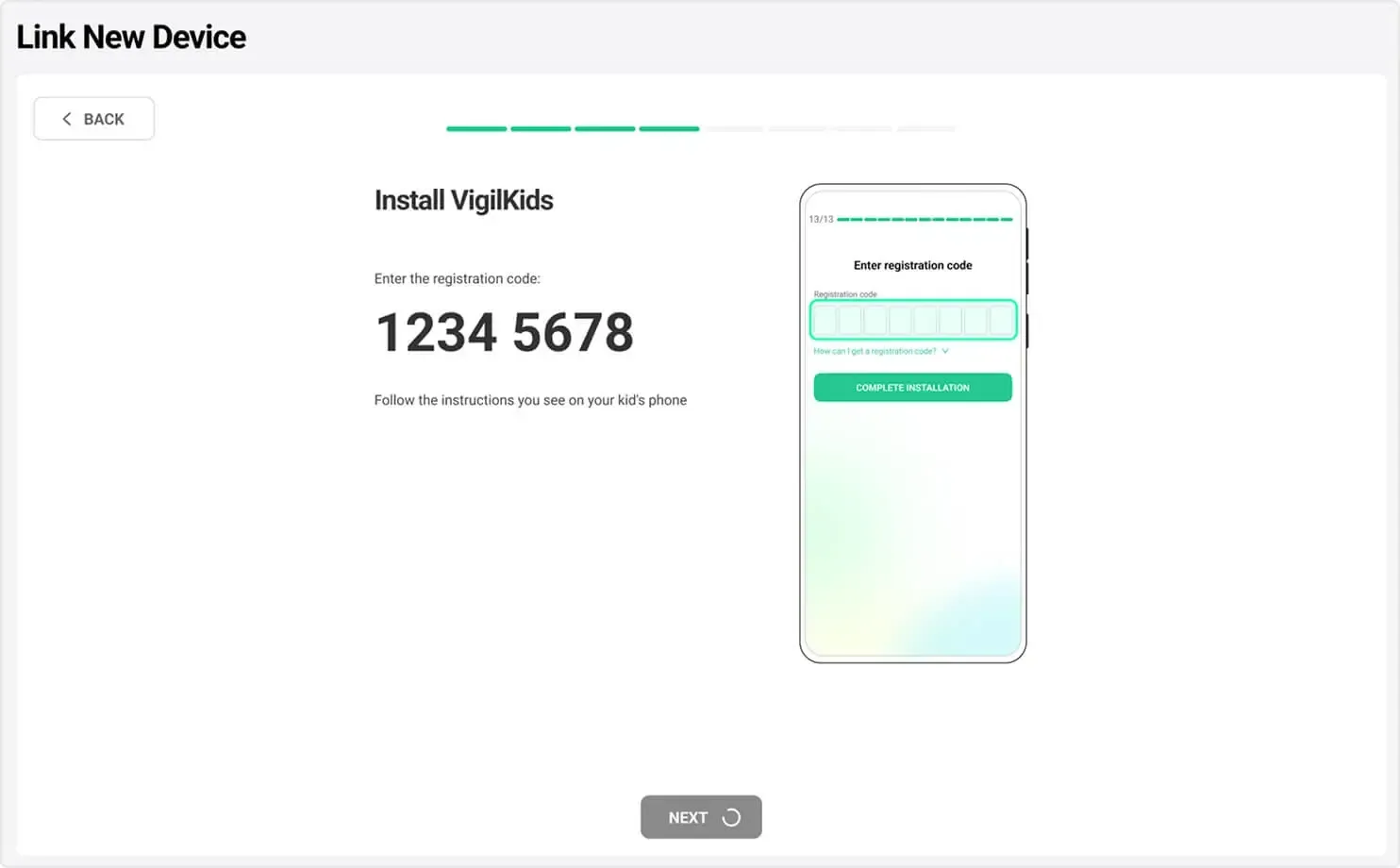
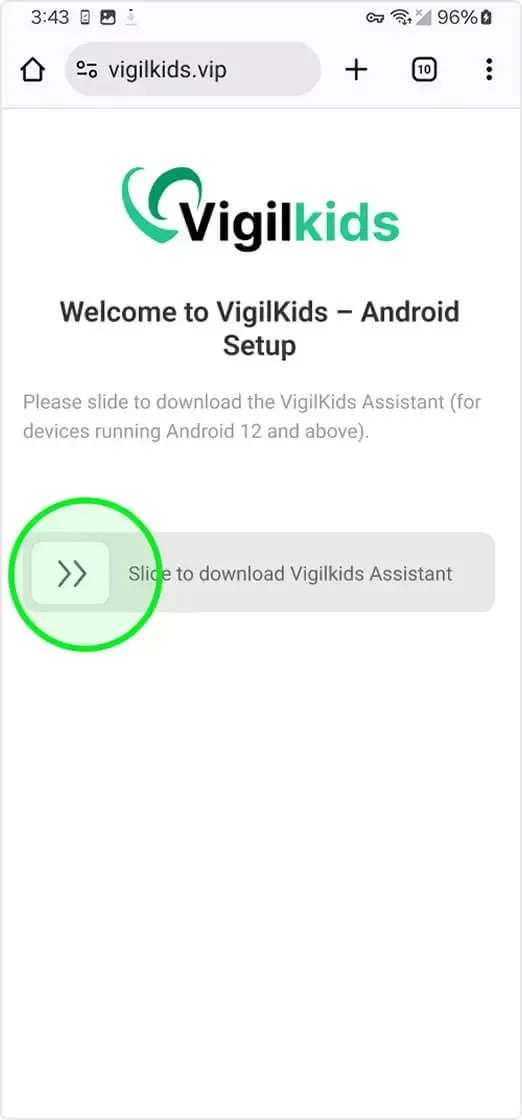
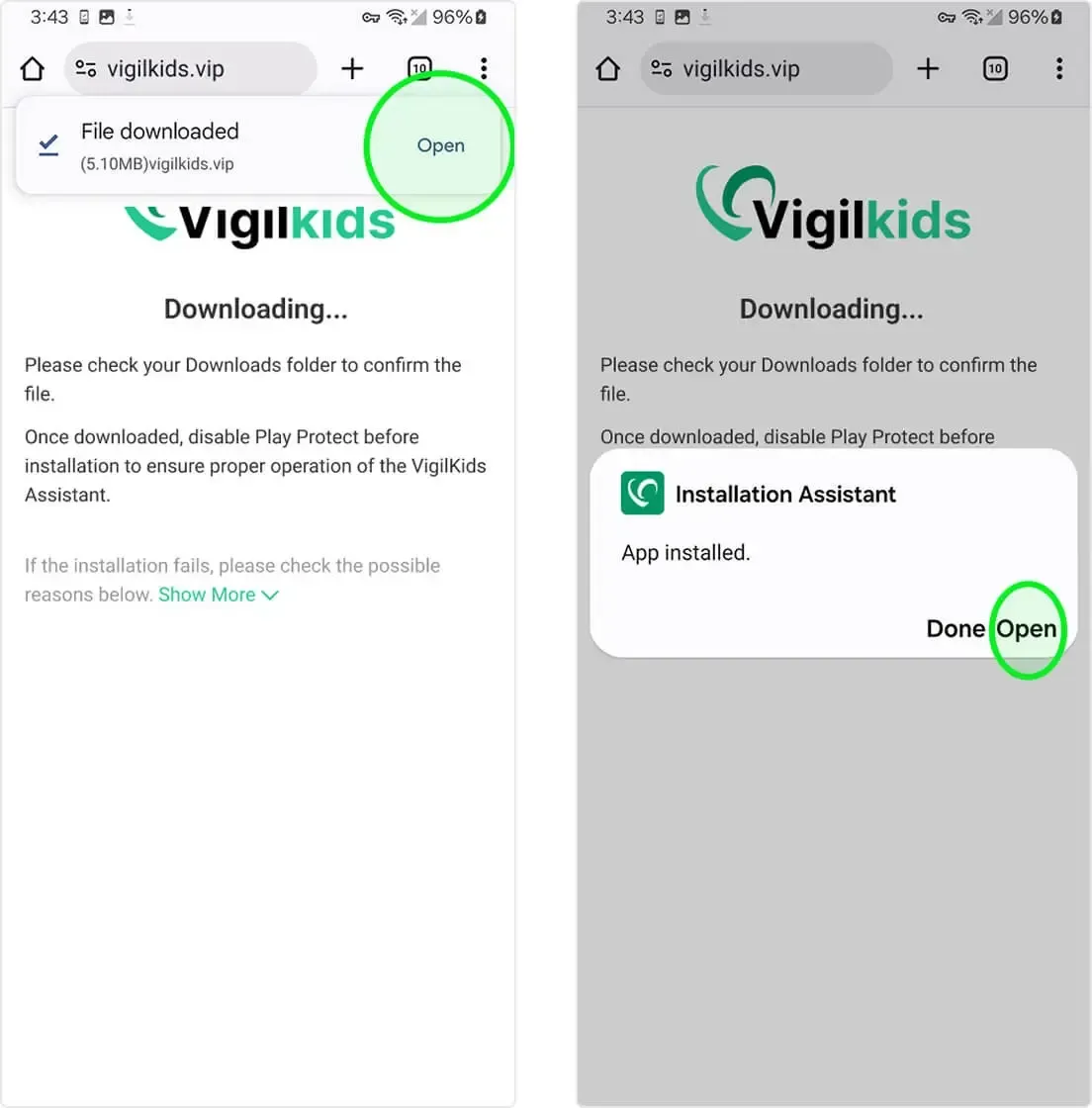
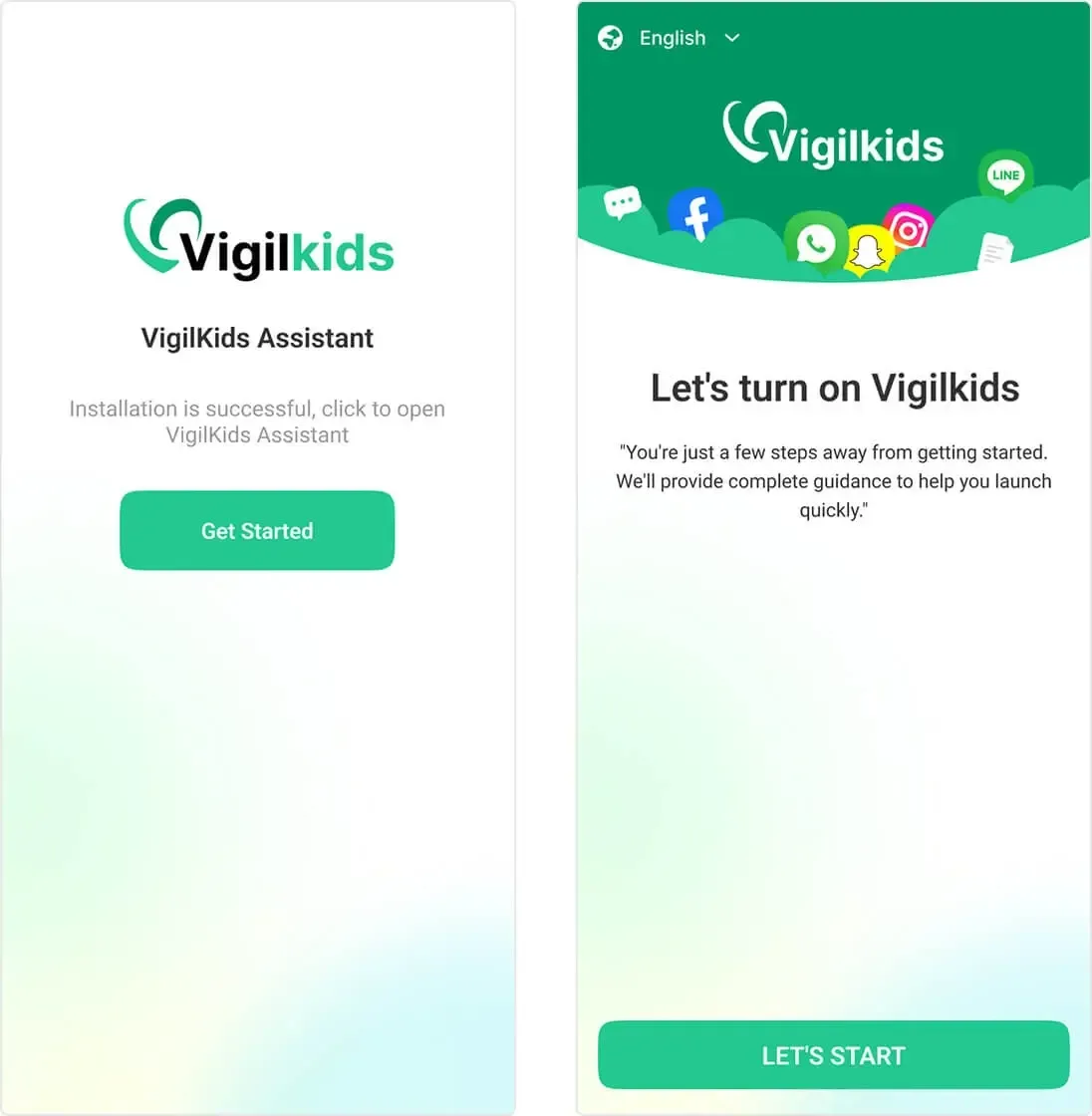
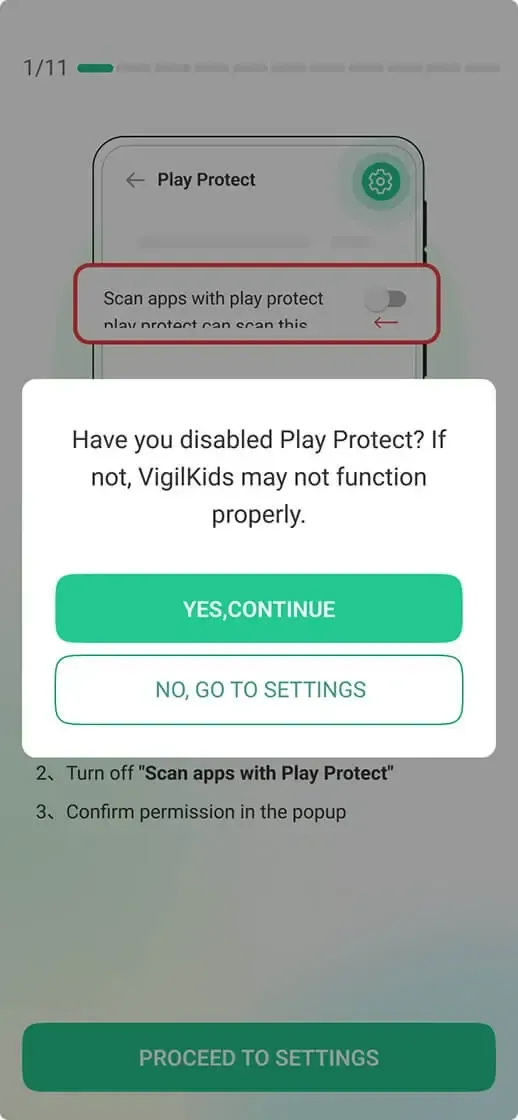
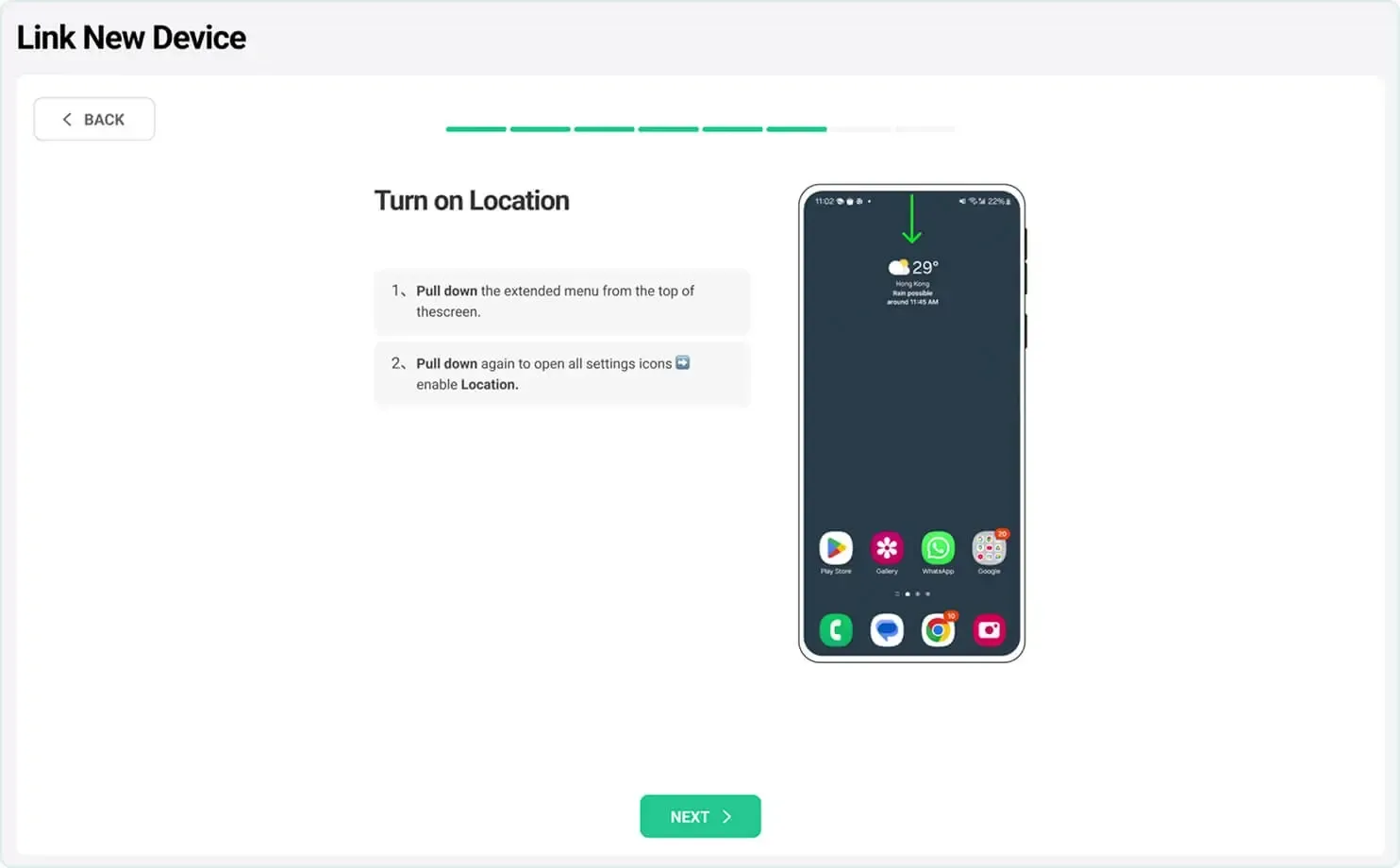
Use one-time physical access to complete installation, permissions, and pairing.


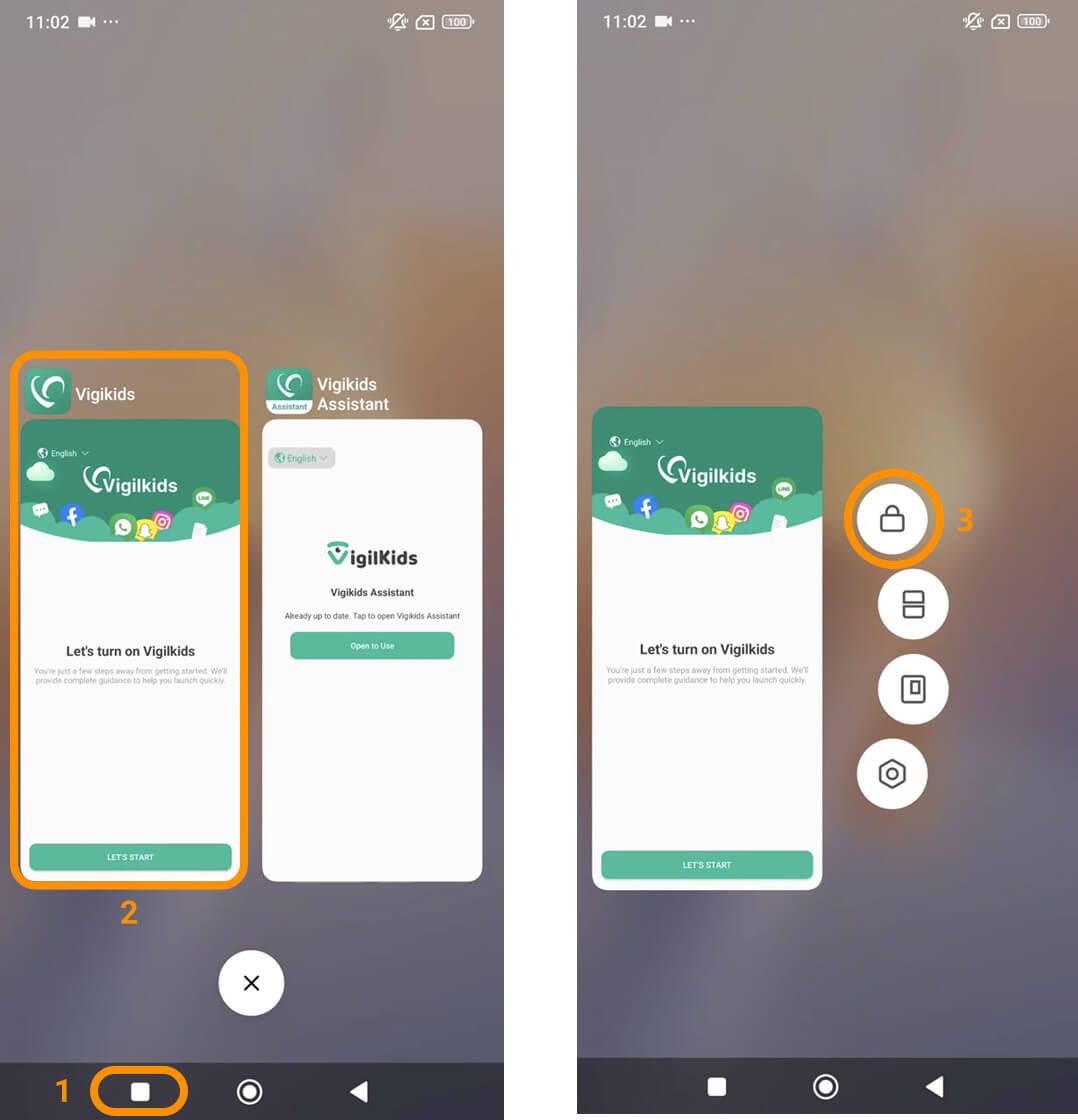
Xiaomi devices need an additional background setting. Other Android devices can skip this subsection.


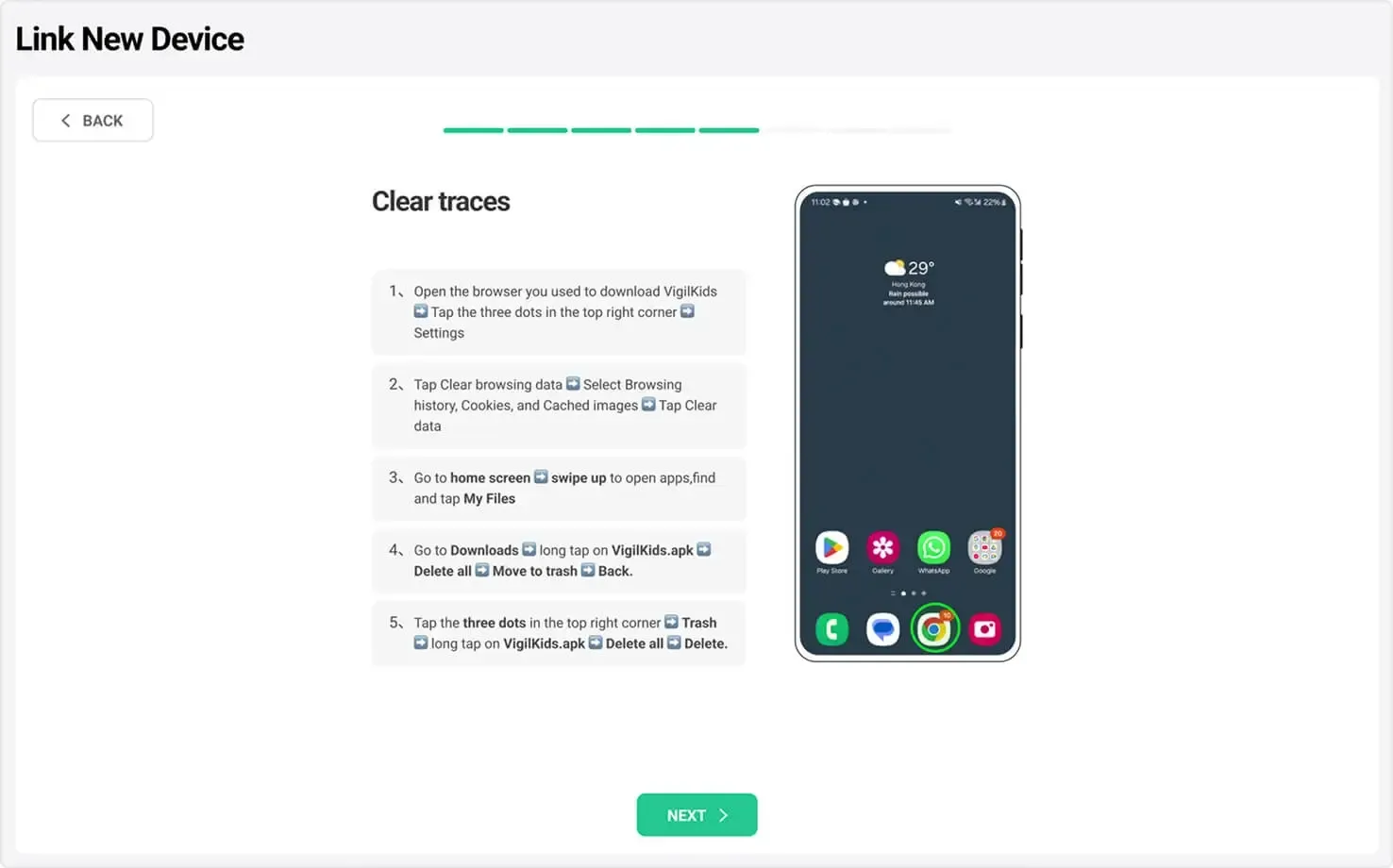
After setup, the original guide recommends removing the downloaded installer and its browser traces.


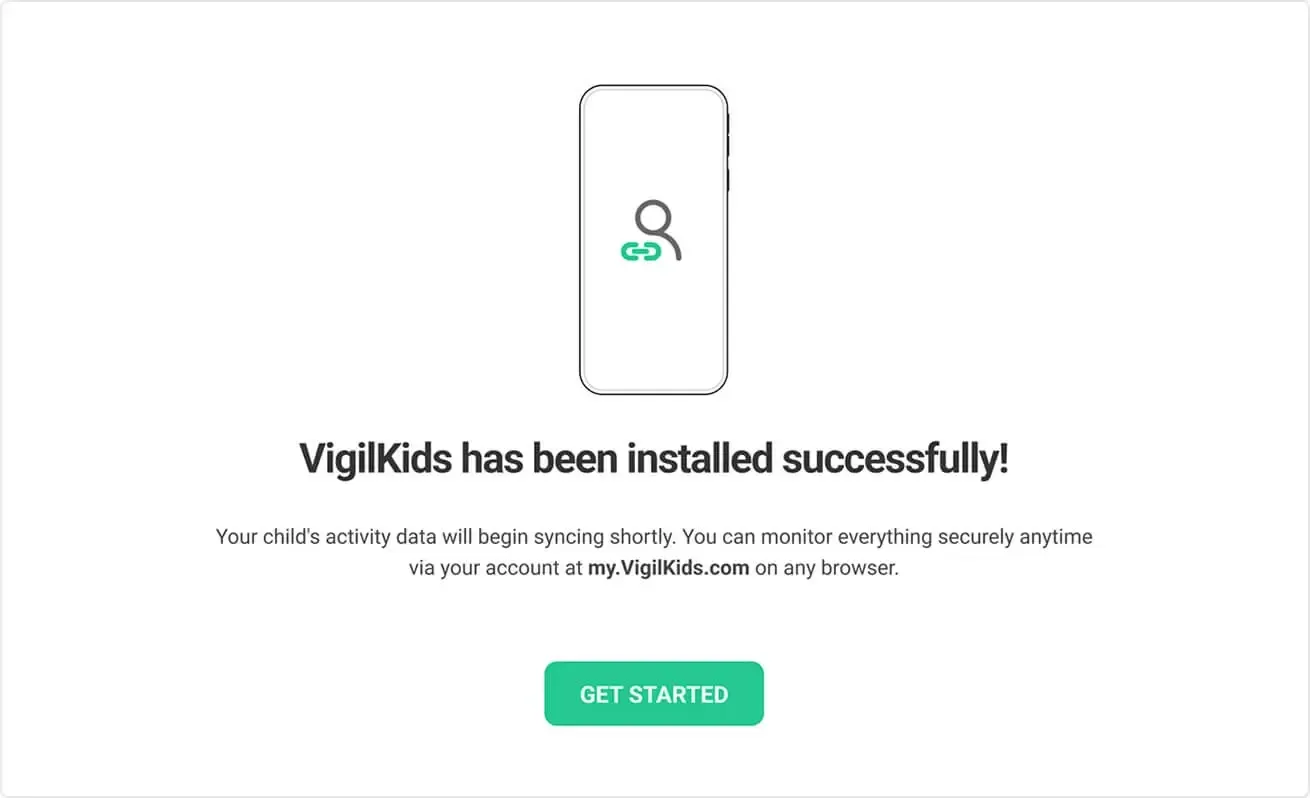
Once the Android device is connected, return to your VigilKids dashboard to begin monitoring remotely. Initial data may take a little time to sync.
Refresh vigilkids.vip, check the internet connection, and try again.
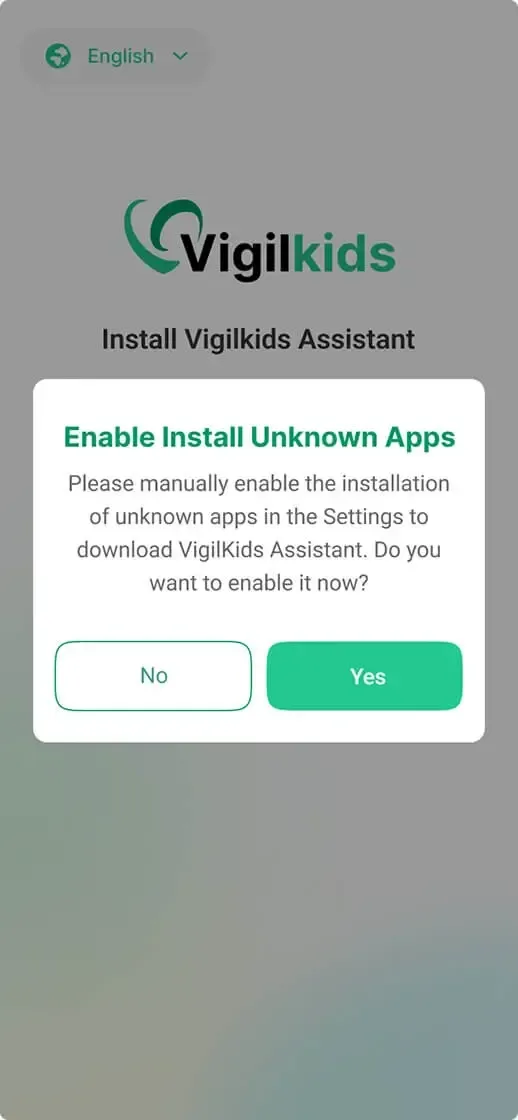
Open the installation source settings shown by Android and allow your browser to install the file.
Confirm the device is online, permissions are enabled, and VigilKids can run in the background.
Yes. Use your phone or computer to create the parent account and open the VigilKids dashboard. One-time access to the supervised Android device is still required for installation and permissions.
Create your VigilKids account, generate a pairing code, install VigilKids Assistant on the supervised Android device, grant the required permissions, and finish setup from the dashboard.
After the Android device is connected, open the dashboard and use the available app-management or website-blocking controls included in your plan.
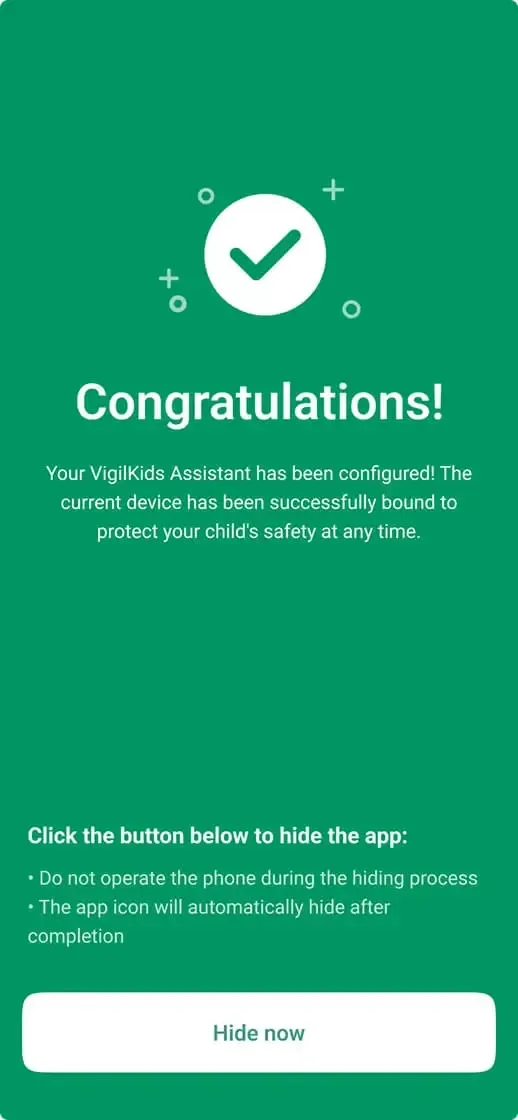
A connected device becomes active after you enter the pairing code and complete all required Android permissions. Return to the dashboard to confirm that data is syncing.
If the tablet uses a supported Android version, connect it as a new device and manage it remotely from the VigilKids web dashboard on your phone.
There is no single age for every family. Review your child’s maturity, local requirements, and family agreements, then reduce supervision gradually as trust and digital skills grow.
Still need help? Contact Support.
Start protecting your family with VigilKids in just a few steps.
Already a user? Open Dashboard
Send your question directly after reading the guide so our team can understand where you need help.