
If you've ever wondered how to screen record on Android, you're not alone. Whether you're creating tutorials, saving video calls, or troubleshooting apps, screen recording has become an essential feature. Many users also ask, how do you screen capture on an Android or how do I record on my phone screen—and the good news is, it's easier than ever.
In this guide, you'll learn multiple ways to record your screen, from built-in tools to advanced apps, plus a smarter way to monitor screen activity using parental control solutions like Vigilkids.
Method 1: Use the Built-in Screen Recorder (Best & Easiest)
If you are using a device running Android 11 or newer, you have a powerful screen recording tool built directly into your operating system. You don't need to download anything extra to get started.
Key Features:
- Record internal or microphone audio
- Show touch gestures
- No extra apps required
- Smooth performance
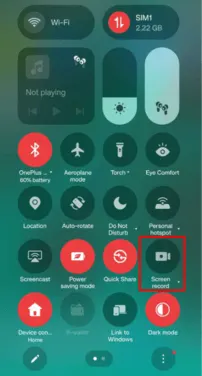
Steps to Screen Record on Android:
- Step 1. Swipe down from the top of your screen.
- Step 2. Open the Quick Settings panel.
- Step 3. Find and tap Screen Recorder.
- Step 4. Choose options (audio, touches, etc.).
- Step 5. Tap Start Recording.
- Step 6. Stop recording from the notification bar.
No installation needed – already available on most modern Android devices.
Easy to use – ideal if you're asking how do I record on my phone screen quickly.
Safe & secure – no third-party permissions required.
Supports audio recording (internal or microphone).
Smooth performance optimized for your device.
Limited features – fewer editing or customization options.
Not available on older Android versions.
Basic controls only (no overlays, advanced settings).
This is the most direct answer to how do you record on an Android phone. The files are usually saved directly to your "Movies" or "Screen Recordings" folder in Google Photos.
Method 2: Use Android Game Dashboard (For Gamers)
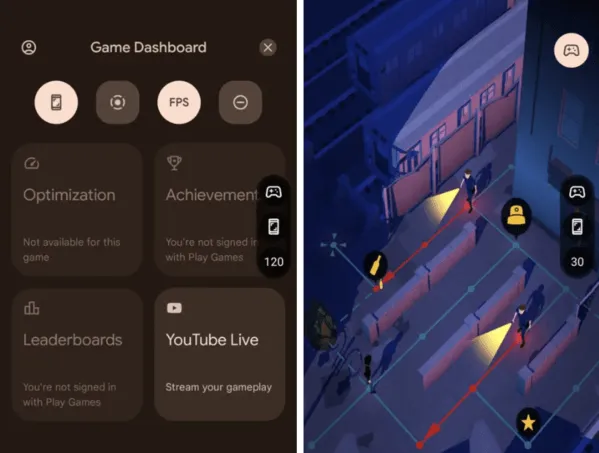
If you're into mobile gaming, Android offers a built-in Game Dashboard on some devices.
How it works:
- Automatically activates when you open a game.
- Provides screen recording tools optimized for performance.
- Reduces lag and interruptions.
This is perfect for recording gameplay videos without affecting performance.
Optimized for gaming performance.
Quick access during gameplay.
Built-in on supported devices.
Good for recording high-action content.
Limited to games only.
Not available on all devices.
Fewer customization options compared to apps.
Method 3: Use Third-Party Screen Recorder Apps
If your phone doesn't support built-in recording—or you want advanced features—third-party apps are a great option.
Popular Screen Recorder Apps:
- AZ Screen Recorder
- Mobizen Screen Recorder
- ADV Screen Recorder
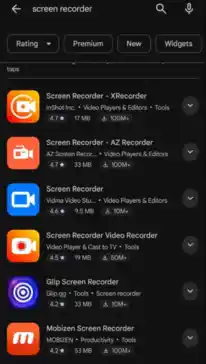
These apps offer:
HD recording (1080p/60fps), Video editing tools, Facecam recording, and Live streaming options.
More customization
Editing features included
Works on older devices
May include ads or watermarks
Requires permissions (privacy concern)
If you're asking how do you screen capture on an Android with more control, these apps are ideal.
Method 4: Record Android Screen Using a Computer
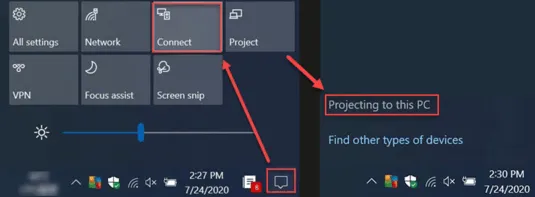
For advanced users, you can record your Android screen using tools like Scrcpy (free, open-source) or screen mirroring software.
Professional-level quality recordings.
No lag on phone (processing handled by PC).
Great for tutorials, demos, and presentations.
More storage and editing flexibility.
Requires a computer and setup.
Not beginner-friendly.
Needs USB debugging or additional tools.
Less convenient for quick recordings.
A Smarter Way: Monitor Screen Activity with Vigilkids
Screen recording is great—but what if you want to monitor activity in real-time, especially for children? That's where Vigilkids comes in. Unlike standard screen recorders that you have to trigger manually, Vigilkids is a comprehensive parental control app designed for oversight and protection.
What is Vigilkids?
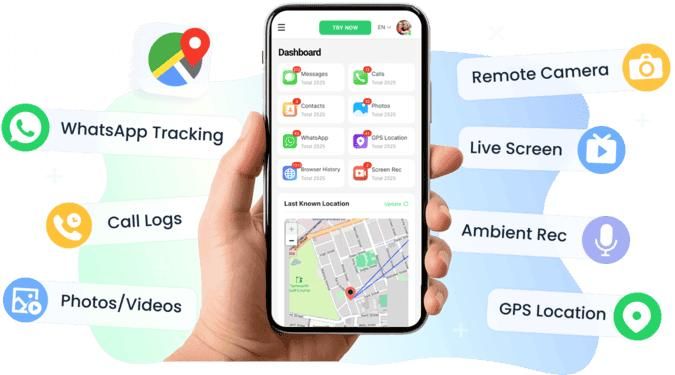
VigilKids is a powerful parental control app designed to help parents monitor and manage their child's phone usage safely and effectively.
Key Features:
- Live Screen Monitoring: View your child's phone screen activity in real time.
- Screen Recording History: Check past screen recordings and app usage.
- App & Website Control: See which apps your child spends the most time on. Block dangerous or adult-themed websites before they are ever viewed.
- Location Tracking: Know where your child is at any time.
- Real-Time Alerts: Receive notifications if specific keywords (related to bullying or self-harm) are detected on the screen.
Tracks activity automatically
Real-time screen monitoring (no manual recording needed)
Remote access from anywhere
Parental control features included
Requires installation and setup
Not designed for content creation or video sharing
May require subscription for full features
Should be used responsibly (privacy considerations)
Quick Comparison Table
| Method | Ease of Use | Features | Best For | Limitations |
|---|---|---|---|---|
| Built-in Recorder | ⭐⭐⭐⭐⭐ | ⭐⭐⭐ | Everyday use | Basic only |
| Game Dashboard | ⭐⭐⭐⭐ | ⭐⭐⭐ | Gaming | Limited scope |
| Third-party Apps | ⭐⭐⭐ | ⭐⭐⭐⭐⭐ | Advanced users | Ads/privacy |
| PC Recording | ⭐⭐ | ⭐⭐⭐⭐⭐ | Professional use | Complex setup |
| Vigilkids | ⭐⭐⭐⭐ | ⭐⭐⭐⭐⭐ | Monitoring & safety | Need installation |
Common Issues & Fixes
1. Screen Recorder Not Showing
Try editing your Quick Settings to add the icon, or check if your Android version needs an update.
2. No Audio in Recording
Ensure you have enabled microphone or system audio in the settings and check app permissions.
3. Black Screen While Recording
Some apps (like banking or streaming services) block recording due to DRM protection.
Final Thoughts
Learning how to screen record on Android is a simple process that opens up a world of communication possibilities. Whether you use the built-in Android 11+ tool, manufacturer-specific software, or third-party apps, capturing your digital life has never been easier.
Furthermore, for those who need to capture screen activity for the sake of child safety, tools like VigilKids provide an automated, secure, and comprehensive way to monitor mobile usage.