
Snapchat does not show a simple "Active now" label for every account. To tell if someone is active on Snapchat, you need to read indirect clues such as the green dot, Snap Score changes, Snap Map timestamps, chat status, and Story activity.
The important part is knowing what each sign can actually prove. Some signals show real activity, while others only suggest that someone used Snapchat recently.

Does Snapchat Show Online Status or Last Seen?
Not directly. Snapchat does not have a universal last-seen timestamp like WhatsApp last seen, and it does not always show whether someone is online right now.
The closest built-in clue is the Activity Indicator, often shown as the green dot on Snapchat. Even then, the green dot means recent activity, not guaranteed real-time activity. For a clearer answer, you need to compare more than one signal.
5 Ways to Tell If Someone Is Active on Snapchat
If you are trying to figure out how to know if someone is online on Snapchat, start with these five signs. None of them is perfect alone, but together they give a more accurate picture.
Check the Green Dot on Snapchat
The green dot is Snapchat's Activity Indicator. If you see it near someone's Bitmoji or profile, it usually means the person has used Snapchat recently.
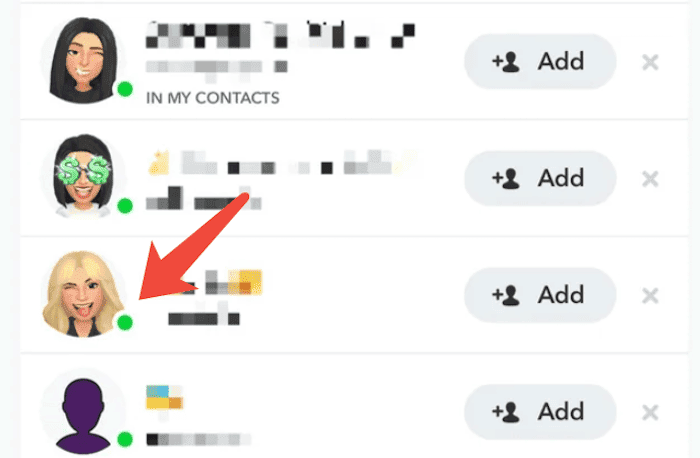
- Step 1. Open Snapchat and go to the Chat or Friends screen.
- Step 2. Tap the person's Bitmoji or profile.
- Step 3. Look for a small green dot near the profile area.
What it tells you: recent Snapchat activity. It does not prove the person is looking at the app this second.
Watch Snap Score Changes for Snapchat Activity
Snap Score can change when someone sends or receives Snaps or uses Snapchat features. If you can see a friend's Snap Score and it increases while you are checking, that is a stronger sign of recent active use.
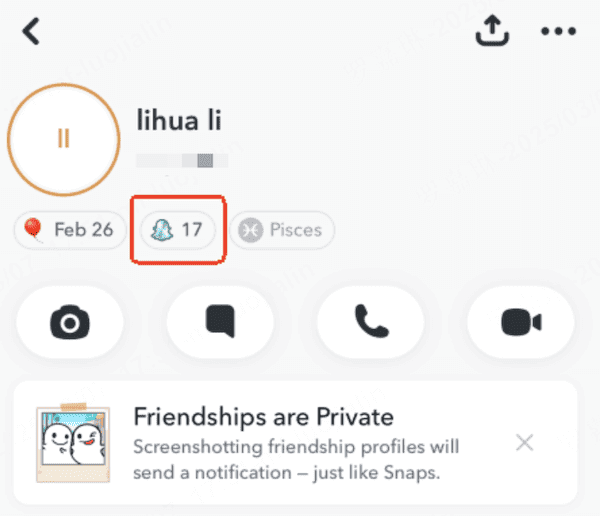
- Step 1. Open the person's Snapchat profile.
- Step 2. Note the Snap Score shown under their name.
- Step 3. Wait a few minutes and check the score again.
- Step 4. If the number increased, they likely used Snapchat during that window.
What it tells you: active Snapchat use during the time you watched. It does not reveal exactly what they did, and Snapchat does not publish the full scoring formula.
Use Snap Map to See Last Active Time
Snap Map can show a friend's Bitmoji and a time label such as "Just now" or "Seen 20 minutes ago" if that person shares location with you. This is useful when you want to know how to see if someone is online on Snapchat, but it depends heavily on their privacy settings.
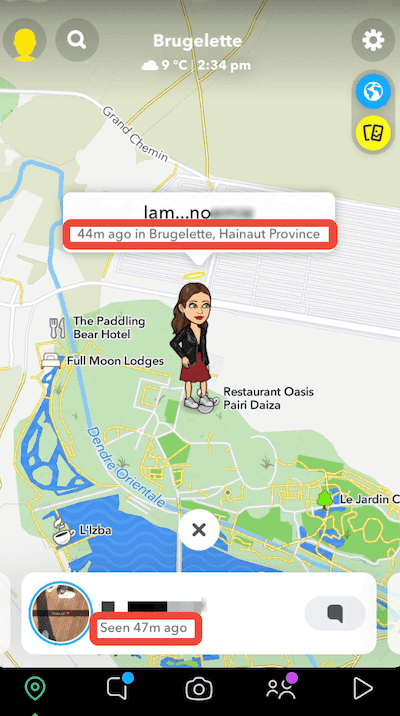
- Step 1. Open Snapchat and go to Snap Map.
- Step 2. Find the person's Bitmoji on the map.
- Step 3. Read the time label next to their Bitmoji.
What it tells you: when Snapchat last updated that location signal. If the person uses Ghost Mode or limits location sharing, Snap Map may show nothing. For more on location privacy, see this guide on how to pause Snapchat location.
Check Snapchat Chat Status
When you send a Snap or chat message, Snapchat may show statuses such as Delivered or Opened. If a message changes to Opened with a fresh timestamp, the person was active enough to open that conversation.
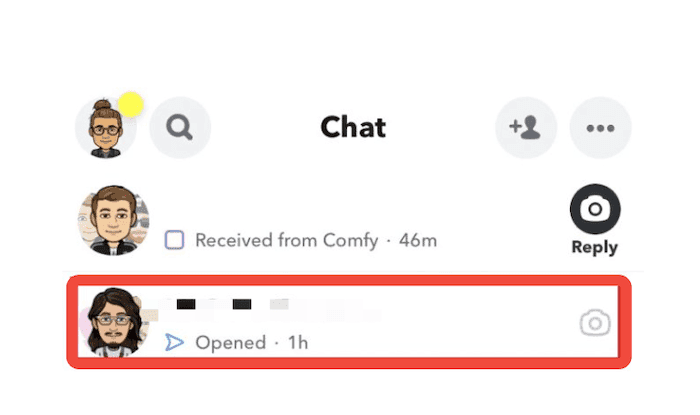
- Step 1. Open the Chat tab in Snapchat.
- Step 2. Find your conversation with the person.
- Step 3. Check whether the latest Snap or chat says Delivered, Received, or Opened.
- Step 4. If their Bitmoji appears inside the chat screen, they may be viewing the same conversation.
What it tells you: direct activity in your conversation. It does not prove they are checking other chats or looking at your profile.
Watch Snapchat Story Activity
Story activity is another practical signal. If someone posts a new Story, they were recently active. If they view your Story shortly after you post it, they were likely using Snapchat around that time.
- Step 1. Open Snapchat and check the person's Story circle.
- Step 2. Look at the Story timestamp if a new post appears.
- Step 3. Check your own Story viewer list if you are trying to confirm recent activity.
What it tells you: recent posting or viewing behavior. Keep in mind that Story viewing is visible to the person who posted the Story.
What Snapchat Online Status Signs Really Mean
Here is the simple way to read Snapchat online status signals without overthinking them:
- Green dot: the person was active recently, but not necessarily right now.
- Snap Score increase: the person likely used Snapchat during your observation window.
- Snap Map timestamp: the person opened Snapchat recently if location sharing is enabled.
- Opened chat: the person opened your Snap or message at that time.
- Story post or quick view: the person was active around the time of the post or view.
The safest answer is this: one clue is only a clue. Two or three matching clues are much stronger. For example, a Snap Score increase plus a new Story post is more convincing than a green dot by itself.
Can You See If Someone Is Online on Snapchat Without Being Friends?
Only in limited ways. If you are not friends with someone, you usually cannot see their Snap Score, private Stories, detailed chat status, or Snap Map location. Snapchat is designed to make private activity hard to inspect from outside the friendship connection.
- Public Stories: a public post can show recent activity if the account shares one.
- Search and profile clues: public profile updates can help, but they are weak signals.
- Third-party "online checker" sites: avoid them. They usually cannot access real Snapchat online status and may collect your data.
If someone removed you, blocked you, turned off Activity Indicator, or uses Ghost Mode, the built-in clues may disappear. That does not mean Snapchat is broken. It means the privacy settings are doing their job.
How Parents Can Check Snapchat Activity with VigilKids
For casual curiosity, Snapchat's built-in clues are enough. For parents who need ongoing visibility on a child's Android device, guessing from a green dot or Snap Score is not reliable enough.
VigilKids helps parents review Snapchat activity in a broader safety context on a parent-managed device with appropriate permission. Instead of relying on one app clue, parents can look at screen activity, app usage, location context, and alerts together.

VigilKids for Snapchat Safety
- Review Snapchat usage patterns from the parent dashboard
- Check screen activity and app behavior for better context
- Combine Snapchat signals with location and other social app activity
- Set up alerts for risky patterns instead of checking manually all day
How parents can use VigilKids:
- Step 1. Create a VigilKids account and choose the child's Android device for setup.
- Step 2. Install and configure the app on the parent-managed device with the required permissions.
- Step 3. Open the dashboard to review Snapchat activity, screen records, location context, and app usage trends.
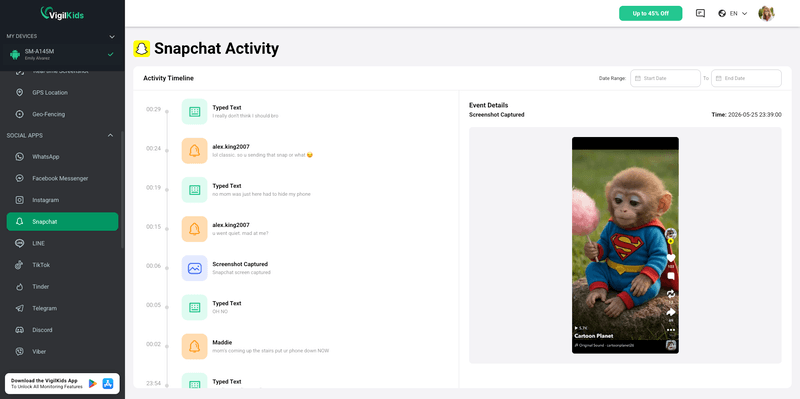
If your goal is broader Snapchat safety, you may also want to review whether Snapchat is safe for kids and how Snapchat Family Center works.
FAQs About How to Know If Someone Is Online on Snapchat
Q1: Can you tell if someone is active on Snapchat?
Yes, but not from one perfect online label. You can check the green dot, Snap Score changes, Snap Map timestamps, chat Opened status, and Story activity. These signals show recent activity, but some depend on privacy settings and friendship status.
Q2: How do you know if someone is online on Snapchat right now?
The strongest real-time clues are a fresh chat Opened status, a visible Bitmoji inside the chat, a Snap Score increase during a short window, or a Snap Map label that says "Just now." A green dot alone is weaker because it can mean recent activity, not live activity.
Q3: What does the green dot mean on Snapchat?
The green dot is Snapchat's Activity Indicator. It generally means the person has used Snapchat recently. It does not prove they are online at the exact moment you see the dot.
Q4: Can you see when someone was last active on Snapchat?
Sometimes. Snap Map may show a recent time label if the person shares location with you. Snapchat does not provide a universal last-seen timestamp for every user.
Q5: Why can't I see if someone is online on Snapchat?
Common reasons include Activity Indicator being off, Ghost Mode being enabled, location sharing being limited, not being friends, or the person removing or blocking you. Snapchat privacy settings can hide most online-status clues.
Q6: Can parents monitor Snapchat activity more reliably?
Parents should not rely only on Snapchat's green dot or Snap Map. On a parent-managed device, a parental monitoring tool such as VigilKids can provide broader context through app usage, screen activity, alerts, and location information.
Conclusion
The best way to tell if someone is active on Snapchat is to compare multiple signals: the green dot, Snap Score changes, Snap Map timestamps, chat status, and Story activity. The green dot answers "recently active," while chat status, Snap Score movement, and Snap Map updates can give stronger real-time clues.
For parents, the better question is not only whether a child is active on Snapchat, but what kind of activity is happening and whether it looks safe. That is where VigilKids can provide more useful context than Snapchat's built-in status clues alone.
Related Topics

Best Alternatives to Snap | Apps Like Snapchat in 2026
Looking for alternatives to Snap? Discover the best apps like Snapchat and apps similar to Snapchat for private chats, filters, and messaging.
8 Best Snapchat Viewers to View Stories Anonymously in 2026
Discover the top 10 anonymous Snapchat story viewers in 2026 and learn how to view Snapchat stories anonymously.

How to open a snap without them knowing 2025: The ultimate guide
Want to know how to open a snap without them knowing? Learn tested 2025 methods with Airplane Mode, Peek, and notifications, risks, and safer parental options with VigilKids.