
You open Snap Map and notice something strange — your Bitmoji is sitting at a location you left hours ago, or a friend keeps showing up in the same spot no matter where they go. That's when most people start asking: how to pause Snapchat location without completely disappearing from the map.
Short answer: Snapchat has no dedicated pause button. But there are four methods that actually work in 2026 — and they behave very differently on your friends' maps. Some hide your Bitmoji entirely. Others freeze your dot in place so it looks like you're still there. Some slow updates so gradually that nobody notices at all. Below, we compare every method side by side, walk through the steps, and explain what parents should know when a child's dot suddenly stops moving or vanishes.
4 Ways to Pause Your Snapchat Location
There isn't just one way to pause Snapchat location — and each method leaves a different footprint on your friends' maps. Use this table to pick the right option for your situation before jumping to the steps.
| Method | Location Hidden? | Friends Notice? | Best For | Easy to Use? |
|---|---|---|---|---|
| Ghost Mode | Yes — Bitmoji disappears | Usually yes | Full invisibility, official method | Easy |
| Revoke Location Permission | Partially — dot stays, frozen | Rarely | Freeze location without Ghost Mode | Easy |
| Background Refresh Off | Partially — updates slow | Rarely | Gradual slowdown, no visible change | Medium |
| Airplane Mode | Temporarily — dot freezes | Sometimes | Quick short-term freeze | Medium |
Enable Ghost Mode (The Official Method)
Ghost Mode is Snapchat's built-in Snap Map privacy setting. When active, your Bitmoji is removed from the map completely — nobody can see where you are, location updates stop, and your dot disappears entirely. This is the most reliable way to hide your Snapchat location without it updating, though it's also the least discreet.
Steps to enable Ghost Mode:
- Open Snapchat and tap the Map icon at the bottom of the screen
- Tap the Settings gear in the top-right corner of the map
- Toggle Ghost Mode on
- Choose a duration: 3 Hours, 24 Hours, or Until Turned Off
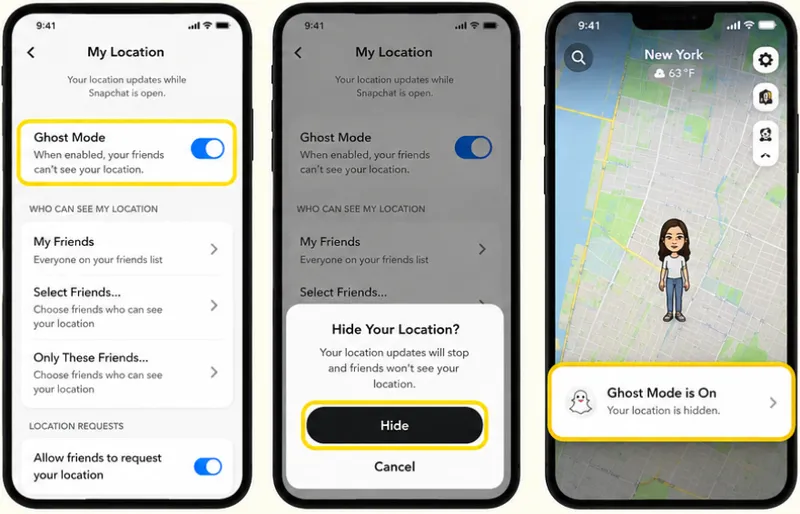
After the selected period expires, Ghost Mode disables automatically and your location becomes visible again. For a full walkthrough with screenshots, see our guide on how to turn on Ghost Mode on Snapchat.
Revoke Location Permission (Freeze at Last Spot — No Ghost Mode Needed)
This is the most effective way to pause Snapchat location without Ghost Mode and without your Bitmoji disappearing. By cutting off Snapchat's access to your phone's GPS, your dot stays on the map — it just stops moving. Friends see your location frozen at whatever position you were in when you revoked the permission, which is far less conspicuous than a sudden vanishing act.
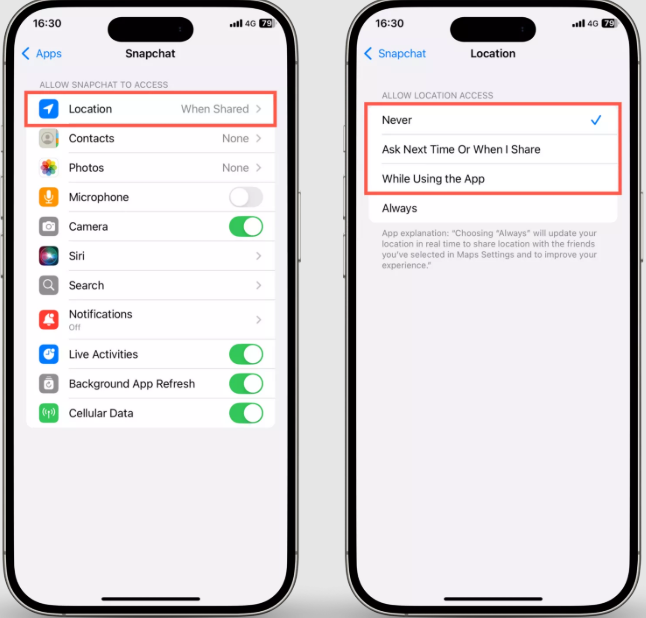
On iPhone:
- Go to Settings → Privacy & Security → Location Services
- Tap Snapchat and set it to Never
On Android:
- Go to Settings → Apps → Snapchat → Permissions → Location
- Select Deny
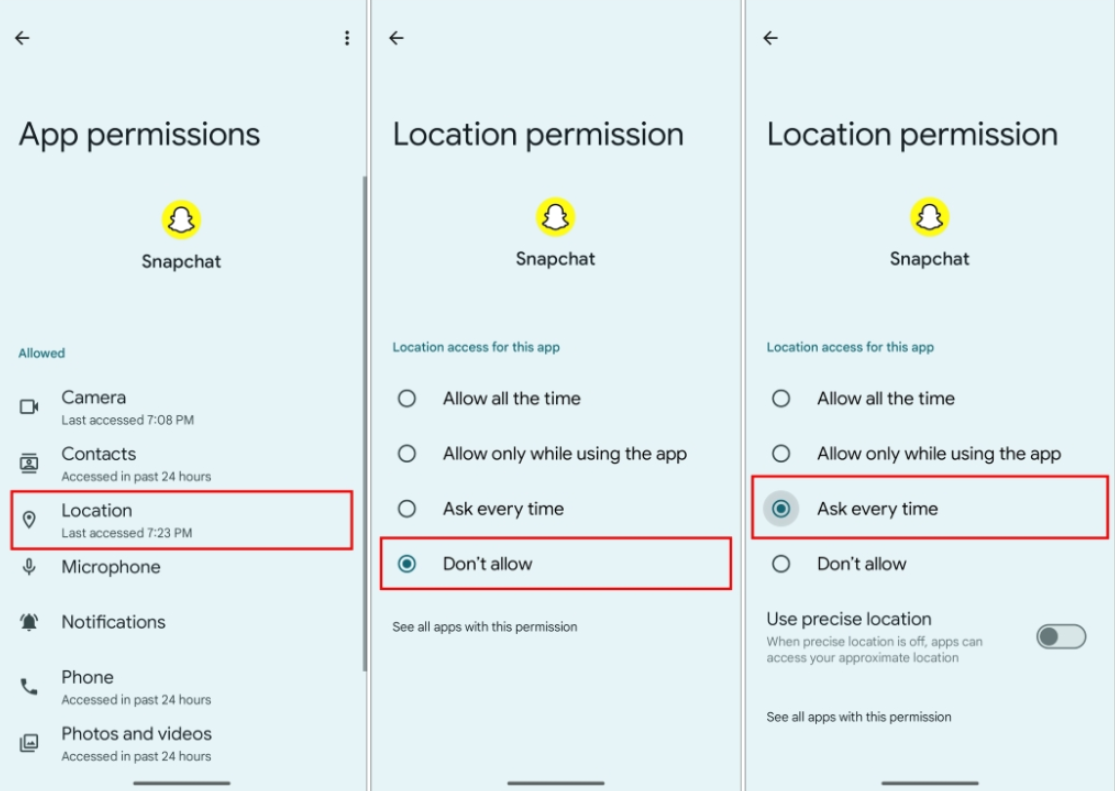
Your Bitmoji stays visible at your last known position until you re-enable the permission.
 Note
Note
Your dot will fade from the map entirely after roughly 8 hours if Snapchat can't update it, so this works best for shorter windows of privacy.
Turn Off Background App Refresh (Slow Updates Gradually)
Snapchat updates your location primarily when the app is open or refreshing in the background. Disabling background refresh slows how often your position pushes to Snap Map — reducing update frequency while leaving your Bitmoji exactly where it is, with no visible change for friends.
On iPhone:
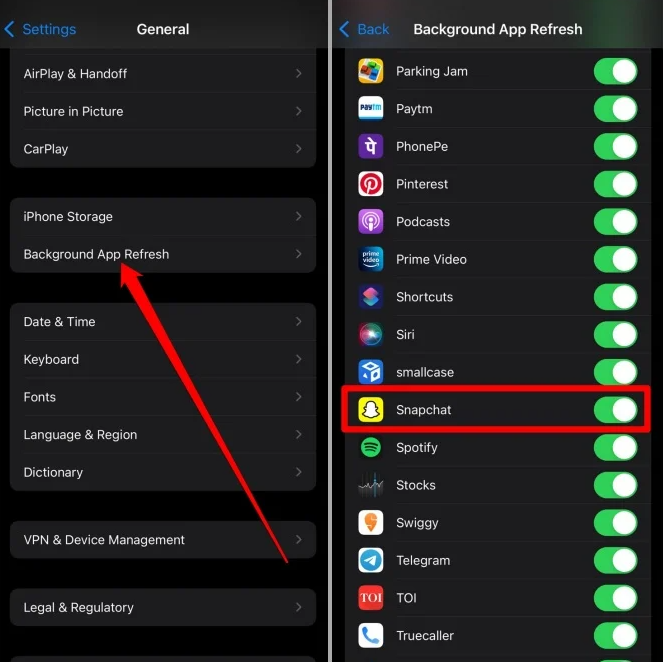
- Go to Settings → General → Background App Refresh
- Find Snapchat and toggle it off
On Android:
- Go to Settings → Apps → Snapchat → Battery
- Set to Restricted
The downside is consistency: if you open the Snapchat app, it may still push a fresh location update regardless of this setting.
Use Airplane Mode (Short-Term Freeze)
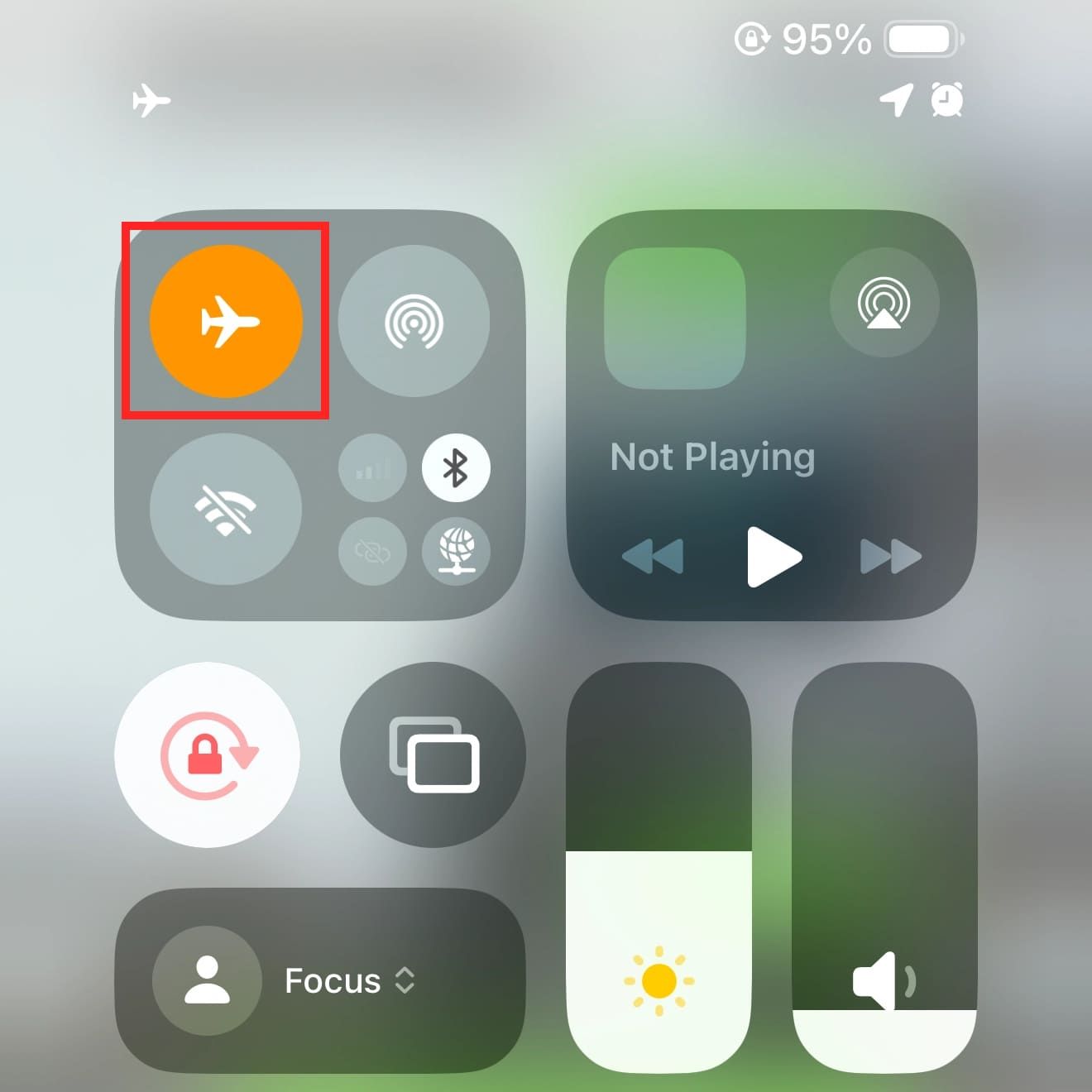
Enabling Airplane Mode cuts all network connections, temporarily preventing Snapchat from sending your location to Snap Map. Your dot stays frozen at your last position while Airplane Mode is active.
- Enable Airplane Mode from your Control Center or quick settings panel
- Open Snapchat — your location will not update while offline
- Close Snapchat completely before disabling Airplane Mode — otherwise your real location pushes through the moment you reconnect
This works as a quick workaround but requires the right sequence every time, making it impractical for anything beyond a few minutes of privacy.
Does Snapchat Update Your Location When the App Is Closed?
This is one of the most common follow-up questions after pausing location — and the answer depends on how your phone is configured.
| Scenario | Does Location Update? | What Friends See |
|---|---|---|
| App open and active | Yes — updates in real time | Your live position on Snap Map |
| App closed, background refresh ON | Occasionally — depends on device | Roughly accurate recent location |
| App closed, background refresh OFF | No | Last position from when app was open |
| Live Location enabled (Snapchat+) | Yes — even when closed | Continuous real-time updates |
| Ghost Mode on | No — location hidden entirely | Bitmoji not visible on map |
In most cases, Snapchat only updates your location when you actively open the app. Close it, and your dot stays frozen at your last known spot. How long does Snapchat location stay active? Your Bitmoji remains visible on the map for up to 8 hours after the app was last opened — after which it fades from other users' maps entirely. This means a frozen dot doesn't always mean someone is still at that location; they may have simply closed Snapchat hours ago.
The exception is Snapchat+ Live Location, which pushes real-time updates even when the app is closed. If your child has a paid subscription, our guide on how to tell if someone has Snapchat Plus explains what that adds to their location capabilities.
How Parents Can See Location After Snapchat Is Paused
When a child turns on Ghost Mode, revokes location permissions, or simply stops opening Snapchat, Snap Map can no longer tell you where they actually are. That's frustrating for parents who rely on location visibility for safety, especially since Snapchat doesn't notify you when location sharing stops.
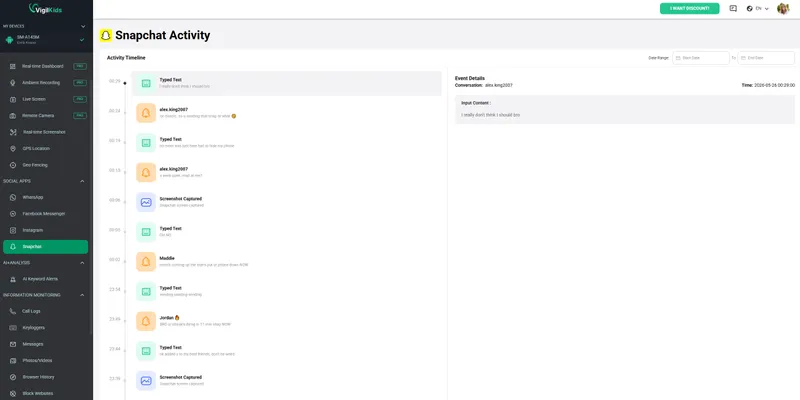
If you still need to know where your child is after Snapchat location is paused, a dedicated parental monitoring solution like VigilKids can provide location visibility directly from the device itself—along with Snapchat activity monitoring, screen viewing, and safety alerts in one place.

Monitor Your Child's Location Beyond Snap Map
- Real-Time GPS Tracking & Route History — see your child's current location and review where they've been throughout the day
- Snapchat Monitoring — monitor Snapchat activity, contacts, and messages from a single dashboard. Learn more about our Snapchat parental controls.
- Screen Recording Monitoring — see how your child interacts with Snapchat, who they're talking to, and what content they're viewing through screen recording monitoring.
- Instant Safety Alerts — receive notifications for location changes, risky keywords, suspicious contacts, and other concerning activity.
How to Start Monitoring in 3 Steps
- Step 1. Create your VigilKids account and choose a monitoring plan.
- Step 2. Install and connect your child's device following the guided setup instructions.
- Step 3. Open your dashboard to view real-time GPS location, route history, Snapchat activity, and safety alerts.
Want to see how it works before getting started? Try the free VigilKids demo to explore real-time GPS tracking, route history, and Snapchat monitoring features.
Will Friends Know You Paused Your Location?
Snapchat never sends a notification when you change location settings — to anyone. No alert, no message, no banner. But that doesn't mean the change goes unnoticed, because the map itself tells a story.
The real question isn't whether Snapchat tells your friends — it won't. It's whether the change in your dot's behavior is noticeable enough for someone to draw their own conclusions. That depends on two things: which method you used (already covered in the comparison table above), and how much time passes before someone checks.
The time dimension is what the table doesn't capture:
- A Bitmoji that disappears mid-conversation is more suspicious than one that was already idle when Ghost Mode kicked in.
- A frozen dot that hasn't moved in 2 hours during school time reads differently than one frozen overnight.
- Close friends who check Snap Map daily will notice pattern breaks far sooner than casual contacts who open it occasionally.
If staying undetected matters, revoking location permission is your best option — your dot stays on the map, just static, and most people won't notice a dot that isn't moving unless they're actively watching for it. Ghost Mode is more complete but harder to explain away if someone asks why your Bitmoji vanished.
FAQs About Pausing Snapchat Location
Q1: How do I pause my Snapchat location without Ghost Mode?
The most effective method is revoking Snapchat's location permission at the system level — Settings → Privacy → Location Services → Snapchat → Never on iPhone, or Settings → Apps → Snapchat → Permissions → Location → Deny on Android. Your Bitmoji stays on the map but stops updating, making it far harder for friends to notice than Ghost Mode, which removes your dot entirely.
Q2: How long does Snapchat location stay active after closing the app?
Your Bitmoji stays visible on Snap Map at your last known position for up to 8 hours after the app was last opened. After that window, it fades from other users' maps entirely. A frozen dot doesn't necessarily mean the person is still at that location — they may have simply closed Snapchat hours earlier.
Q3: Does Snapchat update your location when the app is closed?
Generally no — location updates primarily when the app is open. With background refresh enabled, occasional updates may occur, but this is inconsistent across devices. The exception is Snapchat+ Live Location, which continues pushing real-time updates even when the app is closed, for friends you've specifically chosen to share with.
Q4: Does Snapchat notify friends when you turn on Ghost Mode?
No. Snapchat sends no notification to friends when Ghost Mode is enabled. The only visible change is that your Bitmoji disappears from Snap Map immediately — which anyone who checks the map regularly will notice, even without a formal alert.
Q5: Why is someone's Snapchat location stuck in one place?
A frozen Snapchat location usually means the app can no longer update GPS data. This may happen because location permission was revoked, background refresh was disabled, the person lost internet access, or they simply haven't opened Snapchat for several hours. A location that appears stuck doesn't necessarily reflect where the person is right now.
Conclusion
If you’re wondering how to pause Snapchat location, Snapchat doesn't offer a true pause button, but you can still limit what appears on Snap Map with Ghost Mode, location permission changes, or background restrictions.
For parents who need reliable, ongoing location visibility, VigilKids provides real-time GPS tracking and route history, so you can stay informed even when Snapchat location sharing is turned off. Learn more and get started today to keep your family connected and safe.
Hot Topics for Snapchat Monitoring

Snapchat Family Center: Is It Enough to Protect Your Child Online
Learn what Snapchat Family Center is and whether it’s enough to protect your child online. Explore its features, limitations, and setup guide for parents.

Snapchat My Eyes Only: Can Parents See It? Privacy & Safety Explained
Learn how Snapchat My Eyes Only works, who can access it, and what happens if you forget the passcode. A complete privacy and recovery guide for parents and users.
How to Open a Snap Without Them Knowing (2026 Guide)
How to open a snap without them knowing in 2026 — airplane mode, peek gesture, and notification tricks for iPhone & Android, plus a safe option for parents.