
If you’re wondering how to turn on Ghost Mode on Snapchat, you’re not alone. Snap Map can share your real-time location with your friends every time you open the app—often without users realizing it’s enabled.
Ghost Mode lets you take back control in seconds. With just a few taps on iPhone or Android, you can stop location sharing and protect your privacy. Here’s exactly how to turn it on—and what you should know before you do.
What Is Ghost Mode on Snapchat?
 Quick Answer
Ghost Mode is a privacy setting on Snapchat's Snap Map that hides your location from all other users — including friends. When Ghost Mode is off, your real-time location is visible to your friends list every time you open the app.
Snap Map is a live map built into Snapchat that shows where your contacts are based on when they last opened the app. By default, your location is shared with your entire friends list — not just close contacts, but anyone you've ever added.
Ghost Mode is the switch that turns that off. When enabled, you disappear from the map entirely. You can still see other people's locations if they've chosen to share them, but nobody can see yours.
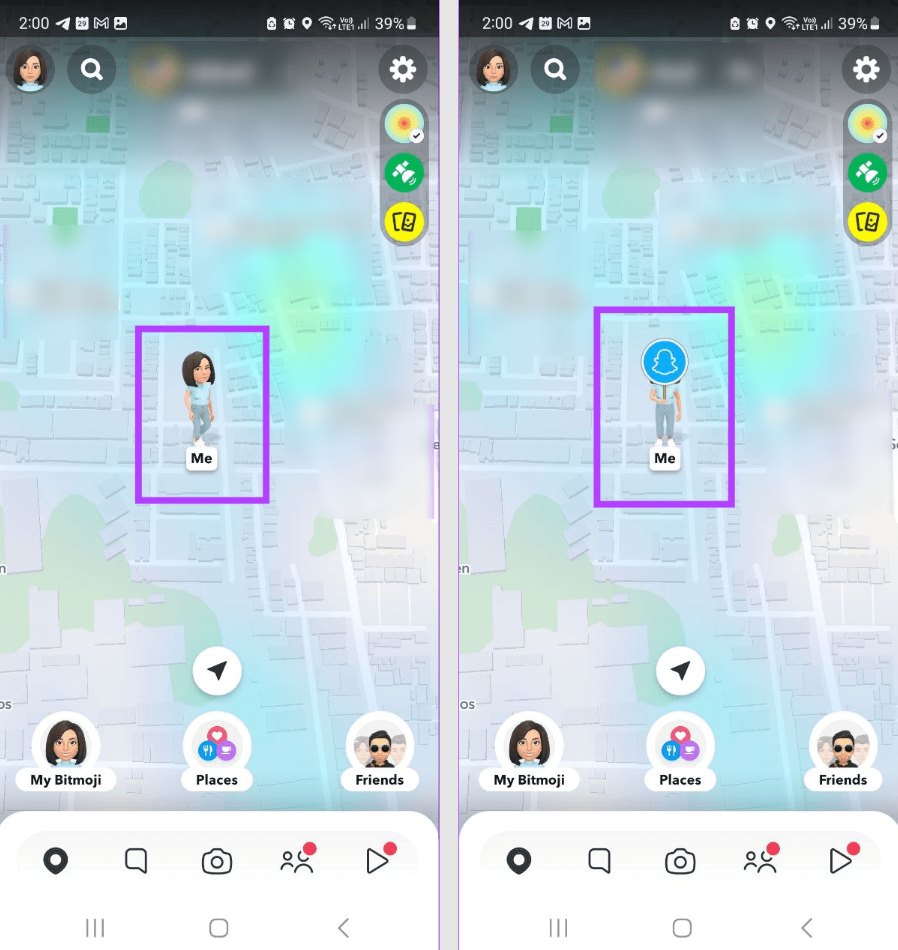
A few things worth knowing:
- Ghost Mode only affects your location on Snap Map — it doesn't change anything about messaging, Stories, or Snaps
- Your location only updates when you actively open Snapchat — it's not tracking you in the background
- You can set Ghost Mode for a specific time period or leave it on permanently
- There's no notification sent to friends when you enable or disable it
In short: When Ghost Mode is ON, your location is hidden from everyone on Snap Map. When it's OFF, your friends can see your real-time location every time you open Snapchat — but you won't be notified when they check, and they won't be notified when you switch modes.
For parents specifically: Snap Map is one of the most underestimated risks on Snapchat. If your child's friends list includes people they've never met in person — which is common — those people can see exactly where your child is every time they open the app. Understanding what Snapchat's features actually expose is the first step to managing them.
How to Turn On Ghost Mode on Snapchat
The steps are the same whether you're setting this up on your own account or configuring it on your child's phone. Both iOS and Android follow the same path.
- Step 1. Open Snapchat and tap the Map icon at the bottom of the screen (or pinch inward on the camera screen)
- Step 2. Tap the Settings gear icon in the top-right corner of the map
- Step 3. Toggle on Ghost Mode
- Step 4. Choose how long: 1 hour, 3 hours, 24 hours, or Until turned off
- Step 5. Tap Save — your location is now hidden
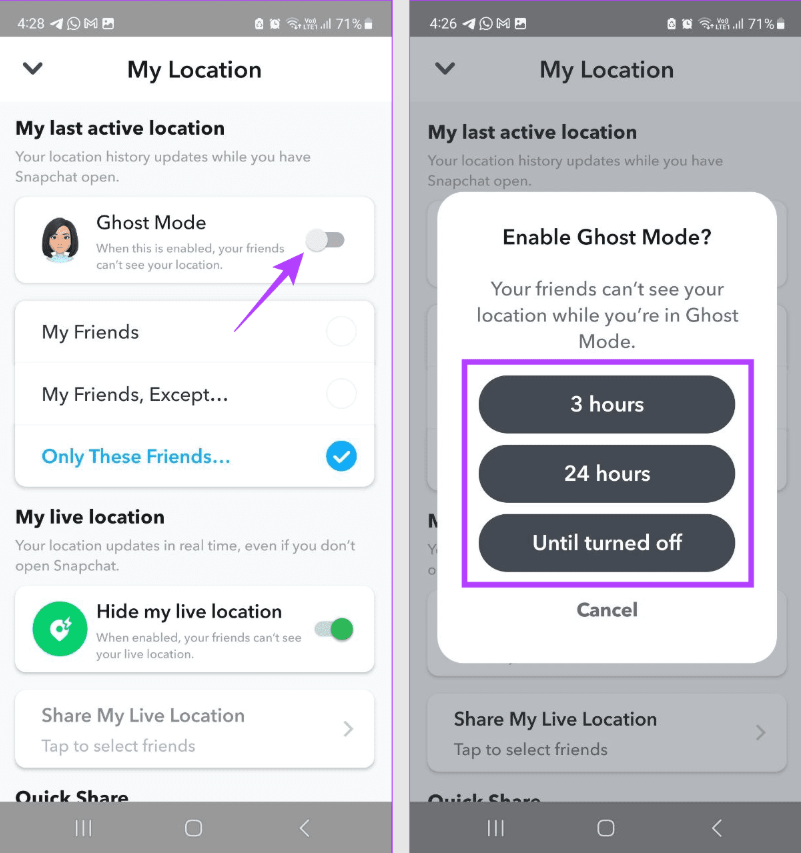
About the duration options: most people choose "Until turned off" — this keeps Ghost Mode active permanently until you manually disable it. The timed options (1 hour, 3 hours, 24 hours) are useful if you want to temporarily share your location for a meetup and then go back to being hidden automatically.
Ghost Mode doesn't expire on its own unless you set a time limit. If you choose "Until turned off," it stays active indefinitely — even after closing and reopening the app. Check back occasionally to confirm it's still enabled, especially after app updates.
How to Turn Off Ghost Mode on Snapchat
Turning off Ghost Mode follows the same path as turning it on. The toggle works in both directions.
- Step 1. Open Snapchat and tap the Map icon
- Step 2. Tap the Settings gear in the top-right corner
- Step 3. Toggle Ghost Mode off
- Step 4. Choose who can see your location: My Friends, My Friends, Except..., or Only These Friends
- Step 5. Tap Save
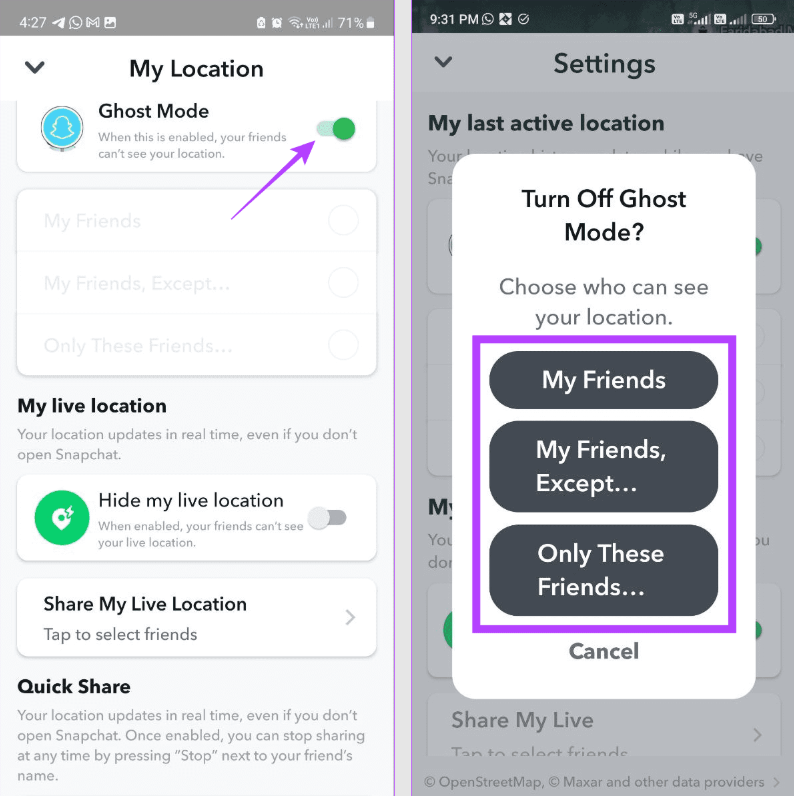
The "Only These Friends" option is worth knowing about. Instead of sharing your location with your entire friends list, you can select specific people — useful if you want a parent or close friend to see where you are without broadcasting to everyone.
Before turning Ghost Mode off — on your own account or your child's — it's worth taking a few minutes to review the friends list. If it includes people your child has never actually met, that's the more important thing to address first. Our guide on Snapchat parental controls walks through how to manage contacts and privacy settings together.
Signs You've Been Ghosted on Snapchat
"Ghost Mode" and "being ghosted" sound similar — but they're completely different things. Ghost Mode is a privacy setting that hides someone's location. Being ghosted is when someone stops responding to you. Here's how to recognize the actual signs.
Their Snap Score stops changing
Snapchat scores increase every time someone sends or receives a Snap. If someone's score hasn't moved in days — despite them clearly being active elsewhere — it's a reasonable sign they're not engaging with your messages specifically.
Messages show "Delivered" but never "Opened"
Snapchat lets you see when a message has been delivered versus when it's been opened. If your Snaps consistently sit on "Delivered" while the person is active, that's a signal they may be avoiding your messages rather than simply being offline.
Their Snap Score disappears from their profile
If you can no longer see someone's Snap Score when viewing their profile, or their Bitmoji has vanished from Snap Map even when Ghost Mode is off, it's likely they've removed you as a friend. Snapchat doesn't send a notification when this happens — it just quietly disappears.
They're posting Stories but not replying to you
If someone is posting Stories regularly but consistently ignoring your direct messages, the pattern speaks for itself — even without a definitive confirmation.
Ghost Mode ≠ being ghosted. If someone has Ghost Mode on, they've simply hidden their location — it has nothing to do with you or your messages. Someone can have Ghost Mode enabled and still be actively replying to you. The two are completely unrelated.
For parents: the social dynamics on Snapchat — streaks, scores, who's seen whose Story — can carry surprising emotional weight for teens. If your child seems distressed about a Snapchat relationship, it's worth a calm conversation. Our guide on warning signs of concerning Snapchat behavior covers some of the broader patterns worth being aware of.
How VigilKids Completes Snapchat Safety
Enabling Ghost Mode is the right first move. It hides your child's location from their entire friends list — including contacts you've never heard of. That matters.
But Ghost Mode only controls one thing: the map. Everything else on Snapchat — the disappearing messages, the hidden folder called My Eyes Only, the chat conversations that delete themselves — none of that is touched by Ghost Mode. And when your child closes Snapchat and opens Discord, WhatsApp, or any other app, Ghost Mode has zero reach there either.
There's also a practical limit: your child can turn Ghost Mode off themselves, anytime, without you knowing.
That's where VigilKids comes in. It gives parents visibility across the entire device — real-time location that doesn't depend on Snapchat's settings, usage patterns across every app, and keyword alerts when something concerning appears.

VigilKids
- See your child's real location anytime — even if they hide it on Snapchat with Ghost Mode
- Get alerts when risky words appear in chats on Snapchat, WhatsApp, Discord, and SMS
- Track time spent on each app, when they use it most, and late-night activity
- Spot sudden behavior changes, like gaming more, messaging constantly, or switching apps
- Set up once and monitor quietly in the background — no daily checking needed
To understand how VigilKids fills the gaps left by Ghost Mode, here's a quick comparison:
| What You Want | Ghost Mode | VigilKids |
|---|---|---|
| Hide child's location on Snap Map | ✅ Yes | ✅ Yes (independent of Snapchat) |
| Know your child's real-time location | ❌ No | ✅ GPS tracking |
| Know if Ghost Mode gets turned off | ❌ No | ✅ Activity change alerts |
| Monitor chat activity | ❌ No | ✅ Keyword alerts across apps |
| Track time spent on Snapchat | ❌ No | ✅ App usage reports |
| Coverage across other apps | ❌ No | ✅ System-wide monitoring |
| Access My Eyes Only | ❌ No | ❌ No (encrypted) |
Frequently Asked Questions About Snapchat Ghost Mode
Q1: Does Ghost Mode hide you from everyone on Snapchat?
Yes. When Ghost Mode is on, your location is hidden from your entire friends list on Snap Map. Nobody can see where you are, regardless of how close a friend they are. You can still see other users' locations if they choose to share them with you.
Q2: Can someone tell if you're in Ghost Mode?
No. Snapchat doesn't notify anyone when you enable or disable Ghost Mode. Friends simply won't see your location on Snap Map, and they won't receive any message explaining why. From their perspective, you just won't appear on the map.
Q3: Does Ghost Mode turn off automatically?
Only if you choose a timed option. If you select "Until turned off," Ghost Mode stays active permanently, across app restarts and updates. If you choose 1 hour, 3 hours, or 24 hours, it will automatically turn off and revert to sharing your location once the timer expires.
Q4: Should I turn on Ghost Mode for my child?
Yes. Ghost Mode is one of the first Snapchat settings parents should configure. By default, Snap Map shares your child's real-time location with their entire friends list, which often includes people they've never met. Ghost Mode removes that risk immediately, but it's just one part of a broader approach to keeping kids safe on Snapchat — it doesn't cover chat, content, or activity on other apps.
Q5: Does Ghost Mode affect anything else on Snapchat?
No. Ghost Mode only affects your location visibility on Snap Map. It has no impact on messaging, Stories, Snaps, streaks, or any other feature. You can use Snapchat completely normally with Ghost Mode enabled — the only difference is that nobody can see where you are.
Conclusion
Now that you know how to turn on Ghost Mode on Snapchat, you can prevent your real-time location from being shared with friends, acquaintances, or anyone else on the app. It only takes a few taps, but it can make a big difference in protecting your privacy and reducing unwanted location tracking.
However, Ghost Mode only controls location sharing inside Snapchat. It doesn't provide visibility into screen time, app activity, or who your child may be interacting with across their device. If you're looking for broader parental monitoring beyond Snapchat's built-in settings, VigilKids helps parents stay informed about their child's digital habits across multiple apps and platforms.
Hot Topics for Parental Controls

Snapchat Family Center: Is It Enough to Protect Your Child Online
Learn what Snapchat Family Center is and whether it’s enough to protect your child online. Explore its features, limitations, and setup guide for parents.

How to Tell If Someone Is Active on Snapchat? 100% Work!
Snapchat hides online status on purpose. Here are 5 reliable ways to tell if someone is online on Snapchat, what each signal really means, and when they fail.
9 Best Anonymous Snapchat Story Viewers 2026
Want to view Snapchat stories anonymously? Compare the 9 best Snapchat story viewers of 2026 — features, safety, and how to watch without being seen.