
Lost a TikTok video before you could save it? Your TikTok watch history is available under Profile > Menu ☰ > Settings and privacy > Activity center > Watch history. If you are also wondering how to see your TikTok history beyond watched videos, separate menus cover searches, comments, likes, and saved posts. This guide shows every route and what to try when a history option is missing.

What TikTok History Can You See?
TikTok does not place every past action on one timeline. “TikTok history” may mean videos you watched, terms you searched, posts you liked, comments you wrote, or profiles and posts that other people viewed. Each record has a different menu and privacy rule.
- Watch history: Open Activity Center to review videos recently watched on your account. Availability and retention can vary.
- Search history: Check Activity Center or the Search field for recent terms. Searches cleared from the visible list cannot be restored in the app.
- Likes and Favorites: Use the Profile tabs to find posts you intentionally liked or saved. These lists do not include every watched post.
- Comment history: Open Activity Center to review comments you posted. A removed post or comment may no longer open.
- Profile and post view history: Review these separately in Privacy settings. They concern eligible viewers of your profile or posts, not everything you watched.
Watch history shows content your account viewed. Profile view history and post view history are visibility features that may show eligible people who viewed your profile or posts. They do not reveal another person's complete TikTok activity. If you are checking because a child encountered troubling videos, focus on the content and conversation first; this guide explains what to do when a child watches inappropriate content.
How to See Your TikTok Watch History
The Activity Center is the most direct route. If that menu is unavailable on your account, the watched-video search filter can help you relocate a post you remember.
Use Activity Center
- Step 1. Open the TikTok mobile app and tap Profile.
- Step 2. Tap the Menu ☰ button in the upper-right corner.
- Step 3. Choose Settings and privacy.
- Step 4. Tap Activity center.
- Step 5. Select Watch history, then scroll or use the available filters.
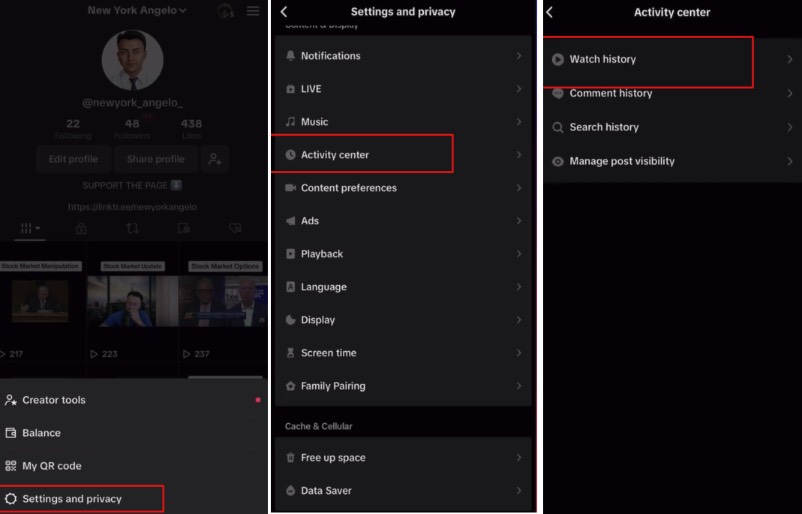
Tap a result to watch it again. If you want an easier way to return later, use Favorites instead of depending on watch history.
Use the Watched Search Filter
- Step 1. Tap Search and enter a creator name, spoken phrase, caption word, sound, or hashtag you remember.
- Step 2. Open the Filters control on the results page.
- Step 3. Turn on Watched or choose the watched-video option shown on your version.
- Step 4. Apply the filter and review the narrowed results.
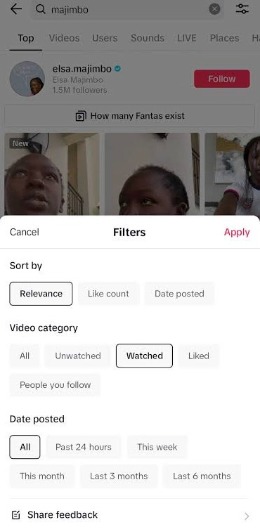
This works best when you remember something distinctive. A broad search such as “funny video” may still return too many results.
How to Find Search, Like, Comment, and Saved History
A watched video may be easier to recover through an action you took on it. Try the route that matches what you remember doing:
- Search history: Go to Profile > Menu ☰ > Settings and privacy > Activity center > Search history. On some versions, tapping the Search field also displays recent searches.
- Liked videos: Open Profile and tap the heart tab. Your privacy setting controls whether other people can see this tab, but you can still review your own likes.
- Favorites: Open Profile and tap the bookmark or Favorites control. Check Collections if you organized saved posts into folders.
- Comment history: Open Activity center and choose Comment history. A comment may be unavailable if you deleted it or the underlying post was removed.
- Direct messages: If you shared the video with someone, search the relevant chat in your Inbox.
These lists are not interchangeable. Unliking a video removes it from the liked list; removing a favorite takes it out of Favorites; neither action necessarily erases a separate watch-history record immediately.
What to Do When TikTok History Is Missing
First, confirm that you are signed into the same account and using the latest TikTok app available for your device. A second account, an outdated interface, a cleared history, or a deleted video can all make a record appear missing.
- Step 1. Check the username on the Profile screen and switch back to the correct account if needed.
- Step 2. Update TikTok through the App Store or Google Play, then reopen the app.
- Step 3. Search for the video using a creator, caption, sound, or hashtag, and apply the watched filter if available.
- Step 4. Review Likes, Favorites, Comments, and messages for another trail to the post.
- Step 5. If you need a broader account archive, request a copy of your data from TikTok under Settings and privacy > Account > Download your data. The file is not instant, and included categories can vary.
A data download is an archive request, not a guaranteed way to restore a deleted video. If a creator removed a post or TikTok took it down, an old history entry may not make the video playable again.
How VigilKids Helps Parents Understand TikTok Use Safely
A parent can review Watch History together with a child on the child's account and device. TikTok's Family Pairing controls can manage screen time, search, content preferences, privacy, and communication settings, but they do not give parents a complete remote list of every video a teen watched.
Start with TikTok's official controls and use our guide to TikTok parental controls to configure them. If a concern extends beyond one history list or one app, VigilKids can add broader device-level context from one dashboard on a child-owned or authorized device.

What VigilKids Can Do
- App usage overview — understand how often and how long TikTok is used.
- Screen-time patterns — use broader Android screen-time insights to identify unusually long or late-night sessions.
- Supported screen context — review relevant on-screen activity when permissions allow, with options explained in our Android screen-recording guide.
- Cross-app trends — see whether a concern continues across TikTok and other supported apps.
- One simple dashboard — bring supported device information together without checking several services.
How to use VigilKids as part of a healthy TikTok safety plan:
- Step 1. Keep TikTok's privacy settings and age-appropriate protections enabled.
- Step 2. Connect Family Pairing and agree on screen-time and content rules together.
- Step 3. Connect the child's device to VigilKids with appropriate permission.
- Step 4. Review broader activity only when a genuine concern or meaningful behavior change appears.
- Step 5. Talk with your child before deciding on new restrictions or consequences.
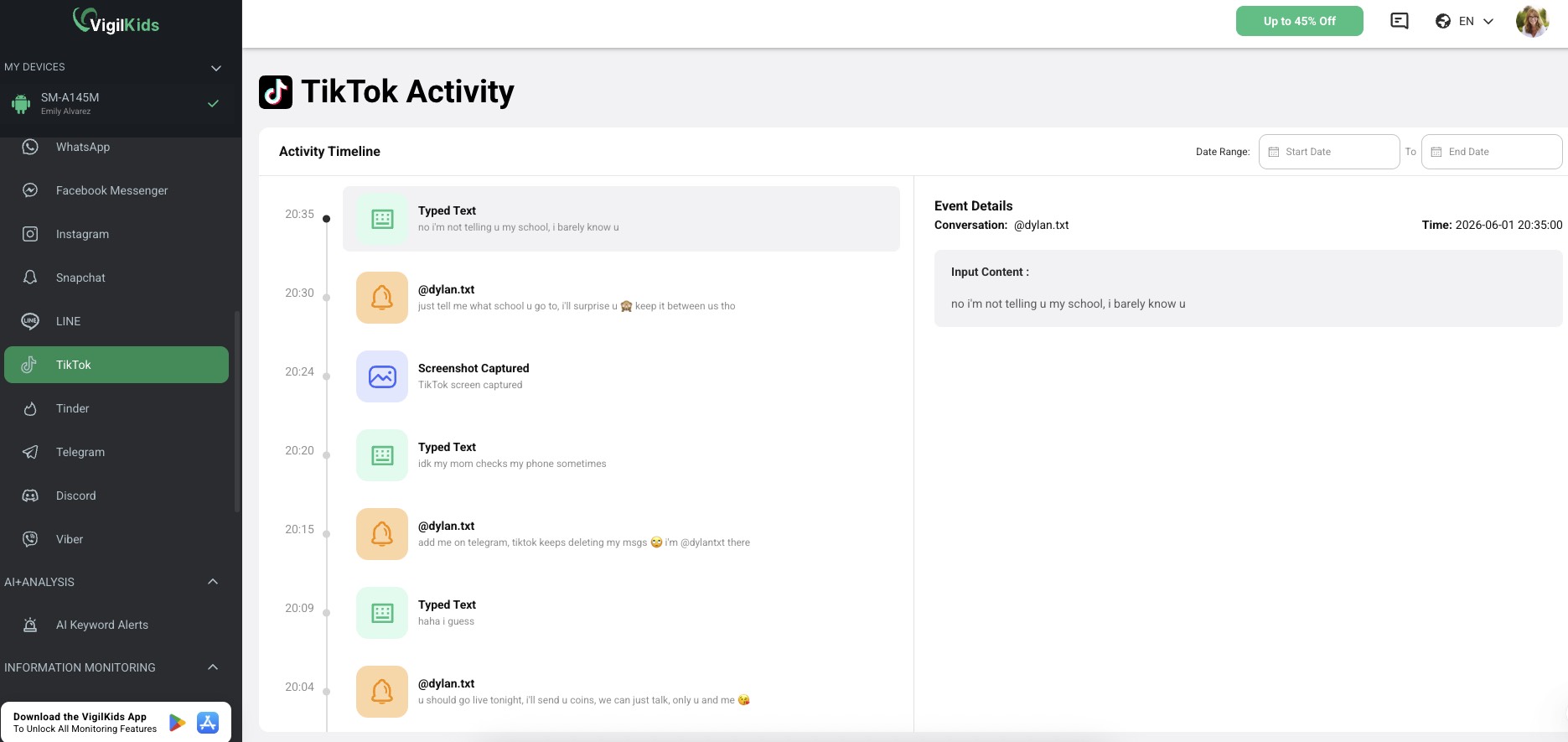
If usage is affecting sleep or schoolwork, set consistent boundaries across the device with these steps to set time limits on apps.
VigilKids does not provide a guaranteed copy of TikTok Watch History and cannot recover activity that was never captured before setup and permission approval. Features vary by device, operating system, plan, region, and permissions. Check compatibility before purchasing, and use parental monitoring only on a device you own or are authorized to manage, with appropriate family consent and legal authority.
How to Manage the History That Shapes Your Feed
TikTok says recommendations may consider what you watch in full or skip, plus likes, shares, comments, follows, and past search behavior. That means finding your history and changing future recommendations are related—but not identical—tasks.
- Use Not interested: Press and hold a post or open its Share menu, then choose Not interested to request fewer similar recommendations.
- Filter keywords: Add words or hashtags you do not want in supported feeds.
- Manage topics: Adjust how frequently broad topics appear in the For You feed where the feature is available.
- Refresh the For You feed: Use TikTok's refresh control when you want to reshape recommendations. TikTok notes that this action cannot be undone and affects the For You feed rather than every part of the account.
- Save intentionally: Add genuinely useful posts to Favorites so they are easier to find than relying on a temporary activity trail.
Clearing search history can remove the visible list of recent queries, but it should not be treated as a one-click reset of every recommendation signal TikTok has learned from your activity. If your goal is to understand total phone use rather than TikTok's recommendation system, check the device's built-in usage report instead. When an agreed limit is not enough, parents can also learn how to block apps on Android during homework, sleep, or other phone-free periods.
Frequently Asked Questions
Q1: How far back does TikTok watch history go?
TikTok's displayed retention and available filters can change by app version and account. Check the date controls shown in Activity Center rather than assuming the list is permanent. Save important posts to Favorites for more reliable access.
Q2: Can I see TikTok watch history on a computer?
The mobile app usually provides the clearest Activity Center route. TikTok's web interface may not expose the same controls. If the browser version does not show watch history, use the mobile app or request your TikTok data.
Q3: Can I recover TikTok history after deleting it?
Usually not from the cleared in-app list. You can still search for the creator or topic and check Likes, Favorites, comments, and messages. A TikTok data request may include relevant account records, but it does not guarantee recovery of a deleted or removed video.
Q4: Can someone else see my TikTok watch history?
TikTok does not provide other ordinary users with your complete watch-history list. Separate profile-view and post-view features may reveal certain eligible views when their conditions are met, so review those privacy settings separately.
Q5: Does Family Pairing show a child's TikTok watch history?
No complete watch-history list is provided to parents through Family Pairing. It offers useful controls for screen time, search, content preferences, privacy, and communications. A parent can review Activity Center together with the child on the child's authorized account and device.
Conclusion
Your TikTok watch history is the best place to start when you need to find a video you viewed but did not save. If it is missing, try the watched search filter, then check Likes, Favorites, comments, and messages before requesting your data.
For families, combine transparent history reviews with Family Pairing, reasonable time limits, and calm conversations. For additional support, explore VigilKids family safety tools to help parents understand digital habits and manage screen use responsibly.
Sources
- TikTok Help Center: How TikTok recommends content
- TikTok Help Center: For You and feed management
- TikTok Help Center: Profile view history
- TikTok Help Center: Account and privacy settings
- VigilKids Privacy Policy: Monitoring data and responsible use
Research completed July 24, 2026. TikTok features, labels, retention periods, and availability may vary by app version, region, account age, device, and rollout. VigilKids features may vary by device, operating system, permissions, region, and plan.
Recommended Articles
How to Tell If Someone Is Active on Snapchat?
Wondering how to tell if someone is active on Snapchat? Learn the real signs, limits, and safer parent options for Snapchat activity checks.
How to Pause Snapchat Location (4 Working Methods in 2026)
No pause button exists on Snapchat — but 4 methods work in 2026. Learn how to freeze, hide, or slow your location on Snap Map without friends noticing.

Is Snapchat Safe for Kids? A Parent's Honest Guide (2026)
Is Snapchat safe for your child? We break down the real risks, age requirements, hidden features, and what parents can actually do — including tools that help.