
When you're panicking about a lost phone or trying to check where a family member is, the last thing you want to see is Find My iPhone not working. If you're wondering why Find My iPhone is not working, this guide walks you through the likely causes and gives you 13 practical fixes you can try right now — 5 quick checks, 5 advanced fixes, 2 Family Sharing solutions, and 1 reliable backup for when Apple's tool lets you down.
Each step is kept short and actionable, so you can resolve the issue — or set up a dependable backup — without digging through confusing tech jargon. Let's get your location working again.
Common Reasons Find My iPhone Stops Working
Before you start fixing, it helps to know what usually breaks Find My. Here are the seven most common culprits.
iCloud / Apple ID issues. If your device is signed out of iCloud, or there's a problem with two-factor authentication or Activation Lock, Find My can't report a location. This is the single most common reason the feature stops working.
Location Services turned off or restricted. If Location Services are off — or Content & Privacy Restrictions block location access — the app simply can't read your GPS data.
Network problems or a powered-off device. No Wi-Fi or cellular connection, Airplane Mode, or a dead battery will all stop real-time location updates.
Find My Network / Offline Finding disabled. If Offline Finding (the Find My network) isn't enabled, nearby Apple devices can't relay the location of a phone that's offline.
iOS bugs or Apple outages. A recent iOS update can introduce bugs, or Apple's system status may show an outage — either can make Find My unreliable for everyone at once.
Family Sharing and permissions. Different Apple IDs, revoked permissions, or a misconfigured Family Sharing group can stop you from seeing a family member's location.
Hardware problems. Rarely, a failing GPS or other hardware fault on the iPhone itself causes persistent location failures — in that case, you'll likely need Apple service.
Quick Checks on Find My iPhone Not Working: 5 Fast Fixes to Try First
If you're dealing with Find My iPhone not working, run through these five one-minute checks first — they solve the majority of cases.
Fix 1. Check iCloud / Apple ID sign-in
Make sure you're signed into the correct Apple ID and that two-factor authentication (2FA) isn't blocking access. Signing out and back in refreshes iCloud services — just note that signing out may temporarily remove iCloud data from the device until you sign back in.
One-minute test:
Open Settings → tap your name. If it asks you to sign in or shows multiple accounts, sign in with the correct Apple ID, then check Find My on another device or at iCloud.com.
Fix 2. Turn on Location Services & set Find My to "Share My Location"
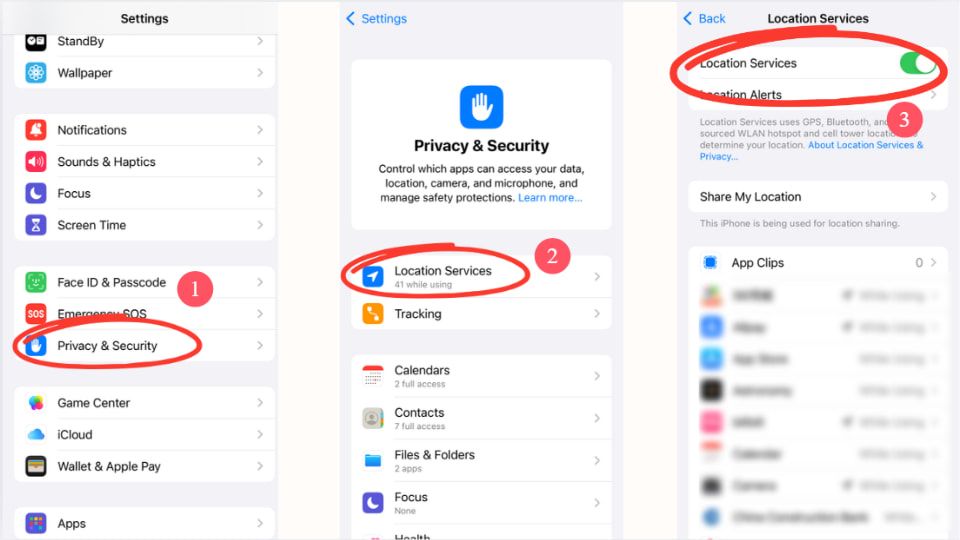
Go to Settings → Privacy → Location Services and make sure Location Services is enabled. Then in Settings → [your name] → Find My, confirm Share My Location is on and the permission is set correctly.
One-minute test:
On another device or via iCloud.com, open Find My and see if the device appears or shows a recent location.
Fix 3. Confirm Find My and Find My Network are enabled
Verify both Find My iPhone and Find My network (Offline Finding) are toggled on. If Network is off, nearby Apple devices can't relay the location of an offline phone.
One-minute test:
Toggle the settings on, then use a friend's iPhone or iCloud.com to look up the device.
Fix 4. Ensure the device has network & isn't in Airplane Mode
Check that Airplane Mode is off and the phone has either cellular data or Wi-Fi. Try switching between Wi-Fi and cellular to rule out a network-specific issue.
One-minute test:
Open Safari and load a webpage. If it loads, reopen Find My and check the location.
Fix 5. Restart the device and check for iOS updates
A simple restart clears temporary glitches, and installing the latest iOS fixes known bugs that break Find My iPhone.
One-minute test:
Restart the iPhone, then ask a family member to view your device location in the Find My app or at iCloud.com.
If you still wonder why Find My iPhone is not working after these checks, move on to the advanced fixes below.
Advanced Troubleshooting on Find My iPhone Not Working: 5 Deeper Fixes
If the quick checks didn't solve it, these advanced fixes dig deeper. Follow them carefully — some carry risks like data loss or a settings reset.
Fix 6. Reset Location & Privacy
Go to Settings → General → Transfer or Reset iPhone → Reset → Reset Location & Privacy. This resets every app's location permissions back to default.
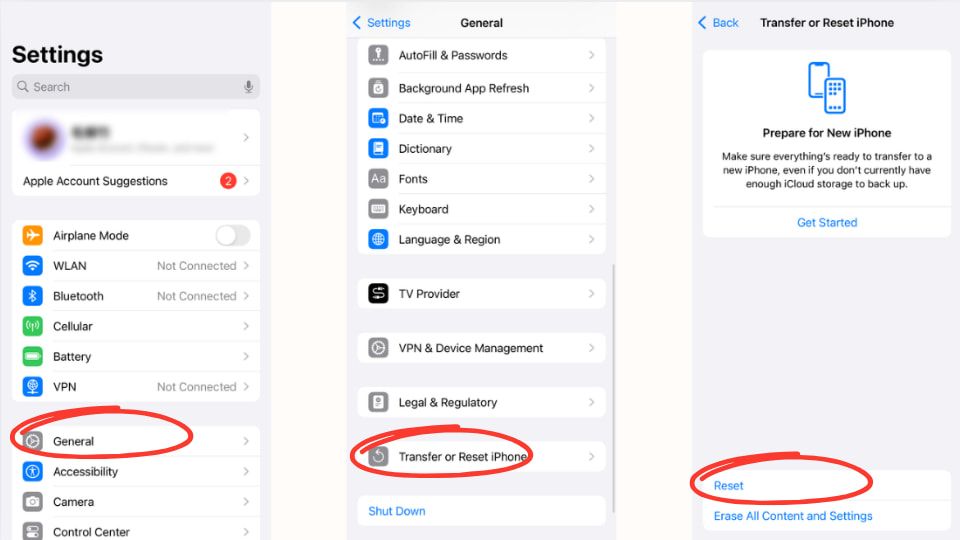
When to use: If apps — including Find My — can't access GPS despite Location Services being on.
Impact: You'll need to re-grant location permissions to apps when prompted.
Time / Risk: 2 minutes; no data loss beyond the permissions reset.
Fix 7. Sign out/in of iCloud, check Activation Lock & 2FA
Sign out of iCloud in Settings → [your name] → Sign Out, then sign back in. This refreshes iCloud's sync with Find My. Confirm Activation Lock is enabled (tied to your Apple ID) so the device stays protected, and keep two-factor authentication (2FA) active to secure the re-sign-in.
When to use: If your device doesn't appear in Find My even though it's online.
Impact: Temporary removal of synced data like iCloud Photos until you re-login.
Time / Risk: 5–10 minutes; may require your Apple ID password and a re-sync of iCloud data.
Fix 8. Reset Network Settings
There's a small chance that Find My iPhone not working comes down to a network error. Go to Settings → General → Transfer or Reset iPhone → Reset → Reset Network Settings. This wipes saved Wi-Fi networks, VPNs, and APNs, forcing the device to reconnect cleanly.
When to use: If Find My isn't updating location and you suspect a Wi-Fi or cellular issue.
Impact: Saved Wi-Fi passwords and VPN configurations are erased — back them up first.
Time / Risk: 5 minutes; no personal files lost.
Fix 9. Offload or reinstall the Find My app
In Settings → General → iPhone Storage, offload or delete the Find My app, then reinstall it from the App Store. If problems persist, restoring the iPhone from a recent iCloud or iTunes backup can replace corrupted system files.
When to use: If the app is buggy after an update or won't launch.
Impact: Offloading keeps documents and data; a full delete removes them — back up first.
Time / Risk: 5–15 minutes depending on the reinstall/restore method.
Fix 10. Factory reset, or visit the Apple Store / Apple Support
If nothing above works — or you suspect a hardware issue (e.g., GPS chip failure), an Activation Lock error, or repeated iOS crashes — a factory reset is the last DIY option. Go to Settings → General → Transfer or Reset iPhone → Erase All Content and Settings. If the issue continues after the reset, book an Apple Store appointment or contact Apple Support.
When to use: Persistent failure after every other step, hardware suspicion, or Activation Lock glitches.
Impact: Full data wipe; you must restore from an iCloud/iTunes backup.
Time / Risk: 20–60 minutes depending on backup size; high risk if you don't have a backup.
These fixes cover nearly every scenario where Find My fails. If none resolve it, you're dealing with something beyond software — and professional support is the safest option.
Real-World Cases & Family Sharing Fixes
Even after you set everything up correctly, Family Sharing and location updates can still cause headaches. Beyond Find My iPhone not working, users across Apple Support communities and Reddit report delayed updates, devices stuck on "last location," and family members vanishing from the map. Here are two common situations — and the targeted fixes for each.
Fix 11. See a family member's location that won't appear
"Why can't I see my daughter's location on my iPhone?" One parent shared that although Family Sharing was active, their daughter's iPhone never appeared in Find My. This happens when accounts or permissions aren't configured properly.
Quick fix checklist:
- Confirm both devices are signed into the right Apple IDs for Family Sharing.
- In Settings → [child's name] → Find My, make sure Share My Location is enabled.
- Verify the child's device has internet access and enough battery.
- Check Screen Time or parental restrictions that might block Location Services.
Fix 12. Refresh a frozen or outdated location
"Why isn't someone's location updating on Find My iPhone?" Another user noticed a friend's location would freeze for hours, even though the person was online. This is usually down to connectivity or background-location restrictions — and checking the iPhone's location history can confirm when updates actually stopped.
Quick fix checklist:
- Ask the person to toggle Wi-Fi and cellular data, or restart the device.
- Ensure Low Power Mode is off — it can pause background updates.
- Confirm Location Services and Background App Refresh are enabled.
- Reopen Find My, or check the web version at iCloud.com for a fresher refresh.
These cases show that most Family Sharing problems are less about system bugs and more about small settings or permission mismatches. A quick run through these checklists usually resolves them.
Best Alternative: Use a Dedicated Family Tracker (Fix 13)
Sometimes Apple's native tool simply isn't enough. If you've ever asked why your Find My iPhone is not working right when you need it most, you know the frustration. Find My is great for lost-device recovery, but it can fall short for everyday family use — especially if:
- You need to monitor kids consistently, not just locate devices.
- Your family uses both iOS and Android — Find My only works inside Apple's ecosystem, so you'd otherwise need a separate way to track an Android phone from an iPhone.
- You care about faster refresh rates, custom alerts, or more reliable notifications.
When comparing options, keep these points in mind:
- Device coverage: Find My is Apple-only, while cross-platform GPS tracking software supports mixed iOS/Android families.
- Parental controls: Geofencing, app-activity checks, and safe-zone alerts are all missing from Find My.
- Refresh frequency: Find My can be slow or unreliable, while dedicated trackers often update in real time.
- Battery & notifications: Specialized apps optimize for low battery use and more accurate alerts.
- Privacy & terms: Apple limits tracking to Apple IDs, while family trackers may offer custom privacy agreements.
| Capability | Apple Find My | VigilKids |
|---|---|---|
| Works on iOS | ✓ Yes | ✓ Yes |
| Works on Android too | ✗ No | ✓ Yes |
| Real-time location refresh | Often delayed | ✓ Real time |
| Geofencing & safe-zone alerts | ✗ No | ✓ Yes |
| Parental controls & app activity | ✗ No | ✓ Yes |
| Works when Find My fails / is offline | ✗ No | ✓ Yes |
That's where VigilKids comes in. Built specifically for families and children, it works as a complement or backup to Apple's Find My. The simplest way to think about it: use Find My for device-level recovery, and use VigilKids for continuous family-location and parental alerts. It's one of the best family tracking apps for exactly this layered approach.
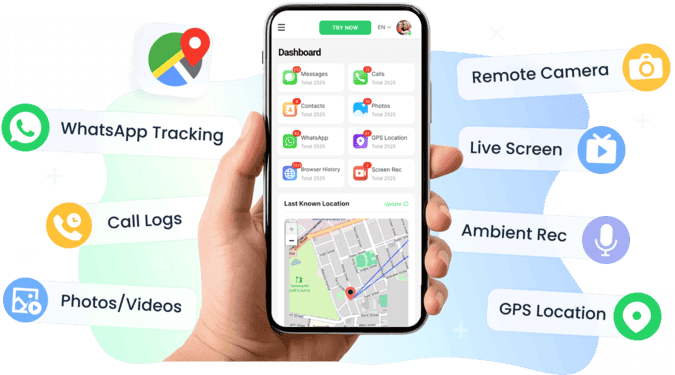
Here are three real-life scenarios where combining both helps:
- School pickup: You see exactly when your child leaves school and whether they get home safely.
- Safe-zone notifications: Get alerts when your child steps outside a predefined area — a feature powered by geofencing software, such as a park or neighborhood boundary.
- Lost phone and family safety: If the Find My iPhone glitch strikes, VigilKids still tracks your child's location for peace of mind.
By blending Find My with VigilKids, you gain an extra layer of reliability — so you're never dependent on a single tool when family safety is on the line.
Quick FAQs about Find My Not Working
Why is Find My greyed out on my iPhone?
This happens when Screen Time restrictions are enabled, iCloud is signed out, or device management (such as a work or school profile) disables the option.
Why is my Find My not working after an iOS update?
A new iOS release can introduce bugs or reset settings — restart your device, recheck permissions, and install any follow-up patch Apple ships.
Why does Find My iPhone not work for Family Sharing?
Usually it's due to mismatched Apple IDs, a missing "Share My Location" setting, or parental restrictions blocking access.
Is there an alternative to Find My for family tracking?
Yes. Tools like VigilKids complement Find My with cross-platform support, parental controls, and real-time geofence alerts — see our roundup of the best location-sharing apps to compare.
Conclusion
When Find My iPhone is not working, the approach is simple: start with the quick checks, then move into the advanced fixes if the issue persists. And if family location matters to you, set up VigilKids as a backup so you're never relying on a single tool.
Here's the ultimate 1-minute checklist for Find My iPhone not working:
- Check iCloud and Apple ID sign-in
- Enable Location Services & Share My Location
- Restart your device and check for iOS updates
- Open Find My on iCloud.com to confirm status
- Notify family members if "No Location Found" appears
- Use a GPS tracker for kids like VigilKids for continuous family tracking
Want more peace of mind? Work through the fixes above, and try VigilKids today to add an extra layer of reliability for the next time Find My iPhone is not working.
Related Topics
![How to Forward SMS to Another Phone Automatically [iPhone & Android]](https://cdn.vigilkids.com/vigilkids/Use_Vigil_Kids_to_Forward_SMS_Automatically_8cfc0f2405.png)
How to Forward SMS to Another Phone Automatically [iPhone & Android]
Reading text messages on another phone takes time. Learn how to automatically forward SMS on iPhone and Android for easier message access and management
How to Read Someone Else’s Text Messages Remotely?
Learn how to read text messages from another phone or device. Discover safe methods to access SMS remotely and monitor messages easily with VigilKids.
3 Useful Ways to Find My Phone by Number for Free(2026 Update)
Lost your phone or want to locate someone fast? Try these 3 free ways to find a phone with a phone number.