
To stay safe online, use unique passwords, enable multifactor authentication, verify unexpected messages, limit personal information, update your devices, and back up important files. These practical online safety tips help adults and families prevent common scams, protect their privacy, and respond confidently when something feels wrong.
Online Safety Checklist
- Use a password manager and a different password for every account.
- Enable multifactor authentication, preferably with a passkey or authenticator app.
- Pause before opening unexpected links, attachments, QR codes, or payment requests.
- Keep profiles private and remove location, school, address, and routine details.
- Install updates automatically and keep at least one backup offline or offsite.
- Give children a simple plan: stop, save evidence, block, report, and tell an adult.
Protect Your Accounts Before They Are Targeted
Tip 1: Use a unique password or passkey for every account
Start with the accounts that can unlock everything else: email, Apple or Google accounts, banking, cloud storage, and social media. Store unique credentials in a reputable password manager instead of reusing a memorable password. NIST recommends at least 15 characters when a password is the only authentication factor, but a passkey is an even better option when the service supports one.
Replace reused passwords beginning with your email account, then let the password manager generate the rest. Never share a password or one-time login code with another person.
Tip 2: Turn on multifactor authentication
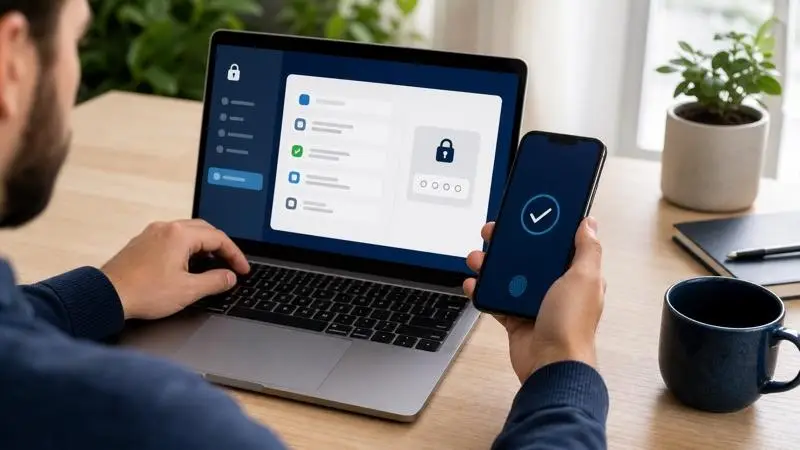
Multifactor authentication (MFA) requires a second proof—such as a passkey, security key, authenticator prompt, or code—after the password. Choose phishing-resistant passkeys or security keys when available; otherwise, an authenticator app is generally stronger than an SMS code.
Enable MFA on email first, then financial, shopping, social, school, and work accounts. Download the recovery codes and store them somewhere other than the device you use to sign in.
Stop Phishing and Scams Before You Click
Tip 3: Treat unexpected messages as unverified
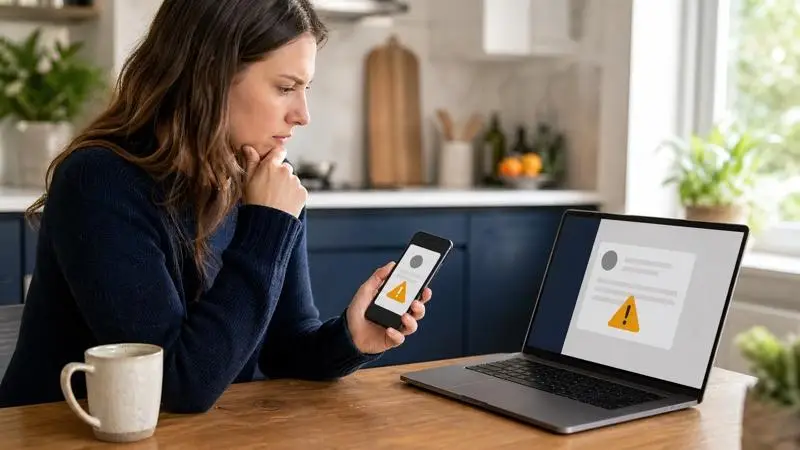
Phishing messages create urgency: a locked account, missed delivery, unpaid bill, prize, job offer, or family emergency. Do not use the link or phone number in the message. Open the official app, type the known website address yourself, or contact the organization through a number you already trust.
Check the full sender address, hover over links on a computer, and be suspicious of requests for passwords, PINs, gift cards, cryptocurrency, remote access, or one-time codes. The same pause-and-check habit can help you spot the signs of a hacked WhatsApp account. A legitimate organization will not object if you verify the request independently.
Tip 4: Verify social-media offers and identities outside the platform
A familiar profile can still be an impersonator or a compromised account. The FTC recorded $1.9 billion in reported losses from scams that started on social media in 2024, so treat unexpected offers, investment pitches, and requests for money with care.
Verify the person through a second channel before sending money or personal information. For shopping, search for the company independently, compare the domain spelling, and use a payment method with dispute protection. Refuse pressure to act immediately, and confirm family emergencies by calling a known number.
Control What You Share and Who Can Reach You
Tip 5: Share less personal information by default
Names, birthdays, school uniforms, house numbers, routines, travel dates, pet names, and location tags can help strangers impersonate you or answer account-recovery questions. Review old posts as well as new ones, and ask before posting another person’s image.
Set personal accounts to private, disable precise location for social apps, remove your phone number and birthday from public profiles, and inspect photo backgrounds before posting. Review what each platform exposes—for example, whether WhatsApp shows your phone number—and use the available privacy controls. Parents of teen users can also review current Instagram parental controls. Remember that screenshots can travel beyond the audience you selected.

Tip 6: Block, report, and preserve evidence of abuse
Online abuse is not rare: Pew Research Center found that 46% of U.S. teens ages 13–17 had experienced at least one form of cyberbullying covered by its study. Do not argue with a harasser or forward harmful content. Save the username, profile URL, date, message, and screenshots; then block and report the account.
Teach children a five-step response: stop replying, save evidence, block, report, and tell someone. Parents should also understand risks such as sexting and unwanted image sharing on Snapchat. Children need to know they will not lose device access simply for asking for help. If there is a threat, sexual exploitation, extortion, stalking, or immediate danger, contact a trusted adult and the appropriate local authority.
Secure Your Devices, Networks, and Files
Tip 7: Install operating-system, browser, and app updates promptly
Updates close known security gaps that attackers can automate and exploit. Turn on automatic updates for phones, computers, browsers, routers, and connected devices. Remove apps and browser extensions you no longer use because forgotten software can retain permissions and data.
Check that automatic updates are enabled, restart devices when asked, and replace hardware that no longer receives security updates. On a child’s Android device, parents can combine updates with clear app-blocking and usage rules. CISA includes timely software updates among its core recommendations for staying safer online.
Tip 8: Keep three copies of important data
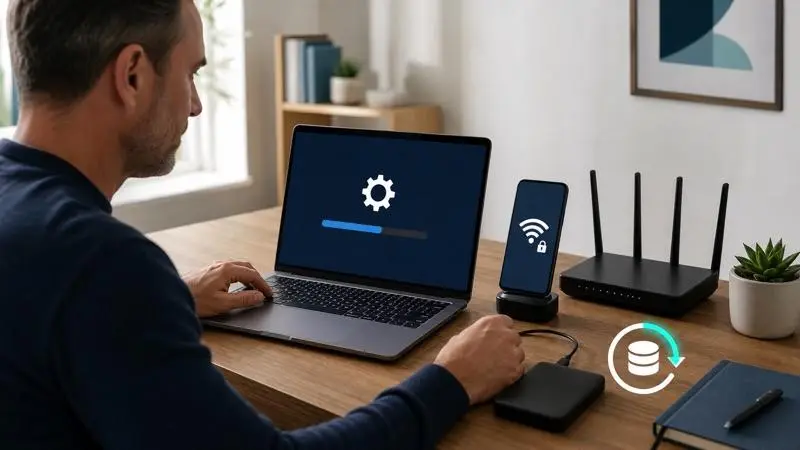
A backup protects against theft, device failure, accidental deletion, and ransomware. Follow the 3-2-1 approach: keep the original plus two backups, use two types of storage, and keep one copy offline or in a separate cloud account.
Enable automatic cloud backup for photos and documents, make a separate encrypted backup, and test that you can restore one file. A backup that has never been tested should not be your only recovery plan.
Tip 9: Use safer connections for sensitive activity
Public Wi-Fi may be convenient, but a shared network should not be treated as trusted. For banking, health, work, or account recovery, use cellular data or a personal hotspot when possible. Keep your firewall on, disable automatic Wi-Fi joining, and confirm that websites use HTTPS.
Forget networks after use, turn off file sharing and AirDrop-style discovery in public, and never ignore a browser certificate warning. A VPN can improve privacy on an untrusted network, but it does not make a fraudulent website or unsafe download legitimate.
Build Safer Online Habits as a Family
Tip 10: Use conversation, clear rules, and transparent parental controls
Children need specific examples, not a single warning to “be careful.” Agree on what information stays private, how to handle unknown contacts, which downloads require permission, when to stop a conversation, and who to tell. Review the rules as children gain skills and independence.
A UNICEF-backed study found that only 37.5% of surveyed children had received information about how to stay safe online. A short monthly safety conversation can help close that gap. For younger children, compare suitable parental-control apps, learn how to block unsafe websites, and discuss platform-specific risks such as whether Snapchat is safe for kids.

Parental controls can add structure, but they work best when children know what is monitored and why. VigilKids gives authorized parents a central place to review supported device activity, set app and web boundaries, and understand safety signals. Available features depend on the device, operating system, installation method, and granted permissions.

- Manage supported apps, websites, and screen-time routines.
- Review supported social, message, browsing, and device activity.
- Use location and geofencing tools when the required permissions are enabled.
- Bring key safety signals together in one secure parent dashboard.
Conclusion: Make Online Safety a Daily Habit
Online safety starts with consistent habits: secure your accounts, verify unexpected messages, limit personal sharing, update devices, and keep reliable backups. Families should also make digital safety an open, ongoing conversation so children feel comfortable asking for help.
When additional support is needed, VigilKids helps authorized parents manage apps and websites, review supported activity, and guide healthier digital habits. Use it transparently and adjust supervision as your child becomes more independent.
Frequently Asked Questions About Online Safety
1. What are the five most important online safety rules?
Use unique passwords or passkeys, enable MFA, verify unexpected requests outside the message, limit public personal information, and keep devices updated. These five habits reduce the most common account, scam, privacy, and malware risks.
2. How can I stay safe online every day?
Pause before clicking, use a password manager, check account alerts, install updates, use private profile settings, and back up important data. Small repeatable habits are more effective than reacting only after something goes wrong.
3. How long should a strong password be?
NIST recommends at least 15 characters when a password is the only authentication factor. Make every password unique, store it in a password manager, and add MFA. A passkey is preferable when the service supports one.
4. How can I tell whether a link is safe?
Check the complete domain, not just the display text. Be cautious of misspellings, shortened links, unexpected attachments, urgency, and requests for credentials or payment. When in doubt, open the official app or type the known address yourself.
5. Is public Wi-Fi safe for banking or shopping?
Avoid sensitive transactions on public Wi-Fi when cellular data or a personal hotspot is available. If you must connect, confirm HTTPS, keep the firewall on, disable sharing and auto-join, use MFA, and disconnect after finishing.
6. What personal information should never be posted publicly?
Avoid posting your home address, phone number, full birth date, school, daily routine, real-time location, travel dates, financial information, account-recovery answers, or identifying details visible in photo backgrounds.
7. What should a child do after receiving a harmful message?
The child should stop replying, save evidence, block the sender, report the account, and tell a trusted adult. Threats, exploitation, extortion, stalking, or immediate danger should be reported to the appropriate local authority.
8. Are parental-control apps enough to keep children safe online?
No. Controls can support boundaries and surface risks, but they cannot replace trust, age-appropriate education, or a plan for asking for help. Use them transparently, lawfully, and only on devices you are authorized to supervise.