
Mobile number tracker with Google Map is a popular search, but Google Maps cannot locate a person from only a phone number. It can show a phone's location only when the right account, device, permission, or location-sharing setting is already in place.
This guide explains what actually works: Google Maps Location Sharing, Google Find Hub for Android, Apple Find My for iPhone, and VigilKids for ongoing family location tracking.
PART 1. Can You Track a Mobile Number on Google Maps?
No, not by entering a phone number alone. Google Maps does not work like a public phone number locator where you type a mobile number and get a live pin on the map.
What Google can support is permission-based location access. For example, a person can share their real-time location with you through Google Location Sharing, or you can locate your own Android device through Google Find Hub when it is linked to your Google Account.
- You cannot: type any phone number into Google Maps and track that person's live location.
- You can: view a shared location when the person chooses to share it with you.
- You can: find your own Android phone if Find Hub is enabled and the device meets Google's requirements.
- Parents can: use a family location tool on a parent-managed device for ongoing child safety context.
If your real goal is to find your own phone with a phone number, start with account-based tools first. If your goal is family safety, a location monitoring setup is usually more practical than guessing from a phone number.
PART 2. Use Google Maps Location Sharing
The most direct Google Maps method is Location Sharing. Google says Location Sharing is off by default and lets selected people see information such as your real-time location, profile details, and battery status in supported Google services.
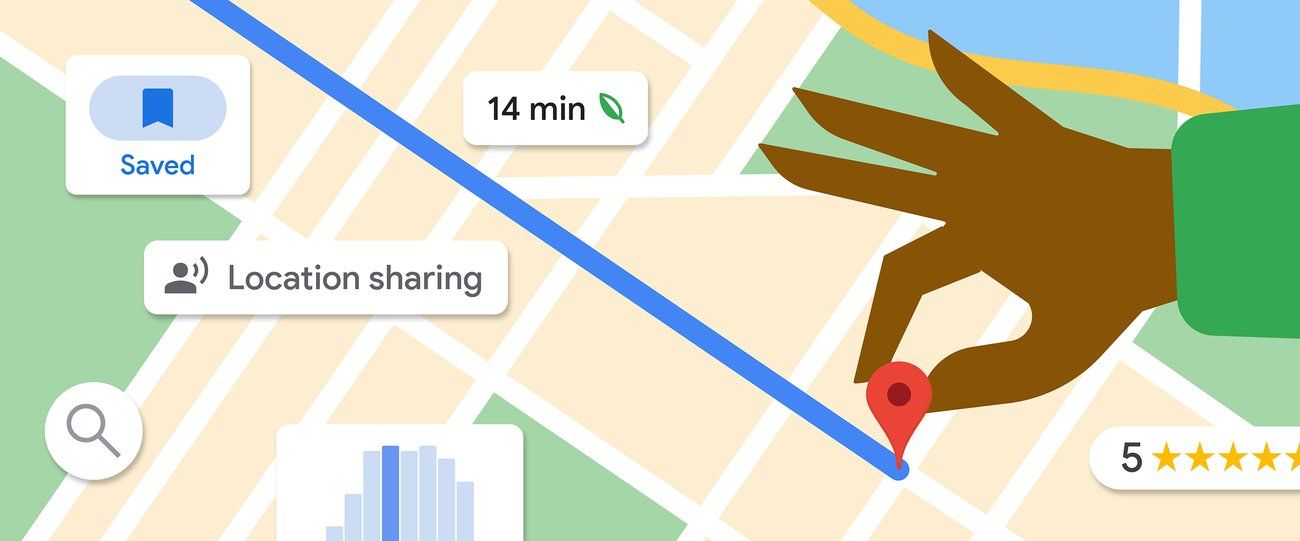
Best for: family members, friends, travel meetups, school commutes, and other situations where the person agrees to share their location.
- Step 1. Open Google Maps on the phone that will share its location.
- Step 2. Tap the profile picture in the top right corner.
- Step 3. Select Location sharing, then tap Share location.
- Step 4. Choose how long the location should be shared.
- Step 5. Choose the trusted contact who should receive the location.
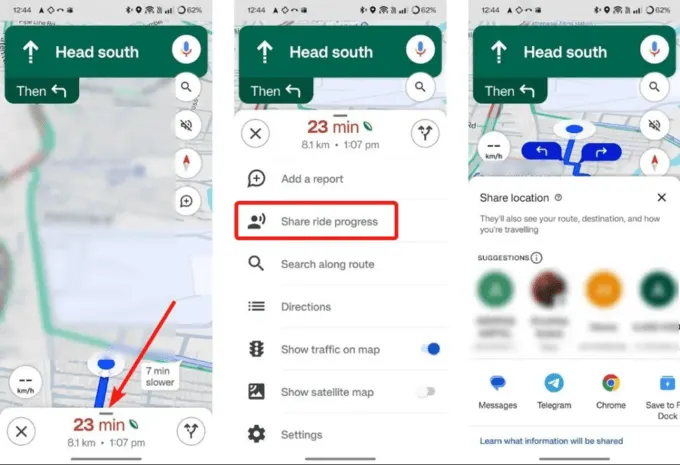
Important limit: this is not a phone number tracker. It works only after the person shares location from their own Google account and device. If you need more options, compare it with the best location sharing apps.
PART 3. Use Google Find Hub for an Android Phone
For Android, Google's Find Hub is the official way to find, secure, or erase a lost Android device. It is designed for devices linked to your Google Account, not for tracking any random phone number.
Google's requirements include that the device has power, is connected to mobile data or Wi-Fi, is signed in to a Google Account, has Find Hub turned on, and is visible on Google Play.
- Step 1. Go to google.com/android/find or open the Find Hub app.
- Step 2. Sign in with the Google Account linked to the lost Android phone.
- Step 3. Select the device you want to locate.
- Step 4. Check the device location on the map if available.
- Step 5. Use options such as Play sound, Mark as lost, or erase/reset if needed.
This method is especially useful for your own Android phone or a family device you manage. If the missing device is a Galaxy phone, you may also want to read this guide on how to find my Samsung phone.
PART 4. Use Apple Find My for an iPhone
If the device is an iPhone, Google Maps is not the main recovery tool. Apple's Find My is the better starting point for locating an iPhone, iPad, AirTag, or other Find My-supported item.
- Step 1. Open the Find My app on another Apple device, or sign in to iCloud on the web.
- Step 2. Choose Devices or Items.
- Step 3. Select the lost device to see its approximate location on a map.
- Step 4. Use Directions, Play Sound, Mark as Lost, or erase options when appropriate.
If Find My is not showing the device, check the common causes in this guide: Find My iPhone not working. For mixed-device families, this guide on how to share location from iPhone to Android can also help.
PART 5. Use VigilKids for Family Location Tracking
Google Maps and Find Hub are best for shared locations or lost devices. If you are a parent who needs ongoing visibility on a child's Android device, VigilKids is a better fit because it is built around family safety, not one-time number lookup.

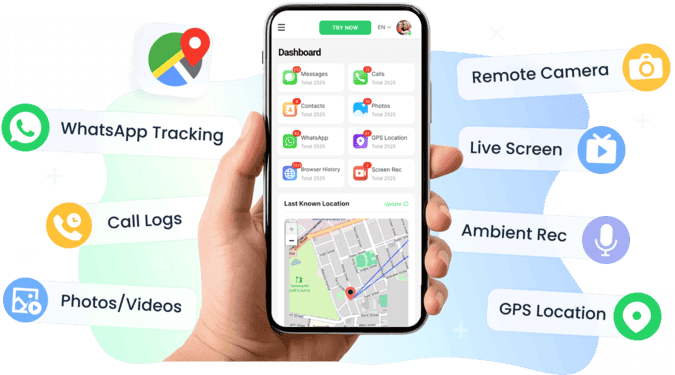
VigilKids Location Tracking
- View current and recent locations from the parent dashboard
- Review route history and location changes over time
- Set geofencing alerts for places such as home, school, or parks
- Combine location with app usage, screen activity, and messages for context
How parents can use VigilKids:
- Step 1. Create a VigilKids account and choose the child's Android device for setup.
- Step 2. Install and configure the app on the parent-managed device with the required permissions.
- Step 3. Open the dashboard to review live location, location history, geofence alerts, and related activity context.
For more Android-specific tracking options, you can also compare GPS tracking software for Android and geofencing software.
PART 6. Should You Trust Third-Party Number Trackers?
Many websites claim to offer a mobile number tracker with Google Map. Some send a location-sharing link to the phone number; others claim they can show a live map after you enter a number. Treat these claims carefully.
| Option | Official or built-in? | Best for lost phone? | Best for family tracking? | What to know first |
|---|---|---|---|---|
| Google Maps Location Sharing | ✅ | Limited | Good for trusted contacts | The person must turn on sharing first |
| Google Find Hub | ✅ | Best for Android | Only for linked Google Account devices | Requires power, internet, Find Hub, and account access |
| Apple Find My | ✅ | Best for iPhone | Useful for Apple Family Sharing | Requires Find My setup and Apple ID access |
| SMS link trackers | ❌ | Weak | One-time request only | The person must open and accept the link |
| VigilKids | Product setup | Best for Android | Best for ongoing child safety | Designed for parent-managed Android devices |
Any service that promises to locate any phone number instantly on Google Maps should be checked carefully. If your goal is a free number lookup, read this guide on how to track a phone number for free, but avoid tools that ask for sensitive information before explaining how they work.
FAQs About Tracking a Phone Number on Google Maps
Q1: Can I use a mobile number tracker with Google Map?
Not by entering a phone number alone. Google Maps can show location when someone shares it with you, or when you use account-based tools such as Google Find Hub for your own Android device.
Q2: How can I track a mobile number on Google Maps for free?
The free and official option is Google Maps Location Sharing. The person must choose to share their location with you. If the phone is your own Android device, use Google Find Hub instead.
Q3: Is Google Maps phone tracker real?
Google Maps can be used for shared location, but it is not a public phone number tracker. Be careful with websites that claim they can locate any number instantly through Google Maps.
Q4: Can I find a lost Android phone on Google Maps?
Use Google Find Hub. It can show the device location on a map if the device is linked to your Google Account and meets Google's requirements, such as power, internet connection, Find Hub being turned on, and visibility on Google Play.
Q5: Can I track an iPhone with Google Maps?
For a lost iPhone, use Apple Find My first. Google Maps Location Sharing can help only if location sharing was already set up by the person using the iPhone.
Q6: What is the best option for parents?
For ongoing family safety on a parent-managed Android device, VigilKids is more practical than trying to track a phone number on Google Maps. It combines current location, location history, geofence alerts, and related activity context.
Final Thoughts
A mobile number tracker with Google Map does not work the way many search results suggest. Google Maps cannot locate someone from only a number, but Google Maps Location Sharing, Google Find Hub, and Apple Find My can help when the right account and permission settings are already in place.
For parents who need more than a one-time map pin, VigilKids offers a stronger family location tracking setup with live location, history, geofencing, and activity context.