
Is Snapchat safe for your kids? Many parents worry about it. Chats disappear quickly, teens often keep their Snapchat life private, and it’s easy for them to share things without adults noticing. It can feel overwhelming to stay on top of their online activity.
Thankfully, you can set up parental controls on Snapchat to protect your child without banning the app. In this guide, we share simple ways to monitor Snapchat and keep your kid safe online.
Quick Look: Best Snapchat Parental Control Methods
Not sure which method works best for your family? Check out this table to quickly see the top options and what each one offers.
| Method | Monitor Activity | Screen Time Control | App Blocking | Read Messages | Best For |
|---|---|---|---|---|---|
| VigilKids | Advanced | Yes | Yes | Limited Alerts | Full family monitoring |
| Family Center | Partial | Limitied | No | No | Basic daily supervision |
| iPhone Screen Time | No | Yes | Yes | No | Apple device families |
| Google family link | Partial | Yes | Yes | No | Android device families |
Using VigilKids Snapchat Monitoring
Best for: Parents who want clear, simple full monitoring
VigilKids gives you a complete view of your child’s Snapchat activity. Unlike built-in tools, it shows usage insights, detects risky behavior, and allows you to manage screen time—all without technical hassle.
With VigilKids, parents get a complete tool to keep kids safe online. Key features include:


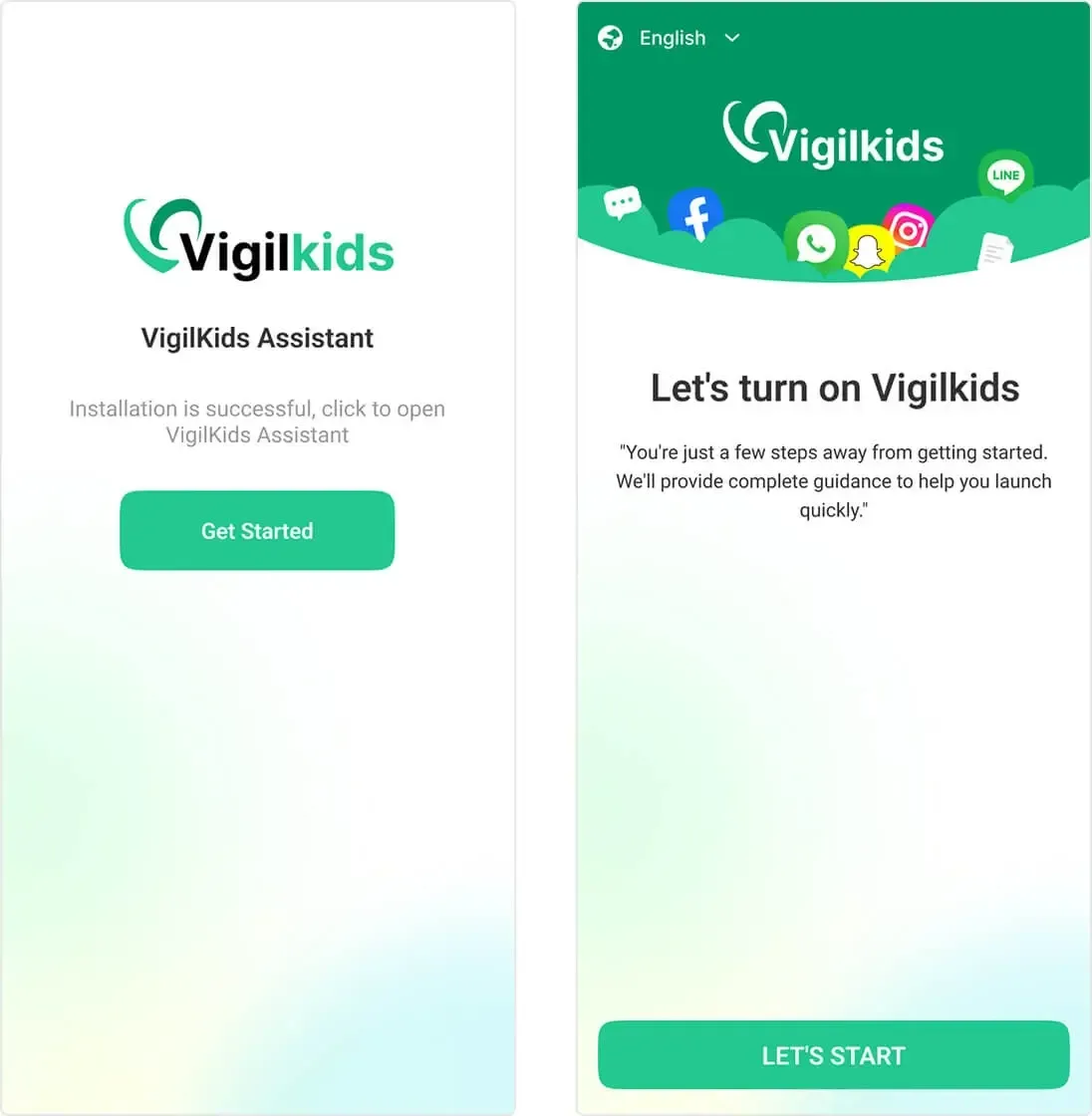
Ready to start monitoring your child’s Snapchat activity? The good news is, getting set up with VigilKids takes just a few minutes—no technical skills required.
Follow these simple steps to connect your child’s device and start protecting them right away:
- Step 1. Install VigilKids and create your parent account.
- Step 2. Connect your child’s device by following the setup guide.
- Step 3. Enable Snapchat monitoring, screen time tracking, and safety alerts.
- Step 4. Check simple reports to monitor Snapchat activity anytime.
- Efficient parental monitoring
- Easy setup and controls
- Real-time risk detection
- One-time device pairing needed
- Features vary by device
Snapchat Family Center (Built-in)
Best for: Parents who want free, basic built-in supervision
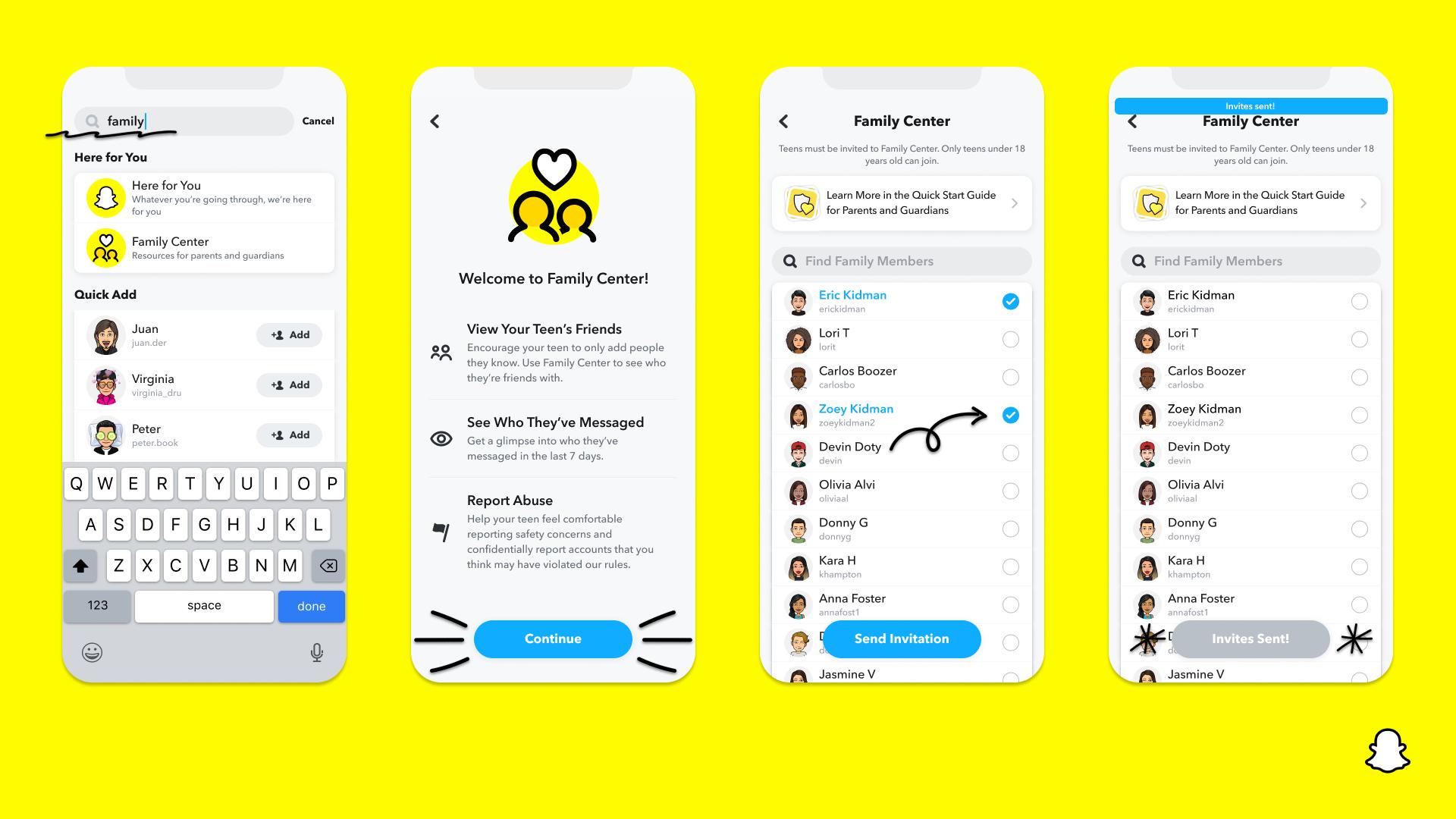
Snapchat offers a free tool called “Family Center” for parents. It’s easy to set up and doesn’t require any extra apps. While it lets you see who your child talks to, it won’t show actual messages, so it’s best for basic oversight rather than full monitoring.
Follow these steps to get started:
- Step 1. Open Snapchat and tap your Bitmoji profile icon.
- Step 2. Go to “Settings” and select “Family Center.”
- Step 3. Send an invite to your teen from “Family Center.”
- Step 4. Ask your child to accept and approve the request.
- Step5. Monitor friend activity and manage privacy settings.
- Free and built-in
- Easy to set up
- Basic friend activity oversight
- No extra apps required
- Cannot read messages
- Limited monitoring features
- No screen time or usage limits
Use iPhone Screen Time for Snapchat Limits
Best for: iPhone families who just need simple screen time rules
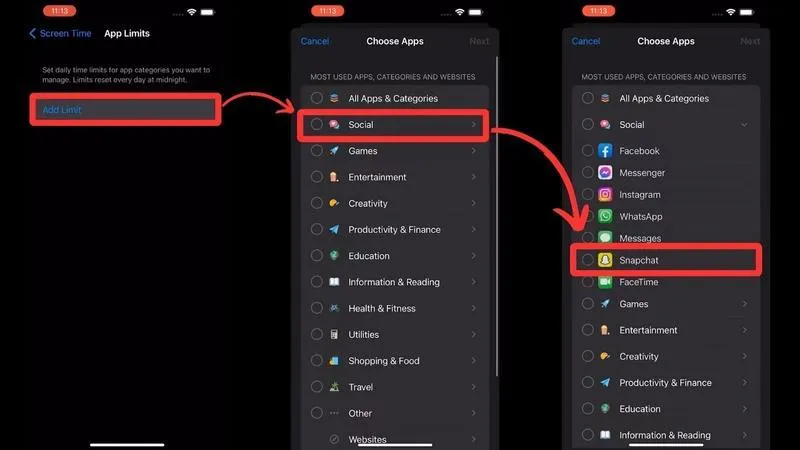
If your child uses an iPhone, Apple’s built-in Screen Time is a free and easy way to control Snapchat. While it won’t show chats or personal activity, it helps you set daily limits, stop late-night scrolling, and keep screen time consistent.
Follow these steps to get started:
- Step 1. Open "Settings" and turn on Screen Time.
- Step 2. Set a daily Snapchat limit in 'App Limits'.
- Step 3. Enable "Downtime" for bedtime or study hours.
- Step 4. Create a Screen Time passcode to lock the settings.
- Free and pre-installed
- Easy-to-use daily limits
- Effective bedtime control
- Secure with passcode
- Apple-only
- Limited Snapchat monitoring
- Basic social media safety
Android Google Family Link for Snapchat Control
Best for: Android families who need basic device and app management
While it won’t show chats or personal activity, it helps you set daily limits, stop late-night scrolling, and keep screen time consistent. For more tips on managing usage, check out how to use built-in screen time features effectively.
Follow these steps to get started:
- Step 1. Download “Google Family Link” on your phone and child’s Android device.
- Step 2. Sign in and link your child’s device.
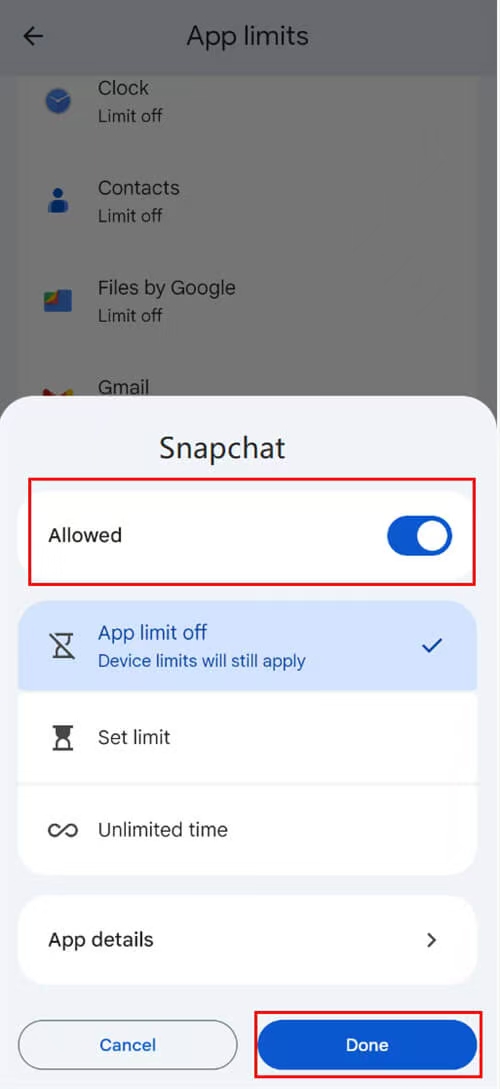
- Step 3. Set Snapchat daily limits under App Limits in your child’s profile.
- Step 4. Use remote lock, bedtime schedules, and app approvals for full control.
- Free and official
- Easy Snapchat limits
- Supports remote lock and schedules
- Simple setup for parents
- Android-only
- Cannot view Snapchat messages
- No Snapchat-specific alerts
- Basic monitoring compared to professional apps
Snapchat Restrictions Every Parent Should Know
Even with the best parental control tools, securing your child’s Snapchat account starts with the app’s built-in privacy settings. These quick, easy changes can block common risks like unwanted contact, location tracking, and public oversharing—before you even set up additional monitoring. Think of them as your first line of defense, working hand-in-hand with tools like VigilKids to keep your child safe.
Below are 5 critical Snapchat restrictions every parent should set up today, with step-by-step details on how to enable them:
Tip 1Enable Ghost Mode
Ghost Mode hides your child’s real-time location on Snap Map, so strangers can’t track their whereabouts.
How to turn it on: Go to Snap Map → Settings → Toggle on “Ghost Mode”.
Tip 2Turn Off Quick Add
Quick Add lets unknown users easily find and add your child. Disabling it prevents unwanted contact.
How to turn it off: Settings → Who Can… → See Me in Quick Add → Toggle off.
Tip 3Set Stories to Friends Only
Keep your child’s Snapchat stories from being seen by the public.
How to set it: Settings → Who Can.. → View My Story → Select “Friends Only”.
Tip 4Review Privacy Settings Regularly
Snapchat updates features often, so double-check contact, friend, and messaging privacy every few months.
Tip 5Talk About Online Safety Rules
Settings work best with open conversations. Discuss stranger danger, oversharing, and cyberbullying with your child.
FAQs
Q1: Are there parental controls on Snapchat?
Q2: Is Snapchat safe for kids?
Q3: Can parental apps monitor Snapchat effectively?
Conclusion
Learning how to put parental controls on Snapchat makes keeping kids safe easy. Use screen time limits and app monitoring to build healthy habits without taking away the fun.
VigilKids helps you manage Snapchat activity, control screen time, and keep your kids safe—all in one place!
Hot Topics for Parental Controls
8 Best Android Parental Control Apps in 2026
The 8 best Android parental control apps for 2026 — screen time, location, app blocking, and content filtering. Free and paid options compared.
How to Track Your Kids Location & Your Son’s Phone? 5 Simple Ways
Learn how to track your kids location and how to track my son’s phone using safe, simple tools. Real methods to find your child’s phone quickly.
Review of the 3 Best Parental Control Apps (Beginner's Guide)
Compare the top 3 parental control apps — VigilKids, mSpy, and Bark. See which one offers the best WhatsApp monitoring, real-time location tracking, and ease of use for everyday parents. Find the right tool to keep your child safe online.