
"I turned it off, so why is YouTube still restricted?" That is the question many parents and teens run into when a simple settings toggle does not behave as expected. If you searched how to turn off restricted mode on YouTube, the quick fix is to open YouTube settings, choose Restricted Mode, and switch it off, but a locked toggle usually means another layer is in charge.
That layer might be Family Link, a school Chromebook, a workplace account, public Wi-Fi, a mobile carrier filter, or a supervised YouTube setup. For parents, the goal is not simply to remove a filter. In this guide, you will learn how to diagnose the setting, turn it off when allowed, and choose the next YouTube safety step for your child.
First Check: Are You Allowed to Change It?
Yes, you can turn off Restricted Mode if you manage the YouTube account, browser, device, or network where the setting was enabled. If someone else manages it, you may see the setting locked, greyed out, or unavailable.
Quick answer for parents
- Personal account: you can usually turn off, disable, remove, or change the filter from YouTube settings.
- Child account: Family Link or a supervised account may control the setting.
- School or work device: an administrator may lock YouTube restrictions.
- Public Wi-Fi or managed network: network-level filtering may override your local setting.
In editorial testing, this is the point many generic guides skip: the same account can behave differently on a home laptop, a school Chromebook, an iPhone using mobile data, and a library computer. Before changing anything, ask what problem the filter is solving: mature content, comments, search results, shared-device use, or a younger child's setup.
How to Turn Off Restricted Mode on YouTube: Desktop, iPhone, and Android
If you are using your own account and the setting is not locked, follow the steps below. These steps are for changing your own YouTube settings, not bypassing a parent, school, workplace, or network rule.
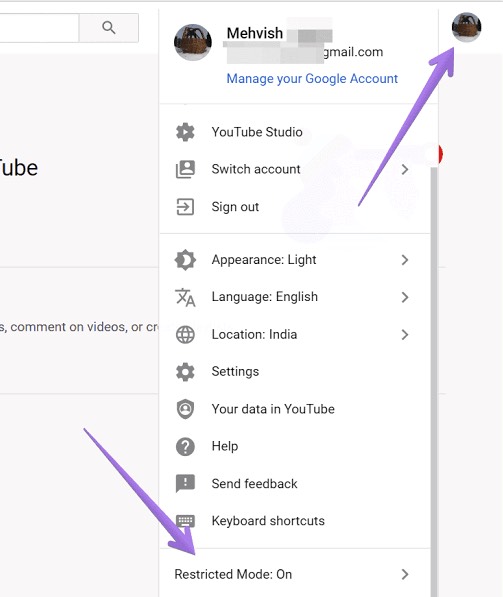
How to Disable It on a Computer
- Step 1. Open YouTube and sign in.
- Step 2. Click your profile photo in the top-right corner.
- Step 3. Select Restricted Mode near the bottom of the menu.
- Step 4. Turn Activate Restricted Mode off for that browser.
How to Remove It on iPhone, iPad, or Android
- Step 1. Open the YouTube app.
- Step 2. Tap your profile photo.
- Step 3. Go to Settings > General.
- Step 4. Turn Restricted Mode off.
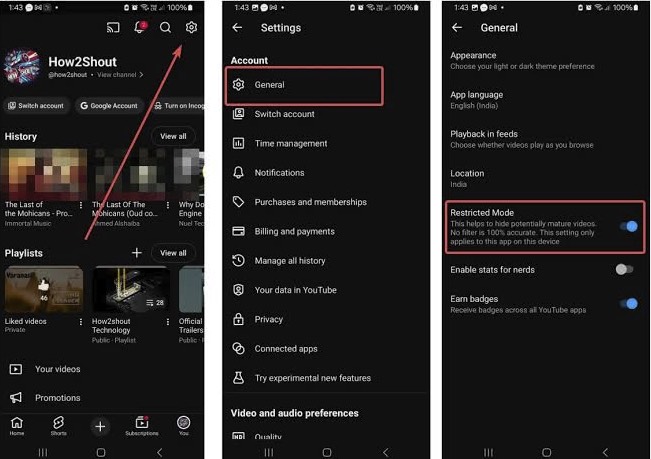
On the mobile website, YouTube directs users to Settings > Account. This also covers searches like disable Restricted Mode on iPhone, remove it in YouTube mobile, or change the setting. If the switch turns back on, move to the locked-setting section below.
If It Comes Back on a Shared Device
Restricted Mode applies per browser or device, so check each profile your family uses. A parent's profile, a child's supervised account, a guest browser, and a school account can have different restrictions.
If your family is still setting up broader YouTube rules, use this YouTube parental-control setup tutorial to review the account and device settings around Restricted Mode.
Is Restricted Mode Locked by a Parent, School, or Network Admin?
When people ask why YouTube Restricted Mode is locked, the real answer is usually not inside YouTube at all. The restriction may be applied above the app level: account supervision, browser policy, device management, DNS filtering, mobile carrier filtering, or a network administrator setting.
| Possible reason | What it means | What to do |
|---|---|---|
| Family Link | A parent manages the child's YouTube settings | Ask the parent account manager |
| Supervised account | The child account has age-based YouTube limits | Review supervision settings together |
| School or workplace | The device, browser, or account is organization-managed | Contact the administrator |
| Public or managed network | Wi-Fi or DNS filtering applies YouTube limits | Use the approved network policy |
| Mobile carrier filter | Content filtering follows the mobile data connection | Review the account with the carrier owner |
My practical rule is to test from the least managed place first: personal account, personal browser, home Wi-Fi, then mobile data. If the setting changes in one place but not another, you have learned where the control likely sits. If a school, workplace, or public network controls it, ask the responsible administrator. Do not teach a child to bypass a rule that another adult or institution is responsible for.
When Should Parents Turn the Filter Back On?
Turning the filter back on uses almost the same path as turning it off, so the bigger parent question is when it should stay on. In most families, it is worth turning the filter back on when YouTube starts affecting mood, routines, school focus, or a child's ability to step away from recommendations.
- Sudden behavior changes: consider a reset if screen use is followed by unusual anxiety, secrecy, irritability, or conflict.
- Algorithmic rabbit holes: turn the filter back on if recommendations keep pulling your child toward mature themes, extreme viewpoints, or upsetting content.
- Compulsive scrolling: use the filter as one boundary when Shorts or autoplay make it hard for your child to stop watching.
- Accidental exposure: re-enable filtering after mature, graphic, or disturbing content slips into a search result or recommendation.
- Major age transitions: review settings when your child turns 13, or the applicable age in your country, because Google may notify families that the child can update their account options.
Use the right YouTube layer for the child's age and maturity: YouTube Kids for younger children who need a more contained app, a YouTube supervised account for pre-teens or teens who need more room with parent-managed settings, and Restricted Mode as a general filter on browsers, apps, and shared devices. A parent-friendly rule of thumb: keep the filter on where the device is shared or the child is younger, and loosen it only where the account, maturity level, and family rules are clear. For younger children, compare Restricted Mode with broader YouTube parental controls.
Restricted Mode vs. Age Restrictions: What's the Difference?
Quick clarification
Restricted Mode and age restrictions are not the same. Turning off Restricted Mode may make more content available, but it does not remove YouTube's age restrictions from videos marked for adult viewers.
Many searches mix up Restricted Mode and age restriction, but they solve different problems. Restricted Mode is a filter you can turn on for a browser, device, or managed account. Age restriction is usually tied to a video's rating, the viewer's age/account status, or YouTube's content policies.
| Setting or issue | What it means for parents |
|---|---|
| Restricted Mode | Optional filter for some mature content, search results, and comments |
| Age-restricted video | Video may be unavailable because of age, sign-in status, or YouTube policy |
| YouTube Kids or supervised account | Parent-managed experience with broader content settings |
| Screen-time rule | Device or account routine that limits when and how long YouTube is used |
This distinction protects the article from a common dead end. If your problem is an age-restricted video, turning off the filter may not solve it. If your problem is endless watching, a filter will not replace app time limits, bedtime rules, or a better account setup.
YouTube Safety Checks for Parents After You Turn It Off
Once the immediate setting is fixed, step back and look at the child's overall YouTube experience. The most useful checks are often the points where children get pulled into more viewing: search, Shorts, autoplay, recommendations, device timing, and family communication.
Choose the right YouTube experience
YouTube Kids may fit younger children. A YouTube supervised account may fit children who are ready for more than YouTube Kids but still need parent-managed content settings. A regular teen account may need clearer routines instead of tighter filters.
Review Shorts, search, and autoplay
Restricted Mode does not directly solve endless scrolling. Talk with your child about when Shorts are allowed, whether autoplay should stay off, and what to do when YouTube recommends content that feels uncomfortable, too mature, or emotionally intense.
Use a 10-minute parent audit
Open the devices your child actually uses and check four things in order: account type, Restricted Mode state, autoplay, and whether YouTube opens under the child's profile or an adult profile. This quick audit often reveals more than another generic settings checklist.
Build device routines outside YouTube
Set bedtime charging rules, homework-first expectations, and shared-device profiles. For Android families, it can also help to understand how to check screen time on Android before deciding which limits are realistic.
Need support beyond one YouTube setting?
For families using parent-managed Android devices, VigilKids can support broader digital routines around app use, browsing activity, and location. Explore VigilKids for Android parental controls.
Disclaimer: VigilKids does not manage YouTube Restricted Mode or provide YouTube-specific video monitoring.
FAQs
Open YouTube, sign in, click or tap your profile photo, choose Restricted Mode or go to Settings > General, then switch it off. This is also what people mean by remove, take off, or get rid of Restricted Mode. If the setting is locked, it may be managed by Family Link, a parent, a school, a workplace, a device manager, or a network administrator.
It may be locked because of Family Link YouTube restrictions, a supervised account, a parent-managed setting, a school or workplace device, a managed browser, a public network, DNS filtering, or mobile carrier filtering. Ask the person or administrator who manages that account, device, or network.
A child may be able to turn it off only if it was enabled in a normal personal YouTube session. If Restricted Mode is controlled through Family Link, a supervised account, an administrator, or a managed network, the child cannot change it from the regular YouTube menu.
Restricted Mode can apply to YouTube content generally, but it is not a complete Shorts management tool. Parents should also review supervised settings, autoplay habits, screen-time routines, and family rules around scrolling.
Usually not by itself. Teens need privacy and growing independence, but they also need routines around bedtime, schoolwork, recommendations, and what to do when content feels harmful. Restricted Mode can be one layer, not the whole plan.
Conclusion
how to turn off restricted mode on YouTube depends on who manages the account, device, browser, or network. If you are the account owner and the setting is not locked, you can change it from YouTube settings; if it is locked, the responsible next step is to identify the parent, Family Link account, school, workplace, device manager, or network administrator controlling it.
For parents, Restricted Mode is useful but limited. Pair it with the right YouTube experience, age-appropriate settings, screen-time routines, and steady conversations so your child learns safer habits instead of only running into blocked settings.
- YouTube Help: Turn Restricted Mode on or off on YouTube
- YouTube For Families Help: Understand YouTube and YouTube Kids options for your child
- Google For Families Help: How Google Accounts work when children turn 13
Source note: Reviewed on August 12, 2026. YouTube features, labels, eligibility, and Family Link controls can vary by account age, country or region, device, app version, browser profile, organization policy, and network settings.
Hot Topics for Social Apps Monitoring
Does WhatsApp Show Your Phone Number? Who Can See It in 2026
Does WhatsApp show your phone number? See who can view it in chats, groups, Channels, and Business, plus what usernames change and how to protect your privacy.
Does Instagram Notify When You Screenshot? What Parents Should Know
Learn when Instagram screenshot notifications appear and how families can talk about privacy, sharing, and safer online habits.
TikTok Watch History: How to See Videos You Watched
Learn how to view your TikTok watch history, find previously watched videos, check searches and likes, and fix missing history options.