
"I only gave my son YouTube for homework videos — somehow he ended up watching Shorts until midnight."
For many parents, YouTube starts as a helpful place for cartoons, homework support, music, and game tutorials. But it can quickly turn into endless Shorts scrolling, distracting recommendations, and late nights spent watching “just one more video.”
The challenge is that YouTube moves fast. New videos appear constantly, and filtering is not perfect, so children can easily drift from harmless content to videos that feel too mature, too stimulating, or simply too much.
The good news is that YouTube does offer several parental controls that can help. In this guide, we'll show you how to put parental controls on YouTube and how to build safer viewing habits for kids and teens.
How to put parental controls on YouTube
Most parents are not trying to remove YouTube completely. They usually just want a version of YouTube that feels safer, healthier, and easier to manage for their child’s age.
The challenge is that no single setting works for every age group or device. A setup that works well for a 6-year-old may feel far too restrictive for a teenager.
That is why YouTube offers several parental control options based on your child’s age, maturity, and how they usually watch videos.
| Parental Control Option | Best For | Main Benefit |
|---|---|---|
| Restricted Mode | Shared phones, tablets, TVs, and browsers | Fastest and easiest setup |
| YouTube Kids | Children under 12 | More filtered viewing experience |
| Supervised Accounts | Kids and teens ages 9–17 | Flexible controls with more independence |
For most families, the best setup usually depends on two things: your child's age and screen time habits.
Turn on Restricted Mode (Best for Shared Family Devices)
Restricted Mode is usually the fastest place for parents to start, especially on shared family devices like iPads, smart TVs, school Chromebooks, or desktop browsers.
While it does not block everything perfectly, it can still help hide mature videos, explicit language, and some inappropriate search results with only a few taps.
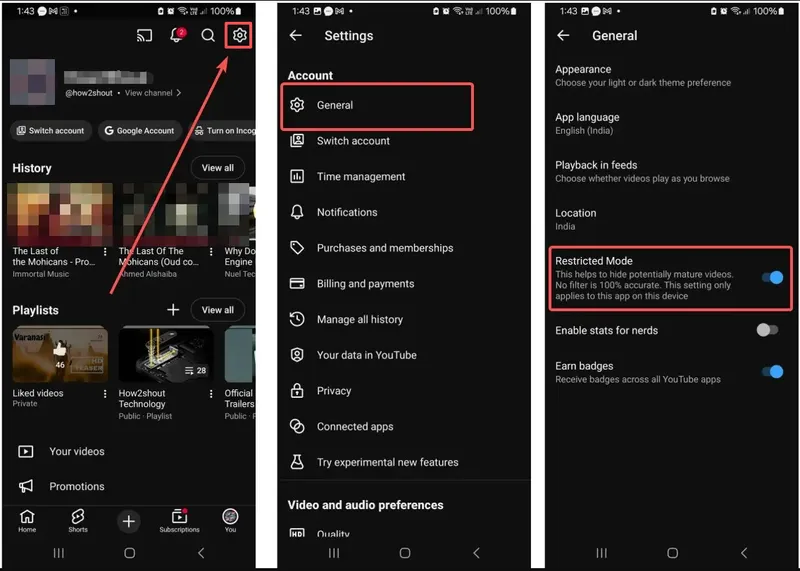
On the YouTube mobile app (iPhone and Android):
- Step 1. Open the YouTube app.
- Step 2. Tap your profile picture.
- Step 3. Go to Settings > General.
- Step 4. Turn on Restricted Mode.
On a desktop or web browser:
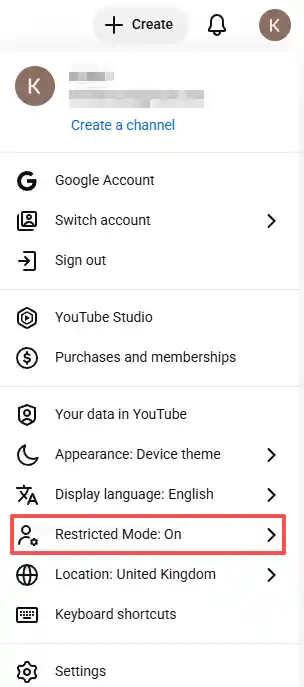
- Step 1. Open YouTube in your browser.
- Step 2. Click your profile icon.
- Step 3. Scroll down and enable Restricted Mode.
On a smart TV:
- Step 1. Open the YouTube TV app.
- Step 2. Open Settings.
- Step 3. Enable Restricted Mode.
Keep in mind that Restricted Mode works separately on each device. If your child uses multiple phones, browsers, or TVs, you may need to repeat the setup several times.
Set up YouTube Kids (Best for Children Under 12)
For younger children who need a more curated viewing environment, many families prefer starting with YouTube Kids instead of the regular YouTube app.
The app has a simpler layout, stronger filtering, and more parent-focused controls designed specifically for younger viewers.
- Step 1. Download the separate YouTube Kids app.
- Step 2. Sign in using your parent Google account.
- Step 3. Create a child profile.
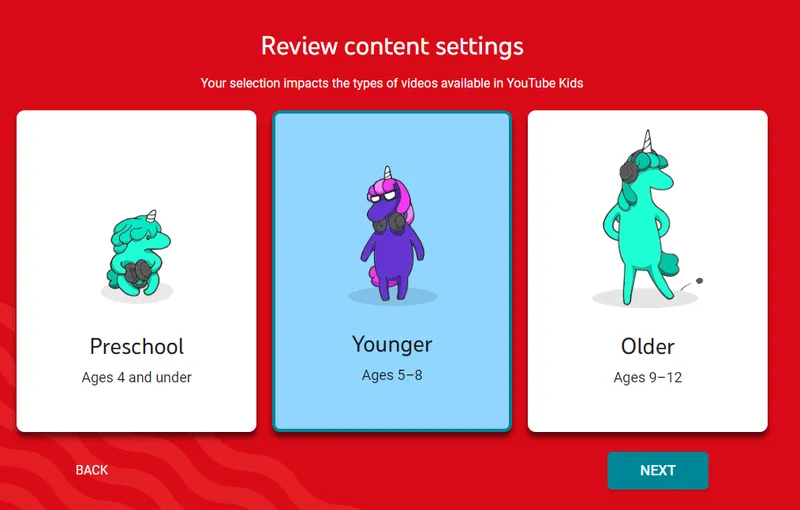
- Step 4. Choose an age setting like Preschool, Younger, or Older.
- Step 5. Set screen-time limits using the built-in timer.
Preschool works best for very young children who mostly watch songs, cartoons, and educational videos.
Younger gives elementary-age kids access to a wider range of kid-friendly content.
Older allows older children to explore more content while still keeping some filtering enabled.
 Tips
Tips
Even with YouTube Kids enabled, many parents still review watch history occasionally because recommendations can change surprisingly fast after only a few videos.
Use a YouTube supervised account(Best for Ages 9–17)
As kids get older, simply blocking videos usually stops working. Most parents eventually need a setup that gives teens more freedom while still keeping some boundaries in place.
A supervised Google Account is currently Google's most flexible built-in parental control option for older kids and teenagers.
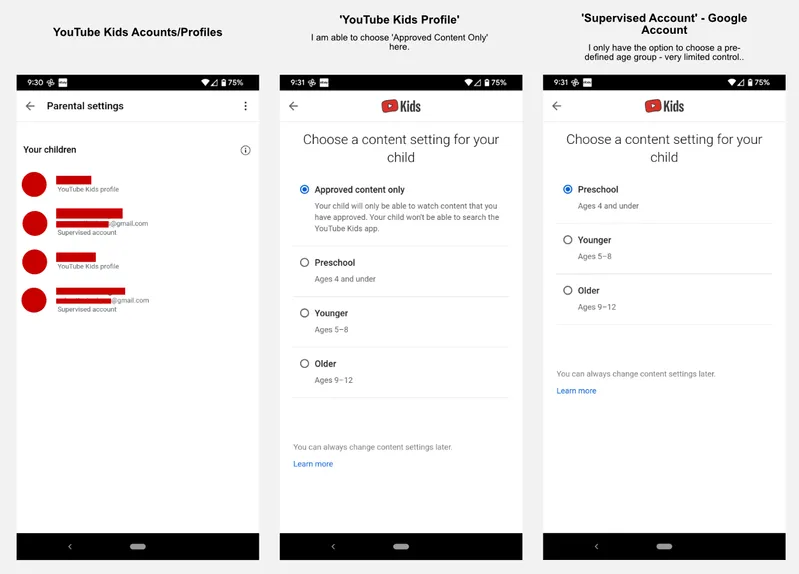
- Step 1. Open the YouTube app and go to Settings > Parental settings.
- Step 2. Add or create your child's Google account.
- Step 3. Choose a content level based on your child's age and maturity.
- Step 4. Connect the account through Google Family Link.
- Step 5. Review permissions, screen-time limits, and watch-history settings together.
 Note
Note
- Explore works best for younger tweens who mostly watch gaming, music, or creator videos.
- Explore More gives teens access to a wider range of videos and livestreams.
- Most of YouTube allows almost everything except age-restricted content.
Many families also pause watch history and search history to reduce how aggressively YouTube recommends new videos over time.
Turn off autoplay and manage screen time (Add-on protection for all ages)
No matter which parental control setup families choose, many parents eventually realize that screen habits matter just as much as content filtering.
For a lot of kids, the biggest challenge is not one inappropriate video — it is how easily YouTube keeps them watching for far longer than planned.
Autoplay, endless recommendations, and Shorts can quickly turn a short break into an hour of scrolling without children even noticing the time.
- Turn off Autoplay to reduce nonstop video recommendations.
- Use Google Family Link or Apple Screen Time to set daily YouTube limits.
- Use the YouTube Kids built-in timer for younger children.
- Keep phones and tablets outside bedrooms overnight when possible.
- Create screen-free routines during homework, meals, and bedtime.
Many families find that even small changes — like disabling autoplay or setting a nighttime cutoff — can noticeably improve YouTube habits over time.
Why many parents choose YouTube Kids for younger children
For many parents, regular YouTube starts feeling overwhelming surprisingly fast for younger kids.
A child may begin with cartoons, Minecraft videos, or homework help, but after only a few recommendations, the content can quickly shift into prank clips, loud Shorts, or videos that feel a little too mature and turn into unsuitable content.
That is why many families feel more comfortable starting with YouTube Kids instead. The app feels calmer, simpler, and easier to manage during the years when children still need more guidance online.
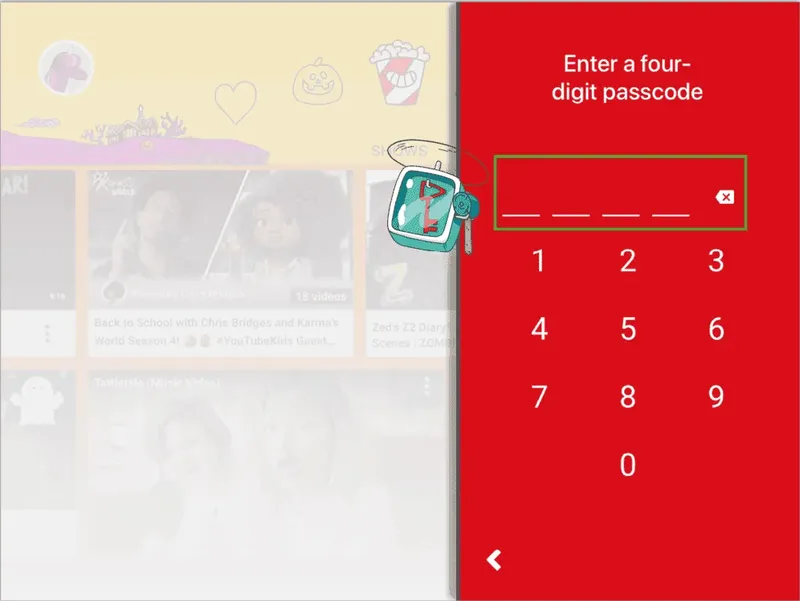
For younger children, many parents appreciate that YouTube Kids offers a more guided viewing experience instead of the fast-moving, recommendation-heavy environment found on regular YouTube.
Why parents like YouTube Kids
- Content is filtered more carefully for younger viewers.
- Parents can set bedtime routines and daily watch-time limits.
- The app feels less distracting and easier for younger kids to navigate independently.
- Parents can manually approve specific videos and channels for tighter control.
Many parents also say YouTube Kids feels less chaotic than regular YouTube, especially for children who get pulled into endless scrolling very easily.
Even with YouTube Kids, many families still check in occasionally, watch together once in a while, or talk openly about what kids are seeing online.
Why YouTube Shorts still worries many parents
Even with parental controls enabled, YouTube Shorts remain a top concern for many parents. Shorts work differently from regular YouTube videos. Fast-playing clips and endless scrolling make kids keep watching unintentionally.
The bigger issue is not inappropriate content. Harmless clips can quickly lead to an hour of nonstop scrolling and YouTube screen time limits. Constant short videos also hurt kids' focus and disrupt their bedtime routines.
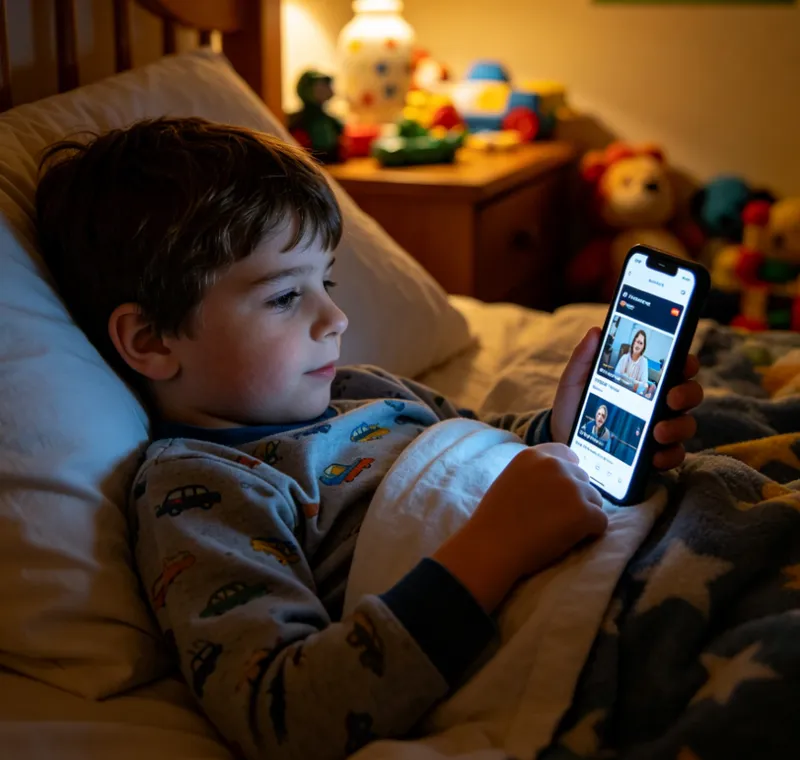
Another common frustration is that YouTube still does not offer a simple built-in setting to fully disable Shorts inside the standard app. Because of that, many parents eventually realize that YouTube’s built-in parental controls help in some areas, but still leave a few important gaps when it comes to screen habits, Shorts, and stronger protection across devices.
Where YouTube’s built-in controls still fall short
YouTube's built-in parental controls can definitely help, especially for younger children. But as kids get older, many parents eventually realize that the built-in tools still leave a few frustrating gaps. Children may still find ways to keep watching Shorts, switch accounts, turn off restrictions, or continue scrolling long after screen time was supposed to end.
That is why some families choose additional tools like VigilKids alongside YouTube’s own parental controls. Instead of replacing YouTube’s settings, VigilKids helps parents create more consistent screen-time boundaries, block YouTube Shorts and unwanted channels, and view activity even if watch history is later deleted.
VigilKids Pro
- Block YouTube Shorts and unwanted channels across multiple devices
- Prevent children from turning off app restrictions
- View text message activity and screen-time habits more consistently
- Create healthier bedtime routines with location tracking and app limits
- Step 1. Install VigilKids on your child’s device.
- Step 2. Choose the YouTube restrictions, Shorts blocking options, and screen-time rules you want to enable.
- Step 3. Review screen habits, bedtime activity, and app usage from your parent dashboard.
Note
Annual plan averages about $9.99/month, with a free trial available. See current options on the VigilKids pricing page.
For most parents, the goal is usually not to monitor every single thing their child does online. It is simply to create healthier digital habits and a little more peace of mind over time.
FAQs about YouTube parental controls
Q1: Does YouTube have parental controls?
Yes. YouTube offers several parental control features, including Restricted Mode, YouTube Kids, supervised accounts, and screen-time tools through Google Family Link.
Q2: Can parents fully block YouTube Shorts?
YouTube currently does not provide a simple built-in option to fully disable Shorts inside the standard app. Some parents rely on screen-time limits or additional parental control tools for stronger restrictions.
Q3: Can kids bypass Restricted Mode?
Sometimes. Older children and teens may bypass restrictions by switching accounts, using different browsers, or turning settings off if devices are not supervised.
Conclusion
Learning how to put parental controls on YouTube can help families create safer and healthier screen habits without removing YouTube completely. Features like Restricted Mode, YouTube Kids, supervised accounts, and screen-time limits can all make a meaningful difference when used consistently.
At the same time, many parents eventually realize that YouTube’s built-in controls still have limitations — especially around Shorts, screen-time boundaries, and bypassing restrictions. That is why some families also use tools like VigilKids for stronger parental controls and more consistent protection across devices.
Hot Topics for Parental Control
Top Parental Control Apps 2026: iPhone, Android, Mac & PC
The top parental control apps in 2026 for every family type — by age, by platform, by household setup. Compare 7 picks including VigilKids, Bark, and Family Link.
Does WhatsApp Have Parental Controls? Full 2026 Guide
hatsApp has no built-in parental controls. Learn how to set up safe monitoring in 2026 using WhatsApp's privacy settings, family rules, and the right app.
6 Best Parental Control Apps for Snapchat in 2026
Looking for the best parental control app for Snapchat? Compare the top apps, including VigilKids, Bark, mSpy, Eyezy, Qustodio, and AirDroid.