
Wondering if WhatsApp chats can appear on another Android phone? The short answer is yes—but only through a linked device, an authorized transfer, an owner-shared file, or lawful parental monitoring. There is no legitimate phone-number-only shortcut to how to see others whatsapp chats in your phone android.
This guide explains what actually works, which warning signs may indicate unwanted access, and how parents can protect a child’s Android device without crossing privacy boundaries.
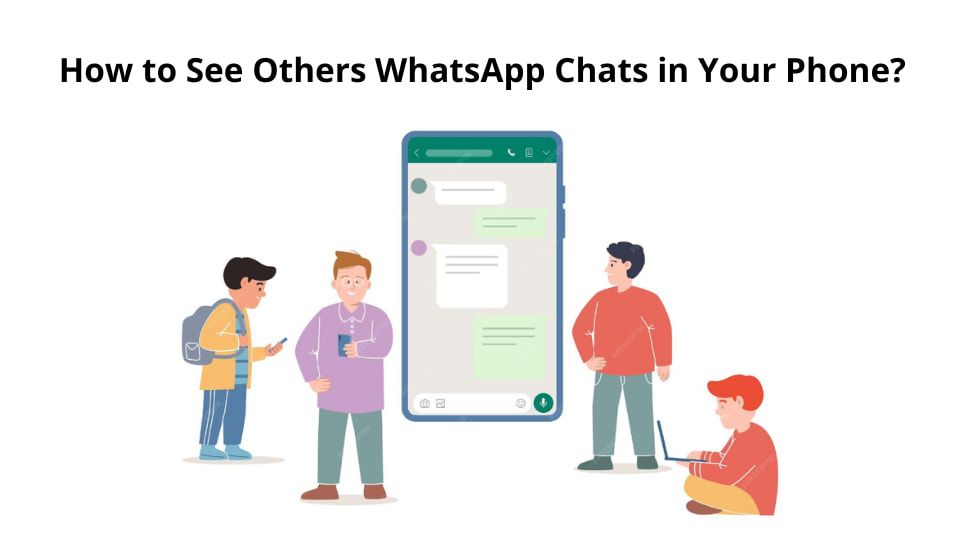
What Is Actually Possible on Android?
WhatsApp does not offer a legitimate phone-number-only feature for opening another person’s private chats. Messages can appear on another device only when there is an authorized linked session, access to the account and its backup, a file shared by the owner, or monitoring installed on a device the user is legally permitted to supervise.
- For your own account: use Linked Devices, an official Android transfer, or an authorized backup restore.
- For owner-shared records: use exported chats, screenshots, or media the account owner chooses to provide.
- For a child’s Android phone: consider transparent WhatsApp parental monitoring only when you own or are legally authorized to manage the device.
- For suspected unauthorized access: review Linked Devices, Google Account security, Android permissions, backups, and verification alerts.
Do not access another adult’s account, scan a QR code, use cloud credentials, or install monitoring software without clear permission. Platform rules and local laws can differ, so authorization and notice should be confirmed before monitoring begins.
4 Common Ways WhatsApp Chats Appear on Another Device
These four routes use different mechanisms. The first three can serve legitimate account or record-sharing needs when authorized. The fourth describes account-security threats that users should recognize and stop, not attempt.
1 See WhatsApp Chats Through Linked Devices, Web, or Desktop
WhatsApp Linked Devices lets an account owner connect an authorized computer, browser, tablet, or companion phone by scanning a QR code. The linked device can display synced conversations and receive new messages, but the session remains listed in WhatsApp settings. If your goal is simply to use your own account on two authorized devices, review this official route before considering third-party tools.
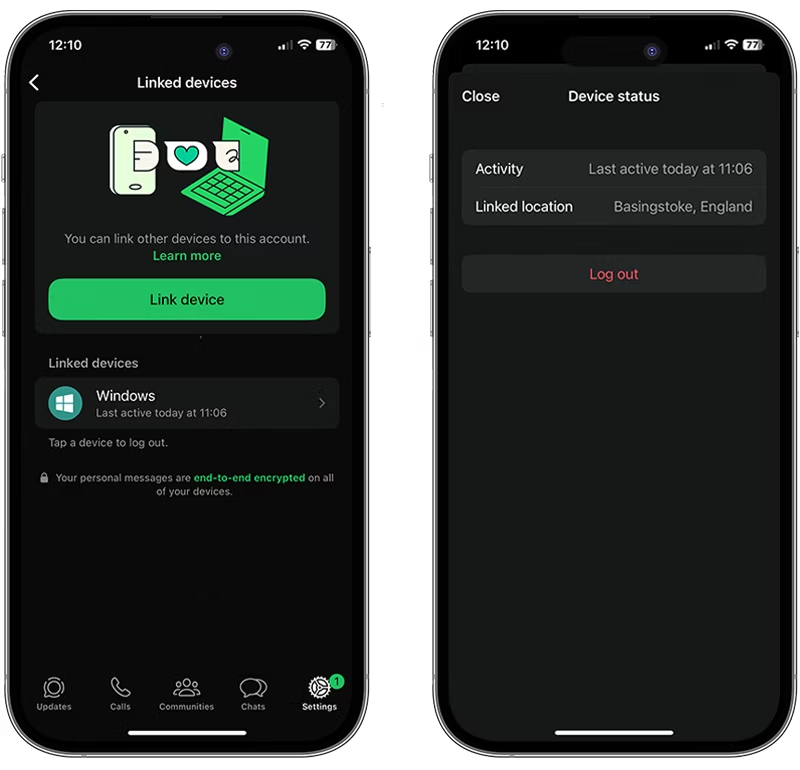
Immediate detection signals you can check right now:
- Open WhatsApp, go to Linked Devices and look for unknown device names or unusual last active times.
- Watch for login notifications or messages marked read when you did not open them.
2 View Your WhatsApp History Through Backups and Chat Transfer
WhatsApp backups and chat transfer are intended for moving your own conversation history to a new Android phone. Restoring from Google Drive normally requires the same phone number and Google Account used to create the backup. A direct device transfer also requires access to the old and new phones. These tools are not a legitimate shortcut to another person’s account.
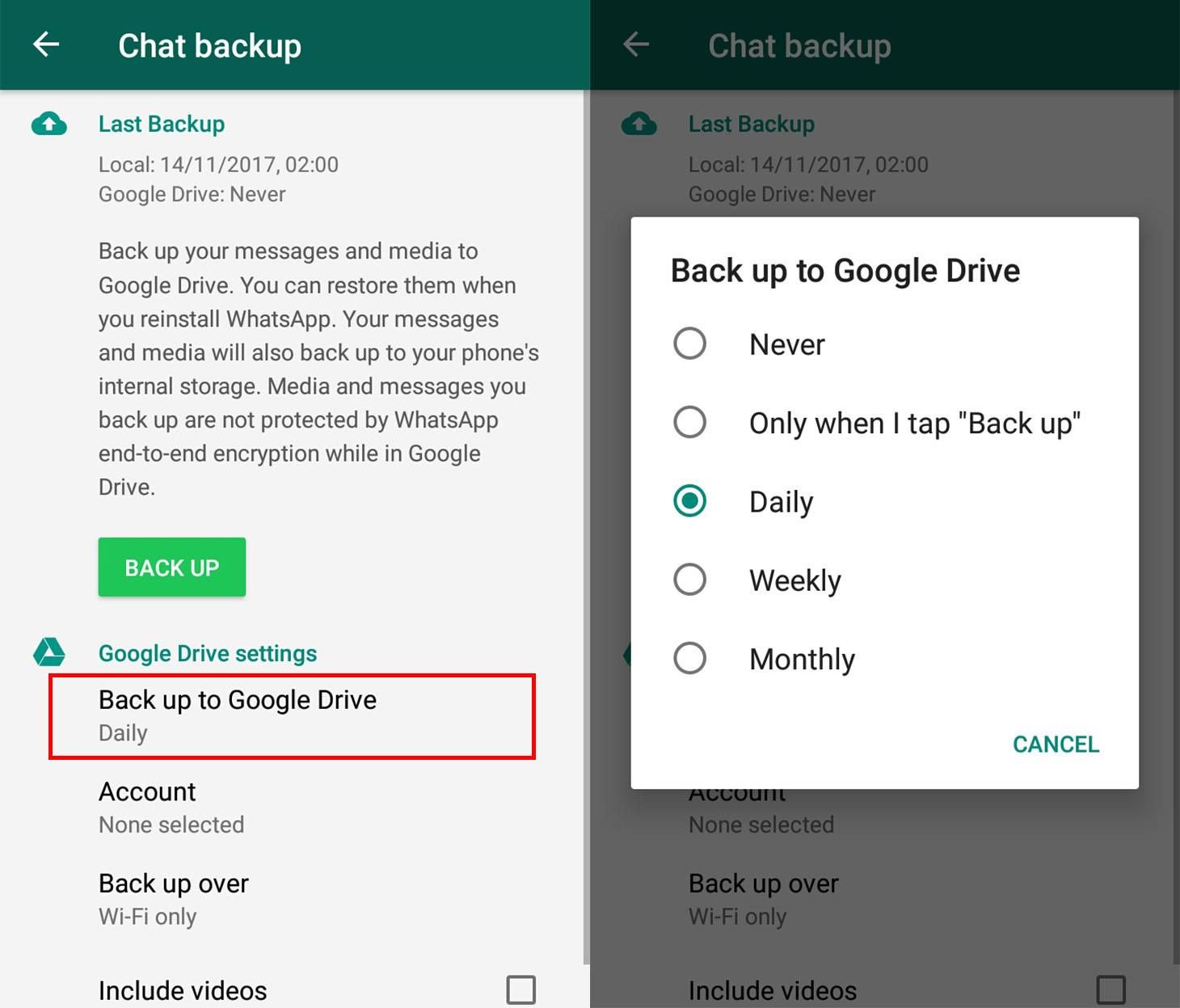
Immediate detection signals:
- Check WhatsApp’s Chat backup screen for the connected Google Account and last backup time.
- Review Google Account security activity for devices or sessions you do not recognize.
3 Read Owner-Shared Chat Exports, Screenshots, and Files
A WhatsApp user can export a selected conversation or share screenshots and media files. This can help document harassment, preserve a family record, or share evidence with a counselor, school, lawyer, or law-enforcement officer. An export is a static copy: it does not provide continuous access or show future messages.
Immediate detection signals:
- Review recent files, downloads, email drafts, and sent messages for unexpected chat exports.
- Check shared folders and social apps for screenshots or uploads you did not create.
4 Recognize SIM Swap, Phishing, and Account Takeover Risks
A criminal may attempt to steal a verification code, hijack a phone number through a SIM swap, or trick the owner into scanning a fake QR code. These are security incidents, not legitimate ways to view WhatsApp chats on another phone. Warning signs include an unexpected OTP, sudden loss of mobile service, an unexplained WhatsApp logout, or a notice that the account was registered elsewhere.
Immediate detection signals:
- Watch for unexpected SMS verification codes or repeated “Try again later” messages.
- Act immediately if WhatsApp reports registration on a new device that you did not authorize.

How VigilKids Helps Parents Monitor WhatsApp on Android
Official WhatsApp controls help parents review linked sessions and secure an account, but they do not provide ongoing context about cyberbullying, scams, inappropriate content, or risky contacts on a child’s Android phone. When additional oversight is justified, VigilKids can provide family-safety support after one-time setup and the required permissions.
VigilKids for WhatsApp is intended for a child’s device that a parent owns or is legally authorized to supervise. It cannot retrieve chats that were never captured before installation or permission setup. Compatibility and available records can vary by Android version, WhatsApp version, device model, enabled permissions, region, and plan.

VigilKids for WhatsApp Monitoring
- Review supported sent and received WhatsApp messages captured after setup.
- Check available photos, videos, voice notes, files, and contact activity.
- Compare ways to track WhatsApp activity on another phone before choosing a setup.
- Verify supported features and limitations in this VigilKids WhatsApp tracker review.
- Recheck Android permissions after system or WhatsApp updates to keep supported data capture working.
How to Check If Someone Is Reading Your WhatsApp
If you notice messages marked as read, unfamiliar login activity, or an unexpected verification code, complete these Android checks one by one. They focus on the places where linked sessions, suspicious permissions, backups, and account-takeover attempts usually leave evidence.
Step 1: Check Linked Devices (WhatsApp Web and Desktop)
- Open WhatsApp on Android, tap More options, and choose Linked devices.
- Review every device name, browser, device type, and last active time.
- Tap any session you do not recognize and choose Log out.
Step 2: Scan the Android Phone for Suspicious Apps and Permissions
- Open Android Settings > Apps and review installed apps, including anything with an unfamiliar name or icon.
- Check Accessibility, notification access, device-admin access, VPN settings, and other powerful permissions.
- Remove access from apps you do not recognize, and uninstall them when it is safe to do so.
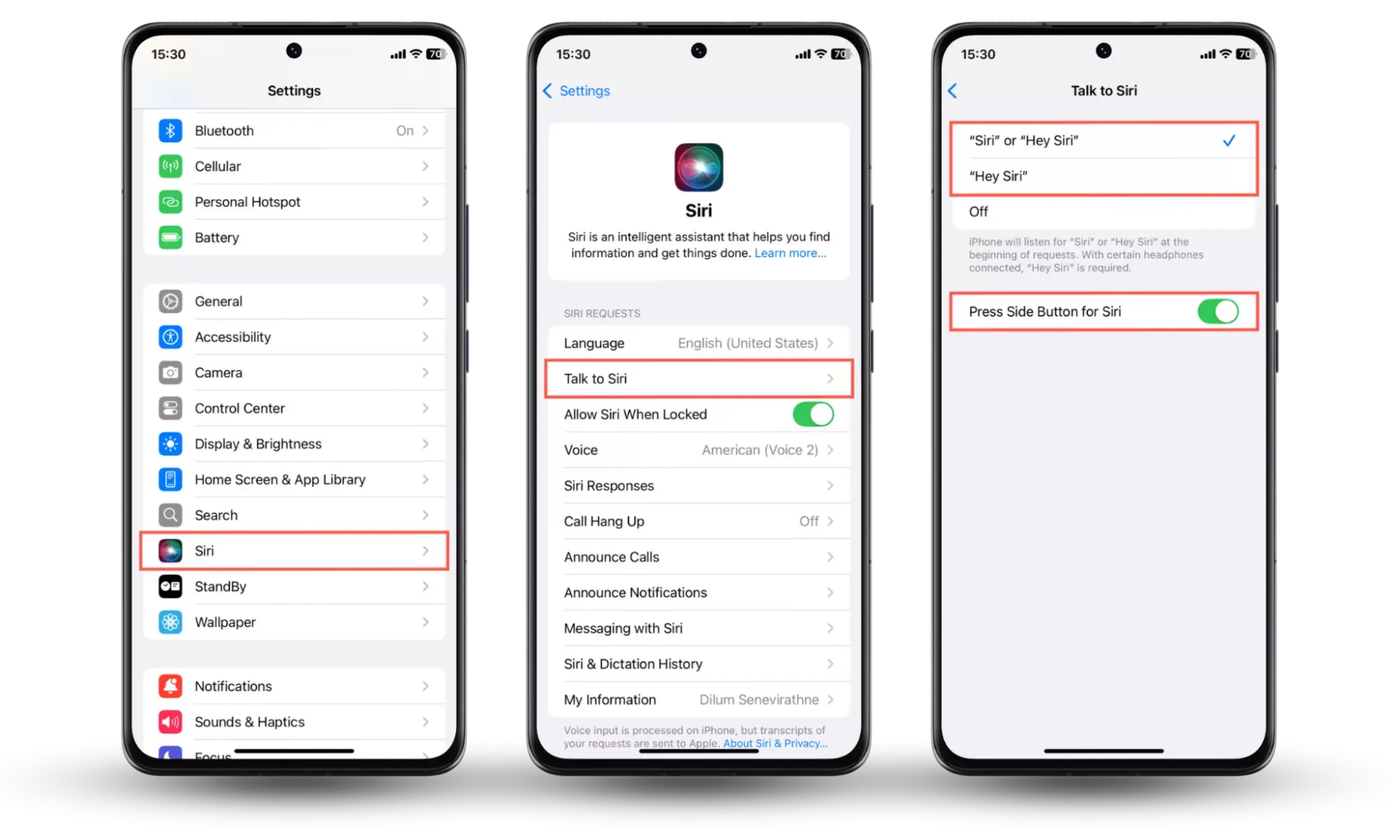
Step 3: Check Backups and Encryption
- In WhatsApp, open Settings > Chats > Chat backup and review the last backup date.
- Confirm that the connected Google Account belongs to you and review its signed-in devices.
- Review end-to-end encrypted backup settings and keep the password, encryption key, or passkey private.
Step 4: Watch Battery, Data, and Unexpected Verification Messages
- Check Android Battery and mobile-data usage for unfamiliar apps or unexplained spikes.
- Watch for unexpected OTP messages, login alerts, or requests to verify your WhatsApp account.
- Treat these signs as clues rather than proof, because ordinary backups and app updates can also increase usage.
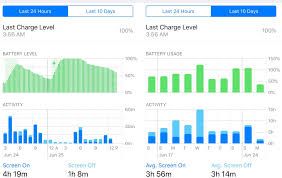
Complete these checks first. If you find an unknown session, suspicious permission, or account warning, use the protective steps below immediately.
How to Stop Unauthorized WhatsApp Access
Start by securing the account and its connected services. If the incident may require a formal report, save screenshots of unfamiliar devices, dates, and warning messages before removing access.
Emergency fixes: Do these now
- Log out unknown linked devices. Open WhatsApp > Linked devices and remove each session you do not recognize.
- Enable two-step verification. Open WhatsApp Settings > Account > Two-step verification and add a recovery email you control.
- Secure your Google Account. Change a compromised password, review signed-in devices, and enable strong multi-factor authentication.
- Protect your backups. Review Chat backup settings and enable end-to-end encrypted backup when it fits your recovery plan.
- Remove suspicious Android permissions. Revoke unknown Accessibility, notification, administrator, or VPN access.
- Contact your carrier after a suspected SIM swap. Ask it to secure your mobile number if service disappears unexpectedly.
These official checks are free and stop many common access routes. If the signs continue, use the dedicated checklist to check whether your WhatsApp has been hacked. Be cautious with services promising phone-number-only access, because legitimate options still require account authorization, initial device access, or the supervised user’s informed participation.
FAQs About Viewing WhatsApp Chats on Android
Q1: Is it possible for someone to read my WhatsApp messages from another device?
A: Yes, if the account has an authorized or compromised linked device, exposed backup credentials, or another form of account access. Check Linked Devices first and log out any session you do not recognize.
Q2: How do I check WhatsApp Linked Devices on Android?
A: Open WhatsApp, tap More options, and choose Linked devices. Review the device names and last active times, then log out any session you do not recognize.
Q3: How can I see WhatsApp chats on another Android phone for free?
A: For an account you own or are authorized to use, WhatsApp Linked Devices and owner-created chat exports are free. Neither option provides invisible access, and chat exports do not update with future messages.
Q4: Can I legally use a WhatsApp monitoring app?
A: It depends on device ownership, consent, age, guardianship, and local law. Monitoring another adult’s private account without permission may be illegal. Use monitoring only on your own device or one you are legally authorized to supervise.
Q5: What should I do if I find evidence of unauthorized access?
A: Save dated screenshots and note the device names and times. Then log out unknown sessions, enable two-step verification, secure your Google Account, and contact your carrier or local authorities if you suspect a SIM swap or criminal intrusion.
Conclusion
The safest answer to how to see others whatsapp chats in your phone android is to match the method to your authority: use Linked Devices or transfers for your own account, owner-shared exports for approved records, and transparent parental monitoring for a supervised child’s Android phone.
Take a few minutes to review your settings now and keep your WhatsApp messages under your control. Log out unknown sessions, protect your Google Account and backups, and remember that monitoring cannot retrieve activity that was never captured. If additional family supervision is appropriate, explore VigilKids WhatsApp Monitoring and review its supported features and setup requirements before you begin.
Sources
- WhatsApp: Learn about using WhatsApp on additional devices
- Google Android Help: Transfer WhatsApp data to a new Android
Research checked on August 10, 2026. Features and results can vary by WhatsApp version, Android version, device, region, permissions, and VigilKids plan.
Hot Topics for WhatsApp Monitoring
5 Ways to See WhatsApp Status Without Being Seen
Learn how to see WhatsApp Status without being seen using 5 methods, plus what works, what can fail, and whether hidden statuses can be viewed.
How to Use WhatsApp Without a Phone Number in 2026
Can you use WhatsApp without a phone number? Compare prepaid, landline, VoIP, linked-device, and new username options, plus their limits.
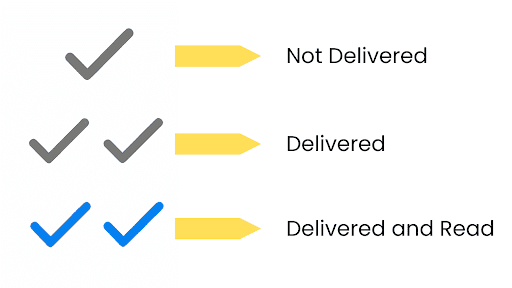
One Tick on WhatsApp Meaning: Sent, Not Delivered
What does one tick on WhatsApp mean? Learn why messages stay on one gray check, whether it means blocked, and what to check next.