
There are many reasons people want to learn how to record conversations on Android. Some need to save important business calls, while others want recordings for interviews, online meetings, personal reminders, or family safety. Today, Android users have several ways to record conversations depending on the device and the type of call.
From built-in call recording features to third-party apps and parental monitoring tools like VigilKids, there are multiple practical solutions available. However, before recording any conversation, it's important to understand local privacy laws and always respect other people's consent.
Recording Methods Overview
| Method | Phone Calls | App Calls | Ease of Use | Extra Device | Best For |
|---|---|---|---|---|---|
| Built-in Recorder | √ | × | Easy | No | Everyday calls |
| Google Voice | √ | × | Easy | No | Incoming calls |
| Recorder Apps | √ | Limited | Easy | No | Automatic recording |
| Screen Recorder | Limited | √ | Easy | No | WhatsApp/Zoom calls |
| External Recorder | √ | √ | Medium | Yes | Interviews/meetings |
| VigilKids | Monitoring | √ | Easy | No | Parental supervision |
Method 1 — Built-in Call Recording
Many Android smartphones already include a native call recording function inside the Phone app. Brands such as Samsung, Xiaomi, Vivo, and OnePlus often provide this feature, although availability may differ depending on the country or mobile carrier.
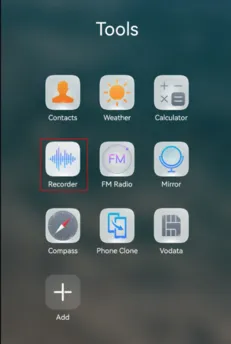
To enable built-in call recording:
- Step 1. Open Phone app
- Step 2. Tap settings menu
- Step 3. Select Call Recording
- Step 4. Enable auto/manual recording
Once activated, your phone can automatically save incoming and outgoing calls.
- No extra apps needed
- Good audio quality
- Easy integration
- Not available on all devices
- Carrier restrictions
- No app call support
Method 2 — Google Voice Recording
Google Voice is another option for recording phone calls on Android. The service allows users to record incoming calls directly through Google’s system.
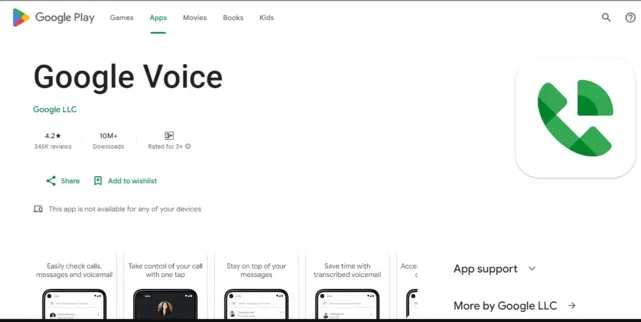
To use Google Voice recording:
- Install and set up Google Voice
- Open Settings
- Enable incoming call recording
- During a call, press “4” on the keypad
- Press “4” again to stop recording
Google Voice automatically announces that recording has started, helping users comply with privacy laws.
- Free to use
- Cloud storage support
- Easy controls
- Simple setup process
- Only records incoming calls
- Not available everywhere
- Recording announcement may not suit all situations
Method 3 — Use an Android Conversation Recorder App
Many users rely on third-party apps to record conversations on Android. Popular apps include Cube ACR, Automatic Call Recorder, and CallMaster.
These apps typically record calls automatically and save them for later playback. Some apps also organize recordings by contact name, date, or duration.
How These Apps Work
Most recorder apps require microphone and phone permissions. Once enabled, they can automatically capture incoming and outgoing calls and store recordings locally or in cloud storage.
- Automatic recording options
- Flexible settings
- Cloud backup support
- Easy organization and playback
- Android security updates may block recording features
- Some apps only record one side of the conversation
- Audio quality may vary
- Some advanced features require paid subscriptions
Method 4 — Parental Monitoring with VigilKids
For parents who need broader supervision features beyond simple call recording, VigilKids offers a more complete Android monitoring solution.
Unlike traditional recorder apps, VigilKids focuses on parental control and digital safety. It helps parents supervise communication activity responsibly while protecting children from online risks.
Features Related to Conversation Monitoring

VigilKids Pro
A comprehensive parental monitoring solution designed to help families supervise Android communication activity, monitor digital behavior, and improve online safety.
- Monitor call logs, contact activity, and communication history
- Track SMS conversations and messaging app activity in one dashboard
- View social media usage insights for apps like WhatsApp, Snapchat, and Telegram
- Receive alerts for suspicious keywords, risky behavior, or unusual activity
- Access screen monitoring tools and app usage reports remotely
- GPS location tracking with geofencing notifications for parental awareness
- Remote monitoring capabilities
- Multiple safety tools in one platform
- Designed for parental supervision
- Helps identify potential online risks
- Requires proper authorization
- Should never be used for illegal spying
- Some features depend on Android compatibility
Method 5 — External Recorder Device
Sometimes the most reliable method is using an external recording device. External recorders work independently of Android restrictions and can capture conversations from almost any source.
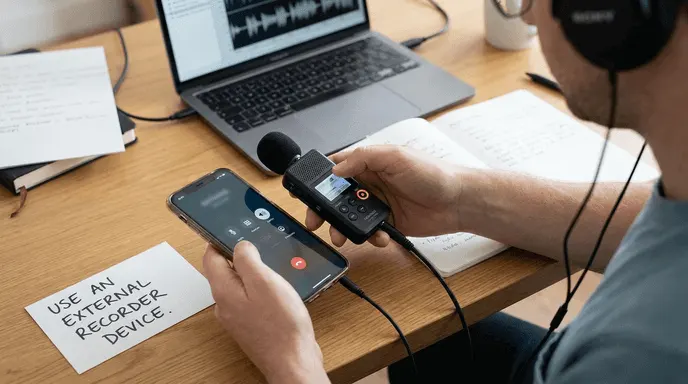
Common options include:
- A second smartphone
- A digital voice recorder
- A Bluetooth recording device
- A computer microphone setup
This method is often useful for interviews, business meetings, lectures, and legal documentation.
- Works regardless of Android restrictions
- Stable recording quality
- No software compatibility problems
- Reliable for long recordings
- Requires extra equipment
- May capture background noise
- Less convenient for everyday mobile use
Tips for Better Android Conversation Recordings
To improve recording quality:
- Use speakerphone in quiet environments
- Keep microphones unobstructed
- Test recording quality before important calls
- Charge your phone before long conversations
- Store recordings securely
- Back up important files to cloud storage
Common Problems When Recording Conversations on Android
Recording Does Not Work
Android privacy updates often restrict call recording functionality. Some manufacturers also disable recording features in specific regions.
Poor Audio Quality
Background noise, weak signals, or incorrect audio settings can reduce recording clarity.
Missing Recordings
Storage cleanup apps, permission changes, or software crashes may cause recordings to disappear unexpectedly.
FAQ
How to record a conversation on Android without someone knowing?
On Android, conversations can be recorded using built-in call recording, third-party apps, screen recorders, or external devices. Some solutions like VigilKids offer monitoring features for authorized use. However, recording laws vary, so always ensure consent and follow local privacy regulations before capturing any conversation.
Where is the record button on my Android phone?
There is no universal “record” button on all Android phones, because it depends on the brand and region.
On many devices, it appears during an active call inside the Phone app. Look for a “Record” icon on the in-call screen, or tap the three-dot menu to find “Record call” or “Call recording.” Brands like Samsung or Xiaomi often place it there if supported.
If you don't see it, your phone or carrier may not support built-in call recording. In that case, you would need an alternative method like an app or external recorder.
Can I record my phone conversation with someone?
Yes, you can record phone conversations on Android. If your phone supports it, you can use the built-in call recording feature in the Phone app (often found in the in-call menu). If not, some third-party apps or screen recording tools may work for certain calls. Parental control tools like VigilKids may also provide monitoring features in supervised environments.
Conclusion
Learning how to record conversations on Android is easier today than ever before, but no single method works perfectly for everyone. Built-in Android call recorders are convenient for standard calls, while screen recording is often more effective for WhatsApp or Zoom conversations.
Third-party recorder apps offer additional flexibility, although Android security restrictions can sometimes affect their performance. For parents who need broader supervision tools, VigilKids provides a more complete solution for monitoring communication activity and improving digital safety.
No matter which method you choose, always respect privacy laws, obtain proper consent when required, and use recording tools responsibly.
Related Topics
How to Read Someone Else’s Text Messages Remotely?
Learn how to read text messages from another phone or device. Discover safe methods to access SMS remotely and monitor messages easily with VigilKids.
![How to Forward SMS to Another Phone Automatically [iPhone & Android]](https://cdn.vigilkids.com/vigilkids/Use_Vigil_Kids_to_Forward_SMS_Automatically_8cfc0f2405.png)
How to Forward SMS to Another Phone Automatically [iPhone & Android]
Reading text messages on another phone takes time. Learn how to automatically forward SMS on iPhone and Android for easier message access and management
How to Listen to Someone's Phone Surroundings Live – With Consent
How to Listen to Someone's Phone Surroundings Live – With Consent