
Text messages are still one of the most reliable ways to stay connected — and sooner or later, you'll want a copy of them on a second device. Maybe you're switching phones, juggling a work and a personal number, or keeping an eye on your child's digital activity. Whatever the reason, this guide shows you exactly how to forward SMS to another phone automatically (and manually) on both iPhone and Android, including how to forward text messages from Android to iPhone and what to do when text message forwarding stops showing up.
- Table Of Contents
- Can I Forward Text Messages to Another Phone?
- How to Forward a Text Message on iPhone?
- How to Forward a Text Message on Android?
- Use VigilKids to Forward SMS Automatically

- Use an SMS Forwarding App Automatically
- Forward Text Messages on Android Manually
- How to Forward Text Messages From Android to iPhone
- Text Message Forwarding Not Showing Up
Can I Forward Text Messages to Another Phone?
Why do people want text message forwarding? There are many reasons someone may want SMS forwarding. The most common situations include:
- Using two phones at the same time
- Having a work phone and a personal phone
- Keeping messages stored on a backup device
- Monitoring a child's online interactions for safety
- Switching from iPhone to Android or the other way around
- Sharing important messages with a teammate or family member
So, can you forward text messages to another phone? The answer is yes. You can forward a text message to another phone on both iPhone and Android, but the methods are not the same.
iPhone supports automatic forwarding only to devices logged in with the same Apple ID. Android does not have built-in automatic forwarding, but you can use parental safety tools or SMS forwarding apps for Android. Below are the detailed steps for each type of text forwarding.
How to Forward a Text Message on iPhone?
Method 1: Text Message Forwarding on iPhone Automatically
Apple includes a feature that lets you automatically share your SMS messages with your other devices, such as your iPad or Mac. This is convenient if you want all your texts available across your Apple ecosystem without picking up your phone.
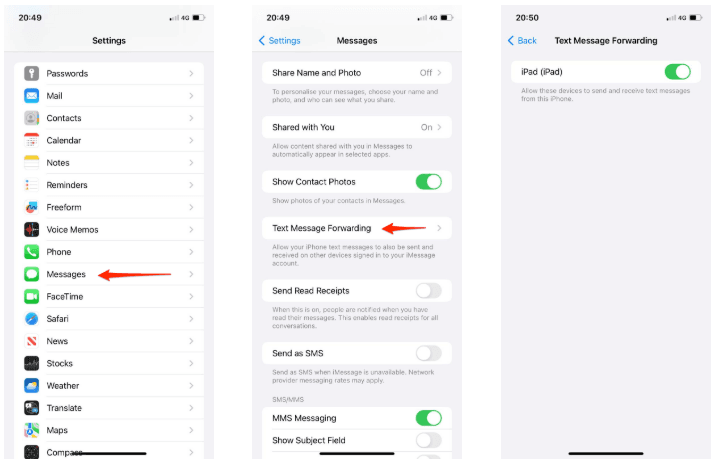
- Step 1. Open Settings on your iPhone and tap Messages.
- Step 2. Select Text Message Forwarding.
- Step 3. You will see a list of your Apple devices that are connected with the same Apple ID. Turn on the devices you want to receive your text messages.
- Step 4. After this, every SMS message that reaches your iPhone will appear on your selected devices. You can read, reply, and send texts directly through your Mac or iPad.
Note:
This feature only works when both devices use the same Apple ID. You cannot use this method to automatically send texts to someone else's iPhone or a coworker's phone. Sharing your Apple ID with another person would expose everything on your device, which is never recommended. If you need to share messages with someone else, you must use the manual method instead.
Method 2: Text Message Forwarding on iPhone Manually
Manual forwarding is useful when you want to forward a text message to someone outside your Apple ID network.
- Step 1. Open the Messages app on your iPhone.
- Step 2. Press and hold the message bubble you want to forward.
- Step 3. Tap More and select any additional messages you want to include.
- Step 4. Tap the Forward icon.
- Step 5. Enter the recipient and tap Send.
This works with SMS and iMessage, and you can forward one or several messages at once.
How to Forward a Text Message on Android?
Since Android does not include a built-in auto-forward feature, you can use dedicated tools designed for message syncing or monitoring to set up automatic SMS forwarding.
Method 1: Use VigilKids to Forward SMS Automatically
If you want a simple and reliable way to receive your child's SMS messages on your own phone, VigilKids provides one of the most complete solutions available.
Unlike a simple SMS forwarder app, VigilKids combines message syncing with real-time monitoring. This gives parents a clearer understanding of their child's digital activity, not just their text messages. As one of the best parental control apps, it works alongside features like SMS tracking to give a full picture.
What VigilKids can do
- View your child's SMS messages instantly
- Monitor WhatsApp chats, calls, voice notes and media
- Capture screen activity and remote snapshots
- Hear surrounding sounds through ambient recording
- Track GPS location and see route history
- Receive notifications when risky words appear
How to set up VigilKids for SMS monitoring:
- Step 1. Create your VigilKids account and install the app on your child's Android device.
- Step 2. Follow the instructions to complete the setup.
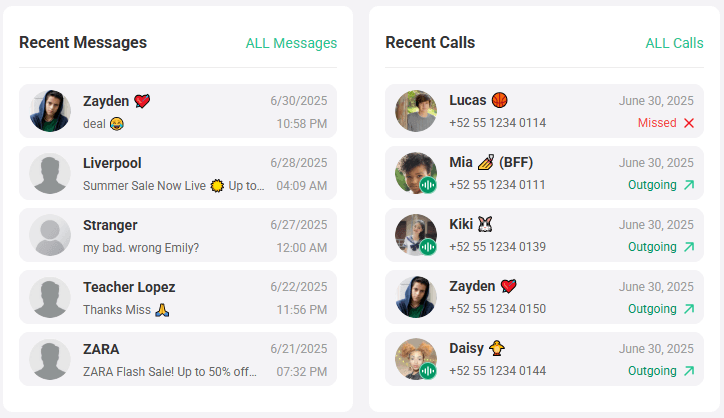
- Step 3. Open your VigilKids dashboard and select Messages or Notifications.
- Step 4. You can now see all SMS messages from the target phone in real time.
Method 2: Use an SMS Forwarding App Automatically
If you are not looking for parental control tools and simply want to redirect SMS messages from your Android phone to another number, an SMS forwarder app can help.
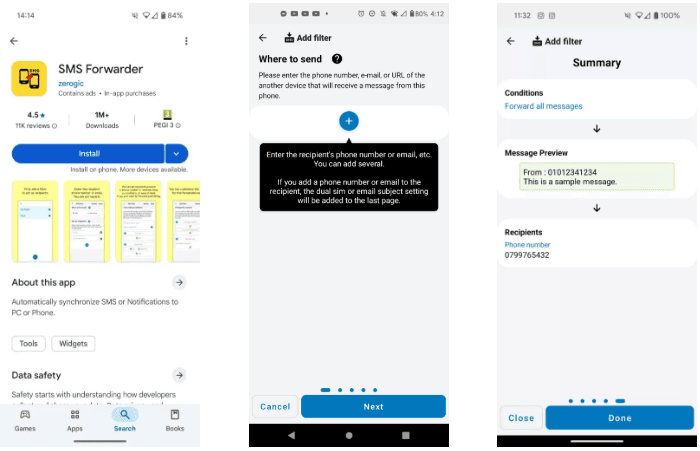
- Step 1. Download an SMS forwarder app from Google Play.
- Step 2. Tap the plus button to create your forwarding filter.
- Step 3. Set conditions such as which messages should be forwarded or which contacts should receive them.
- Step 4. Confirm your settings.
- Step 5. Turn on the filter to activate auto forwarding.
Note:
Many forwarding apps require some learning before you fully understand all the options. Some features, like auto replies or advanced filters, may require a paid subscription. Also, depending on your carrier plan, forwarded SMS may count as new text messages and could affect your charges.
Method 3: Forward Text Messages on Android Manually
Manual forwarding works on all Android devices and is very easy to use.
- Step 1. Open the Messages app.
- Step 2. Tap and hold the message you want to forward.
- Step 3. Select Forward.
- Step 4. Enter the phone number or select the contact, then tap Send.
How to Forward Text Messages From Android to iPhone
One of the most common questions is how to forward text messages from Android to iPhone — for example, when you're switching phones or want a copy of your texts on a new iPhone. Because the two platforms don't share a native forwarding system, here are the practical ways to do it:
- Manual forwarding: The quickest option for a few messages. Open the Messages app on Android, tap and hold a message, select Forward, and send it to the phone number linked to your iPhone.
- An SMS forwarding app: Install an SMS forwarder app on the Android phone and set a rule to auto-forward incoming texts to your iPhone's number. This keeps new messages flowing to your iPhone automatically.
- A monitoring tool like VigilKids: If the goal is to see all texts from a child's Android phone on your iPhone in real time, VigilKids syncs them to your dashboard, which you can open on any device — including iPhone.
Keep in mind that during a one-time phone switch, Apple's Move to iOS app can transfer your existing message history, but it does not keep forwarding new texts afterward. For ongoing text forwarding between the two platforms, an app-based method is the way to go.
Text Message Forwarding Not Showing Up
Many users search for "text message forwarding not showing up" because the option suddenly disappears on their iPhone, iPad or Mac. Here are the most common reasons this feature goes missing and how to fix them.
1. The devices are not signed in with the same Apple ID
Text Message Forwarding only appears when your iPhone and your other Apple devices share the same Apple ID. If your iPad or Mac uses a different account, the option will not show up at all. You can check this under Settings and then tap your Apple ID profile.
2. iMessage is turned off
Even though the forwarding feature deals with SMS, it still requires iMessage to be activated. If iMessage is off on any of your devices, the menu will not appear. Turn iMessage on and wait a moment for it to sync.
3. Your device is not connected to WiFi or mobile data
Apple needs an active internet connection to verify your settings. If your network is unstable, Text Message Forwarding can temporarily disappear. Switching networks or restarting your router often helps.
4. A recent iOS update caused a temporary sync issue
Many users notice the forwarding option missing after updating to iOS 16, iOS 17 or newer versions. This is usually a syncing issue. Restarting both devices, signing out of your Apple ID, or resetting network settings usually brings it back.
5. Screen Time restrictions are blocking the feature
If Content and Privacy Restrictions are turned on, message features can be limited without an obvious warning. Checking your Screen Time settings and disabling restrictions often restores the forwarding menu.
FAQ
Q1: How do I forward text messages from Android to iPhone?
For a few messages, open the Android Messages app, tap and hold a text, choose Forward, and send it to your iPhone's number. For ongoing forwarding, use an SMS forwarder app or a monitoring tool like VigilKids that syncs texts to a dashboard you can open on your iPhone.
Q2: Can I forward a text message automatically without an app?
On iPhone, yes — but only to other Apple devices on the same Apple ID through Text Message Forwarding. Android has no built-in auto-forward, so you'll need an SMS forwarding app or a parental monitoring tool to forward texts automatically.
Q3: Does SMS forwarding cost extra?
It can. Depending on your carrier plan, forwarded SMS may be counted as new outgoing text messages and could add to your charges. Forwarding within the Apple ecosystem over the internet does not incur SMS charges.
Q4: Why is Text Message Forwarding not showing up on my iPhone?
The most common causes are devices not sharing the same Apple ID, iMessage being turned off, no internet connection, a recent iOS update sync issue, or Screen Time restrictions blocking the feature.
Q5: Can I forward someone else's text messages to my phone?
You cannot do this through built-in iPhone or Android features for privacy reasons. The only legitimate way is with a monitoring tool like VigilKids installed on the target phone — for example, a parent monitoring a child's device — which requires consent and a visible notification on the monitored phone.
Conclusion
Text message forwarding can be incredibly useful whether you want to sync messages across devices, protect your child online, or simply forward important texts to someone else. With the right method, both iPhone and Android users can forward messages manually or automatically — and even forward text messages from Android to iPhone with an app-based approach.
For parents looking for more complete visibility into their child's digital world, VigilKids provides far more insight than standard text message forwarding.
Related Topics
How to See Secret Conversations on Messenger (iPhone & Android)
Wondering how to view secret conversations on Messenger? Learn how to find hidden Facebook messages and see encrypted chats on iPhone or Android.
How to Read Someone Else’s Text Messages Remotely?
Learn how to read text messages from another phone or device. Discover safe methods to access SMS remotely and monitor messages easily with VigilKids.
Can You Hide Text Messages? Best Ways to Hide Text Messages on Android
Wondering can you hide text messages? Learn how to hide text messages on Android with easy, proven methods to protect your privacy in minutes.