

"How do I put parental controls on my router/ISP to prevent my child from using Roblox?"
—— One parent on Reddit recently asked
It's a common concern. Whether you're worried about excessive screen time, strangers in chat, inappropriate game content, or unexpected Robux purchases — most parents eventually start looking for ways to make Roblox safer for their kids.
The short answer? Router-level blocking can help, but it isn't always reliable. Tech-savvy kids often find workarounds by switching to mobile data, using a friend's device, or changing DNS settings. That's why most families start with Roblox's built-in parental controls first — they work at the account level, which means they follow your child regardless of which device or network they're on.
In this guide, we'll walk through how Roblox parental controls work, how to set them up step by step, what they can and can't do, and when you might need additional tools to fill the gaps.
- Table Of Contents
- Does Roblox Have Parental Controls?
- How to Set Up Roblox Parental Controls (Step-by-Step)
- What Roblox Parental Controls Can and Can't Do
-
How to Keep Kids Safer Beyond Roblox's Built-In Controls

- Roblox Parental Controls by Age (5–8 / 9–12 / 13+)
- FAQs
Does Roblox Have Parental Controls?
 Quick Answer
Yes. Roblox has a built-in parental controls system covering content restrictions, chat settings, spending limits, and privacy controls. All settings are protected by a Family PIN — a 4-digit code that prevents your child from changing them without your knowledge.
Roblox parental controls work directly through your child's account. There's no separate parent account required — you access a dedicated Parental Controls section within your child's settings, protected by a Family PIN only you know.
The PIN is the backbone of the whole system. Without it, any setting you configure can be undone by your child in seconds. With it, your restrictions stay in place regardless of how much they push back.
What you need to get started:
- Your child's Roblox account login details
- A parent email address linked to the account
- A Family PIN you set and keep private
Roblox automatically applies different default settings based on the birthdate entered at signup — but those defaults are not a substitute for actively configuring the controls yourself.
| Setting | Under 13 (Default) | 13 and Over (Default) |
|---|---|---|
| Chat with friends | Friends only | Everyone |
| Chat in experiences | Friends only | Everyone |
| Who can follow / join | Friends only | Everyone |
| Who can message | Friends only | Everyone |
| Account Restrictions | Off by default | Off by default |
| Spending controls | Off by default | Off by default |
| Mature content filter | On by default | Partially on |
What age is Roblox appropriate for? Roblox's official minimum age is 13, but it's widely used by younger children. For kids under 13, stricter defaults help — but they're not foolproof. User-created games vary enormously in content, and in-game chat remains a risk regardless of age settings. Active parental involvement matters more than the platform's automatic filters. If you're also thinking about other platforms your child uses, our guide on whether Snapchat is safe for kids covers similar questions.
How to Set Up Roblox Parental Controls (Step-by-Step)
All Roblox parental controls are accessed through Settings → Parental Controls on your child's account. Before changing any setting, set your Family PIN first — otherwise your child can reverse every change you make.
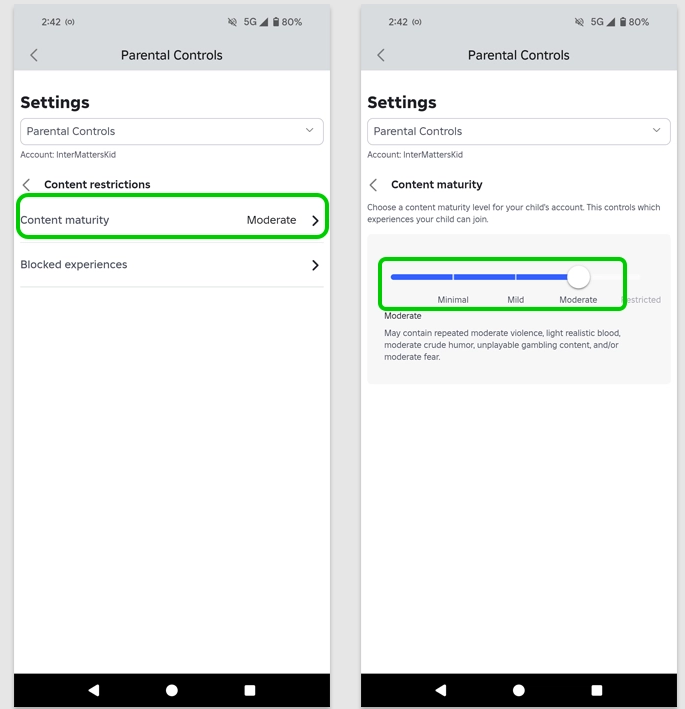
Content Maturity
Controls what types of experiences your child can access on Roblox, from age-appropriate games to mature content.
- Step 1. Go to Settings → Parental Controls → Settings you manage
- Step 2. Select Content maturity under Content restrictions
- Step 3. Adjust the maturity slider to match your child's age
- Step 4. Enable Account Restrictions for a more curated, age-limited experience
Blocked Experiences
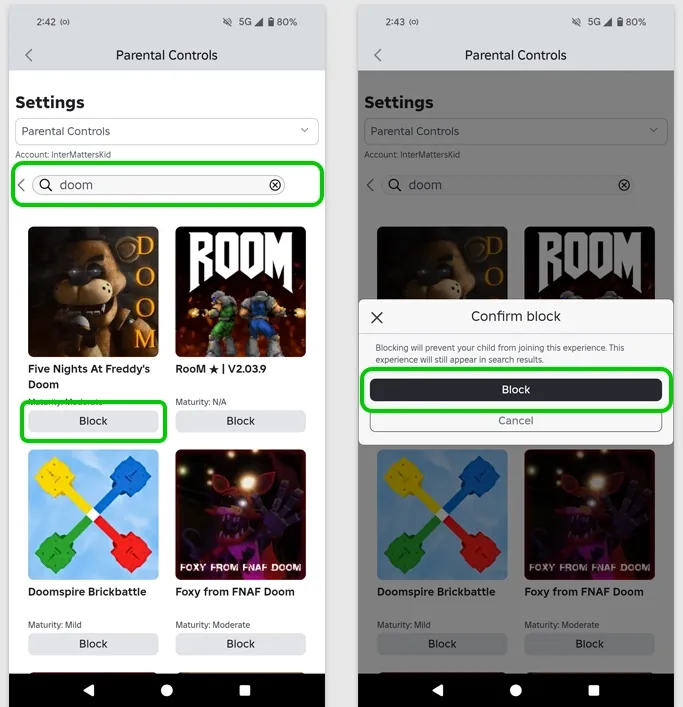
Manually block specific games, even if they fall within your child's allowed content level.
- Step 1. Go to Settings → Parental Controls → Content restrictions
- Step 2. Select Blocked experiences
- Step 3. Tap the + icon to search for a specific game
- Step 4. Click Block and confirm
Communication Settings
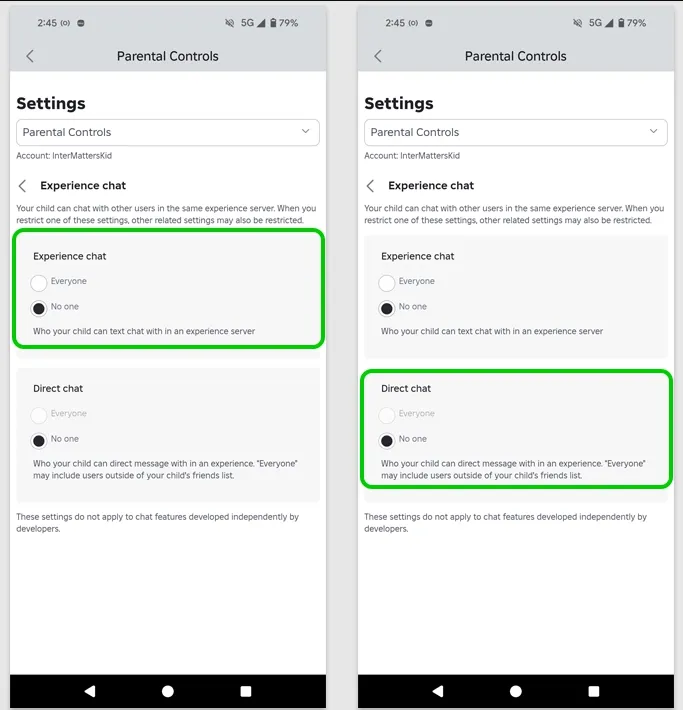
Controls who your child can chat with inside Roblox experiences and across the platform.
- Step 1. Go to Settings → Parental Controls → Settings you manage
- Step 2. Select Communication
- Step 3. Adjust Experience chat to control in-game conversations
- Step 4. Set messaging and text chat to Friends only or No one
Friends List Management
Review and manage who your child is connected with on Roblox.
- Step 1. Go to Settings → Parental Controls
- Step 2. Scroll to Friends and select Manage
- Step 3. Review the friends list with usernames and avatars
- Step 4. Use the three-dot menu to block or report any user
Spending Controls
Set a monthly Robux spending cap, or block all purchases entirely.
- Step 1. Go to Settings → Parental Controls → Monthly Spend Limit
- Step 2. Set a monthly cap — or enter $0 to block all purchases
- Step 3. Enable Purchase Approval if available in your region
- Step 4. Confirm with your Family PIN
Always set your Family PIN before configuring any settings. Without it, your child can reverse every change you make. Roblox does not offer a PIN reset by email — if you forget it, you'll need to contact Roblox Support directly. Write it down and store it somewhere safe.
What Roblox Parental Controls Can (and Can't) Do
Roblox's controls are more capable than most parents expect — but they have real limits. Here's what each feature actually delivers, and where it stops.
| Feature | What It Can Do | What It Can't Do |
|---|---|---|
| Content Controls | Restrict games by maturity rating | Can't pre-screen individual user-created games |
| Account Restrictions | Limit access to curated experiences only | Reduces discovery; child may push back |
| Chat Controls | Disable chat or limit to Friends only | Can't read existing or past chat history |
| Friends Management | Review and remove contacts | Can't prevent your child accepting new requests |
| Spending Limits | Cap monthly Robux spend or block all purchases | Doesn't cover purchases on a second account |
| Family PIN | Locks all parental settings from child changes | Doesn't prevent creating a new account to bypass restrictions |
| Screen Time | Playtime reminders in settings | Can't enforce hard time limits — needs device-level controls |
3 settings every parent should enable first:
- Set a Family PIN immediately. Everything else you configure can be undone without it. This is the single most important step.
- Set chat to Friends only (or No one). The default allows contact from strangers in many game environments. This one change significantly reduces unsolicited contact.
- Enable Account Restrictions for younger children. This limits your child to Roblox-curated content rather than the full user-generated library — a meaningful difference for kids under 10.
How to Keep Kids Safer Beyond Roblox's Built-In Controls
Roblox's parental controls manage what happens inside Roblox. They stop there.
A conversation that starts in a Roblox game can move to Discord or WhatsApp in seconds — and none of your Roblox settings follow it. A child who hits spending limits on one account can create a second. A child who knows you check the friends list can keep a separate device for gaming you don't know about.
This isn't a criticism of Roblox's controls — they're a solid foundation. But for parents who want visibility into what's happening across the whole device, not just one platform, a broader layer of monitoring fills that gap.
That's what VigilKids is built for. Not to replace Roblox's controls, but to cover the space those controls can't reach — usage patterns across all apps, keyword alerts when something concerning appears, real-time location, and time-of-day activity that tells you when your child is gaming at midnight.
| What You Want to Know | Roblox Parental Controls | VigilKids |
|---|---|---|
| Restrict in-game chat | ✅ Yes | ✅ Yes (cross-app) |
| View chat content | ❌ No | ✅ Keyword-based alerts |
| Track time on Roblox | ⚠️ Reminders only | ✅ Detailed usage reports |
| Monitor other apps | ❌ No | ✅ Yes, system-wide |
| Real-time location | ❌ No | ✅ GPS tracking |
| Late-night usage detection | ❌ No | ✅ Time-based activity reports |
| Detect second accounts | ❌ No | ✅ Behavior and activity signals |
| Spending control | ✅ Yes (Roblox only) | ⚠️ Via device-level controls |
VigilKids
- Track Roblox playtime and overall screen usage across all apps in real time
- Detect risky keywords and conversations across WhatsApp, Discord, SMS, and more
- Monitor real-time location — know when your child arrives at and leaves home, school, or elsewhere
- Analyze usage patterns including peak gaming hours, session length, and late-night activity
- Spot behavioral signals — sudden Roblox spikes or frequent app-switching that may indicate bypass attempts
How to Get Started with VigilKids
- Step 1. Create your VigilKids account and choose a monitoring plan that fits your family's needs.
- Step 2. Connect your child's device by following the guided setup process. The installation only takes a few minutes.
- Step 3. Open your dashboard to view app activity, screen time, location updates, and other insights that help you stay informed about your child's digital habits.
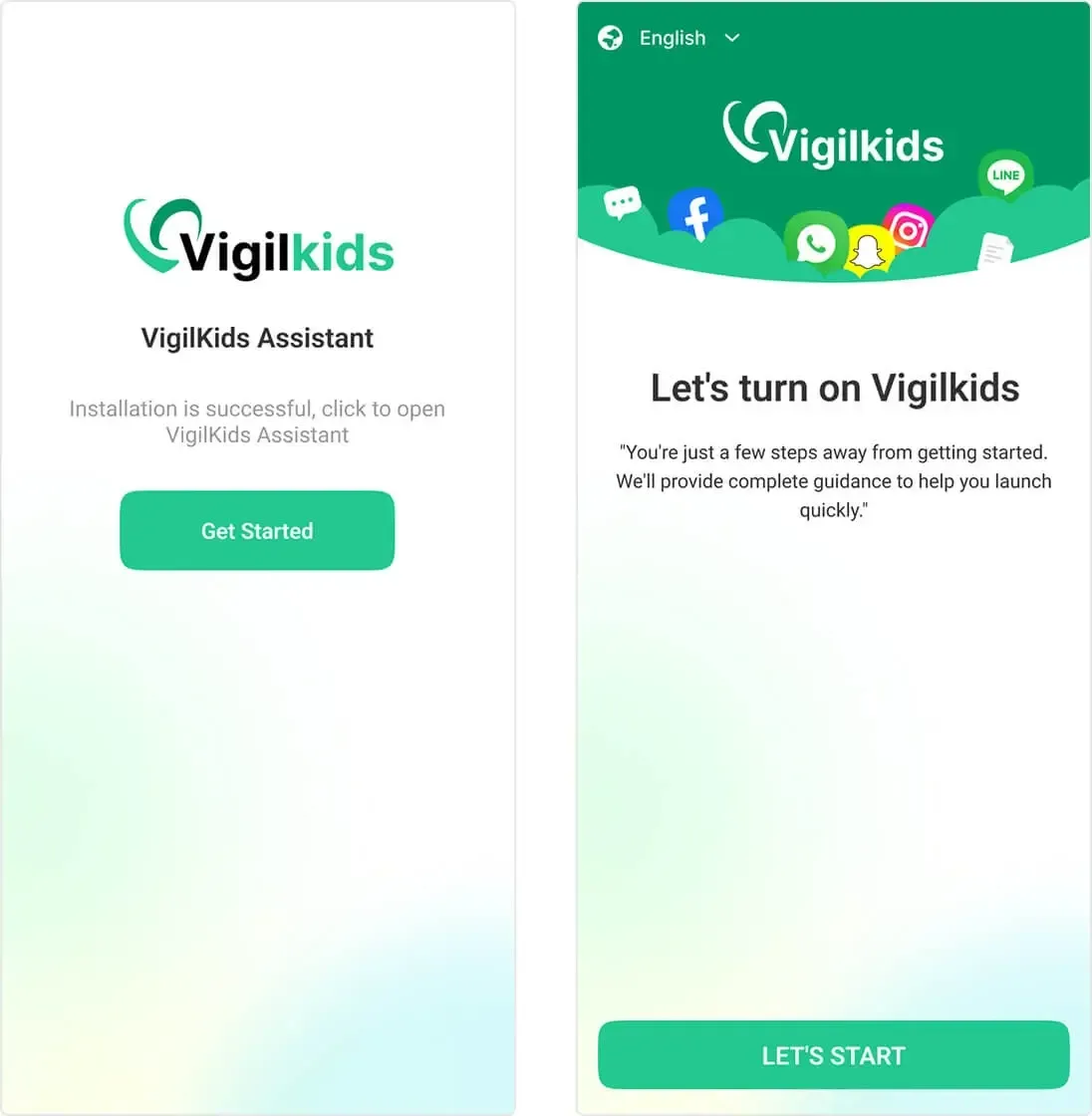
Once set up, VigilKids runs in the background and continuously updates activity reports, giving parents a clearer picture of what is happening across Instagram and other apps.
The most effective approach isn't constant checking — it's spotting meaningful changes early and using them to have better conversations with your child. VigilKids gives you the signal. The conversation is still yours to have.
Roblox Parental Controls by Age (5–8 / 9–12 / 13+)
Roblox safety settings aren't one-size-fits-all. The right setup depends on your child's age, maturity, and how independently they use the platform.
Quick Summary by Age:
• Ages 5–8: Full restrictions, no chat, no spending.
• Ages 9–12: Friends-only chat, content filters, limited spending.
• Ages 13+: Flexible content settings with ongoing parental guidance.
• All ages: Always enable Family PIN to lock your settings.
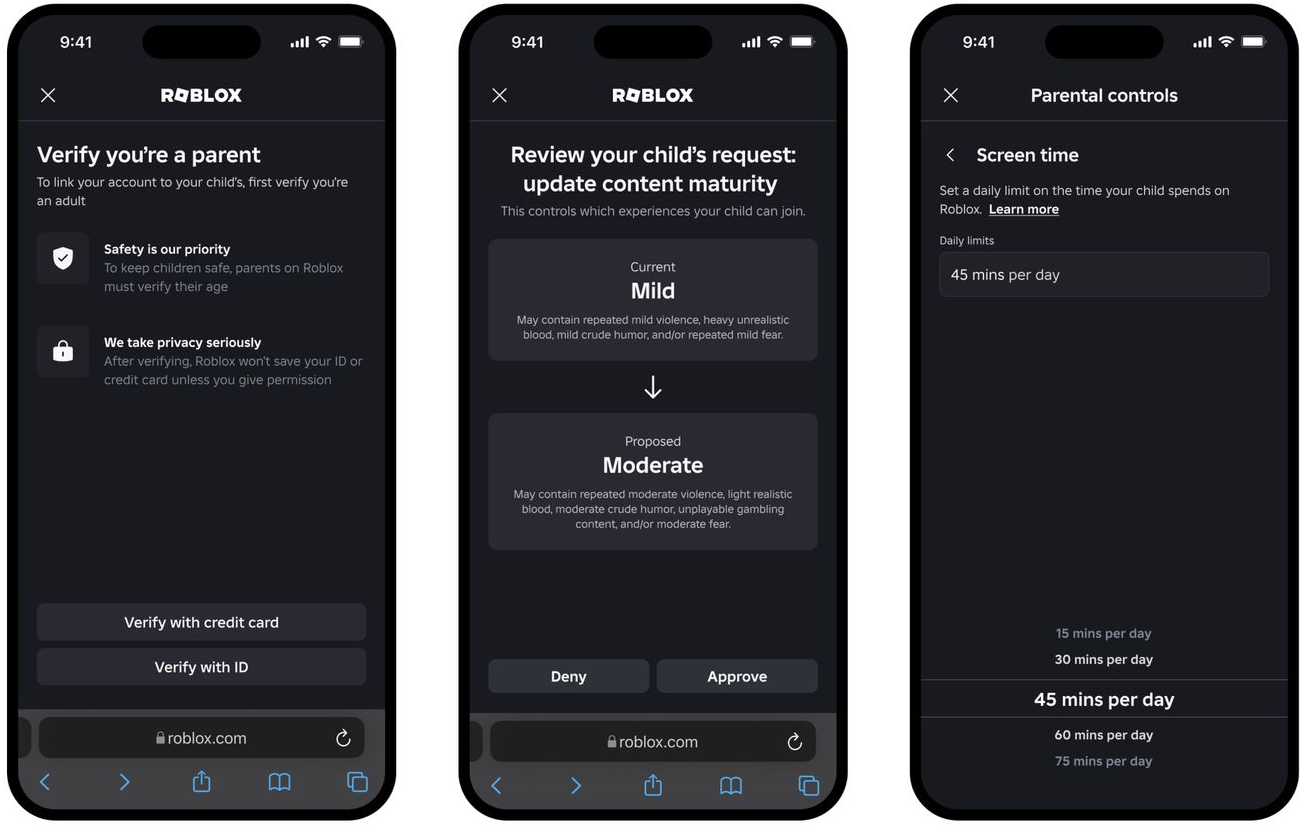
Ages 5–8: Maximum Protection
Treat Roblox as a tightly controlled environment with minimal outside interaction. At this age, the platform is more about creative play than social connection.
- Enable Account Restrictions — curated experiences only
- Set Content maturity to the lowest level
- Turn off all chat features — both Friends and in-experience chat
- Disable messages, follows, and joins from other users
- Set spending limit to $0 or disable purchases entirely
Ages 9–12: Supervised Access
Kids at this age are exploring more independently, but still need clear boundaries. This is also when Robux requests and peer pressure around games tend to increase.
- Set Content maturity to Minimal or Mild
- Allow Friends-only chat — not open to everyone
- Restrict messaging and joining to Friends only
- Use Blocked experiences for specific games you're uncomfortable with
- Set a monthly spending limit — agreed on together
Ages 13+: Guided Independence
Teen accounts unlock more features by default. Parental oversight still matters here — but the approach shifts from restriction to conversation.
- Adjust Content maturity based on trust level and behavior
- Keep chat on Friends only unless you're comfortable with broader access
- Review the Friends list periodically — ask about who they're playing with
- Set a reasonable spending limit rather than blocking all purchases
- Discuss expectations openly — restrictions work better when kids understand the reasons
Frequently Asked Questions About Roblox Parental Controls
Can parents see Roblox chat history?
No. Roblox does not allow parents to view past chat logs through Family Center or any parental controls setting. You can see who your child is friends with and restrict who they can chat with — but the content of conversations is not accessible to parents through Roblox's own tools. If monitoring chat content across apps is a priority, a third-party monitoring app like VigilKids can surface keyword alerts, though it cannot read Roblox in-game chat directly.
Can I block chat on Roblox completely?
Yes. In Settings → Privacy, set both "Who can chat with me in app" and "Who can chat with me in experiences" to No one. This disables chat entirely. Make sure to confirm the change with your Family PIN so your child can't reverse it. Note that some in-game experiences use text-based systems outside Roblox's standard chat — Account Restrictions can help limit exposure to those as well.
Can I set spending limits on Roblox?
Yes. Roblox allows parents to set a monthly spend limit inside Parental Controls, including $0 to block all purchases. In some regions, a Purchase Approval feature is also available, requiring your sign-off before any transaction goes through. Both options require your Family PIN to configure and modify — so your child can't simply raise the limit themselves.
Can my child play Roblox on Xbox with parental controls enabled?
Yes, but both systems need to be configured correctly. Xbox uses Microsoft Family Safety, which operates separately from Roblox's parental controls. If your child's Xbox profile is a child account under Microsoft Family Safety, those restrictions may block Roblox or limit its features — even if your Roblox settings are fully configured. To resolve conflicts, sign into Microsoft Family Safety and ensure Roblox is allowed as an approved app, then align the age rating settings across both platforms.
Are Roblox parental controls enough to keep my child safe?
They're a strong foundation — but not a complete solution. Roblox's controls cover what happens inside the platform: chat, content, spending, and connections. They don't follow your child to other apps, can't detect a second account, and don't give you visibility into overall device activity. For most families, Roblox's built-in controls work best when combined with open conversations, consistent household rules, and — for parents who want broader visibility — a cross-app monitoring tool like VigilKids.
Conclusion
There is no perfect way to manage Roblox as a parent. The goal of using Roblox parental controls is not to control kids — it is to help them build healthier digital habits while staying safer online.
For most families, the best approach is a combination of tools, privacy settings, and ongoing conversations. Turn on Roblox parental controls for the basics, review chat and spending settings together, set healthy screen time boundaries, and consider a tool like VigilKids if you want more support monitoring activity across apps and devices.
Hot Topics for Parental Controls
Facebook Messenger Parental Controls: What Actually Works
What Facebook Messenger parental controls actually exist in 2026? See which built-in features work, where they fall short, and how to fill the gaps safely.
Snapchat Parental Controls: A Parent Guide for 2026
Learn how Snapchat parental controls work, what Family Center can and can’t do, and which settings parents should check to help keep teens safer online.
YouTube Parental Controls: What Actually Works for Families
Learn how YouTube parental controls work, what their limitations are, and how families manage Shorts, screen time, and safer viewing habits in 2026.