
Your child needs an iPhone for school, rides, and friends, but you still want limits that protect sleep, spending, and safer browsing. The settings can feel scattered until you know the right order.
Here is how to put parental controls on iPhone: create or add the child’s Apple Account, turn on Screen Time, set a separate passcode, and complete the five steps below. Each step includes one image so you can follow the same screen on your device.
What Are iPhone Parental Controls?
Apple’s built-in parental controls are part of Screen Time. They let parents schedule device-free hours, limit apps, filter websites, control purchases, manage eligible contacts, and prevent changes to selected privacy settings.
Screen Time works best when the child has their own Apple Account in Family Sharing. This lets a parent manage the iPhone remotely and respond to supported requests without borrowing the child’s phone.
How to Add Parental Controls on iPhone
Follow these five steps to set up iPhone parental controls. Menu names may vary slightly by iOS version, region, and child account age.
Step 1: Add Your Child to Family Sharing
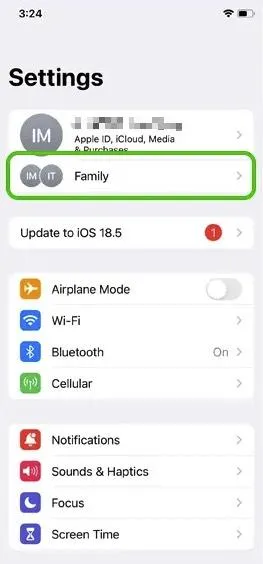
On the parent’s iPhone, go to Settings > Family, add a member, and create a child Apple Account or invite an existing one. Enter the correct birthday because Apple uses age information for available protections.
Use the child’s Apple Account on their iPhone instead of the parent’s account to keep Screen Time, purchases, and family settings connected correctly.
Step 2: Turn On Screen Time
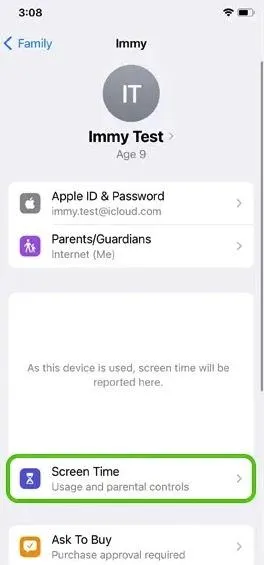
Open Settings > Family > [child’s name] > Screen Time. You can also set it up directly on the child’s iPhone through Settings > Screen Time.
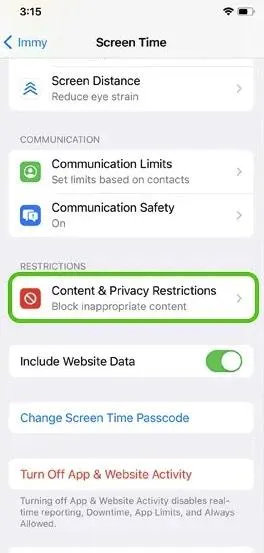
Create a Screen Time passcode different from the iPhone unlock code, then enable Content & Privacy Restrictions.
Step 3: Set Downtime and App Limits
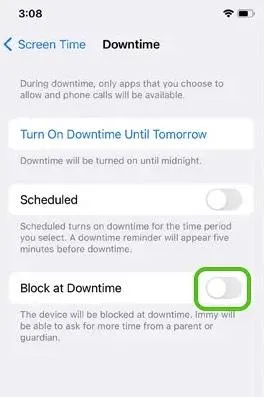
Go to Screen Time > [child’s name] > Downtime to schedule device-free hours. Turn on Block at Downtime if you want limits enforced.
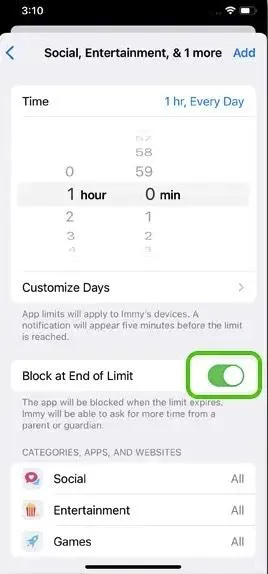
Then open App Limits > Add Limit, select apps or categories, and enable Block at End of Limit. See our guide on setting time limits on apps.
Step 4: Restrict Content and Purchases
Open Content & Privacy Restrictions > App Store, Media, Web, & Games to manage app ratings, website filters, and age restrictions.
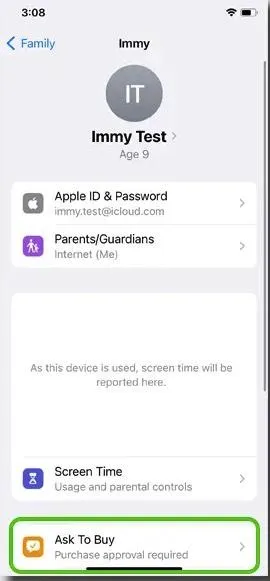
Use iTunes & App Store Purchases and Ask to Buy to control downloads, app deletion, and in-app purchases. Learn more about how to block a website.
Step 5: Set Communication, Privacy, and Location Rules
Review Communication Limits, Communication Safety, and privacy settings such as Location Services, Contacts, Photos, and Microphone.
Under Allow Changes To, control whether your child can change account settings, passcodes, cellular data, or other protected options. Test key features before returning the iPhone.
Test one limited app, one allowed app, and one blocked website to confirm your settings work correctly.
Monitor Your Child's iPhone Easily With VigilKids
Screen Time and VigilKids solve different parts of the parenting problem. In this Apple Screen Time vs parental monitoring app comparison, VigilKids adds supported synchronized context, while Screen Time enforces limits directly on the iPhone.
| Feature | VigilKids | Apple Screen Time |
|---|---|---|
| Authorized iCloud connection | ✅ | — |
| Browser-based parent dashboard | ✅ | — |
| Supported synchronized data context | ✅ | — |
| App limits | — | ✅ |
| Downtime schedules | — | ✅ |
| Website and content restrictions | — | ✅ |
Neither option replaces the other. Start with Screen Time for rules, then consider VigilKids when a usage total leaves a defined safety question unanswered; compare the best parental monitoring app for iPhone options before adding another tool.
Screen Time can tell you that an app was used for two hours, but not always what created the concern. For an authorized iPhone, VigilKids parental monitoring connects through the associated iCloud account and organizes supported synchronized data in an online dashboard.

What VigilKids Can Do
- iCloud connection: Link the authorized Apple Account associated with the child’s iPhone.
- Apple verification: Complete the verification required for the connected account.
- Supported synchronized data: Review information available through the verified connection.
- Online dashboard: Check supported activity from a browser-based parent view.
- Focused context: Use available information to support a specific family conversation.
Start in 3 Simple Steps
Step 1: Create a VigilKids account, choose a plan, and select Apple/iOS.
Step 2: Connect the iCloud account associated with the authorized iPhone and complete Apple verification.
Step 3: Open the dashboard and allow time for supported data to synchronize. Review only the information relevant to the concern and explain the monitoring purpose to your child in age-appropriate language.
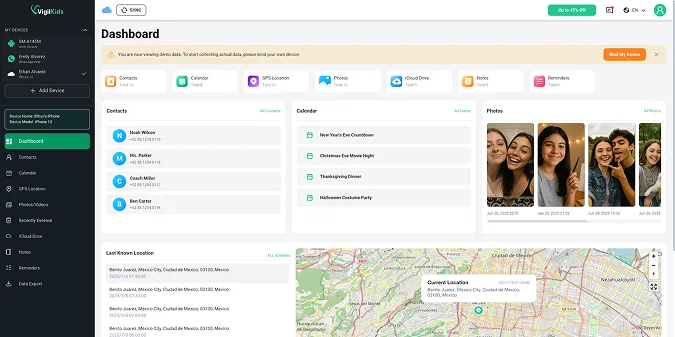
The iCloud connection synchronizes only supported Apple Account data; it is not a live copy of everything on the iPhone. Availability depends on iCloud content, synchronization, Apple verification, iOS version, region, permissions, and plan.
What’s New in iOS 27 Parental Controls?
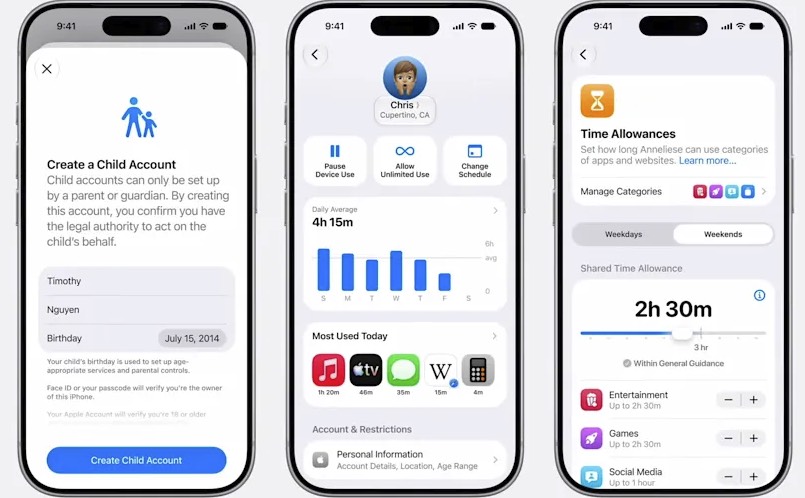
Apple previewed major parental-control updates for iOS 27 in June 2026. As of August 3, 2026, iOS 27 is still prerelease software, and Apple says the free software update is expected in fall 2026, so features and menu wording may change.
- Allowed Apps during setup: Parents can choose essential, recommended, or specific system apps when preparing a child account.
- Ask to Browse: A child can request permission for a new website, and the parent can review the request before approving it.
- Time Allowances: Parents can set daily total allowances across Entertainment, Games, and Social Media.
- Schedules: Different apps can be available at different times or on different days.
- Expanded Communication Safety: Apple says protection will extend beyond nudity to gore or violent content in supported shared images and videos.
Adding iOS 27 improves freshness and can capture version-specific searches, but the article should not replace stable iOS 26 instructions with beta-only menus. Update this section again after Apple releases the final software and support documentation.
FAQs About iPhone Parental Controls
Q1: Can I control my child’s iPhone from my iPhone?
Yes. Add the child’s Apple Account to Family Sharing, then open Settings > Family > [child’s name] > Screen Time. You can change limits and respond to supported requests remotely.
Q2: Can I put parental controls on a 13-year-old’s iPhone?
Yes. Family Sharing and Screen Time can be used for a teen’s iPhone, subject to Apple’s regional age rules. Explain the limits and review them as the child becomes more independent.
Q3: Why can my child tap Ignore Limit?
Open the App Limit and enable Block at End of Limit. Protect the setting with a separate Screen Time passcode and confirm the app is not under Always Allowed.
Q4: Is iOS 27 available now?
As of August 3, 2026, Apple describes iOS 27 as prerelease software available for testing, with the free update expected in fall 2026. Features and menu wording may change before final release.
Q5: Can Screen Time read my child’s text messages?
No. Screen Time manages limits, contacts, and usage information; it is not a complete remote message inbox. Verify the current iPhone support and authorization requirements of any additional monitoring tool.
Conclusion
The reliable order for how to put parental controls on iPhone is Family Sharing, Screen Time, a separate passcode, then limits for time, content, purchases, communication, privacy, and location. Use the stable settings now, treat iOS 27 features as a preview until final release, and add VigilKids only when supported context addresses a specific concern.
Sources
- Apple Support: Use parental controls to manage your child’s iPhone or iPad
- Apple Support: Use Screen Time to manage your child’s iPhone or iPad — May 4, 2026
- Apple Newsroom: iOS 27 parental controls preview — June 8, 2026
Research checked on August 3, 2026. iOS 27 features remain subject to change before final release. Features may vary by version, region, device, permissions, Apple Account age, synchronization, and plan.
More Blogs for Parents
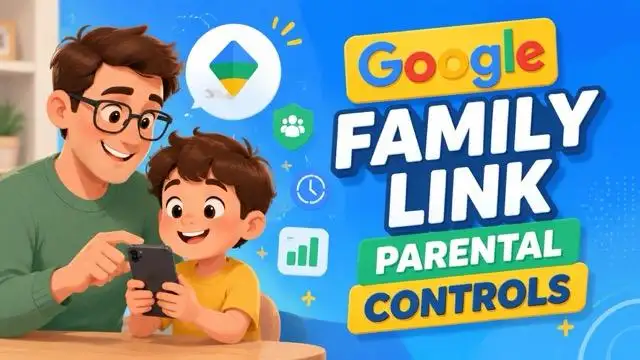
Google Family Link Parental Controls: A Complete Parent Guide
Learn how Google Family Link parental controls work, set them up on parent and child phones, manage apps and screen time, and understand key limits.
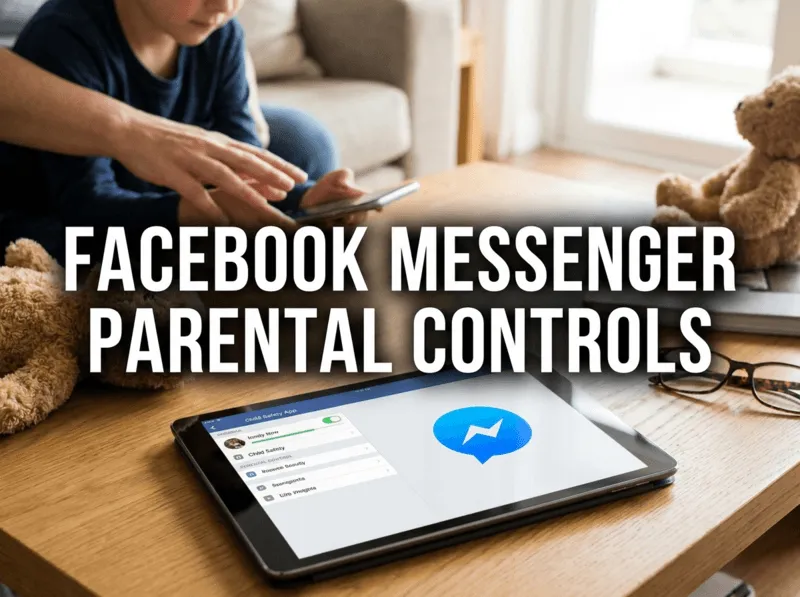
Facebook Messenger Parental Controls: What Actually Works
What Facebook Messenger parental controls actually exist in 2026? See which built-in features work, where they fall short, and how to fill the gaps safely.
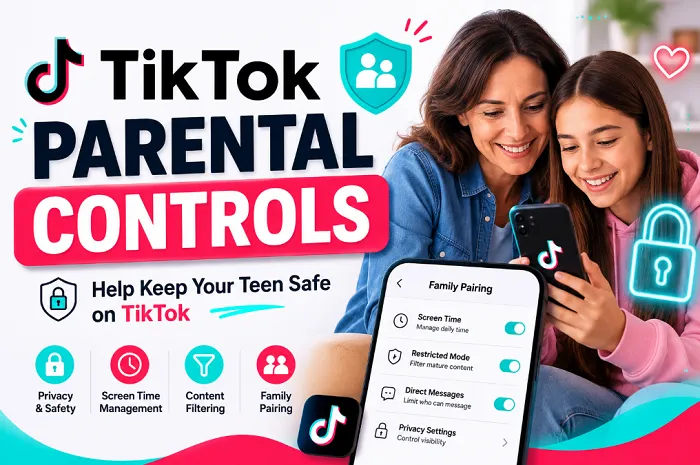
TikTok Parental Controls: A Complete Guide for Parents
Learn everything about TikTok parental controls, including Family Pairing, screen time limits, and privacy settings to help keep your kids safe online.