
Your child's Screen Time jumps late at night. A new contact appears. Their mood changes after they put down the phone. You see the hours, but not the context. If you are searching for the best parental monitoring app for iPhone, you want clarity without turning home into an investigation.
My first pick is VigilKids. Its guided Apple/iOS connection brings supported information into one dashboard. Aura suits wider family security, Bark focuses on risk alerts, and Qustodio offers detailed rules. No app can show everything, but the right one can help you start a better conversation.
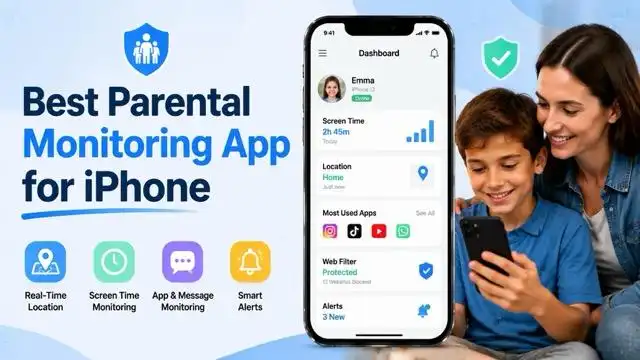
8 Best Parental Monitoring Apps for iPhone
I compared eight iPhone apps for parental monitoring. Each one solves a different problem. The table starts with the four strongest paid choices. VigilKids leads for supported iPhone insights. Aura offers a wider security bundle. Bark focuses on alerts. Qustodio gives parents more rules and reports.
| Feature | VigilKids | Aura | Bark | Qustodio |
|---|---|---|---|---|
| Best for | Unified iPhone insights | Whole-family security | Online-risk alerts | Rules and reports |
| Starting paid price | $9.99/mo | $10/mo | $14/mo | $59.95/year |
| iPhone setup | ✅ Guided 3-step Apple/iOS link | ✅ Child app | Child app + extra setup | Child app + extra setup |
| Parent dashboard | ✅ | ✅ | ✅ | ✅ |
| Message/content insight | ✅ Supported synced data | ❌ No full text view | ✅ Supported risk alerts | ✅ Separate iPhone setup |
| Screen-time management | Plan dependent | ✅ | ✅ | ✅ |
| Location tools | ✅ Supported context | ❌ Not a core feature | ✅ | ✅ |
These iPhone monitoring apps for parents solve different problems rather than offering identical access. For a broader cross-platform shortlist, see our guide to the best parental-control apps.
1. VigilKids — Best Overall for Supported iPhone Insights
Best for: Parents who want a simple Apple/iOS connection flow and supported iPhone insights in one dashboard.
My take: VigilKids focuses on the question parents usually care about most: “What happened, and where should I check?” The setup is straightforward: choose Apple/iOS, connect the authorized iCloud account, complete Apple verification, and view supported information from one dashboard.
What sets VigilKids apart is its clear path from concern to context. Instead of combining multiple apps, parents can start with three simple steps: open Link New Device, select Apple/iOS, and verify the authorized Apple account. This makes it a practical choice for parents who want a browser-based overview before addressing concerns like new contacts, unusual activity, or changes in phone use.
VigilKids works best alongside Apple's built-in parental controls and open family communication. By focusing only on relevant supported insights, parents can reduce unnecessary monitoring while keeping conversations clearer.
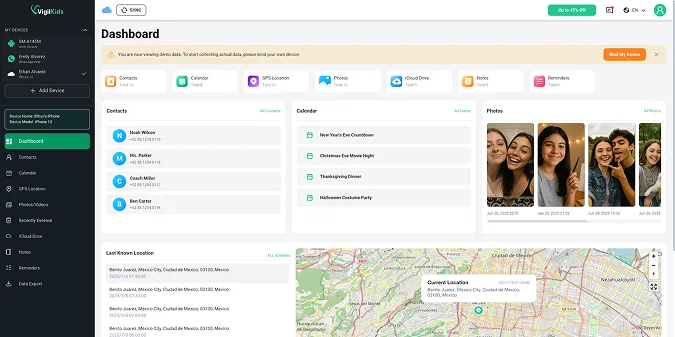
- Guided Apple/iOS connection
- Unified web dashboard
- Clear iCloud verification
- Sync-dependent coverage
- Verification required
Connect only an iPhone you own or are authorized to manage. Use the official VigilKids connection flow, explain the monitoring purpose in age-appropriate language, and never request or reuse another person's verification code without permission.
2. Aura Parental Controls — Best for Whole-Family Digital Protection
Best for: Families that want parental controls bundled with identity protection, device security, privacy tools, and digital-wellbeing insights.
My take: Aura is closer to a family security suite than a pure monitoring app. Its iPhone tools cover app blocking, website rules, screen time, downtime, and activity history. The wider package adds identity monitoring, antivirus, VPN, and password tools. Choose Aura when you want one subscription for the whole family's digital security.
Aura makes the most sense when the adults need protection too. A parent can combine a child's app and website rules with tools intended to reduce identity, password, and device-security risks across the household. That bundle is convenient, but it can be excessive if the only goal is to understand one iPhone. I would choose it for a family that values one security subscription; I would look elsewhere for detailed message visibility or location-first coordination.

- Whole-family protection
- Flexible screen-time rules
- App and website history
- No full text view
- Limited location focus
- Larger security bundle
3. Apple Screen Time — Best Free Built-In Option
Best for: Apple families that primarily need app limits, downtime, content restrictions, purchase approval, communication limits, and activity summaries.
My take: Every iPhone family should turn on Screen Time first. It is free and already built in. You can set limits, approve downloads, restrict content, and review app use through Family Sharing. It is a strong baseline. It is not a full monitoring dashboard.
The biggest advantage is native integration. Downtime, App Limits, Communication Limits, Content & Privacy Restrictions, and purchase approval sit inside the Apple ecosystem, so there is no second vendor account to maintain. The weakness is context: a usage total can tell you that a social app ran for two hours, but not what happened inside it. I use Screen Time as the free control layer, then add a paid tool only when a specific unanswered safety question justifies it.
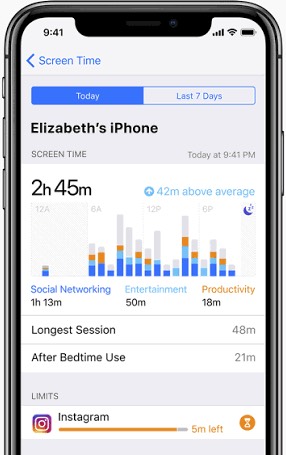
- Free and built in
- Native Family Sharing
- Simple exception requests
- No message dashboard
- Apple ecosystem dependent
- Limited activity context
4. Bark — Best for Concern-Based Alerts
Best for: Parents who want alerts about potential issues in supported texts, media, searches, and linked accounts instead of reading a complete log.
My take: Bark works best when you want a warning, not a constant feed. It scans supported content and alerts you to possible concerns. That feels less intrusive. The tradeoff is setup. Fuller iPhone coverage may need Bark Sync, a home computer, or Bark Home. Our Bark review explains the details.
Bark's alert model can suit a teenager better than routine reading because the parent reviews flagged moments instead of browsing every ordinary exchange. However, an alert is a prompt for judgment, not proof of harm. Slang, jokes, and quoted lyrics can lose context, while unsupported apps or data sources may not be scanned at all. Before subscribing, confirm which services your child actually uses and whether your household can keep the required iPhone sync method running.
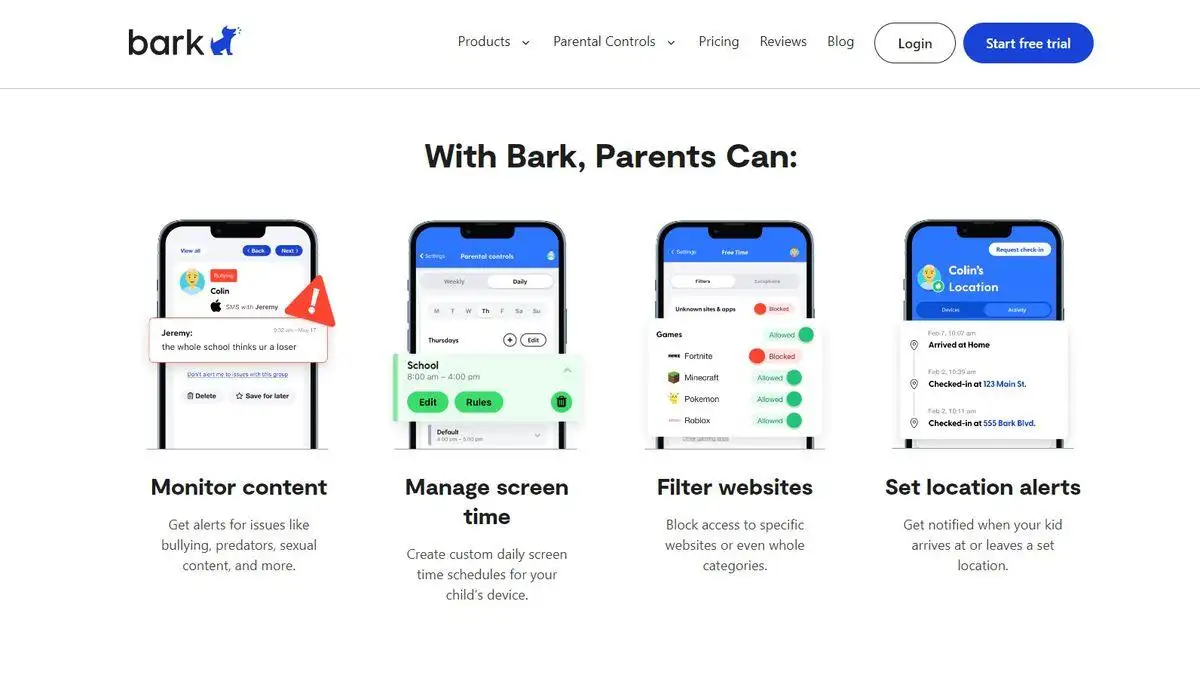
- Risk-focused alerts
- Supported text and media scans
- Filtering and location tools
- Extra iPhone setup
- Source-dependent coverage
- No complete activity archive
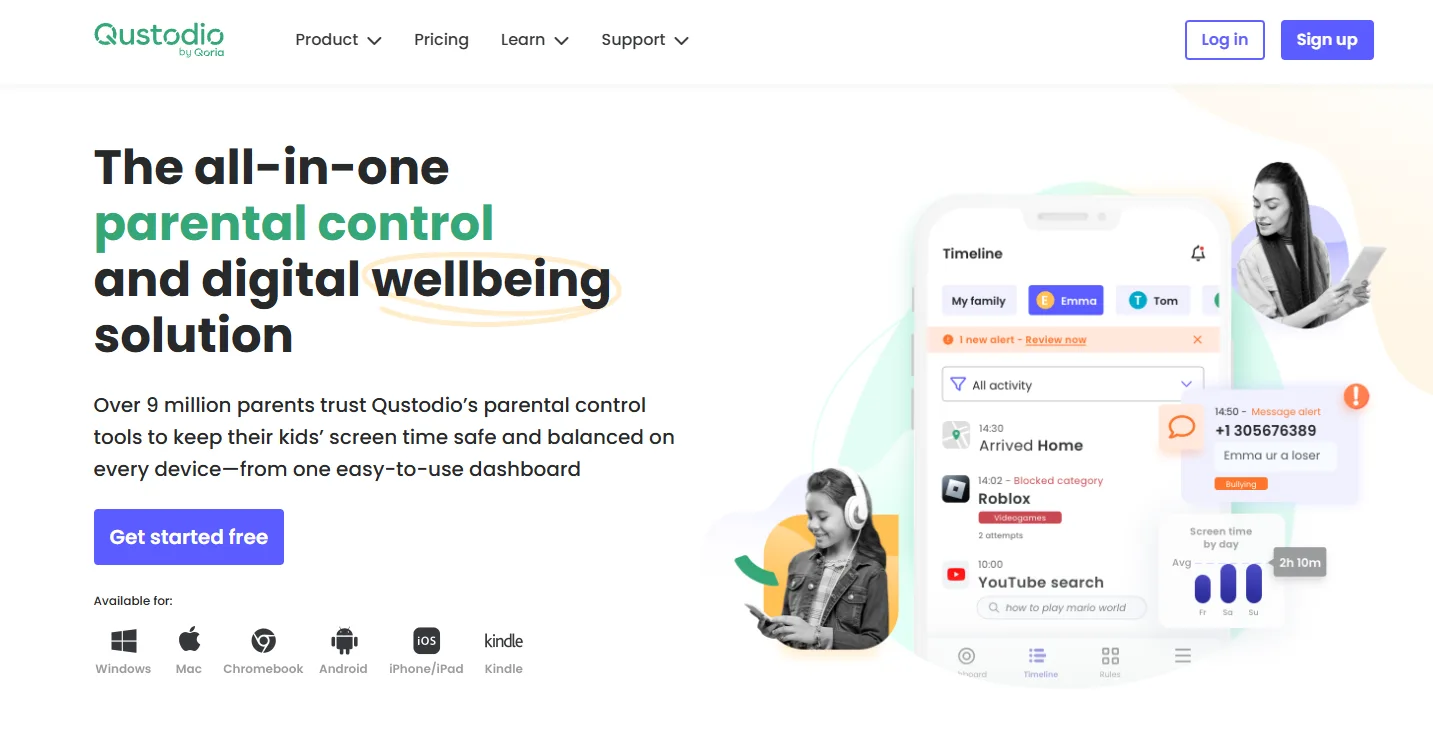
5. Qustodio — Best for Reports and Detailed Rules
Best for: Parents who want web filtering, app rules, activity timelines, time controls, YouTube insights, and location tools.
My take: Qustodio is the choice for parents who enjoy clear rules and detailed reports. It covers supported web activity, app limits, YouTube use, location, and geofencing. Calls and messages need a separate iPhone setup. Read our complete Qustodio review before choosing a plan.
I find Qustodio easiest to recommend when several children or device types need a consistent routine. Its reporting helps a parent move beyond “you are always on your phone” and discuss a visible pattern instead. Still, its iPhone experience should be judged separately from its Android feature list. Check the supported apps, the extra requirements for calls or messages, the number of covered devices, and the exact plan before buying.
- Detailed activity reports
- Flexible web and app rules
- Location and geofencing
- Partial app coverage
- Extra message setup
- Platform feature differences
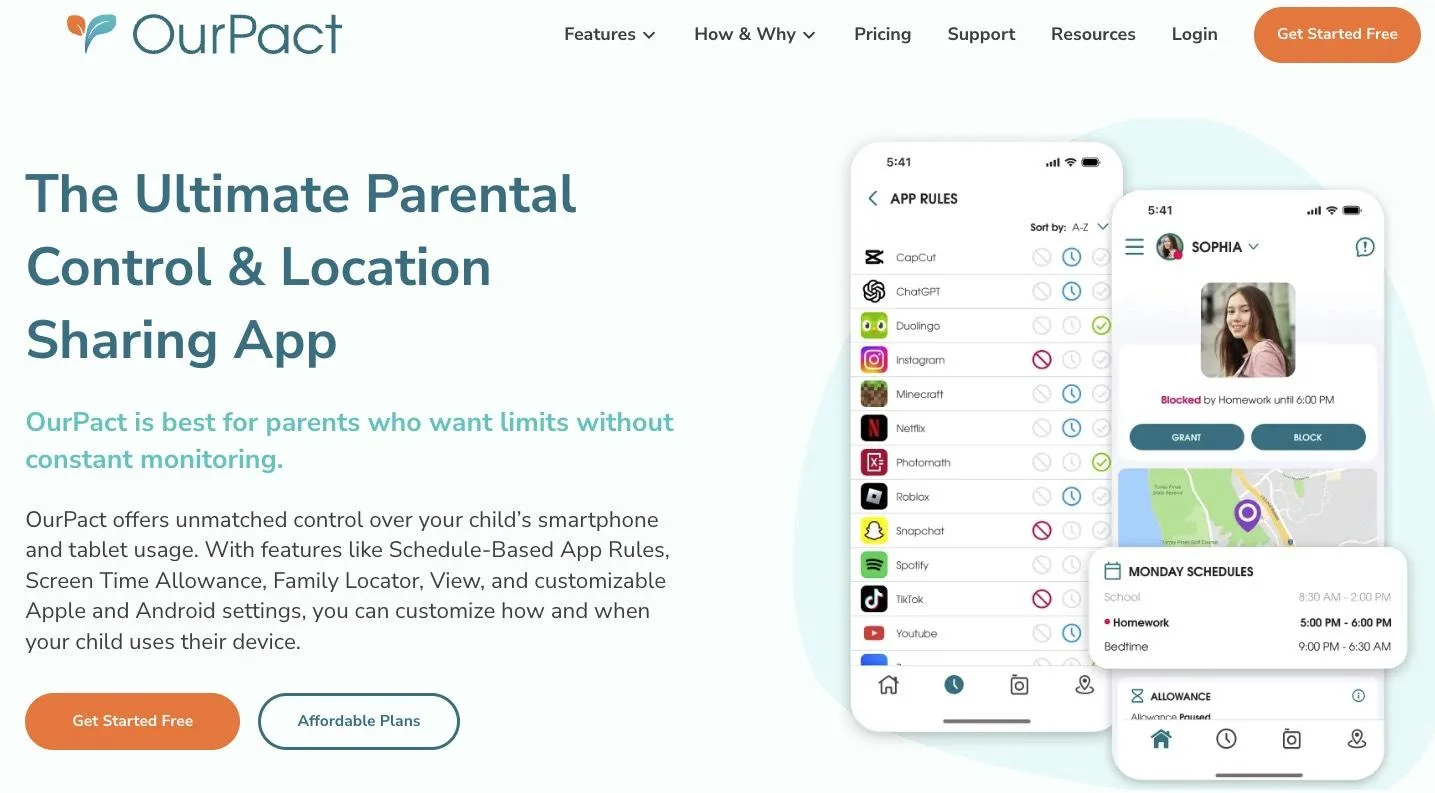
6. OurPact — Best for App Scheduling and Visual Check-Ins
Best for: Parents who prioritize scheduled app access, web filtering, live location, and optional screen check-ins.
My take: I would choose OurPact for schedules and visual check-ins. It can block apps, manage screen time, filter adult websites, and show location. The optional View feature adds screen images. That extra context can help, but it is more intrusive than a simple alert.
OurPact is strongest when the household problem is predictable: games during homework, messaging after bedtime, or distracting apps during school hours. A schedule can address that behavior without requiring the parent to inspect conversations. The View feature changes the privacy balance because a screen image can expose unrelated personal information. If you enable it, agree on when it may be used and reserve on-demand checks for a defined concern.
- Strong app scheduling
- Optional screen check-ins
- Cross-platform management
- More intrusive screenshots
- Plan-based View feature
- Basic web categories
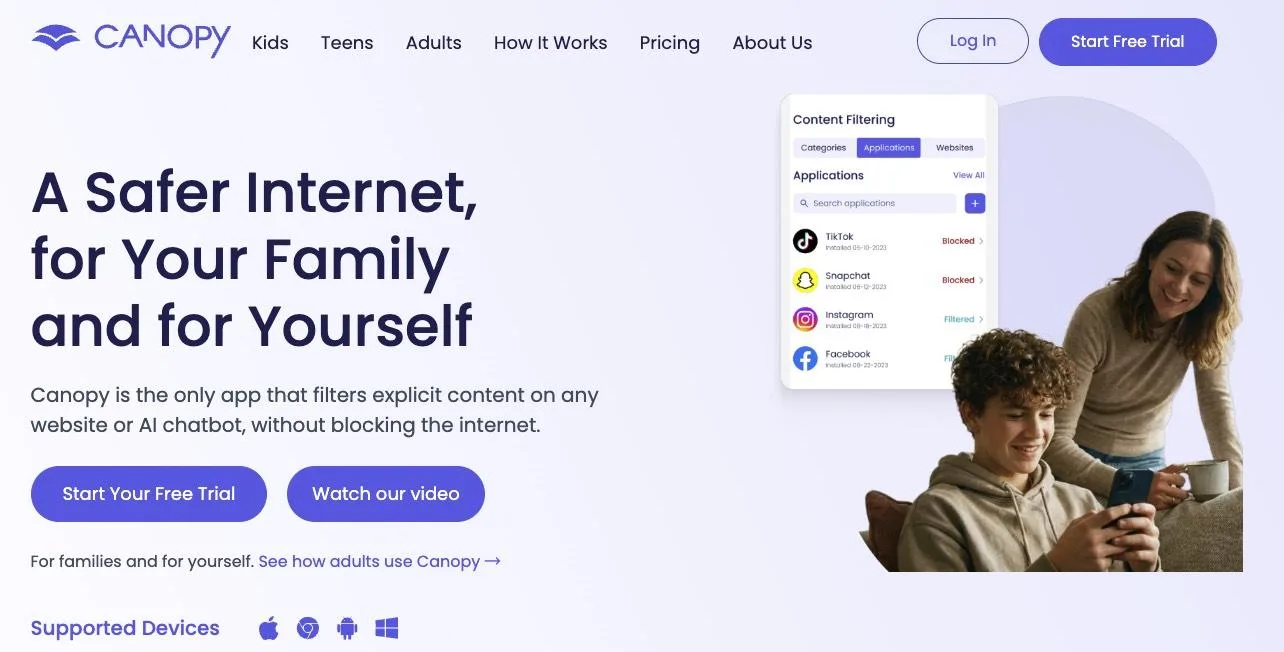
7. Canopy — Best for Explicit-Content Filtering
Best for: Families whose primary concern is online pornography or risky images rather than broad message monitoring.
My take: Canopy does one job especially well: explicit-content filtering. It can also flag eligible risky images saved to the Camera Roll. This is a focused safety tool. It does not read texts, email, calls, or general content inside other apps.
That narrow focus is a strength when explicit imagery is the main risk. It avoids pretending that a content filter is also a complete social-monitoring product. Families should still test allowed educational, health, and art pages because any automated filter can make imperfect decisions. Canopy is less suitable when the concern is cyberbullying, late-night messaging, or a complete activity timeline; those needs call for a different app category.
- Strong explicit-content filtering
- Camera Roll alerts
- App and location tools
- No text monitoring
- No in-app content scans
- No recorded-video scans
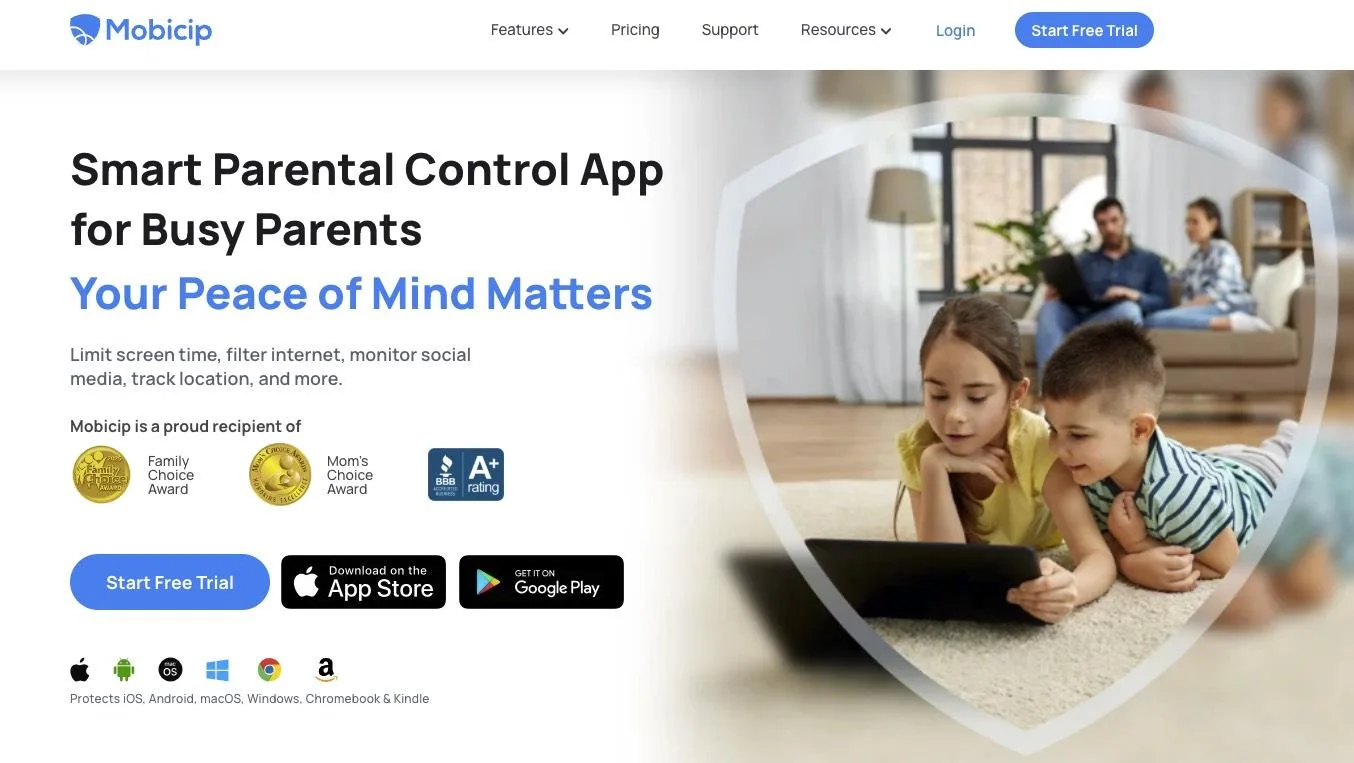
8. Mobicip — Best for Family-Wide Filtering
Best for: Mixed-device households that want consistent screen-time rules, app blocking, web filtering, and location tools.
My take: Mobicip makes sense in a mixed-device home. It brings screen-time rules, browser filtering, app controls, and location tools into one family system. The setup takes more work, but the same policy can cover phones, tablets, and computers. You can also review how to block websites across common devices.
Mobicip becomes more valuable as the number of platforms grows. A family with an iPhone, an iPad, a Windows laptop, and a shared Mac may prefer one policy dashboard to four sets of rules. The tradeoff is that enforcement and alerts can differ by operating system. During a trial, test the exact browser, app, and device combinations used at home, including what happens when the phone changes networks or loses connectivity.
- Broad platform support
- Consistent family rules
- Filtering plus location
- Platform-dependent alerts
- Plan-based features
- More setup required
Frequently Asked Questions
Q1: How can I monitor everything on my child's iPhone?
No app can guarantee access to everything on an iPhone. Start with Family Sharing and Screen Time for limits, restrictions, and activity summaries. VigilKids can add supported information through its Apple/iOS connection flow, but coverage depends on Apple account data, permissions, synchronization, iOS version, region, and plan. Define what “everything” means for your family—messages, apps, web activity, location, or screen time—then verify each feature individually.
Q2: How do I secretly track my kids on my iPhone?
Do not secretly track a child or another person's device. Use Family Sharing, Find My, or an authorized parental tool with age-appropriate notice and consent. Explain what location or activity information is shared, why it is needed, and when you will review it. Secret access can damage trust and may violate local law. For an urgent safety concern, contact the appropriate local authority or emergency service instead of relying on a consumer app.
Q3: Is there a free parent phone monitoring app?
Yes. Apple's built-in Family Sharing, Screen Time, Communication Safety, and Find My tools cover many common needs without a separate subscription. They can manage limits, content restrictions, purchases, supported communication settings, and location sharing. Paid apps may add different dashboards or alerts, but their iPhone features and setup requirements vary. Start free, identify the missing capability, and pay only if a tested iPhone feature fills that gap.
Q4: Is Life360 or Bark better?
Life360 is usually the better fit for real-time family location sharing, place alerts, and driving-safety features. Bark is the better fit for alerts about supported texts, photos, searches, and connected accounts, plus screen-time and filtering tools. Choose based on whether location coordination or online-content alerts are the main concern. Some families use location sharing with Apple or Life360 and add Bark only when content-risk alerts are necessary.
Q5: How do I monitor my child's text messages on my iPhone for free?
Apple does not provide parents with a free remote inbox showing every text. Communication Safety can warn children about sensitive images in supported Apple experiences, while Communication Limits control eligible contacts. For message content, check each provider's current iPhone support and setup requirements; never assume Android coverage applies to iOS. Avoid services that promise invisible, universal access without explaining authorization, encryption, synchronization, and Apple's restrictions.
Conclusion
The best parental monitoring app for iPhone should match one clear family need and document its current iOS coverage. VigilKids is our top choice for supported iPhone insights through a guided Apple/iOS connection. Aura is strongest for a broader family-security bundle, Bark for selective risk alerts, and Qustodio for detailed controls and reports. Whichever option you choose, use the least access needed and keep your child informed. A good setup should reduce uncertainty and support a calm conversation—not create a permanent investigation at home.
Sources
- Apple Support: Use Screen Time to Manage a Child’s iPhone or iPad
- Federal Trade Commission: Children’s Privacy Guidance
- NCMEC NetSmartz: Online Safety Resources for Families
- Common Sense Media: Parents’ Guide to Parental Controls
Hot Topics for Parental Control
Instagram Parental Controls: The Complete Parent's Guide
Learn how to set up Instagram parental controls, manage Teen Accounts, and understand the monitoring gaps that many parents discover too late.
Facebook Messenger Parental Controls: What Actually Works
What Facebook Messenger parental controls actually exist in 2026? See which built-in features work, where they fall short, and how to fill the gaps safely.
Roblox Parental Controls: Complete Guide for Parents
Everything parents need to know about Roblox parental controls — how to set them up, what they cover, and what to do when they're not enough.