
Learning how to set up Messenger Kids parental controls is the safest first step for letting an under-13 child chat with friends and family while you stay in charge. Unlike standard Messenger, Messenger Kids is a separate app built entirely around parent oversight — you approve every contact, set the hours it works, and review activity from a dashboard. This step-by-step guide walks you through the complete setup in 2026, from creating your child's account to configuring every control, so you can get it right the first time.
Before you start:
Messenger Kids is for children under 13 and is managed entirely through your own Facebook account — no phone number or separate login is needed for your child. You'll need the Messenger Kids app installed on your child's device, and the Facebook app on yours to access the Parent Dashboard.
What Is Messenger Kids?
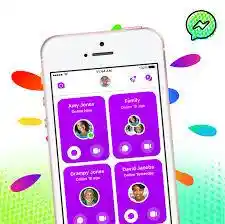
Messenger Kids is Meta's free messaging and video-chat app designed for children under 13. It's deliberately separate from standard Messenger, with no ads, no in-app purchases, and parental control built into its core. Every account is tied to a parent's Facebook account, and you manage everything from a dedicated Parent Dashboard.
The key controls you'll set up are:
- Supervised friending — you approve every contact your child can talk to
- Sleep Mode — you decide the days and times the app can be used
- Activity visibility — recent contacts, chat history, and shared images appear in your dashboard
- Blocking and reporting — your child can block or report anyone, and you're notified when they do
How to Set Up Messenger Kids Parental Controls
The entire setup is managed from the Facebook app on your phone. Follow these five steps in order — from creating the account to configuring each control — and you'll be fully set up in a few minutes.
Create Your Child's Account
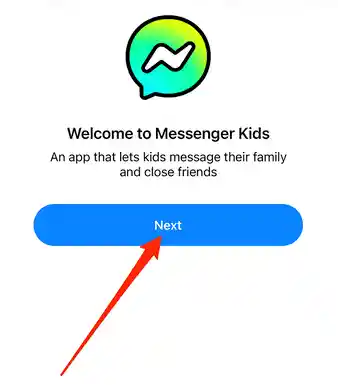
First, install the Messenger Kids app on your child's phone or tablet from the App Store or Google Play. Then set up the account from your own device:
- Step 1. Open the Facebook app on your phone, tap your profile picture or the menu, and scroll to find Messenger Kids.
- Step 2. Tap Create account for child (or the "+" option) to open the setup.
- Step 3. Enter your child's first and last name and date of birth, then tap Next.
- Step 4. Review the limitations, Terms, and Privacy Policy, then tap Create Account.
- Step 5. On your child's device, open the Messenger Kids app and sign in with the account you just created to finish pairing.
Tip:
No phone number or email is required for your child — the account exists only inside Messenger Kids and is controlled from your Facebook account. This keeps your child's personal details private.
Approve and Manage Contacts
This is the heart of Messenger Kids' safety: your child can only chat with people you approve. Nobody can connect with your child unless you allow it.
- Step 1. In the Facebook app, open Messenger Kids and tap your child's account to reach the Parent Dashboard.
- Step 2. Tap Contacts (or "Add contact") to manage who your child can talk to.
- Step 3. Choose a contact to add — typically children of your Facebook friends, or family members. To remove someone, tap the options next to their name and select remove.
- Step 4. If a friend isn't on Messenger Kids yet, you can send an invite, which goes to their parent or guardian to approve.
You stay in control of this list at all times and can add or remove people whenever you like. There's also an optional "Help [child] connect" setting that makes your child discoverable to friends-of-friends — leave this off if you prefer the tightest privacy.
Set Up Sleep Mode (Time Controls)
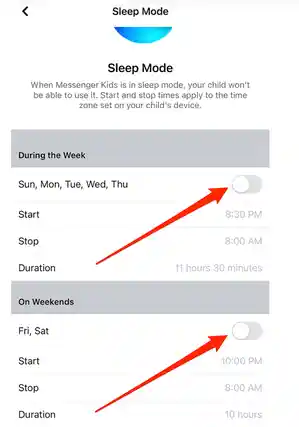
Sleep Mode lets you decide exactly when the app is available, so it's off during school, meals, and bedtime.
- Step 1. In the Parent Dashboard, tap your child's account and open Controls.
- Step 2. Tap Sleep Mode.
- Step 3. Set the start and end times for when the app should be unavailable.
- Step 4. Set separate schedules for weekdays and weekends if you want different rules.
During Sleep Mode hours, your child simply can't use the app. You can adjust or turn off the schedule any time from the same menu.
Monitor Activity in the Parent Dashboard
The Parent Dashboard is your window into how your child is using the app. It doesn't require you to read over their shoulder — the key information is gathered for you in one place.
In the dashboard you can see:
- Recent contacts and chat history — who your child has talked to and how often over the last 30 days
- A log of images and videos sent and received in chats
- Reported or blocked contacts and any flagged content
- An option to download a full copy of your child's information, including contacts, messages, images, and videos
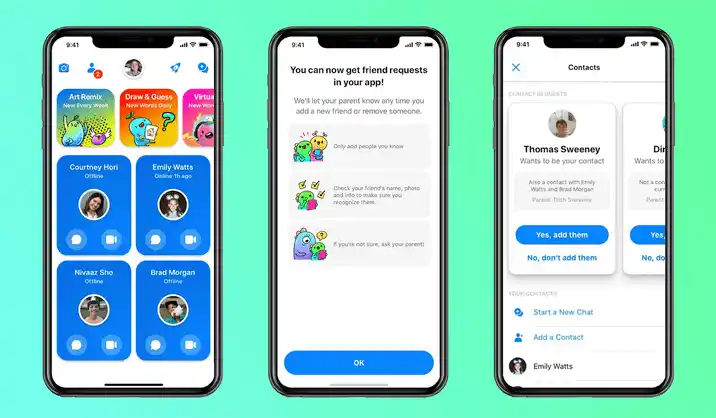
If you spot an image or video you consider inappropriate, you can remove it from your child's device and report it directly from the dashboard.
Review Blocking and Reporting
Messenger Kids gives your child age-appropriate tools to handle uncomfortable situations themselves — and loops you in when they do.
- Your child can block or report any contact at any time directly in the app.
- When they block or report someone, you receive a notification so you can check in and talk about what happened.
- Meta also runs automated and human moderation to catch harmful content, adding a layer beyond your own oversight.
Take a moment to walk your child through these tools so they know they can come to you — turning safety features into a conversation rather than a rulebook.
Monitor Standard Messenger with VigilKids After Messenger Kids
Messenger Kids works beautifully for under-13s, but it has a clear limit: once your child turns 13 and moves to standard Facebook Messenger, none of these parental controls carry over. Standard Messenger has no equivalent dashboard, contact approval, or chat visibility for parents.
That transition is when many parents look for a tool to keep some visibility going. A dedicated monitoring app like VigilKids fills that gap, giving you real-time insight into a teen's Messenger messages, media, and contacts that the standard app simply doesn't offer. It's also one of the most complete parental control apps, covering screen time, location, and app usage as your child grows. If you want the full picture of what's possible at that stage, see our guide to Facebook Messenger parental controls and what actually works.

What VigilKids Can Do
- See your teen's Messenger messages, contacts, and shared media in real time
- Get instant alerts for risky keywords and contact from strangers
- Mirror the live screen and capture remote screenshots whenever you need a record
- Keep visibility once Messenger Kids controls no longer apply at age 13
- Monitor screen time, location, and app usage all from one dashboard
FAQs
Q1: Is Messenger Kids free?
Yes. Messenger Kids is completely free, with no ads and no in-app purchases. It only collects the data needed to run the service and keep children safe.
Q2: Do I need a Facebook account to set up Messenger Kids?
Yes. Every Messenger Kids account is created and managed through a parent's Facebook account. Your child doesn't need their own phone number, email, or Facebook login.
Q3: Can I read my child's messages in Messenger Kids?
The Parent Dashboard shows recent contacts, chat history over the last 30 days, and a log of shared images and videos. You can also download a full copy of your child's information, including messages.
Q4: What happens when my child turns 13?
Messenger Kids is built for under-13s, and its controls don't transfer to standard Messenger. Once your child moves on, you'll need device-level controls and a monitoring tool like VigilKids for continued visibility.
Q5: Can my child add contacts without my approval?
No. Supervised friending means you approve every contact. Your child cannot connect with anyone you haven't allowed, and you can add or remove people from the dashboard at any time.
Conclusion
Setting up Messenger Kids parental controls is straightforward once you know the path: create the account from your Facebook app, approve contacts, schedule Sleep Mode, and keep an eye on activity through the Parent Dashboard. It's one of the safest ways for younger children to stay connected. And when your child eventually moves to standard Messenger, pairing open conversation with a tool like VigilKids keeps that protection going. Set it up today, and revisit the settings as your child grows.
Related Topics
Top Parental Control Apps 2026: iPhone, Android, Mac & PC
The top parental control apps in 2026 for every family type — by age, by platform, by household setup. Compare 7 picks including VigilKids, Bark, and Family Link.
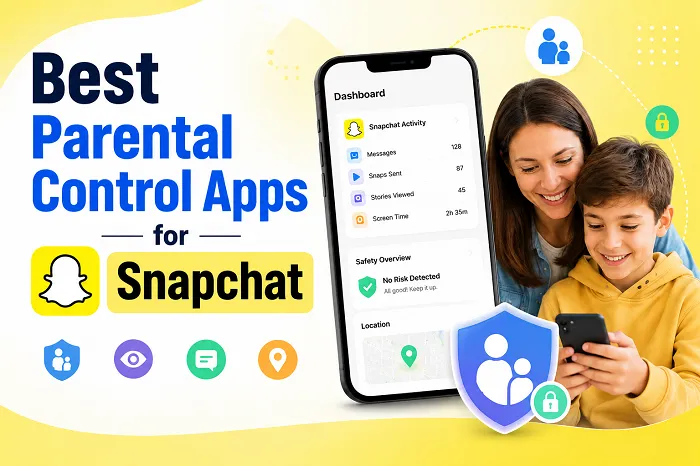
6 Best Parental Control Apps for Snapchat in 2026
Looking for the best parental control app for Snapchat? Compare the top apps, including VigilKids, Bark, mSpy, Eyezy, Qustodio, and AirDroid.
8 Best Android Parental Control Apps in 2026
The 8 best Android parental control apps for 2026 — screen time, location, app blocking, and content filtering. Free and paid options compared.