
Sharing location has become second nature among friends, partners, and family — but sometimes you want a little privacy without the awkwardness of the other person getting a notification. If you're wondering how to stop sharing location without them knowing, you're in the right place. This guide covers 7 reliable ways to turn off location sharing without notifying anyone on both iPhone and Android, explains what the other person can and can't see, and answers the most common questions about doing it discreetly.
Can You Stop Sharing Location Without Notifying Others?
Yes — you can stop sharing your location without them knowing. On iPhone, turning off "Share My Location" in Find My or iMessage doesn't send any alert to your contacts. On Android, stopping location sharing in Google Maps also happens silently, with no notification sent.
The one catch worth understanding: while no notification is triggered, you can't stop someone from checking manually. If they open Find My or Google Maps to look, they may see your location is no longer updating, shows as "Location Not Available," or that sharing has paused. So "without them knowing" really means "without an automatic alert" — the methods below help you stay as discreet as possible.
7 Ways to Stop Sharing Location Without Them Knowing
Turning off location sharing won't trigger a notification, but each method has trade-offs in how discreet it is and what else it affects. Here's a quick comparison before the step-by-step instructions:
| Method | How Discreet | Affects Other Apps? |
|---|---|---|
| Airplane Mode | High | Yes — blocks everything |
| Turn off Location Services | High | Yes — all location apps |
| Disable "Share My Location" | Medium | No |
| Use a secondary device | Very high | No |
| Block a specific person | High | No (but blocks contact) |
| Stop Sharing in Find My | Medium | No |
| Fake GPS apps | Very high | Possibly |
Turn On Airplane Mode
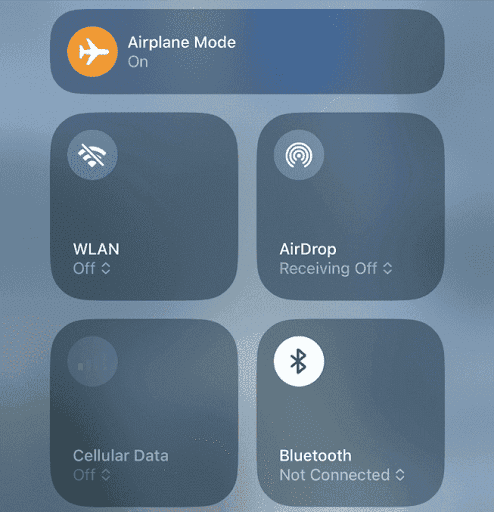
The simplest way to hide your location instantly is to turn on Airplane Mode. This stops all signals — cellular, Wi-Fi, and GPS — so your phone can't share your location at all. Here's how to turn on Airplane Mode on iPhone or Android:
- Step 1. Swipe down (or up) to access the Control Center / Quick Settings.
- Step 2. Tap the Airplane Mode icon and confirm it's turned on.
Note:
- Airplane Mode stops location sharing with friends and family quietly — but you also won't receive calls, messages, or use online apps while it's on.
Turn Off Location Services
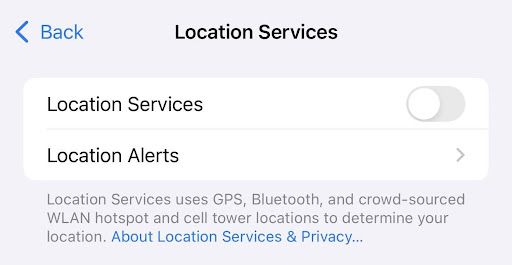
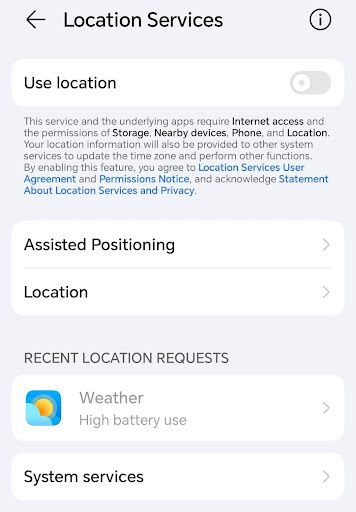
If you want a slightly more flexible option than Airplane Mode, you can turn off Location Services. Once it's off, apps like Find My, Google Maps, and WhatsApp can no longer access your GPS, so your location won't update for anyone.
On iPhone: Go to Settings > Privacy & Security > Location Services and toggle it off.
On Android: Go to Settings > Privacy > Location services and switch off the location option.
Note:
- This method is easy and works across all apps, but it also affects services like ride-hailing and maps, which won't work until you turn it back on.
Disable "Share My Location"
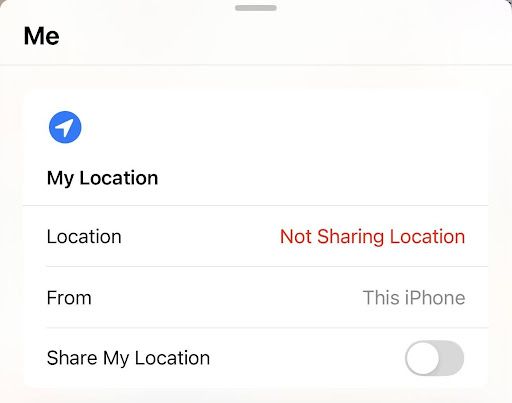
Sometimes you don't want to turn off your phone's entire location system — you just want to stop sharing with the people who can currently see you. This way your GPS still works for other apps, but your contacts won't see your movements. Here's how to disable "Share My Location" in Find My:
- Step 1. Open Find My and tap Me in the bottom-right.
- Step 2. Find the Share My Location option.
- Step 3. Turn the option off.
Use a Secondary Device
This trick, popular among users on Reddit, is a clever way to hide your real location while keeping location sharing active — so it never looks like you stopped. The idea is to make a second device appear as your location while you move freely with your main phone:
- Step 1. Sign in to iCloud on a second iPhone or iPad.
- Step 2. Open Find My on the second device.
- Step 3. Tap Me and choose "Use This iPad as My Location."
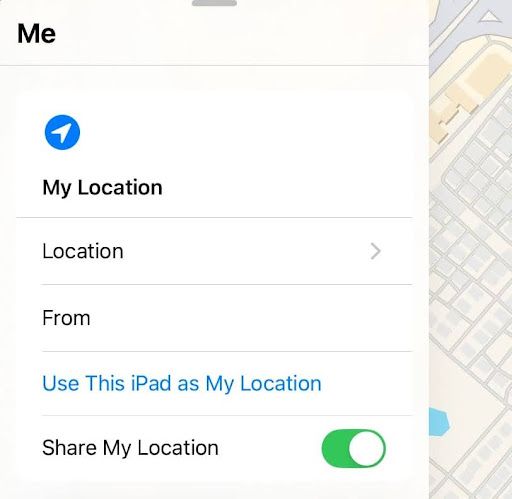
After that, your main phone can move freely without updating your shared location. This is the most discreet option because, to your contacts, nothing appears to have changed. You can switch back to your main device whenever you're ready.
Block a Specific Person
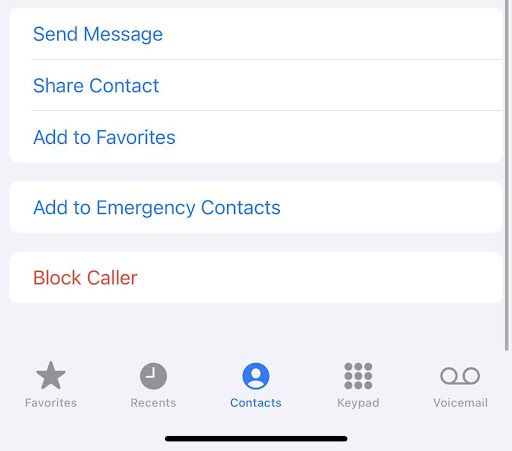
This method is also popular among iPhone users on Reddit. By blocking a contact, you instantly stop sharing your location with them — without sending any notification:
- Step 1. Open Contacts on your iPhone.
- Step 2. Tap the contact you wish to block and scroll down.
- Step 3. Tap Block Caller.
Tip:
- Blocking also stops their calls and messages, so if you still want to stay in touch, remember to unblock them later.
Use "Stop Sharing My Location" in Find My
There's also a way to stop sharing your location with one specific person without blocking them — the Stop Sharing My Location feature in Find My. This pauses location updates for that contact while leaving your other sharing settings unchanged:
- Step 1. Open Find My.
- Step 2. Go to the People tab and select the person you want to pause sharing with.
- Step 3. Tap Stop Sharing My Location and confirm.
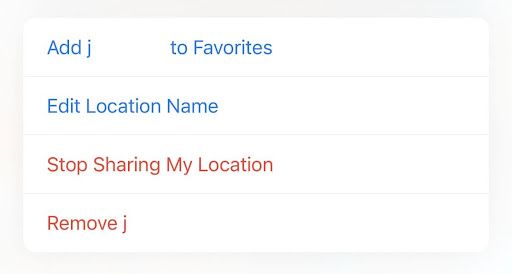
This lets you stop sharing with one or a few contacts without affecting everyone else. Keep in mind they may still notice your location shows as "Location Not Available" if they actively check the app.
Use a Fake GPS App
You may have heard of tools that spoof your GPS location, so when others check, they only see the fake location you've set. To use one, download a trusted fake GPS app from the App Store or Google Play and activate the spoofed location following its instructions.
It sounds impressive, but it isn't officially supported. Spoofing can cause other apps to malfunction, may violate some apps' terms of service, and apps from untrustworthy developers can pose privacy and security risks. Use this option with caution.
How to Know Someone's Location Even If Paused
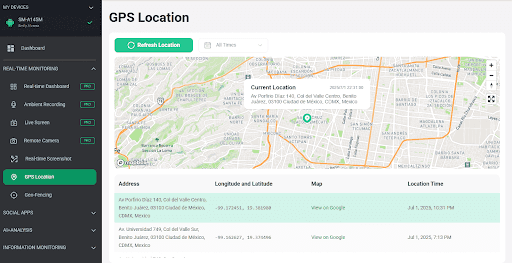
The flip side of all this: if you're a parent, your child can use these same tricks to quietly stop sharing their location with you. When safety is the concern, a dedicated parental tool gives you reliable visibility that doesn't depend on your child keeping sharing switched on. The most complete option for this is VigilKids — a parental monitoring app built for exactly this situation.
Why VigilKids works best for this:
- Provides real-time location monitoring, so you can see where your child is even if they've turned off built-in location sharing
- Supports geofencing, sending alerts when your child enters or leaves areas you designate
- Lets you review chats, messages, and images for a fuller picture of your child's safety
- Runs reliably in the background with simple setup
- Works as part of a broader safety toolkit, not just location
How to set up VigilKids for location monitoring:
- Step 1. Create your VigilKids account and choose a plan. The annual subscription works out to roughly $11.7/month for ongoing location awareness.
- Step 2. On your device, log in to your dashboard, choose Bind New Device, and note the pairing code it generates.
- Step 3. On your child's phone, install the VigilKids app following the on-screen steps, grant the required permissions, and enter the pairing code to connect.
- Step 4. Open your dashboard and scroll to the map section to see recent locations, or tap All Activities for live and past location details.
A note on responsible use:
Parental monitoring tools are for protecting underage children on devices you manage as their guardian. Talking openly with your child about why you're keeping track of their location builds more trust than secrecy — and keeps you on the right side of local laws.
FAQs About Stopping Location Sharing
Q1: Will my friend get notified if I stop sharing location on Find My?
No, your friends won't be alerted when you stop sharing. But if they actively check the app, they might see your location is unavailable or that sharing has stopped.
Q2: Can I stop sharing location with just one person on WhatsApp or Find My?
Yes. On Find My, you can stop sharing with a specific contact using "Stop Sharing My Location." On WhatsApp, you can turn off live location sharing for individual chats without affecting others.
Q3: How do I turn off Apple location without people knowing?
The cleanest way is Settings > Privacy & Security > Location Services and toggle it off. This sends no notification, though contacts could notice your location stops updating if they check.
Q4: What's the most undetectable way to hide my location?
Using a secondary device is the most discreet option, because it keeps your location looking like it's being shared normally rather than showing as paused or unavailable.
Q5: Does turning off location sharing show "Location Not Available"?
It can. Depending on the method, contacts who check may see "Location Not Available" or a frozen last-known spot. A secondary device avoids this, since your shared location keeps updating from the other device.
Q6: How do I stop sharing my location on Android without them knowing?
In Google Maps, open your profile, go to Location sharing, and stop sharing with the person — no notification is sent. You can also turn off Location Services in Settings to stop all apps at once.
Conclusion
Managing your location sharing is an important part of digital privacy. Whether you're on Find My, Google Maps, or WhatsApp, you can stop sharing your location without sending any alert — just remember that others might notice if they manually check. Pick the method that fits how discreet you need to be, from a quick Airplane Mode toggle to the near-invisible secondary-device trick.
And if you're a parent looking for dependable family safety rather than privacy for yourself, VigilKids offers real-time location, geofencing, and activity monitoring so you can keep your child safe even when built-in sharing is switched off.
Related Topics
Find My Samsung Phone: Ultimate Guide to Locating Your Lost or Stolen Device
Wondering how to find my Samsung phone? Discover free methods using Samsung SmartThings Find and Google Find My Device, plus advanced tools like VigilKids for real-time tracking. Learn step-by-step how to find my lost Samsung phone or stolen device today.
How to Track Phone Number Location Free? Simple Methods That Work
Learn how to track phone number location free safely and legally. Check out our step-by-step guides for different devices and how to avoid scams and what to do if a phone is lost or stolen.
Top 15 GPS Tracking Apps for Android in 2026
Discover the best GPS tracking software for Android in 2026. Compare real-time GPS tracker Android apps, privacy tools, and family safety solutions.