
If you're wondering how do I retrieve deleted messenger messages, you're not alone. In 2026, losing a chat on Messenger is more common than ever—whether it's due to accidental deletion, archived conversations, app syncing issues, or messages removed by the sender. The good news is that deleted doesn't always mean gone forever.
There are still several practical ways to how to find deleted messages on messenger, from checking backups and notification history to exploring cached files and other synced devices. In this guide, we'll walk through 7 proven methods that can help you recover lost conversations and increase your chances of finding what you thought was gone for good.
Can You Recover Deleted Facebook Messages
Yes, there is still a chance to get your messages back. Before jumping into the methods, it is important to understand how Messenger handles deleted chats.
There are three types of deletion:
- 1.You archived a chat instead of deleting it. This is the most common mistake and is completely recoverable.
- 2.You deleted a message, but it still exists in a backup or stored data. This can sometimes be recovered.
- 3.You permanently deleted the message and it is gone from Facebook's servers. In this case, recovery is harder, but you can still try several methods below.
Messenger does not always remove things instantly. Some copies may remain in archives, device storage, backups, notifications or Facebook's downloadable data.
How to Find Deleted Messages on Messenger
Below are all the practical methods you can try to recover or view deleted conversations on Messenger.
Method 1. Check Archived Chats
 Note
Note
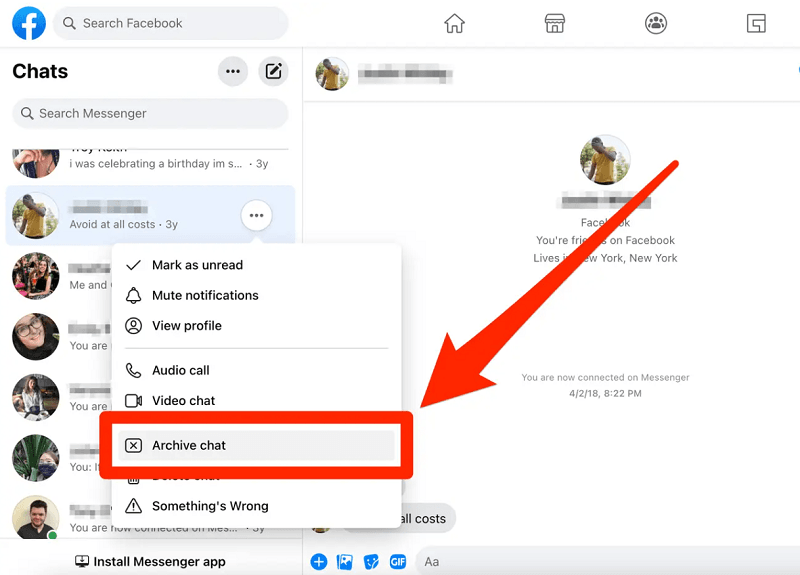
This method is useful when a conversation has “disappeared” from your Messenger inbox but wasn't actually deleted.
Messenger sometimes hides conversations when they are archived, which makes them appear deleted even though the full chat is still stored in your account. This often happens when someone accidentally swipes a conversation or taps the archive option without noticing, so the chat simply moves out of the inbox.
- Step 1. Open Messenger and tap your profile photo.
- Step 2. Select Archived Chats.
- Step 3. Look through the list to find the missing conversation.
- Step 4. Tap the chat to open the full message history.
- Step 5. Send a message or unarchive it to return it to your inbox.
Method 2. Download Your Facebook Data
Note
This method is useful when you want to recover deleted or missing Messenger conversations that may still exist in Facebook's backup data but are no longer visible in the app.
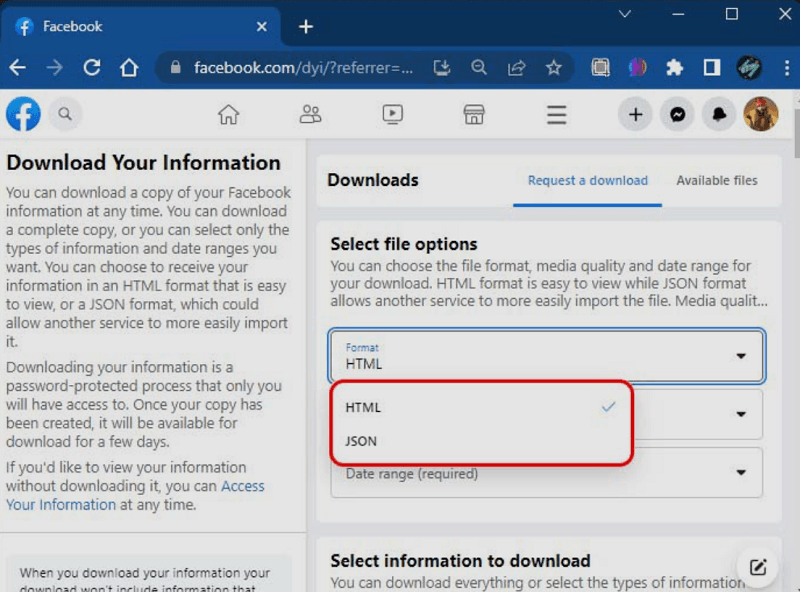
Some deleted messages remain stored in Facebook's data backup for a while, even after they no longer appear in the Messenger app. By downloading your Facebook information, you may find older conversations saved in HTML or JSON files. This works especially well for people who delete chats often or use multiple devices.
- Step 1. Open Facebook and navigate to Settings and Privacy.
- Step 2. Tap Settings and then open Your Facebook Information.
- Step 3. Select Download Your Information.
- Step 4. Choose Messages and submit the request.
- Step 5. Wait for Facebook to prepare the file, then download it.
- Step 6. Open the downloaded folder and look for your conversations in the Messages section.
Method 3. Check Notification History
Note
It can be helpful in situations where you need to view recently deleted or removed Messenger messages by checking saved notification previews stored on your Android device.
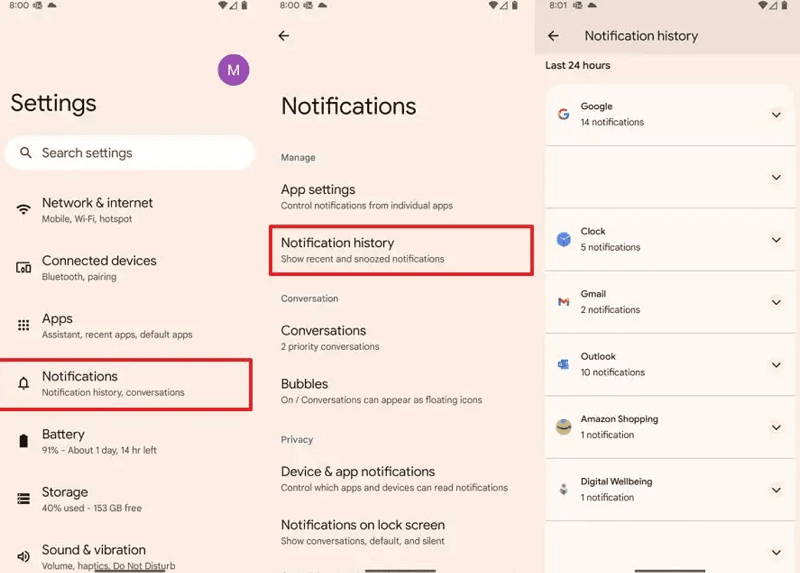
When Messenger sends a message alert, Android may store the preview for a short time. Even if a sender deletes the message or removes it from the chat, the notification preview may still be available in your device's notification history.
- Step 1. Open the Settings app on your Android device.
- Step 2. Search Notification History.
- Step 3. Turn it on if needed.
- Step 4. Open the notification list and scroll to Messenger.
- Step 5. Read any previews saved in the last twenty four hours.
Method 4. Check Android Storage
Note
This method is most useful when you're trying to recover traces of deleted Messenger content by checking cached files stored locally on your phone, especially when no backup or in-app message history is available.
Messenger creates temporary files on your phone, such as cached images or message fragments. Although modern versions store far less data than before, some older files or thumbnails may still be available.
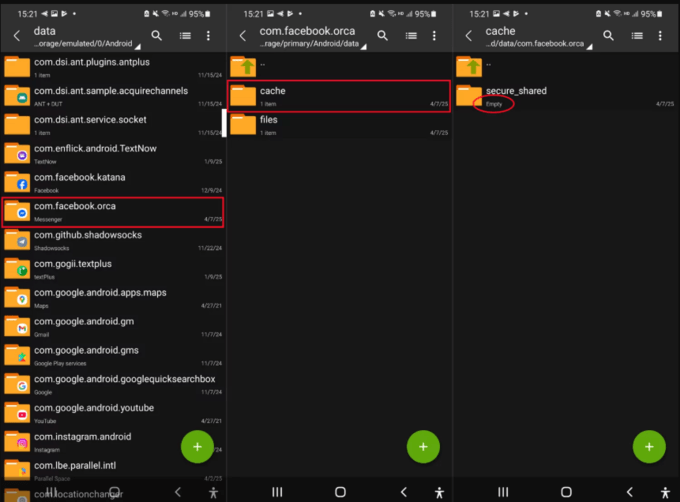
- Step 1. Open your file manager app.
- Step 2. Go to Internal Storage.
- Step 3. Open Android, then Data.
- Step 4. Look for the folder named com.facebook.orca.
- Step 5. Open the Cache folder and browse the files.
- Step 6. Move any file you want to review into another folder before opening it.
Note: The success rate for this method is low. Because of how modern systems store data, you are more likely to find cached images, videos, or thumbnails, not full, readable text messages. Think of this as a last chance effort.
Method 5. Restore Your Phone Backup
Note
This method is useful when you want to recover deleted Messenger conversations by restoring a previous phone backup that was created before the messages were removed.
If your phone created a backup before you deleted the messages, the older Messenger data may still be included. Restoring a backup can bring those conversations back, although it will replace your current data with the older version. This method works only if you regularly back up your phone.
- Step 1. Check Google Drive (Android) or iCloud (iPhone) to see if you have a backup from before the deletion.
- Step 2. Review the backup date and confirm it is earlier than the deletion date.
- Step 3. Reset your device if you want to restore the backup.
- Step 4. Log in with your Google or Apple ID during setup.
- Step 5. Choose the older backup to restore your phone.
- Step 6. After setup, open Messenger to check for the recovered chats.
Warning: This step will erase your current phone data. Restoring an old phone backup will permanently delete all new data you have created since the backup date. This includes new photos, contacts, and app changes. Please carefully think about the cost before you do this.
Method 6. Try Another Logged In Device
Note
It applies in situations where your Messenger account is logged in on multiple devices and one device has not yet synced recent changes, allowing you to temporarily view deleted or missing conversations on another device before they update.
Messenger does not always sync changes across every device immediately. If your account is still signed in on another phone, tablet or computer, the chat you deleted might still appear there because the app has not refreshed yet. This is one of the simplest ways to check how to look at deleted messages on messenger without using any extra tools. Just open Messenger on the other device and look through the conversation list. If the chat is still visible, you can read the remaining messages or save anything important before the app updates.
Method 7. Use VigilKids (May Help You See Deleted Messages)
Note
It can be helpful in situations where you are monitoring a child's device and want to view previously captured Messenger activity or message traces that may still exist before deletion occurred.
In some cases, VigilKids can help you see message traces that were already captured before they were deleted on the monitored device. This is not a guaranteed “recovery” tool, but it can increase your chances of viewing information that would otherwise disappear.
Important: Results depend on device settings, permissions, and whether the content was captured before deletion. If a message was deleted before any data was recorded, it may not be visible.

VigilKids Features
- Text Message Monitoring: View sent and received SMS/iMessages in one place for easier review.
- WhatsApp Monitoring: Check WhatsApp chats, calls, and shared media to understand who your child is talking to.
- App Activity & Screen Records: See how messaging and social apps are being used, especially when content disappears quickly.
- Risk Alerts: Get notified of suspicious words or risky behavior patterns so you can step in early.
- GPS & Safe Zones: Track location and set alerts for leaving or entering important areas.
- Step 1. Create a VigilKids account: Go to vigilkids.com and click Try Now.
- Step 2. Bind your child's phone to your dashboard: On the monitored phone, install the VigilKids Assistant app from https://www.vigilkids.vip, then enter the pairing code to complete setup. Follow the prompts to enable required permissions so the dashboard can capture activity records.
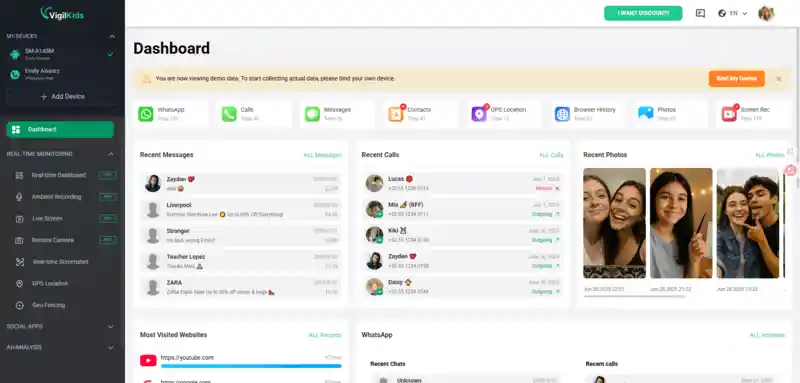
- Step 3. Check for message traces in your VigilKids dashboard: Open your VigilKids dashboard and go to the Messages section to review captured message activity. If the device recorded the content before it was deleted, you may be able to view parts of the conversation even after it was removed on the phone.
Conclusion
Recovering deleted messages on Messenger is not always simple, you now have a better chance to understand how to find deleted messages on Messenger and recover what matters.
Want a clearer record of the messages your child receives across apps? VigiKids can help you capture activity traces and message records, so you can understand what was sent even if the conversation was removed later.