
Your child says a game works on a friend's Chromebook, but the same page shows “Access denied” at their school. That is normal: school filters, device policies, and approved-site lists are different. The most reliable games not blocked by school are usually browser-based, require no download, and appear on educational or well-established sites—but no game is guaranteed to work on every network.
This updated guide keeps the original unblocked games and game websites that are not blocked, then adds current browser picks, clearer safety checks, and responsible options when a site is restricted. It is written for permitted breaks, free periods, home use, and parent-approved play—not for bypassing school rules.
- Table Of Contents
- 10 Best Games and Websites Not Blocked by School
- 8 Popular Games That Are Not Blocked
- How to Play Unblocked Games Without Breaking School Rules
- Set Healthy Gaming Limits with VigilKids

- Games Not Blocked by School FAQs
The public pages and HTTPS links below were accessible when reviewed. We did not test every school, Chromebook policy, GoGuardian configuration, or Securly configuration. A site may be allowed today and blocked later, so follow your school's acceptable-use policy.
10 Best Games and Websites Not Blocked by School
Games not blocked by school are usually lightweight browser games that do not require an installation. A site may open because the school approved it—or simply because it has not been blocked yet. Access varies by network, account, and device, so none of the options below is guaranteed to work at every school.
Use this list of 10 unblocked game websites for school by comparing each site's best use, account requirements, likely availability, and parent checks. Prioritize recognizable browser-based sites with no forced downloads, then confirm that play is allowed under your school's rules.
1. Coolmath Games
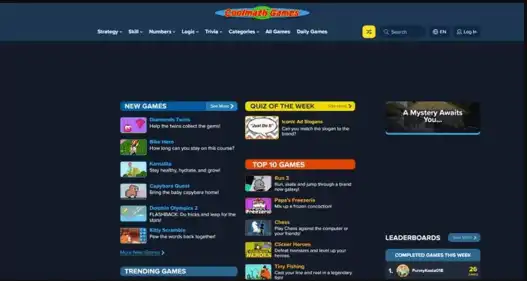
Coolmath Games offers logic, puzzle, strategy, coding, science, and casual games. Its official site says its team handpicks games intended to encourage thinking, numeracy, and creativity. Popular titles include Run 3, Chess, Fireboy and Watergirl, and Moto X3M.
- Best for: Puzzles, strategy, and short browser sessions
- Download or account: Many games launch in a browser without an account
- Availability: Often treated as an educational or mixed-content domain, but some schools block it
- Parent check: Review the selected game rather than relying on the site name alone
2. Hooda Math
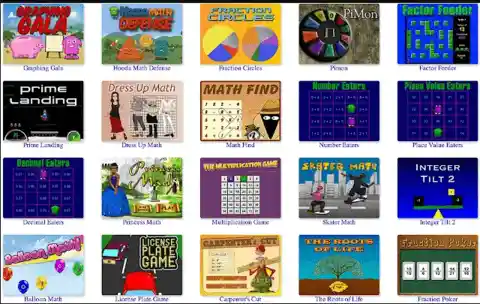
Hooda Math combines math practice with escape games, logic puzzles, board games, and browser-based arcade titles. Its official site organizes content by grade and says it offers more than 1,000 games created or curated by a classroom math teacher.
- Best for: Math practice, logic, and grade-based activities
- Download or account: Most games run directly in a browser
- Availability: Designed with school and Chromebook use in mind, without a universal access guarantee
- Parent check: Confirm the chosen game matches the child's grade and permitted play time
3. Unblocked Games 66
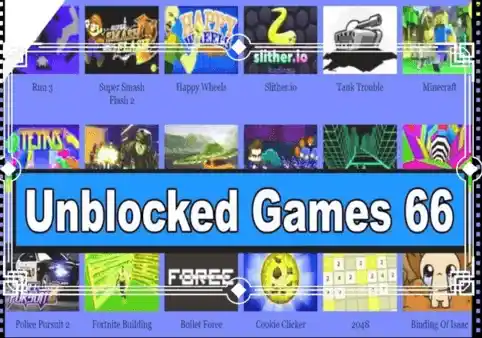
Unblocked Games 66 is a Google Sites collection with action, racing, arcade, and puzzle titles. The public page was accessible during review, but collections like this can change owners, links, ads, or embedded games without notice.
- Best for: A large variety of simple browser games
- Download or account: The landing page opens without a separate account
- Availability: Google Sites can still be blocked by a school administrator
- Parent check: Treat each embedded game and outbound link as a separate website
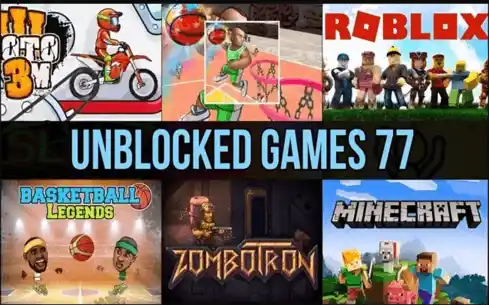
4. Unblocked Games 77
Unblocked Games 77 is another public Google Sites directory containing browser games from multiple genres. It remains a recognizable search term, but its Google-hosted address does not make every embedded title school-approved or child-safe.
- Best for: Browsing multiple game categories
- Download or account: The directory itself does not require a login
- Availability: Depends on whether the school permits the domain and embedded resources
- Parent check: Avoid pop-ups, copied download buttons, and unknown redirects
5. Unblocked Games Pod
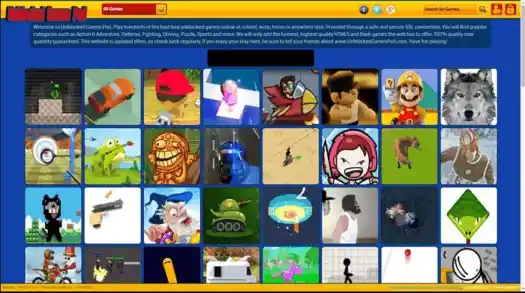
Unblocked Games Pod is a GitLab-hosted collection of browser games. It offers quick access to classic and modern titles, but GitLab hosting is a technical detail rather than a safety rating.
- Best for: Browser-based classics and casual games
- Download or account: Many titles open without a separate account
- Availability: GitLab pages or individual assets may be restricted
- Parent check: Review privacy, ads, chat, and the origin of each game
6. PrimaryGames
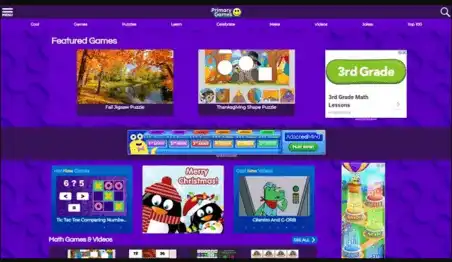
PrimaryGames provides games, activities, printables, and seasonal content for younger learners. Its math, reading, science, and holiday sections make it more relevant to classroom and home-learning use than a general arcade directory.
- Best for: Elementary learners and seasonal classroom activities
- Download or account: Many activities are browser-based
- Availability: More likely to fit an educational allowlist, but access varies
- Parent check: Confirm reading level, ads, and links around the activity
7. ABCya!
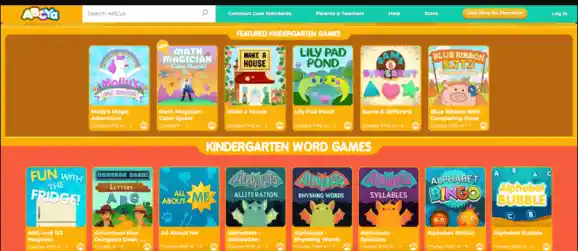
ABCya! focuses on educational computer games for children, with activities covering typing, math, reading, art, and strategy. It is a better fit for parent- or teacher-selected play than an unknown mirror site.
- Best for: Elementary students and skill-based practice
- Download or account: Browser access is available; some features or versions may differ
- Availability: School access depends on the administrator's policies
- Parent check: Choose by grade and review any subscription or advertising prompts
8. Poki
Poki is a large browser-game platform with puzzle, skill, sports, driving, multiplayer, and creative games. The publisher says its catalog contains more than 1,500 free games that work across mobile, tablet, and desktop without an installation.
- Best for: Variety and polished browser games
- Download or account: Games are designed for click-and-play browser access
- Availability: General gaming domains are frequently blocked on school networks
- Parent check: Review multiplayer, shooting, chat, and advertising before younger children play
9. Bored Button
Bored Button sends the visitor to one of many interactive websites after a click. That surprise is the appeal, but it also means a parent or student cannot know the destination in advance.
- Best for: Discovering quick interactive experiences
- Download or account: The main button works in a browser
- Availability: Every destination may be filtered differently
- Parent check: Not a top pick for younger children because outbound destinations change
10. Funbrain
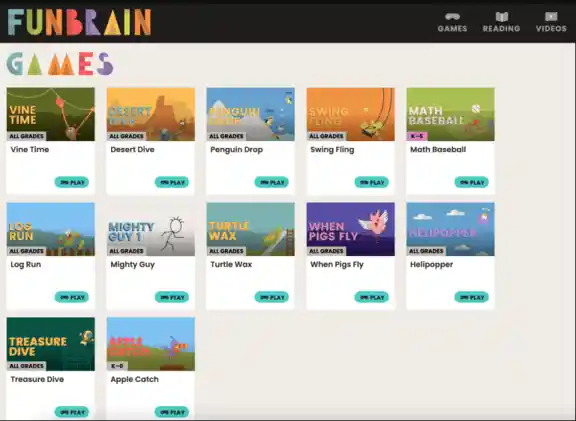
Funbrain combines browser games with books and videos for children. Its math, reading, and problem-solving content can support a more structured break or home-learning session.
- Best for: Reading, math, books, and interactive learning
- Download or account: Many activities open in the browser
- Availability: Educational content may be allowed, but no site is universally unblocked
- Parent check: Select the activity first instead of letting a young child browse alone
8 Popular Games That Are Not Blocked
Some searches are about individual games rather than not blocked websites. These popular games that are not restricted on some devices are lightweight and need little setup. Check the destination, multiplayer features, ads, and school rules before opening them.
Chrome Dino
- Best for: A very short offline challenge
- How it runs: Built into Chrome and commonly opened through
chrome://dino - Main limit: A managed Chromebook can restrict internal Chrome pages or disable the feature
Google Snake
- Best for: Simple keyboard or touch play
- How it runs: Search “play snake” on Google where permitted
- Main limit: Google access does not mean every embedded game is permitted by school policy
2048
- Best for: Number puzzles and low-powered devices
- How it runs: Lightweight HTML5 versions are available on several established sites
- Main limit: Copied versions may contain more ads or trackers than the original host
Run 3
- Best for: Platform-game fans and short level-based sessions
- How it runs: Available through established browser-game libraries such as Coolmath Games
- Main limit: The hosting domain may still be blocked
Chess
- Best for: Strategy, puzzles, and playing against a computer
- How it runs: Browser chess is available through educational sites and Chess.com
- Main limit: Accounts, chat, and online opponents add privacy and communication considerations
Wordle
- Best for: A short daily vocabulary puzzle
- How it runs: Available from the official New York Times Games page
- Main limit: Some schools restrict the entire games section even if news pages remain available
Fireboy and Watergirl
- Best for: Two-player cooperation and puzzle solving
- How it runs: Browser versions are available on established game platforms
- Main limit: Confirm the host before clicking a copied version
Agar.io and Skribbl.io
- Best for: Multiplayer strategy, drawing, and guessing
- How they run: Browser-based multiplayer sessions
- Main limit: Usernames, chat, and unknown players make these less suitable for unsupervised younger children
If your child prefers a larger platform, review our Roblox parental controls guide before allowing chat, spending, or open-ended multiplayer play.
How to Play Unblocked Games Without Breaking School Rules
If a game is blocked, do not assume the filter is broken. The usual reasons are an entertainment-domain blocklist, an unapproved embedded resource, a managed-device policy, or a rule applied to a particular student group. To play without breaking school rules, use only approved sites during permitted breaks and treat a block as a boundary—not a challenge to bypass.
Google confirms that administrators can manage URL blocklists and allowlists for Chrome and ChromeOS, with policies that may continue applying when a school device is used away from campus. Because rules can differ by user group, the same game may open for one student but not another. See Google's official Chrome Enterprise and Education URL guidance.
- Step 1. Check whether gaming is permitted during the current break, free period, or class activity.
- Step 2. Use a teacher-provided bookmark, approved learning platform, or school allowlist instead of a copied mirror.
- Step 3. Ask a teacher or IT administrator to review an educational site if it appears to be blocked by mistake.
- Step 4. If it is not approved, wait and use a parent-managed personal device at home.
Avoid bypass tools: Unknown VPNs, proxy servers, browser extensions, and game mirrors can expose browsing data, add malware, violate school policy, or cause disciplinary consequences. This guide does not recommend bypassing an administrator's controls.
Parents who need to restrict a distracting domain on a personal or family device can follow our guide to block a website on common devices and browsers.
A game that opens is not automatically safe. It may still include aggressive ads, fake download buttons, tracking, chat with strangers, or unexpected purchases. The FTC recommends reviewing ratings and reviews, requiring a password for purchases, and talking with children about family gaming rules. See the FTC's official guidance on kids, video-game ads, and unexpected payments.
- Check the address: Use the publisher's real HTTPS domain, not a misspelled copy.
- Reject forced downloads: A basic browser game should not require an unknown installer or extension.
- Review ads and redirects: Close pages with fake Play buttons, repeated pop-ups, or unexpected tabs.
- Protect personal data: Children should not share their full name, school, location, phone number, or passwords.
- Review multiplayer: Check chat, usernames, friend requests, reporting tools, and whether strangers can join.
- Use age information: Consult publisher guidance and the ESRB Family Gaming Guide when a rated version is available.
For more context on age ratings, chat, spending, and account restrictions in a major game platform, see the VigilKids guide to Free Fire safety for kids.
Set Healthy Gaming Limits with VigilKids
A child does not need unlimited access just because a website opens. The FTC says parental controls can help manage time, restrict content, and provide information about website and app activity—but also stresses that controls work best alongside clear family conversations. On a child's Android device that you own or are authorized to manage, VigilKids can add that practical layer.
VigilKids Android Parental Control
- Block selected game websites that are unsafe or distracting on a managed Android device
- Review supported browser history, visited websites, and app activity from the parent dashboard
- Check supported live-screen or screenshot context when a genuine safety concern appears
- Use activity patterns to start a conversation about schoolwork, sleep, and healthier gaming breaks
- Pair device insight with practical Android screen-time checks
How to Use VigilKids for Healthier Gaming
- Step 1. Create the parent account, then confirm that the child's Android device, OS version, permissions, and plan are supported.
- Step 2. Connect the Android device you own or are authorized to manage, then enable only the website, app-activity, and screen permissions your family needs.
- Step 3. Review activity patterns in the parent dashboard, agree on clear gaming limits, and use unusual activity to start a conversation.
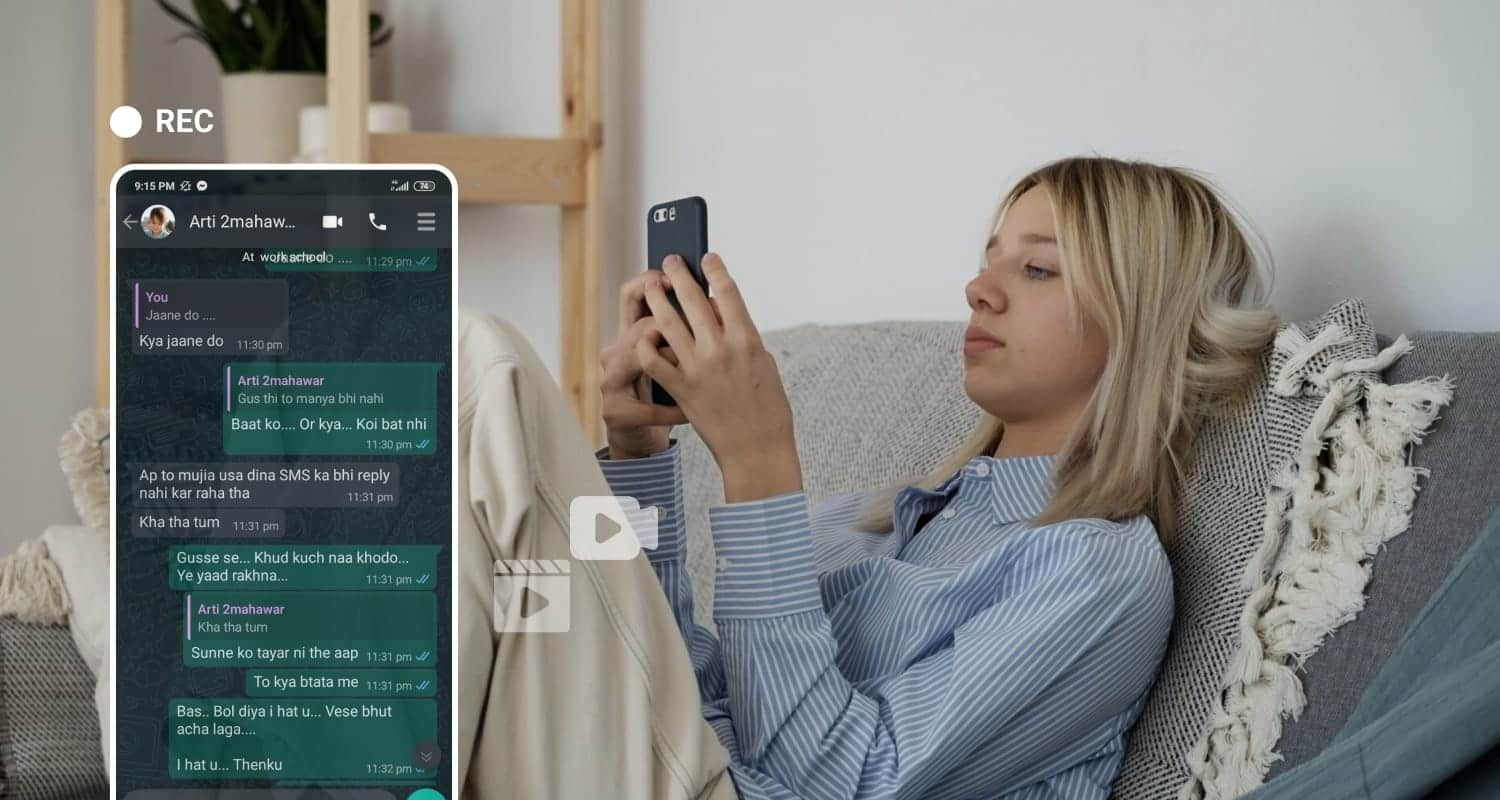
Features depend on the Android version, device model, granted permissions, connectivity, and subscription plan. Use VigilKids only on a device you own or are authorized to manage, explain age-appropriate rules to your child, and verify current product support before setup.
Games Not Blocked by School FAQs
What games are not blocked by school?
Common possibilities include Chrome Dino, Google Snake, 2048, chess, Wordle, Run 3, and educational games on Coolmath Games, Hooda Math, ABCya, or Funbrain. Access varies by school, device, account, and filtering policy, so none is guaranteed.
Why do games not blocked at one school fail at another?
Schools configure different domain blocklists, content filters, user groups, extensions, and ChromeOS policies. A game may also load assets from a second domain that is blocked even when the main page opens.
Are there games not blocked by Securly or GoGuardian?
There is no permanent list of games not blocked by Securly or GoGuardian. Administrators can change categories and rules, and access may differ by student group. Use school-approved sites and ask a teacher or IT administrator about legitimate exceptions.
Are unblocked game websites for school safe?
Not automatically. Check the real domain, privacy policy, ads, redirects, chat, purchases, and download prompts. Established educational sites are generally easier to evaluate than anonymous mirrors, but parents should still review the chosen game.
Can a VPN or proxy open games blocked on a school Chromebook?
Some tools claim they can, but using them may violate school policy and can expose browsing data or install unsafe software. The responsible option is to use an approved site, request an educational exception, or play later on a parent-managed device.
Conclusion
The best games not blocked by school should do more than open successfully. Choose established browser games that fit the child's age, avoid suspicious downloads, and respect the school's rules—because a site that works today may be restricted tomorrow.
Don’t wait for gaming to disrupt homework or sleep before setting boundaries. Review unfamiliar sites together, agree on when play is allowed, and use VigilKids Android Parental Control transparently when your family needs extra help balancing play, schoolwork, and rest.
Official guidance and public website availability were reviewed on August 24, 2026:
- Google Chrome Enterprise and Education Help: Allow or block access to websites
- Federal Trade Commission: How to use parental controls to keep your kid safer online
- Federal Trade Commission: Kids, video games, ads, and unexpected payments
- ESRB: Family Gaming Guide
Game catalogs, ads, links, device support, and school filtering can change. Recheck external sites and current VigilKids features before future publication updates.
You May Also Like

Free Fire Game Kids: What Makes It Popular—and Why Parents Should Be Concerned
Learn why kids love Free Fire, the hidden risks it may pose, and what parents and communities are saying about keeping children safe.
How to Put Parental Controls on iPhone: A Parent’s Guide
Learn how to put parental controls on iPhone with Screen Time, Family Sharing, app limits, web filters, purchase controls, and troubleshooting tips.
How to Block Apps on Android: 7 Best App Blockers for Families
Learn how to block apps on Android using Digital Wellbeing and 7 app blockers. Compare features, pricing, schedules, and parental controls