VigilKids Parental Control Setup Guide

Overview

Before You Start

This guide will help you register, install, and connect VigilKids so you can start using the monitoring and safety features included in your plan.

What You Need Before Android Monitoring

One-time accessOne-time accessPhysical access to the target Android phone is required once to install the app.
Valid accountValid accountUse a valid VigilKids account to access the monitoring panel on PC or mobile.
User licenseUser licenseAn active license unlocks the Android monitoring features included in your plan.
Part 1

Create Your Account and Choose a Plan

Create the parent account you will use to access the VigilKids dashboard, then choose the plan that matches the Android features you need.

  1. Select Buy Now to choose a subscription, or open the free demo before purchasing.
  2. Option 1: Sign in with Google for one-click registration.
  3. Option 2: Sign up manually with your email and password.
  4. Keep your VigilKids login details available for the device-connection steps.
Part 2

Connect the Child’s Android Device

This part includes actions on both the parent device and the child’s Android device. The labels below show where to complete each action.

Parent deviceGenerate the pairing code

Log in to the VigilKids dashboard from your phone or computer.

Child deviceInstall and configure the app

Use one-time physical access to complete installation, permissions, and pairing.

Parent device

2.1 Get the Pairing Code

  1. On your phone or computer, go to my.vigilkids.com and log in.
  2. On the dashboard homepage, select Bind New Device to open the setup assistant.
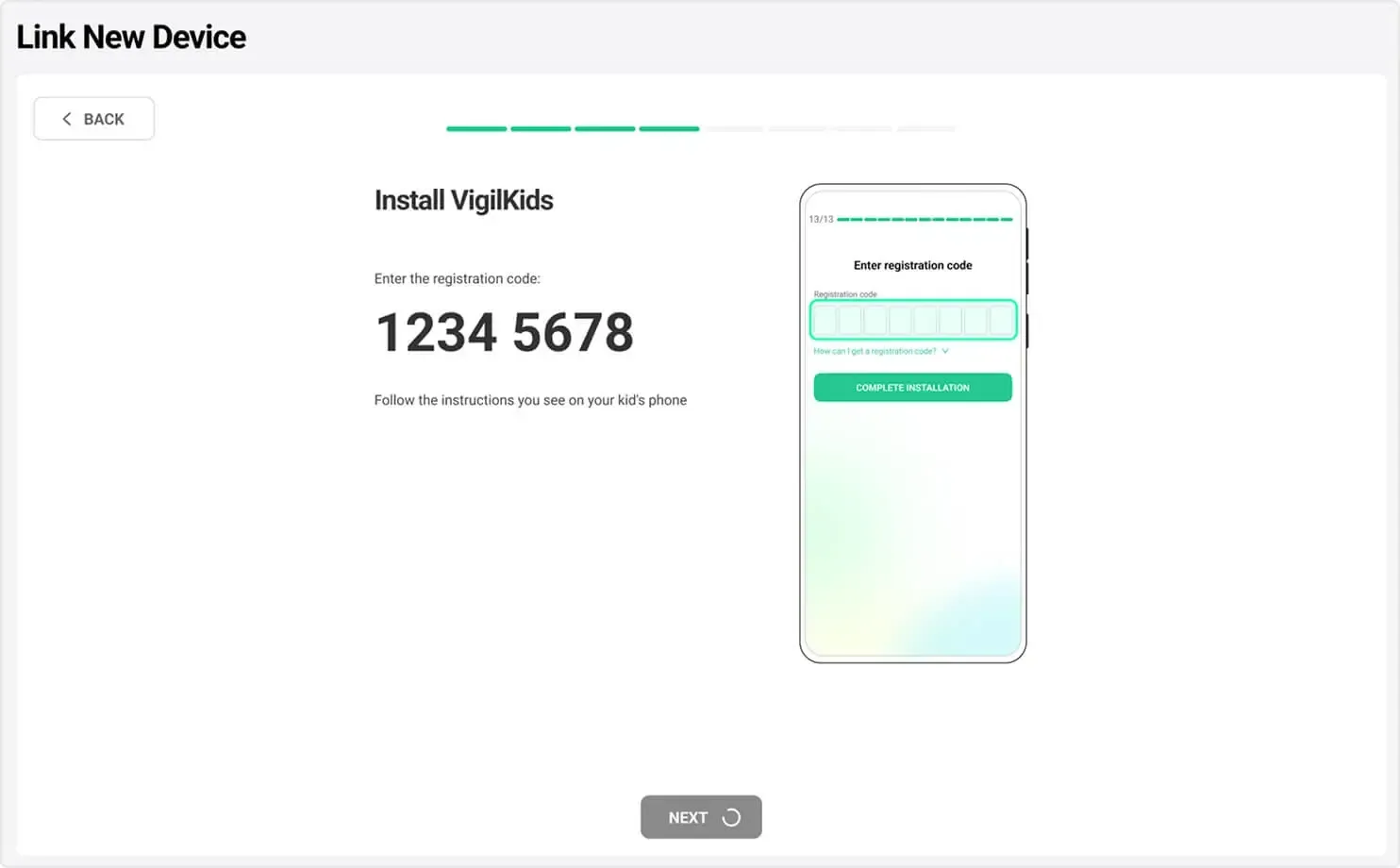
  3. Follow the on-screen instructions to generate your unique pairing code.
  4. Write down the code or take a screenshot—you will enter it on the child’s Android device later.
VigilKids Link New Device screen displaying a registration code
Keep the registration code available while setting up the Android device.
Child device

2.2 Install VigilKids Assistant

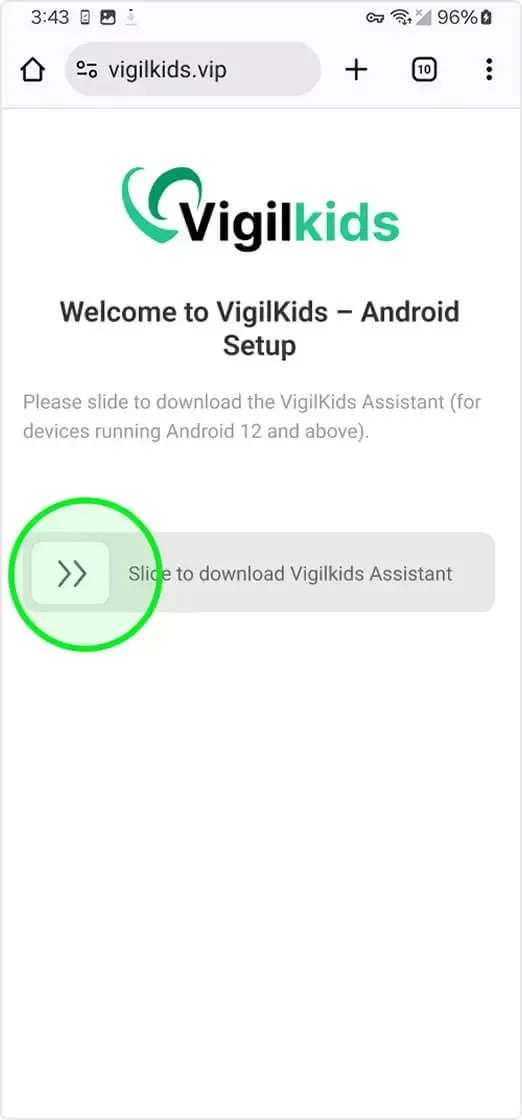
  1. Open the browser on the child’s Android device and visit vigilkids.vip.
  2. Swipe right on the download control to start downloading VigilKids Assistant.
  3. If the download does not begin, refresh the page and try again.
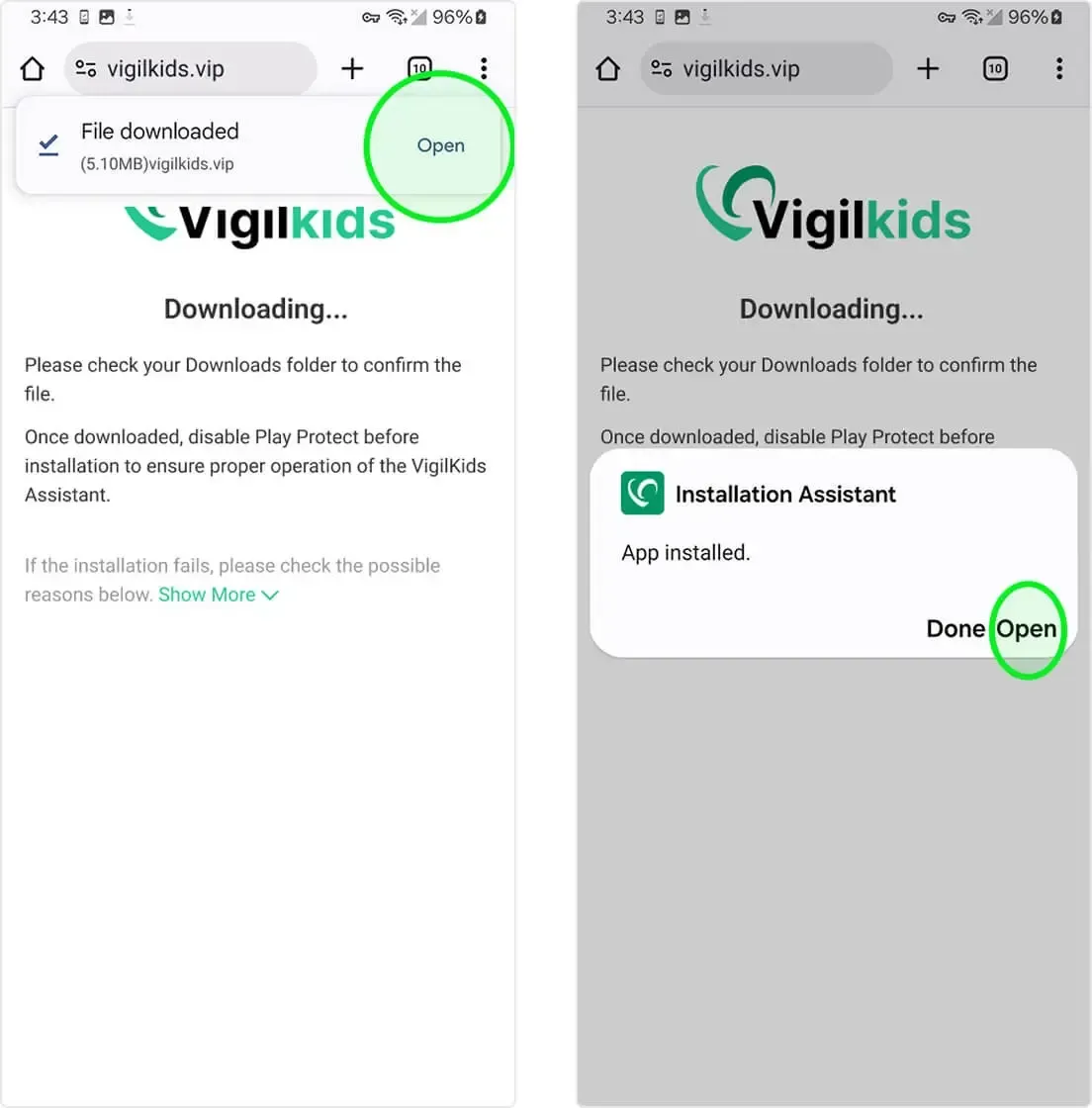
  4. When the download finishes, select Open from the browser notification.
  5. If the notification is no longer visible, open File Manager → Downloads and select the downloaded file.
  6. Complete the Android installation prompt, then select Open.
VigilKids Android Setup page with a swipe control for downloading VigilKids Assistant
Swipe the control to download VigilKids Assistant.
Android browser download notification and Installation Assistant installed confirmation
Open the downloaded file and finish installing the Installation Assistant.
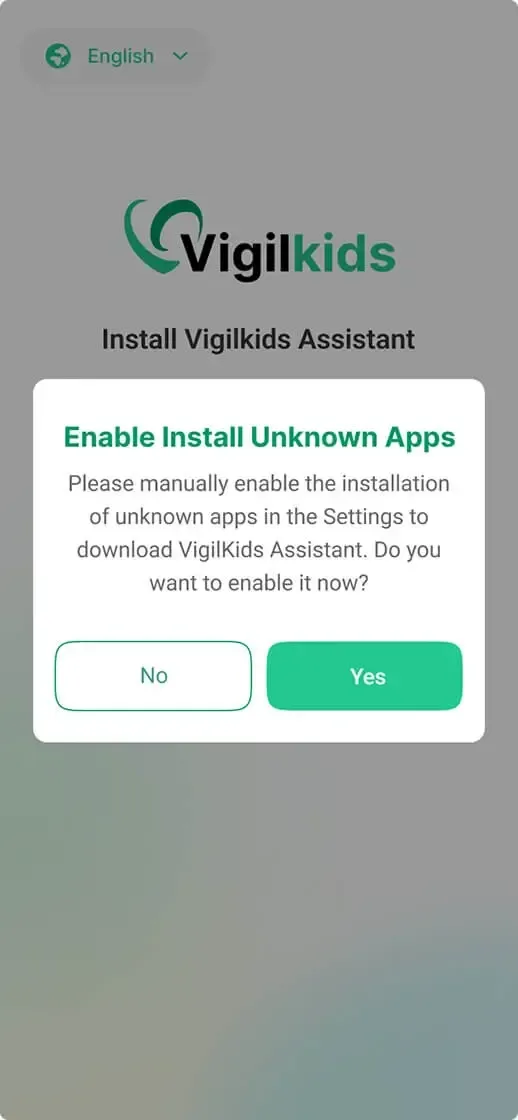
VigilKids prompt asking to enable installation of unknown apps
Allow the browser to install the downloaded VigilKids Assistant file.
Child device

2.3 Grant Permissions and Enter Pairing Code

Open the setup assistant

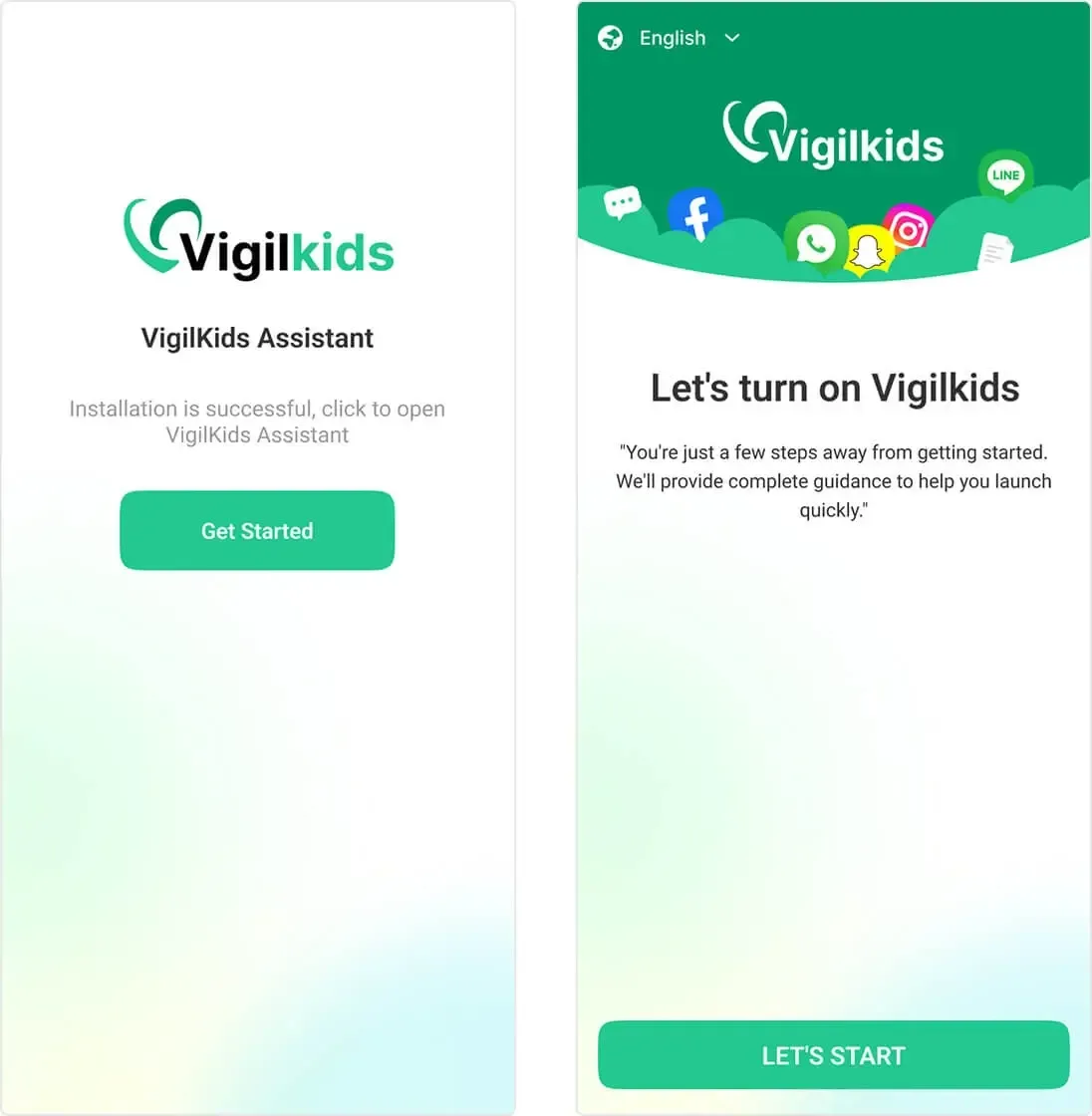
  1. After installation, select Get Started to open VigilKids Assistant.
  2. Review the introduction screen and select Let’s Start.
VigilKids Assistant Get Started and Let's Start screens
Open VigilKids Assistant and begin the guided configuration.

Grant the required permissions

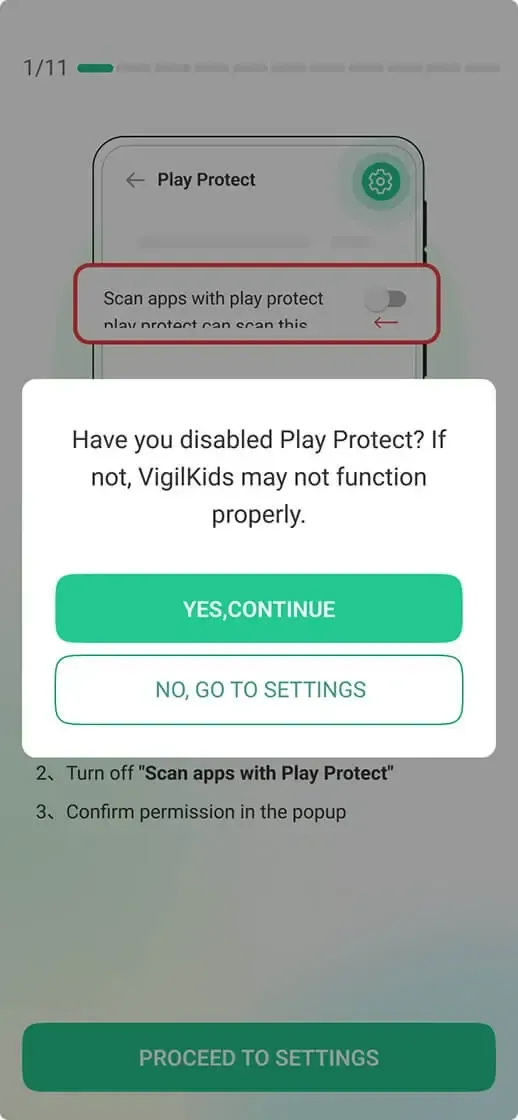
  1. Follow the in-app Play Protect instructions shown during setup.
  2. Review the effect before changing any security setting, then confirm the step in VigilKids.
  3. Continue through the guided setup and grant the permissions required for the features you intend to use, including storage, location, and accessibility where requested.
VigilKids setup prompt confirming the Google Play Protect setting
Follow the displayed Play Protect instructions, then continue through the permission setup.

Enter the pairing code

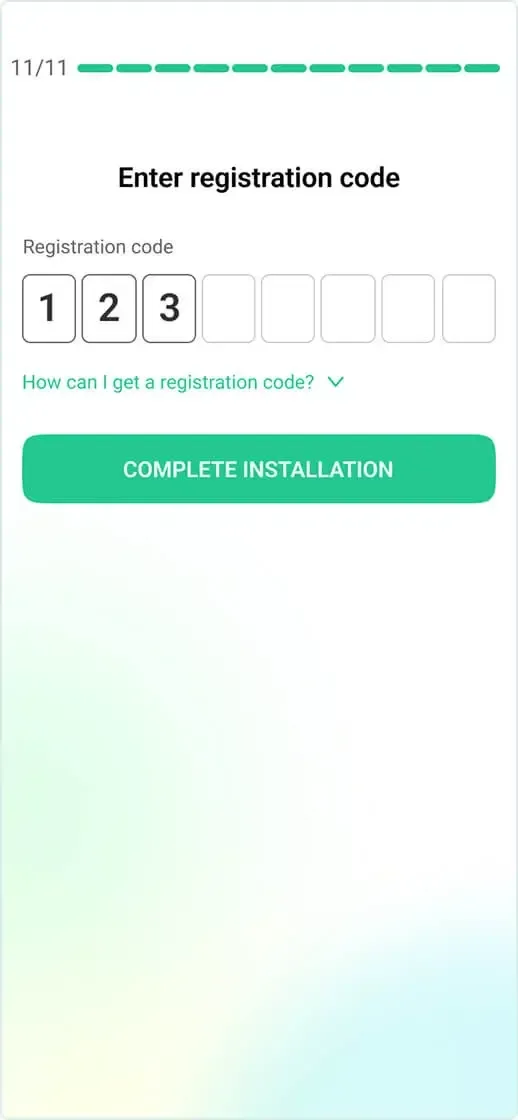
  1. Enter the pairing code generated earlier from the parent dashboard.
  2. Check that all digits match the code shown on the parent device.
  3. Select Complete Installation.
VigilKids Assistant registration-code screen with Complete Installation button
Enter the registration code from the parent dashboard.
Xiaomi only

2.4 Xiaomi Background Settings

Xiaomi devices need an additional background setting. Other Android devices can skip this subsection.

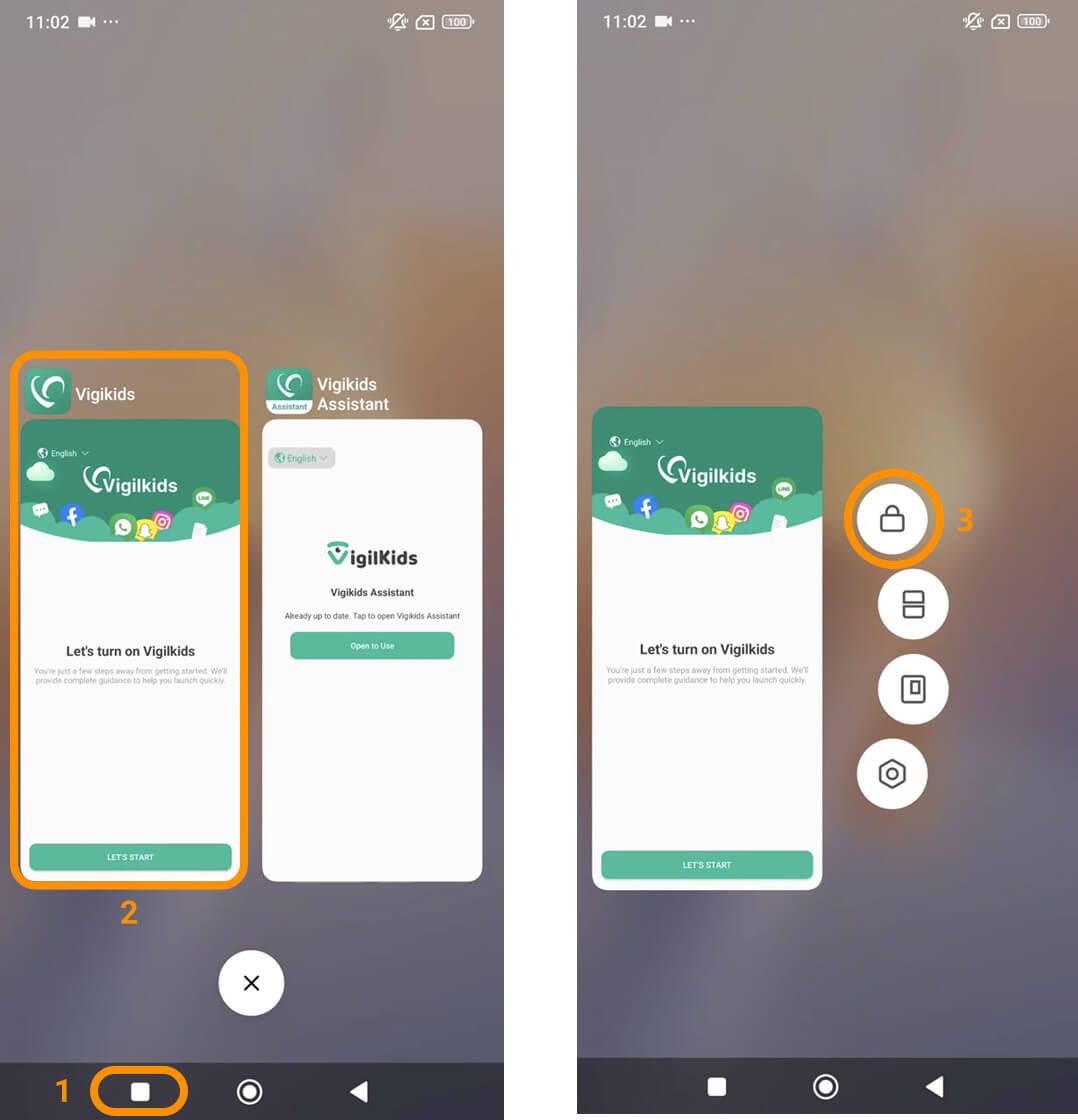
  1. Select the Recent Apps button at the bottom of the screen.
  2. Find VigilKids—not VigilKids Assistant.
  3. Long-press the VigilKids app and select Lock so it can remain active in the background.
Xiaomi Recent Apps screen showing how to lock the VigilKids app
Lock VigilKids in Recent Apps on supported Xiaomi devices.
Child device

2.5 Finish Device Setup

Confirm the connection

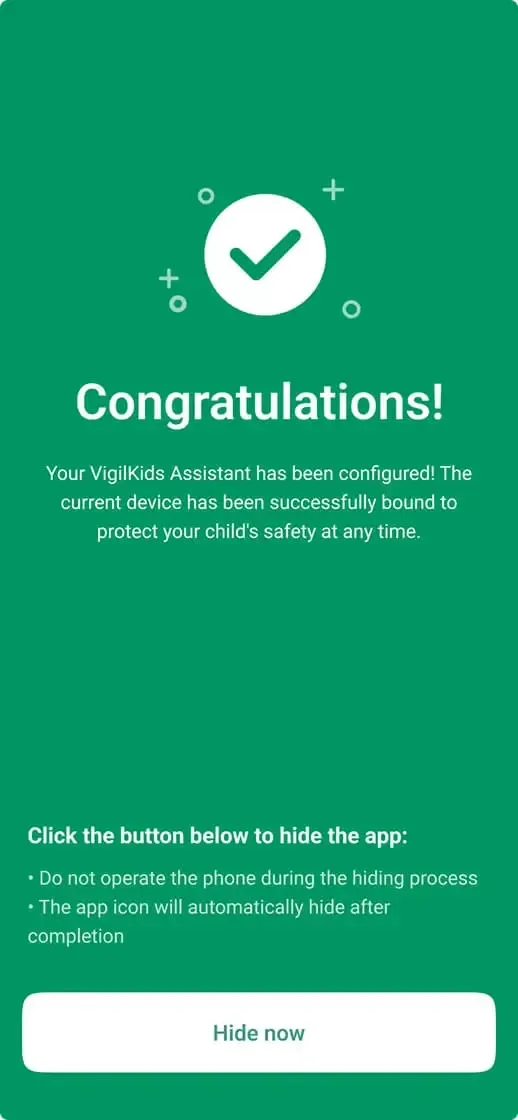
  1. Wait for the Congratulations screen confirming that the device has been linked.
  2. If the authorized setup requires the app icon to be hidden, review the on-screen notice and select Hide now.
  3. Do not operate the device while the hiding process is running.
VigilKids Assistant confirmation screen with Hide now button
Confirm the device is linked, then follow the on-screen option for the app icon.

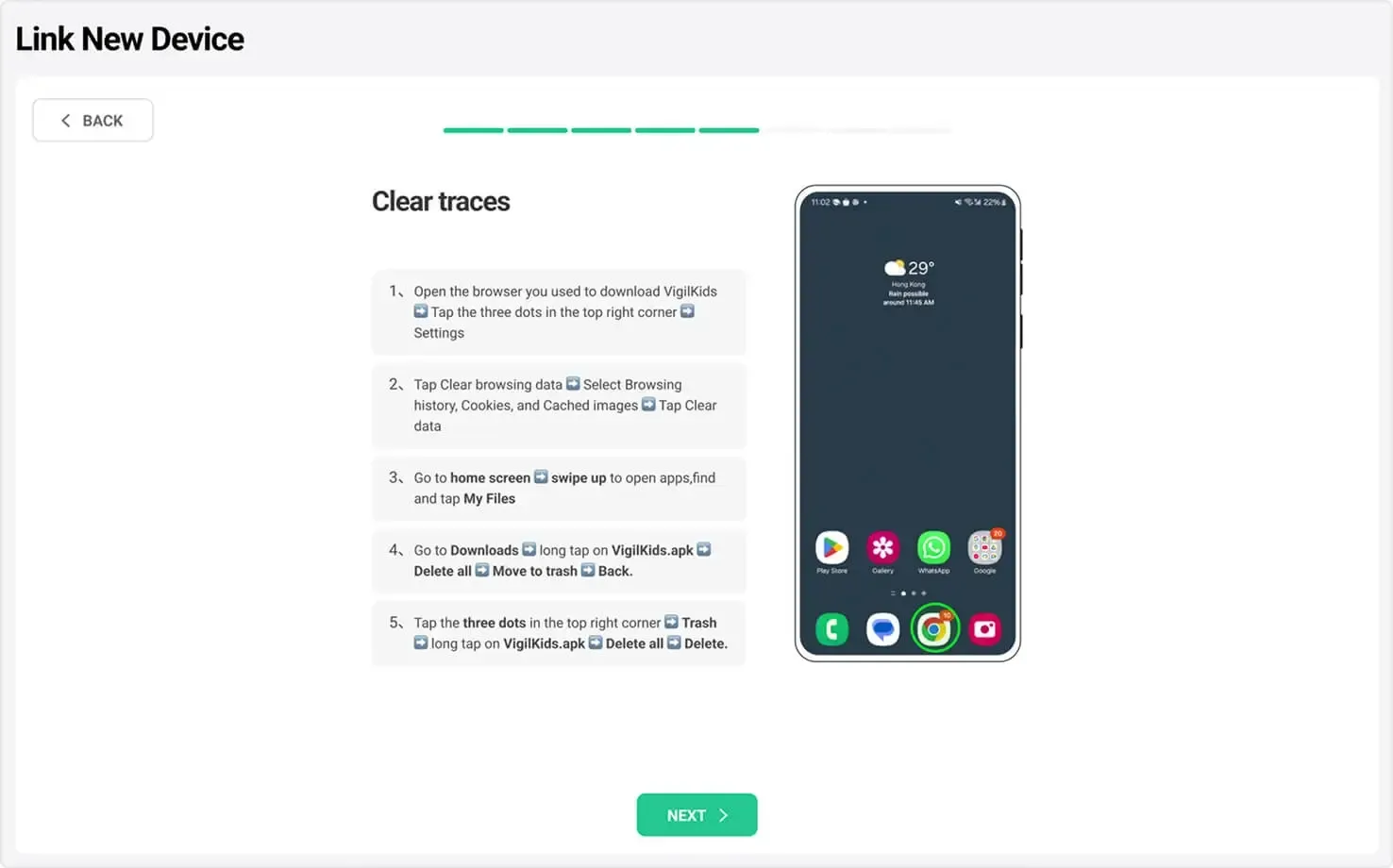
Clear installation files and browser data

After setup, the original guide recommends removing the downloaded installer and its browser traces.

  1. Open the browser used to download VigilKids and open its menu.
  2. Open the browser’s privacy or history settings and clear the relevant browsing data.
  3. Open My Files → Downloads, delete the VigilKids installation file, then empty the recycle bin or trash.
VigilKids Link New Device screen explaining how to clear browser and installer traces
Remove the installer and the relevant browser data after setup.

Turn on location services

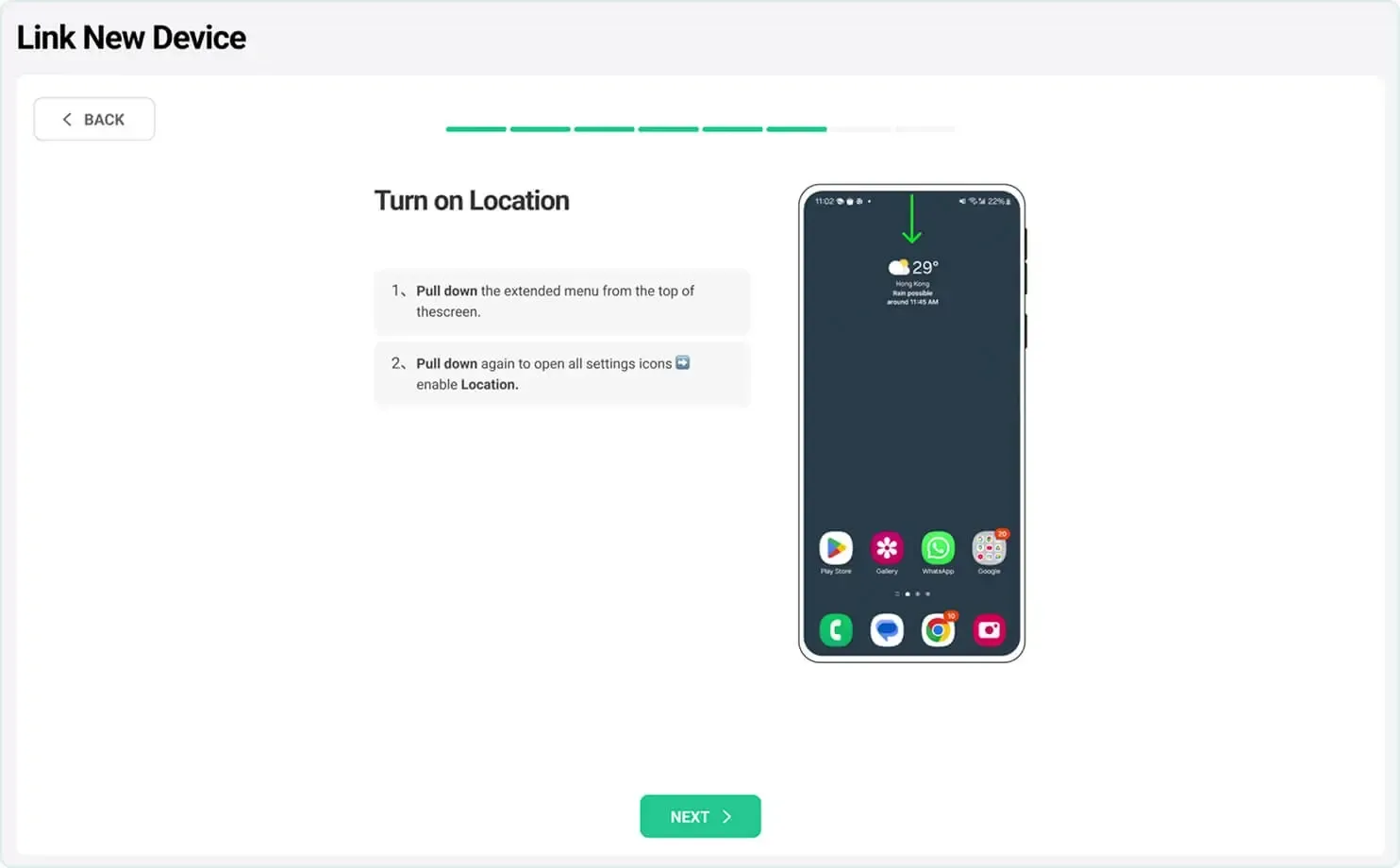
  1. Pull down the notification shade from the top of the screen.
  2. Expand Quick Settings if necessary.
  3. Turn on Location so supported location features can update accurately.
VigilKids Link New Device screen showing how to turn on Android Location
Enable Location from Android Quick Settings.

Complete setup

  1. Return to the setup flow after completing the Android settings.
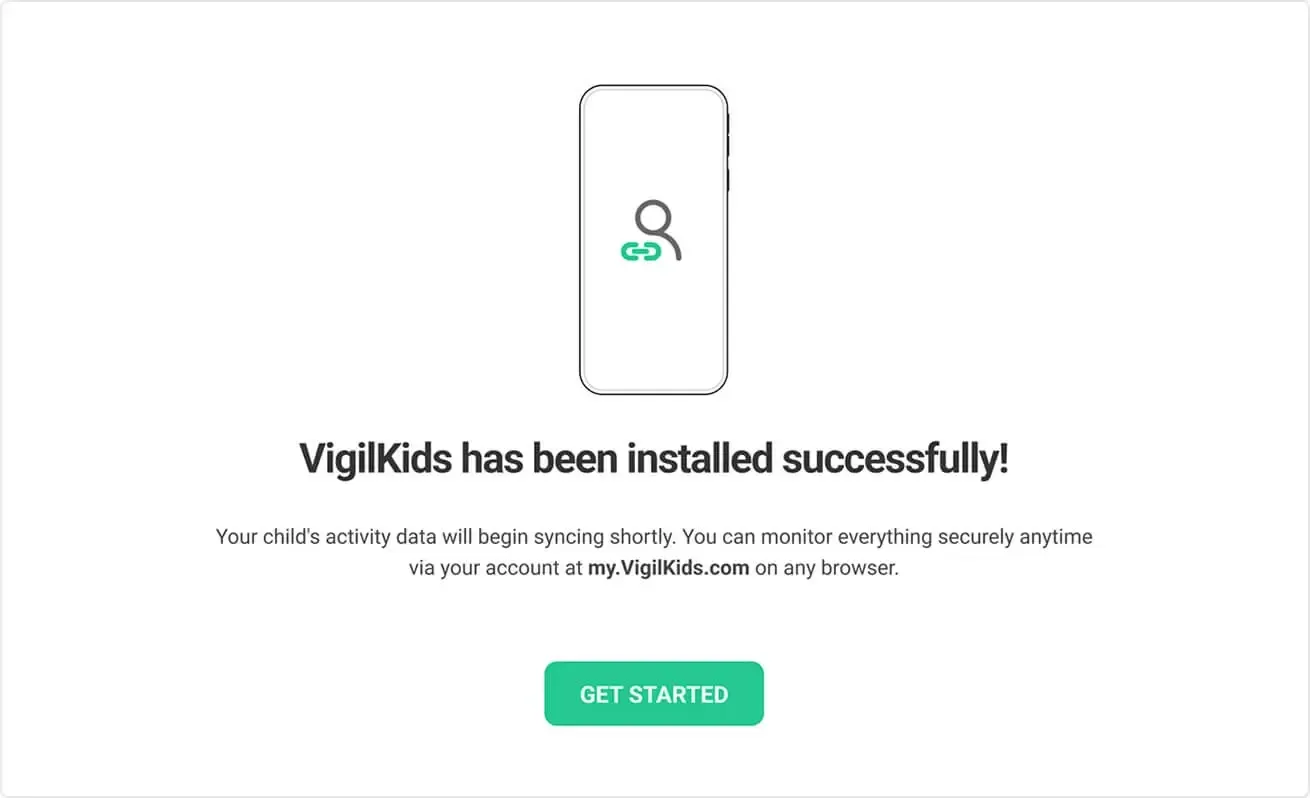
  2. Wait for the VigilKids has been installed successfully confirmation.
  3. Select Get Started to finish and begin data synchronization.
VigilKids installation-success screen with Get Started button
The Android device is connected and ready to begin syncing.
Part 3

Start Monitoring

Once the Android device is connected, return to your VigilKids dashboard to begin monitoring remotely. Initial data may take a little time to sync.

  • Real-time location and route history
  • Social media chats and multimedia files
  • App usage, keystrokes, and screen recordings
  • Browsing history, call logs, and daily activity
Help

Troubleshooting

The download did not start

Refresh vigilkids.vip, check the internet connection, and try again.

Android blocked the installation

Open the installation source settings shown by Android and allow your browser to install the file.

The device is not syncing

Confirm the device is online, permissions are enabled, and VigilKids can run in the background.

FAQ

Frequently Asked Questions

Can I set up parental controls from my own phone?

Yes. Use your phone or computer to create the parent account and open the VigilKids dashboard. One-time access to the supervised Android device is still required for installation and permissions.

How do I set up Android parental control?

Create your VigilKids account, generate a pairing code, install VigilKids Assistant on the supervised Android device, grant the required permissions, and finish setup from the dashboard.

How do I restrict my child’s internet access?

After the Android device is connected, open the dashboard and use the available app-management or website-blocking controls included in your plan.

How do I activate parental control?

A connected device becomes active after you enter the pairing code and complete all required Android permissions. Return to the dashboard to confirm that data is syncing.

How do I control my child’s tablet from my phone?

If the tablet uses a supported Android version, connect it as a new device and manage it remotely from the VigilKids web dashboard on your phone.

What is the right age to remove parental controls?

There is no single age for every family. Review your child’s maturity, local requirements, and family agreements, then reduce supervision gradually as trust and digital skills grow.

Still need help? Contact Support.

Setup made simple

Ready to Get Started?

Start protecting your family with VigilKids in just a few steps.

  • Easy setup
  • Secure & private
  • 24/7 support
View Plans

Already a user? Open Dashboard

Still have a question?

Ask VigilKids Support

Send your question directly after reading the guide so our team can understand where you need help.