Many parents, partners, and employers wonder if it’s possible to track someone’s WhatsApp messages on another phone . Sometimes it’s about protecting a child, sometimes about checking a company device.
Whatever the reason, there’s one rule: you must stay within legal and ethical limits. Below are several safe and realistic methods, including what each one can and can’t do.
Quick Comparison Table
|
Method
|
What It Does
|
Works Best For
|
Pros
|
Limits / Risks
|
|
VigilKids parental tool
|
Real-time sync, chat logs, keyword alerts
|
Parental or company use
|
Full dashboard, remote access, alerts
|
Requires consent and setup on device
|
|
Linked Devices
|
Syncs messages across devices
|
Personal or shared use
|
Free, official feature
|
Visible in settings, can be logged out
|
|
Cloud Backup (Google Drive / iCloud)
|
Restores old chats from backups
|
Same account access
|
Simple, no third-party app
|
Not real-time, needs credentials
|
|
WhatsApp Web / Desktop
|
Shows live chats on logged-in PC
|
Short-term access
|
Easy to set up
|
Obvious to account owner
|
|
Cloud forensic request
|
Official legal data extraction
|
Police or court request
|
100% legal, traceable
|
Time-consuming, not DIY
|
PART 1. View WhatsApp Messages with a Parental Control App (VigilKids)
Unlike many apps that only display limited snippets of messages, VigilKids offers the full, real-time content of WhatsApp activities, making it one of the most comprehensive WhatsApp monitoring solutions available today.
While other tools typically restrict users to viewing only basic chat details, VigilKids goes far beyond — allowing you to see both sent and received messages, along with contacts, shared media, voice notes, and even call recordings.
All of this is presented through an intuitive, easy-to-use control panel, giving you complete visibility and peace of mind in one place.
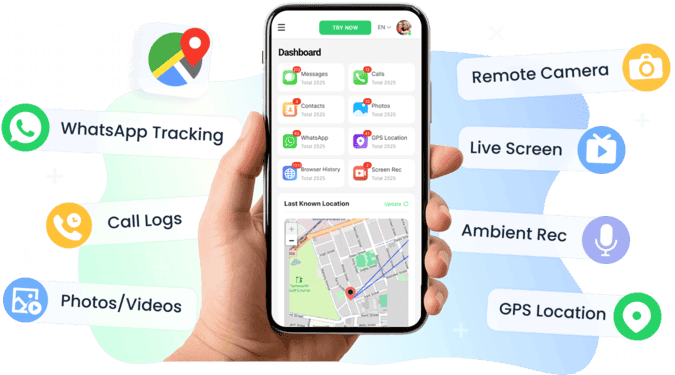
What VigilKids Can Do for WhatsApp Tracking
-
Full WhatsApp Chat Access: View all sent and received text messages, emojis, photos, videos, and voice notes — even if deleted afterward.
-
Contact & Call Insights: See WhatsApp contact lists, call logs, and listen to recorded WhatsApp voice calls for full context.
-
Real-time Alerts: Get instant keyword alerts for sensitive topics like bullying, sexting, or online grooming.
-
Live Dashboard: Track activities from a clean, secure dashboard accessible via browser or app — no tech skills required.
-
Privacy Control: Enable optional Alert-Only Mode to receive risk notifications without viewing full chat logs.
Pros
-
Most complete WhatsApp tracker in the market — covers messages, media, and calls.
-
Real-time monitoring with accurate timestamps and contact details.
-
High compatibility across Android and iOS systems.
-
Affordable subscription plans with flexible duration (monthly or annual).
-
Runs discreetly in the background without draining battery or affecting performance.
Cons
-
Requires one-time access to the target device during setup (for permissions).
-
Some features like call recording may vary by device model or OS version.
Why It’s Worth the Price
Compared to other parental monitoring apps that charge extra for each add-on, VigilKids bundles everything — WhatsApp, SMS, GPS, and call recordings —
into one package at a much lower price point. You get enterprise-level functionality at family-level pricing, without hidden fees or complicated upgrades.
How to Set It Up (Simple & Quick)
-
Step 1. Create your VigilKids account and choose your preferred plan and follow the setup wizard.
-
Step 2. On the target phone, install the VigilKids app and grant the requested permissions — the setup takes just a few minutes, no rooting or jailbreaking needed.
-
Step 3. Log in to the web dashboard or mobile app to see WhatsApp chats, call logs, contacts, and alerts in real time.

-
Step 4. Enable keyword alerts and safe zones (geofences) to receive instant notifications about risky activity or movement.
PART 2. Link WhatsApp to Another Device
The Linked Devices feature allows one WhatsApp account to stay active on up to four companion devices plus the main phone at the same time. Every message, call log, or media file is end-to-end encrypted and mirrored instantly across all logged-in devices, even if the primary phone is temporarily offline (for up to 14 days).
How It Works
When you scan a QR code on WhatsApp Web or the desktop app using the primary phone, a secure session token is generated. This token authorizes that computer or tablet to access the same chats and send/receive messages without needing to re-authenticate every time.
Requirements
-
Short access to the target phone is required to complete the QR scan — there’s no way to link remotely.
-
Two-step verification (if enabled) must be bypassed with the correct PIN.
-
The target device must have a stable internet connection during the initial link process.
Setup Steps
-
Step 1. On the target phone, open WhatsApp → Settings → Linked Devices → Link a Device.
-
Step 2. On your PC or tablet, go to web.whatsapp.com or open the WhatsApp Desktop app.
-
Step 3. Scan the QR code displayed on screen using the phone’s camera.
-
Step 4. Once paired, you can send and read messages directly from that computer or tablet.
What You Can See
-
All text chats, images, videos, and voice notes.
-
Message timestamps, contact names, and group info.
-
New messages appear in real time; archived or deleted ones before linking won’t sync.
Pros
Pros
-
Official and encrypted: No third-party tools or data leaks.
-
Cross-platform: Works with Android, iPhone, Windows, and macOS.
-
Offline tolerance: The phone doesn’t have to stay connected constantly.
-
Completely free and easy to disconnect later.
Cons
-
Every linked device is visible in the app’s Linked Devices list with login time and device name — easy for the owner to spot and remove.
-
No stealth mode: once the device is logged out, all synced data disappears.
-
You can’t access deleted chats or media prior to linking.
Note: This method is only lawful for accounts you own or have explicit permission to access. Using Linked Devices to secretly monitor someone’s phone is a privacy violation in most regions.
PART 3. Restore WhatsApp Messages from Cloud Backup
Find out whether the target account has backups, and if you legitimately can, restore those backups to view past WhatsApp messages.
Quick checklist (prereqs)
-
You have lawful access to the target’s Google account (Android) or Apple ID (iPhone), or you own the phone number and cloud account used for backup.
-
You have access to a phone that can receive the target phone number’s SMS (for WhatsApp verification) — restoring requires verifying the same phone number on a device.
-
You know any backup encryption password/key if end-to-end encrypted backups are enabled.
A. Check whether a backup exists (without restoring)
Android (Google Drive)
-
Step 1. On the target phone (or a phone logged into the same Google account), open WhatsApp → Settings → Chats → Chat backup.
-
Step 2. Look at the “Google Drive settings” area: it shows the Google account used and Last backup time. It also shows whether “Include videos” is on.
-
Step 3. If you don’t have the target phone, sign into the target Google account at drive.google.com and check Backups (left sidebar → Backups). You will see a “WhatsApp Backup” entry with timestamp and device name — but note: you cannot read chat contents from Drive directly.
iPhone (iCloud)
-
Step 1. On the iPhone: WhatsApp → Settings → Chats → Chat Backup; it shows Last Backup and whether Include Videos is enabled.
-
Step 2. Alternatively, on any device signed into the same Apple ID, open Settings → [your name] → iCloud → Manage Storage → Backups to see whether the device’s backups include WhatsApp data metadata.
B. Prepare to restore WhatsApp messages from cloud backup
Important: Restoring will replace WhatsApp data on the device where you restore. You must be authorized to use the phone number.
General steps (Android & iPhone):
-
Step 1. Make sure the phone you’ll restore onto can receive SMS for the target phone number (SIM or message forwarding).
-
Step 2. Install WhatsApp on the device (or reinstall to trigger restore).
-
Step 3. During setup, verify the phone number exactly as the target’s WhatsApp number (WhatsApp will send a 6-digit SMS code). Enter the code.
-
Step 4. If WhatsApp finds a cloud backup tied to that number and cloud account, it will prompt: Restore backup? — choose Restore.
-
Step 5. Wait for the restore to complete. Media may download later (depending on internet speed and backup include settings).
Android-specific points
-
You must sign into the same Google account used for the backup on the device.
-
On Android, WhatsApp reads the Drive backup linked to the phone number + Google account; you cannot restore a Drive backup that belongs to a different Google account.
-
If the backup shows end-to-end encrypted, you will need the encryption password or 64-digit key to decrypt it during restore.
iPhone-specific points
-
You must be signed into the same Apple ID that holds the iCloud backup.
-
iCloud backups for WhatsApp require the same phone number to restore.
-
If iCloud backup shows “Encrypted” you must supply the backup password when requested.
C. If you cannot restore WhatsApp messages from cloud backup — what to do
-
No access to cloud account: Reset the cloud account password only if you are the account owner; otherwise get legal authorization.
-
Two-step verification on WhatsApp: If the target enabled WhatsApp 2-step verification (PIN), you must enter it. Without it, restore may be blocked or delayed.
-
Encrypted backups: Without the backup password/key, the backup contents are unreadable. There’s no practical way to brute force strong backup encryption.
-
Phone number not controllable: If you cannot receive SMS for that number, you cannot verify and thus cannot perform restore.
PART 4. Check WhatsApp Web to See If Chats Are Synced
The easiest way to check whether your WhatsApp account is currently synced with another device is by using WhatsApp Web. This feature lets you view your messages on a browser or computer, and it also shows whether your phone’s chats are being mirrored elsewhere. You can use this method to confirm if your WhatsApp chats appear on a web session and ensure your data is secure.
A. How to open WhatsApp Web
-
Step 1. On your computer, open a browser and go to web.whatsapp.com. You’ll see a QR code displayed on the screen.
-
Step 2. On your phone, open WhatsApp → Settings → Linked Devices → Link a Device.
-
Step 3. Use your phone’s camera to scan the QR code on your computer screen.
-
Step 4. After a few seconds, WhatsApp Web will load all your current chats, showing the same messages and media as on your phone.
B. How to check if chats are synced
Once WhatsApp Web is connected, all active chats should appear instantly on your browser. You can scroll through messages, view images or videos, and check timestamps exactly as they appear on the phone. This means your WhatsApp data is synchronized in real time across the linked devices.
-
Open a few recent chats — if messages appear instantly, syncing is active.
-
Send yourself or a contact a short message; if it appears both on the phone and web instantly, sync is confirmed.
-
If chats do not appear or say “Connecting,” it means the phone is offline or not linked properly.
C. How to identify active WhatsApp Web sessions
-
Step 1. On your phone, go to Settings → Linked Devices.
-
Step 2. You’ll see all active web or desktop sessions, including the device name, browser type, and last active time.
-
Step 3. If you recognize the device, it means that session has access to your synced chats. If not, tap it and choose Log Out to remove access.
D. How to safely manage or stop sync
-
If you only wanted to check sync, you can safely log out from web.whatsapp.com by clicking the three dots → Log out.
-
If you find devices you don’t recognize, log them out immediately on your phone.
-
To prevent unwanted linking, enable Two-step verification in WhatsApp → Settings → Account → Two-step verification.
-
You can also monitor logins under “Linked Devices” anytime to confirm your chats are only mirrored on trusted computers.
PART 5. Request WhatsApp Data Legally
Preserve evidence and obtain WhatsApp/cloud data through lawful channels when the case involves criminal or serious civil matters.
A. What to collect first (evidence preservation)
-
Preserve the device(s): do not factory reset or sign out. Keep the phone powered (or preserve it in powered state if asked by investigators).
-
Take screenshots of suspicious messages, linked devices lists, login notifications, and backup timestamps. Note exact dates/times.
-
Record metadata: note device model, OS version, WhatsApp version, phone number, Google/Apple account email, and timestamps of suspicious events.
-
Preserve network evidence: if possible, collect router logs, ISP info, or computer screenshots that show suspicious activity.
-
Tip: Avoid interacting with the suspect account after you start evidence preservation—every action can alter logs.
B. Reporting & legal steps (for victims)
-
File a formal police report describing the harassment/fraud/abuse with as much evidence (screenshots, timestamps) as you can.
-
Provide the police with your device and any account details; ask for an incident number and contact person.
-
The police/legal team will draft a formal data preservation/production request and submit it to WhatsApp (Meta) or the cloud provider via legal channels.
-
Depending on jurisdiction, a court order or warrant may be required; the law firm or police will pursue that.
-
Once WhatsApp receives a valid request, they will respond per law and policy — often with metadata; content disclosure depends on encryption, retention, and legal thresholds.
C. What investigators typically request and can expect
-
Metadata: account creation date, IP addresses used for logins, device identifiers, message delivery timestamps — usually available.
-
Message content: may or may not be provided; because WhatsApp uses end-to-end encryption, message content is not always accessible to Meta unless stored in a recoverable form (e.g., unencrypted cloud backup or a provider retains content under local law).
-
Cloud provider files: Google or Apple may produce backups if legally compelled.
D. Timelines & realities
-
This is not fast. Processing legal requests can take days to months; preservation notices can be temporary holds.
-
Jurisdiction matters: cross-border requests (one country’s police asking another country’s company) take longer due to legal cooperation treaties.
E. If you’re the victim — immediate practical list
-
File a police report ASAP and hand over preserved evidence.
-
Change all relevant passwords (Google, Apple ID, WhatsApp two-step PIN) from a secure, clean device.
-
Revoke sessions and linked devices from WhatsApp.
-
Ask police to issue a preservation letter to WhatsApp/Google/Apple to prevent data deletion.
-
Consult a lawyer if the matter involves civil damages or urgent legal relief.
FAQ
Can I secretly read someone’s WhatsApp messages?
No. That’s illegal in almost every jurisdiction. Use approved parental or company tools only.
If messages were deleted, can I still see them?
Only if they were included in the last backup before deletion. Otherwise, they’re gone.
Conclusion
If you truly need to check WhatsApp activity — do it transparently and legally.
For practical, authorized supervision, VigilKids offers an easier, safer way to view messages, detect risks, and protect your family or team — no shady apps, no guessing.
Get clarity, not trouble. Choose a legitimate monitoring solution like VigilKids.