

Putting your phone in someone else’s hands can feel scary. One wrong swipe and they see your WeChat chats, banking app, or that hidden photo folder. Luckily, locking apps on Android has never been easier.
If you have ever wished you could simply lock a few apps instead of worrying every time, you are not alone. The good news is that Android has made this incredibly easy in 2026. This guide will share you how to lock application in Android safely and easily.
- Table Of Contents
- How to Lock Application in Android
- Method 1: Use the Built In App Lock Feature
- Method 2: Use New Privacy Space (Android 15 and Newer)
- Method 3: Use Third Party Android APP Locker
-
A Stronger Way to Lock Application Android for Parents

How to Lock Application in Android
If your phone was released within the last few years, it almost certainly has a built in Android app locker. It works with your fingerprint, face unlock or screen password and will not break when Android updates.
Different brands call it different names, but the idea is the same.
Method 1: Use the Built In App Lock Feature
1.Xiaomi and Redmi (MIUI)
MIUI offers a very complete privacy toolbox and its App Lock feature is one of the most stable options on Android. If you are wondering how to lock apps on MIUI, this method works instantly.
- 1.Open Settings.
- 2.Scroll down and tap Apps > App lock.
- 3.It will ask you to set a pattern or PIN for the first setup (you can also link it to your fingerprint/face).
- 4.Turn on “Use one password for lock screen and app lock” if you hate typing twice.
- 5.You’ll see your full app list. Just toggle on WeChat, Gallery, Banking apps, whatever you want.
- 6.Optional but cool: turn on “Hide from home screen” for extra privacy.
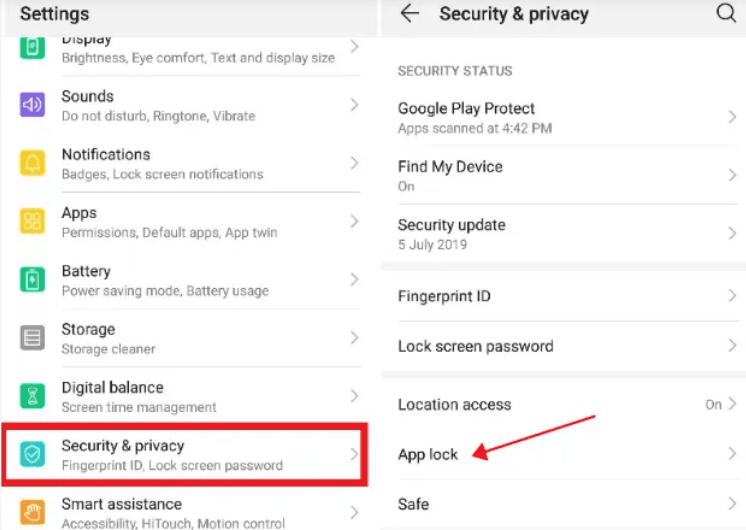
2.Huawei and Honor (HarmonyOS)
Huawei provides a clean and reliable application lover for Android that integrates well with its strong security features. It responds quickly, works perfectly with fingerprint sensors and requires no extra setup.
- 1.Settings > Security > App lock.
- 2.Set a 4-digit or 6-digit PIN (or use your fingerprint right away).
- 3.Choose the apps.
- 4.Bonus: you can set different passwords for different apps if you’re paranoid.
3.OPPO, Realme and OnePlus (ColorOS or OxygenOS)
These brands include solid privacy tools such as App Lock and App Encryption. They can protect apps, hide sensitive notifications and even ask for a password again after unlocking the phone.
- 1.Settings > Privacy > App lock.
- 2.Verify with your current lock screen password.
- 3.Pick the apps.
- 4.Turn on “Hide home screen icon” if you want the app to vanish completely.
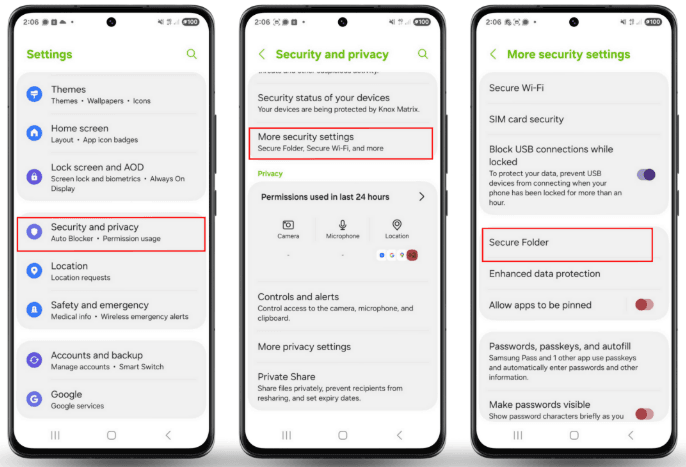
4.Samsung (Secure Folder)
Samsung uses Secure Folder, a private space protected by Samsung Knox. It works as a small isolated environment where you can place apps.
- 1.Settings > Biometrics and security > Secure Folder.
- 2.Sign in with your Samsung account.
- Set a PIN/pattern/fingerprint.
- 3.Tap “Add apps” and choose whatever you want.
- 4.The apps inside Secure Folder are completely separate copies and disappear from your normal app drawer.
5.Google Pixel and Stock Android
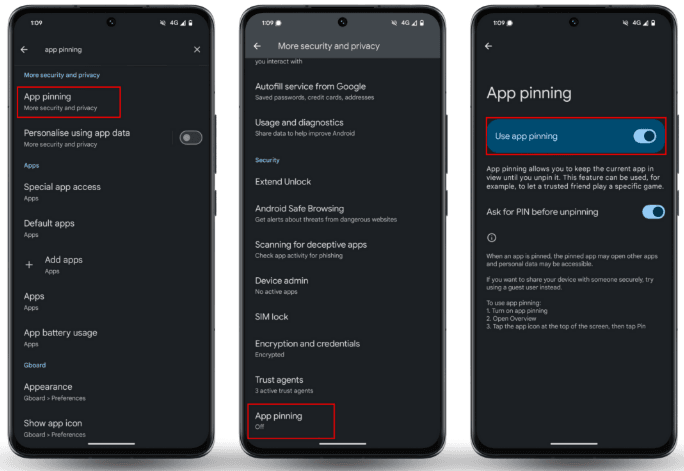
Pixel devices offer App Pinning for quick control. App Pinning does not lock an Android app, but it keeps one app on the screen so the person using your phone cannot exit it. It is helpful when you want to let someone use only one app temporarily.
- 1.Open Settings, then go to Security and privacy.
- 2.Tap More security and privacy.
- 3.Select App pinning and turn it on.
- 4.Turn on Ask for PIN before unpinning to prevent others from exiting the pinned app.
Method 2: Use New Privacy Space (Android 15 and Newer)
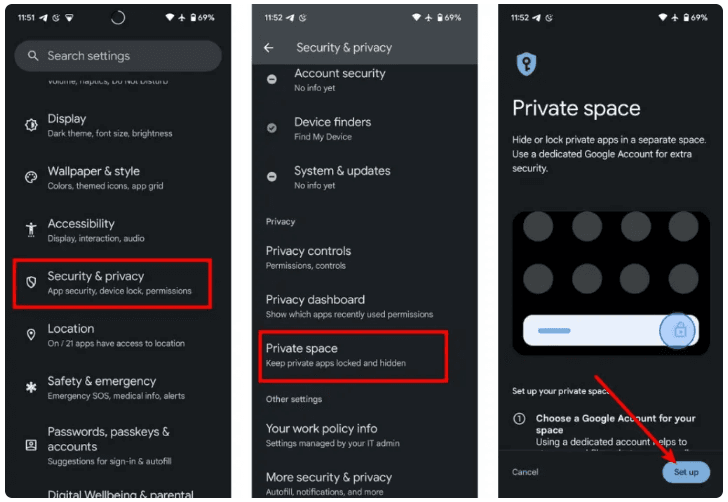
Android 15 introduced a completely new way to protect personal apps and data. It is called Privacy Space and it works like a small hidden area inside your phone. You can unlock it with a separate password, store private apps inside it and keep everything away from your main profile. Unlike traditional app locking, Privacy Space hides the app icons and their data entirely.
How to Enable Privacy Space
- Open Settings.
- Go to Security and Privacy.
- Look for Privacy Space.
- Create a separate password or use biometric unlock.
- Add the apps you want to hide or protect.
Once the setup is complete, the space stays hidden from your main home screen. It does not appear in recent apps and notifications from apps inside the space can be hidden as well. You can open the space only with the password or biometric option you assigned.
Method 3: Use Third Party Android APP Locker
If your phone does not include a built in app lock or if you want more control, a third party Android app locker can help. Most old apps died because Android killed their background access. These five still work perfectly.
| App Name | Cost / Ads | Fingerprint | Disguise Mode | Hide App Icon | Rating |
|---|---|---|---|---|---|
| Microsoft Authenticator | Free, no ads | Yes | No | Yes through custom shortcut | 9.5 / 10 |
| Norton App Lock | Free, no ads | Yes | No | No | 9.0 / 10 |
| AppLock by SpSoft | Free with ads, optional upgrades | Yes | Yes such as fake covers | Partial | 8.7 / 10 |
| IVY AppLock | Free with ads | Yes | Basic | No | 7.8 / 10 |
| LOCX AppLock | Free with ads | Yes | Basic | No | 7.7 / 10 |
A Stronger Way to Lock Application Android for Parents
If you have kids and want something way more powerful than a simple app lock, VigiKids is a practical option that lets you stop your child from opening any app you choose.
If the child tries to open a blocked app, you receive an instant alert. You can also set time limits for apps and websites, which helps create a safer and more balanced digital routine.
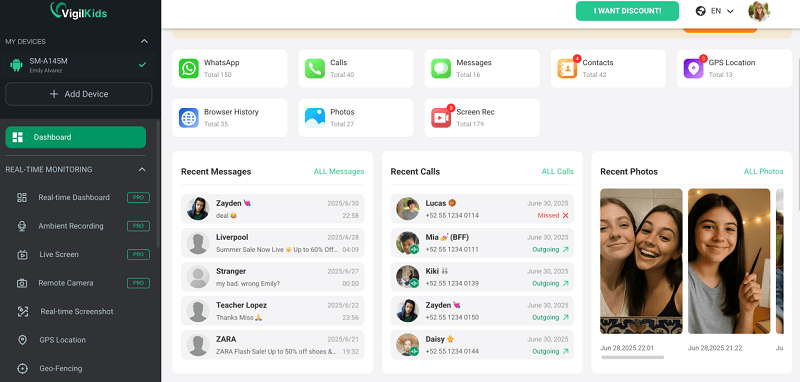
- Step 1. Download and install VigiKids on your own Android device. This will be the main dashboard you use to manage your child’s phone.
- Step 2. Open the app, create a VigiKids account, and follow the on-screen instructions to finish the initial setup.
- Step 3. On your child’s Android device, download and install the VigiKids Companion app so both phones can stay connected.
- Step 4. Follow the pairing steps to link your child’s phone with your VigiKids account. Once linked, you can begin managing their apps and screen usage.
- Step 5. On the parent’s phone, open VigiKids and go to App Management or App Restrictions.
- Step 6. You will see a full list of installed apps on your child’s device. Select the app you want to lock completely or limit by schedule.
-
Step 7. Explore additional VigiKids safety features to protect more than just apps.
- Review your child’s text messages and call logs to understand who they communicate with.
- Monitor >WhatsApp messages, media, and calls to catch risky conversations early.
- Use screen activity and app usage reports to see how apps are actually being used.
- Enable location tracking and geofencing alerts for real-world safety.
- Receive instant alerts when restricted apps are accessed or risky behavior is detected.
Why Parents Choose VigiKids Instead of Basic App Locks
- More Than Blocking: Lock apps, limit usage time, and track behavior in one dashboard.
- Real-Time Alerts: Know immediately when rules are broken.
- All-in-One Monitoring: Apps, messages, location, and screen activity in one place.
- Built for Parents: Simple setup, clear controls, no technical knowledge required.
Summary
Locking apps on Android is much easier today, and there are several simple ways to lock application android without extra effort. You can use your phone’s built in App Lock, hide apps through Android 15’s Privacy Space or choose a trusted third party app locker for more control.
If you need stronger protection for a child’s device, VigiKids is a practical choice. It blocks apps instantly, sends alerts when a blocked app is opened and helps you manage screen time in a simple and reliable way.