

"I have grounded my child and I was looking around to see if he is on any innapropiate websites. I’m wondering how to set time limit for his phone on apps he is spending too much screen time on them he has a ios apple phone please help.
Do you ever open your phone just to check one message, then realize you’ve spent 45 minutes scrolling? You’re not alone. Many of us spend more time on apps than we’d like to admit, whether it’s social media, games, or video platforms.
Setting limits on app usage isn’t about removing fun from your day. It’s about creating space to focus, rest, and stay present. Whether you're trying to build better habits for yourself or want to guide your child’s screen time, knowing how to set time limit on App can make a real difference.
- Table Of Contents
- Why You Should Set Time Limits on Apps
- How to Set Time Limits on Apps on Android
- How to Set Time Limits on Apps on iPhone, iPad, or Mac
- How to Set Time Limits on Apps on Windows
-
Bonus Tips. Try Vigikids for Advanced Parental Monitoring

Why You Should Set Time Limits on Apps
Most of us don’t realize how much control apps have over our time until we try to cut back. It’s not just about screen hours. It’s about how that time shapes your habits, your focus, and your everyday life. It’s not just about saving time. It’s about living better.
- For adults: Two hours of scrolling might feel relaxing, but it often replaces reading, movement, or real conversations. Cutting back can help you reconnect with things that matter.
- For students: Studies show kids who limit gaming and social media tend to sleep better and concentrate more. One school saw a 28 percent boost in focus after a month-long app limit challenge.
- For parents: Children need structure, especially when it comes to screens. Too much app time can affect sleep, mood, and even eyesight.
How to Set Time Limits on Apps on Android
If you’re using an Android phone running Android 9 or later, Google offers a built-in set of tools called Digital Wellbeing. It helps you track how much time you spend on your phone and specific apps, and gives you the option to set daily limits.
Once you hit the limit, the app is paused for the rest of the day. This feature is a simple way to stay mindful of your screen time, especially when certain apps or websites easily pull you in for longer than you’d like.
Here are the three main ways to use it:
1 Set App Timers with Digital Wellbeing
App timers allow you to limit how long you can use a specific app or website in a day. Once the time runs out, the app gets blocked until the next day.
- Step 1.Open Settings on your Android device.
- Step 2.Tap Digital Wellbeing & parental controls.
- Step 3.Choose App timers.
- Step 4.Select the app, multiple apps, or app categories you want to limit.
- Step 5.Tap Set timer and choose your time limit.
- Step 6.Pick which days you want the limit to apply, then tap Done.
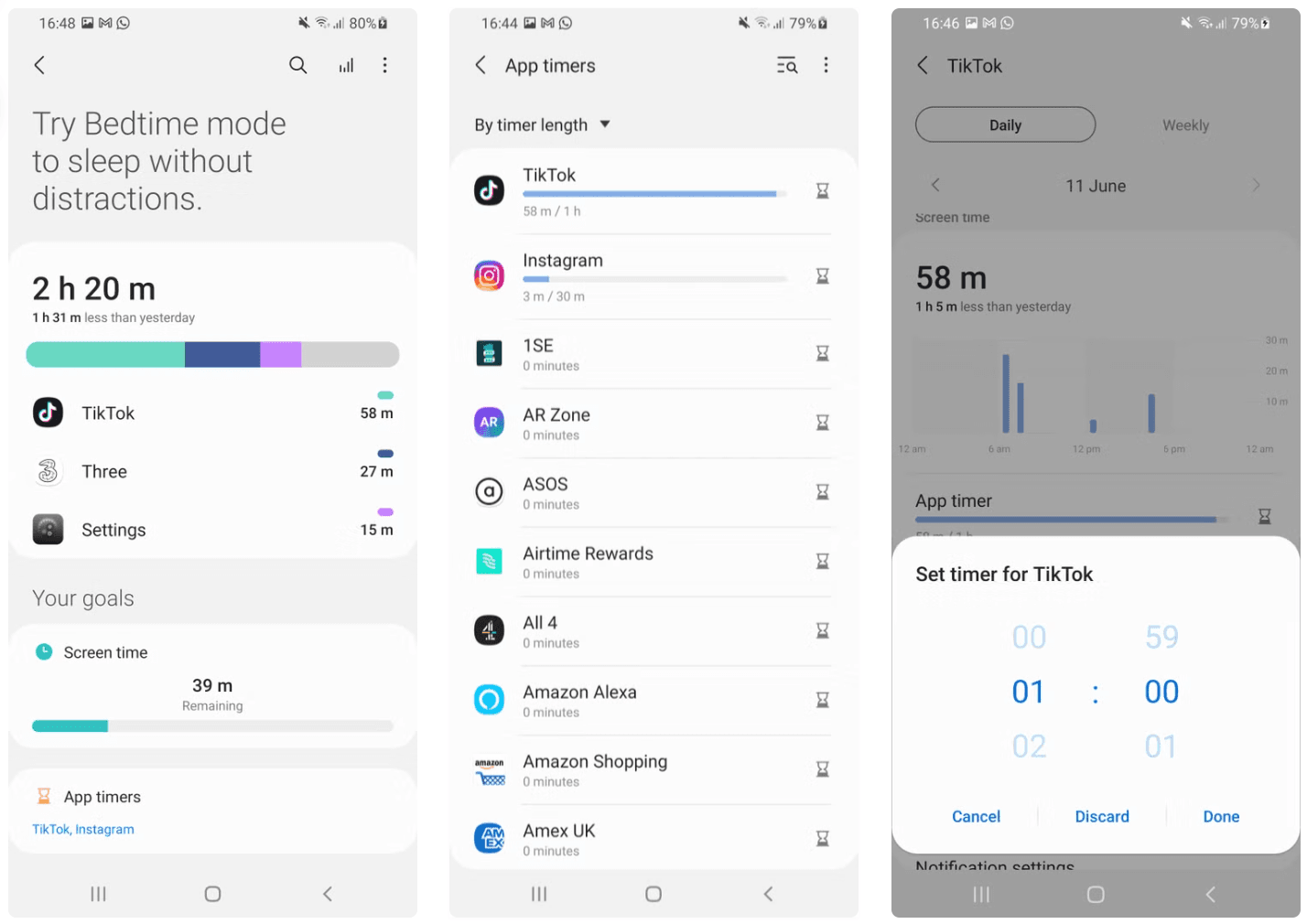
App timers apply on a daily basis and reset at midnight. You can also set timers for websites visited in Chrome.
What to keep in mind: Some apps or websites may not fully support the timer feature. And while you can set a schedule, the customization options are somewhat basic.
2 Enable Bedtime Mode for Healthier Evenings
Bedtime Mode is designed to reduce phone use at night by silencing alerts and switching your screen to grayscale. It runs on Android 10 and later, and encourages better sleep habits by gently easing you away from your device when it’s time to rest.
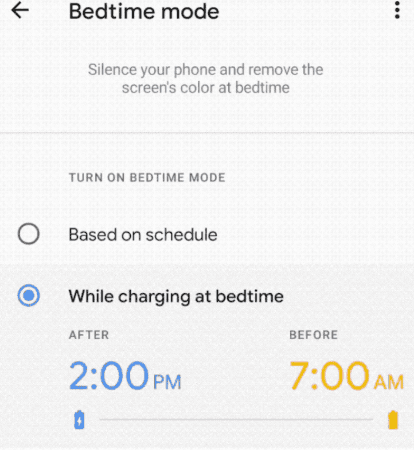
To use Bedtime Mode:
- Step 1.Open Settings.
- Step 2.Tap Digital Wellbeing & parental controls.
- Step 3.Select Bedtime mode.
- Step 4.Choose your preferred settings, including whether to enable Do Not Disturb.
- Step 5.Decide whether to turn it on manually or automatically at a certain time.
When Bedtime Mode is active, your phone becomes much quieter, both visually and audibly, helping you step away from distractions at night.
What to keep in mind: If you enable Do Not Disturb, some important calls or messages may not come through unless you adjust the settings. Turning on “Repeat callers” will allow calls from the same number if they call again within 15 minutes.
3 Use Focus Mode to Avoid Distractions
Focus Mode helps you pause distracting apps for a set period of time. It’s ideal for study sessions, work hours, or any time you want to stay focused without constant interruptions.
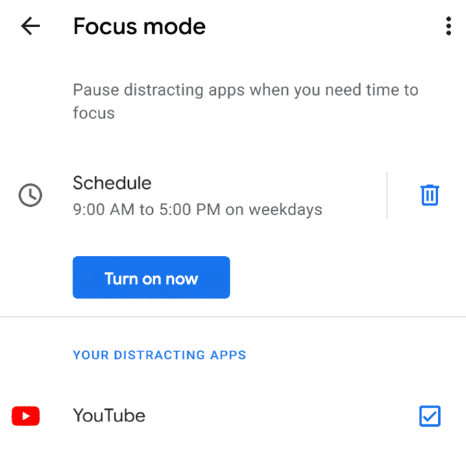
To set up Focus Mode:
- Step 1.Open Settings.
- Step 2.Tap Digital Wellbeing & parental controls.
- Step 3.Go to Focus mode.
- Step 4.Choose a preset mode or create a new one with Add mode.
- Step 5.Tap Stay focused, then select the apps you want to block.
- Step 6.Choose whether to start Focus Mode manually or schedule it to turn on automatically.
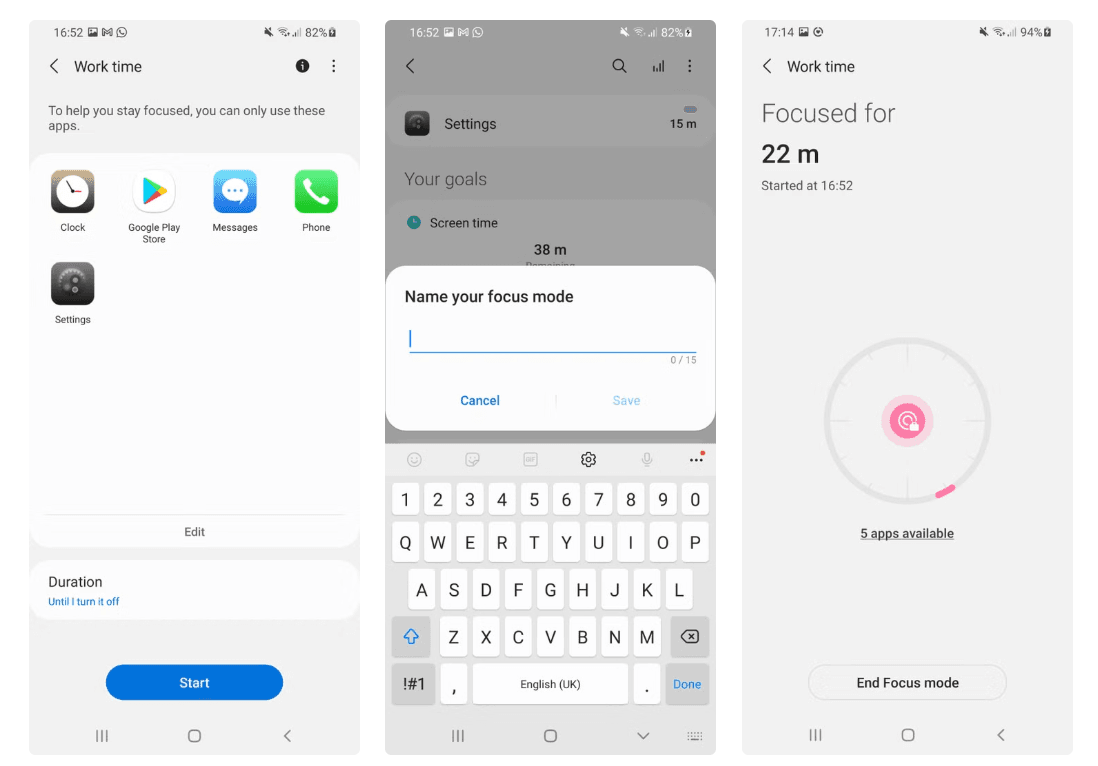
Apps you’ve selected will be temporarily disabled while Focus Mode is active.
What to keep in mind: Focus Mode can block apps in one tap, but it's easy to turn off if you're tempted. You can also pair it with Do Not Disturb to silence calls and alerts from other sources, including the Play Store.
How to Set Time Limits on Apps on iPhone, iPad, or Mac
If you’re using an Apple device, you already have powerful tools at your fingertips to manage screen time. Screen Time, built into iOS, iPadOS, and macOS, lets you set limits for specific apps, schedule downtime, and reduce distractions when you need to focus.
Here are the four most effective ways to manage app usage on Apple devices.
1 Set App Limits in Screen Time
This is the most straightforward method. App Limits allow you to set a daily time cap for any app or app category, like social networking or entertainment. Once the time is up, you’ll get a notification that the app is no longer available for the day.
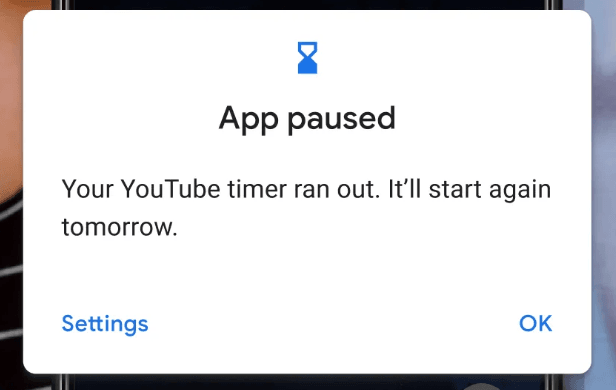
Best for: Reducing overuse of specific apps like Instagram, TikTok, or YouTube.
- Step 1.Go to Settings > Screen Time > App Limits.
- Step 2.Select one or more apps or entire categories.
- Step 3.Tap Next, then choose the amount of time allowed each day.
- Step 4.Tap Customize Days if you want different limits for different days.
- Step 5.Tap Add to confirm.
What to know: The limit can be bypassed by tapping Ignore Limit, unless you’ve set a Screen Time passcode. Without the passcode, this feature relies on your self-discipline.
2 Set Up Downtime for Scheduled Breaks
Downtime lets you block all but essential apps during certain hours, like before bed or while doing homework. During this period, only apps you mark as “always allowed” will stay accessible.
Best for: Creating quiet times in the day with fewer distractions, especially useful for evening routines or study time.
To set up Downtime:
- Step 1.Go to Settings > Screen Time > Downtime.
- Step 2.Tap Turn On Downtime Until Tomorrow or choose Scheduled.
- Step 3.Set the start and end times for when you want Downtime active.
- Step 4.Go back to the Screen Time page and select Always Allowed.
- Step 5.Choose the apps you want available during Downtime.
What to know: While Downtime blocks most apps and notifications, it can also prevent urgent messages from getting through unless those contacts or apps are marked as allowed.
3 Use Focus Mode to Cut Out Interruptions
Focus Mode helps you stay in control by filtering out apps, people, and notifications when you need to concentrate. It works across all devices signed into the same Apple ID, including your Mac and Apple Watch.
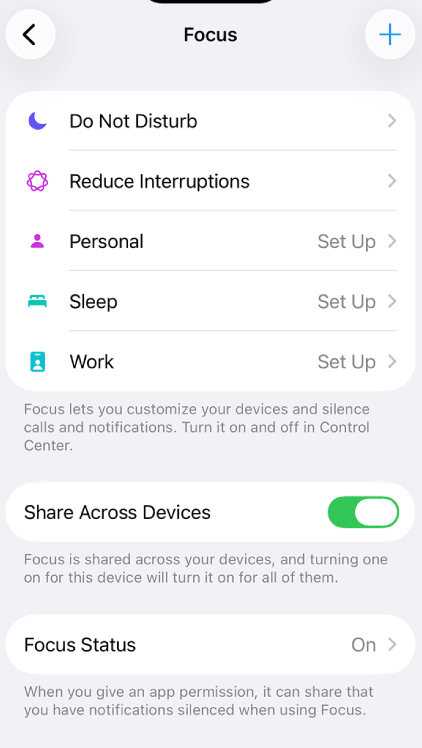
Best for: Deep work, studying, or sleep time when you don’t want to be disturbed.
To set up Focus Mode:
- Step 1.Open Settings > Focus
- Step 2.Choose a preset like Work, Sleep, or Personal, or tap Add to create a custom one
- Step 3.Select the people and apps you want to allow or mute
- Step 4.Tap Options to adjust how notifications appear
- Step 5.Use Add Filter to control things like Mail accounts or Calendar visibility
What to know: Focus Mode blocks alerts but doesn’t stop you from opening apps. If you want stronger control, combine Focus with App Limits or Downtime.
4 Use Third-Party Apps
If Screen Time feels too easy to override, or if you need more control over app access, you can try third-party productivity apps. Popular tools includes AppBlock, Freedom and StayFree. These tools let you block apps on a set schedule and notify you if you try to open a restricted app.
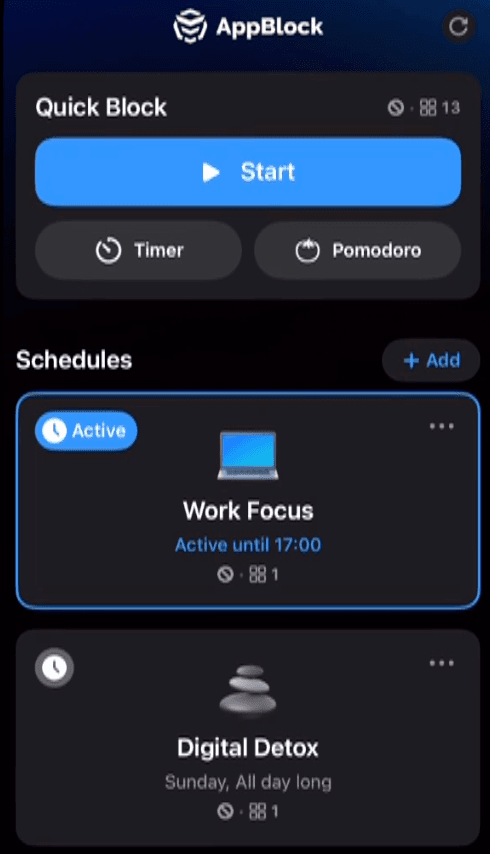
Best for: Users who need stricter rules and want more custom control over when apps are blocked.
What to know: Many third-party apps have limited features unless you upgrade to a paid version. Also, due to Apple’s privacy restrictions, not all apps can be fully blocked on iOS devices. Some tools may require permission changes in Settings to work correctly.
How to Set Time Limits on Apps on Windows
If your child uses a Windows computer, or if you're trying to manage your own productivity, Microsoft provides helpful tools to control app usage. The main one is Microsoft Family Safety, which allows you to set daily limits for apps and games, track usage, and even schedule device time.
These features work across Windows 10, Windows 11, Xbox, and other Microsoft-connected devices, making them a good choice for families or anyone looking to create stronger boundaries around screen time.
To get started:
- 1.Download and install the Microsoft Family Safety app from the Microsoft Store or Google Play.
- 2.Sign in with your Microsoft account.
- 3.Create a Family Group and add family members by email.
- 4.On your child’s profile, tap Screen time.
- 5.Select Apps and games, then pick the app you want to limit.
- 6.Set a daily time limit and choose the days it applies.
- 7.The app will be blocked once the limit is reached for the day.
What to know:
To make sure the limits work, your child needs to use a Microsoft account and be signed in on the device. Also, not all desktop apps can be controlled through Family Safety. Web-based games or programs installed outside of the Microsoft Store may bypass restrictions unless filtered through the browser.
Bonus Tips. Try Vigikids for Advanced Parental Monitoring
If you're a parent exploring how to restrict time on APPs more effectively, Vigikids offers more than basic screen time limits. It gives you deeper tools to monitor your child’s digital activity and protect them both online and offline. Unlike default settings on phones, Vigikids provides real-time insights into how apps are used and lets you take action immediately if something feels off.
What Vigikids Can Do:
-
Monitor WhatsApp Activity
View chat logs, voice messages, call history, and shared media files in real time. -
Phone Monitoring
Capture screenshots, listen to ambient sounds, and even take remote photos using the device’s camera. -
GPS Location Tracking
Track your child’s current location and review their route history. You can also set safety zones. -
Geofencing Alerts
Get notified instantly when your child enters or leaves a designated area like school or home. -
Keyword & Risk Alerts
Receive instant alerts when the system detects flagged or dangerous keywords in messages or online content.
Conclusion
Knowing how to set time limit on APP is a simple but powerful way to take back control of your time. Whether you’re trying to reduce distractions or guide your child’s screen habits, the right tools can make all the difference. From built-in features to smart parental apps like Vigikids, there’s always a way to create better digital balance.
FAQs
Q1: How to put a time limit on APP?
On Android, go to Settings > Digital Wellbeing > App Timers. On iPhone, go to Settings > Screen Time > App Limits. Choose the app and set your daily limit.
Q2: How do I restrict the usage of an app throughout the day?
You can use Focus Mode (Android) or Downtime (iPhone) to block access to apps during certain hours, such as bedtime, school hours, or work time.
Q3: Can I lock apps temporarily on my phone?
Yes. Focus Mode and Downtime let you block apps for set periods. While the apps aren’t password-locked, they become inaccessible until the session ends.
Q4: How do I set a Screen Time limit on iPhone with a passcode?
Go to Settings > Screen Time > App Limits. After setting your limits, enable “Use Screen Time Passcode” to prevent anyone from changing or bypassing them.
Q5: Can I password-protect app limits on Android?
Android's built-in app timers don’t support passcodes. If you need stronger restrictions, you can enable parental controls through Google Family Link for child accounts.