

Your kid swears they only played “five more minutes,” but the clock says bedtime was two hours ago. Or maybe you’re the one who opened TikTok for a quick laugh and suddenly it’s midnight. Either way, Android lets you see the truth in seconds. This guide shows how to check screen time on Android so you (or any parent) can track phone use on Samsung, Redmi, OPPO, Xiaomi, Infinix, Motorola and etc..
- Table Of Contents
- What Is Android Screen Time Report?
- How to Check Screen Time on Android with Digital Wellbeing
-
How to Check Screen Time on Android Without Digital Wellbeing

- Check Screen Time on Android in Different Android Phone Brands
- Bonus. How to Set Screen Time Limits
What Is Android Screen Time Report?
Every Android phone running version 9 or above comes with a built-in tool called Digital Wellbeing. On Huawei devices, it is named Digital Balance, but you can still find it in Settings and it works in a similar way.
This feature gives you a clear report of your screen activity. It shows how many minutes you spend in each app, your total daily usage, weekly patterns, and extra options such as app timers, bedtime mode, and focus tools. It gives you everything you need to understand your digital habits and manage your time better.
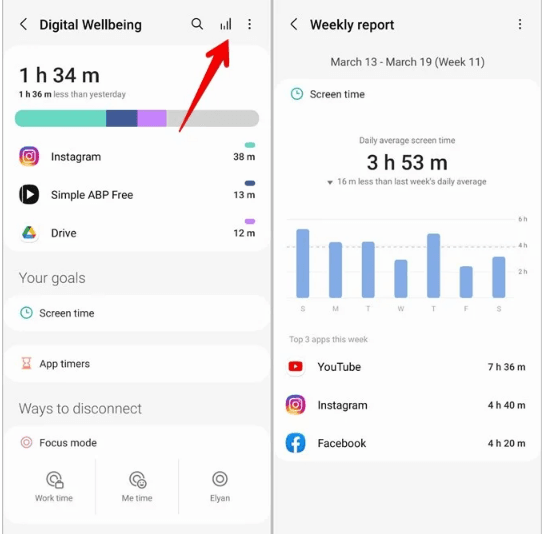
How to Check Screen Time on Android with Digital Wellbeing
Once you open the Digital Wellbeing tool on your Android phone, you can quickly check your screen time details. It is easy to access and works on most devices with Android 9 or higher.
Here is how to find it:
-
Step 1.Open the Settings.
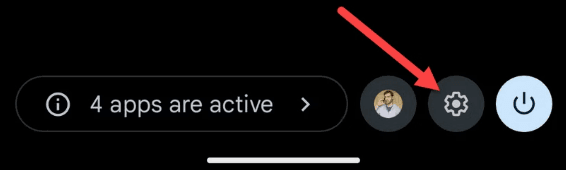
-
Step 2.Scroll down and tap Digital Wellbeing & Parental Controls.
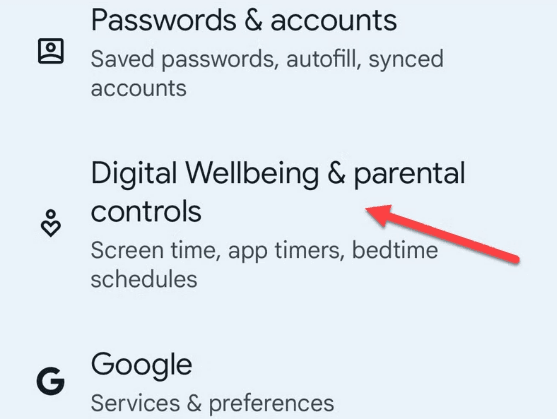
- Step 3.Tap Dashboard or Screen time to view your daily and weekly usage.
You will see how much time you have spent on each app, how often you have unlocked your phone, and how many notifications you have received.
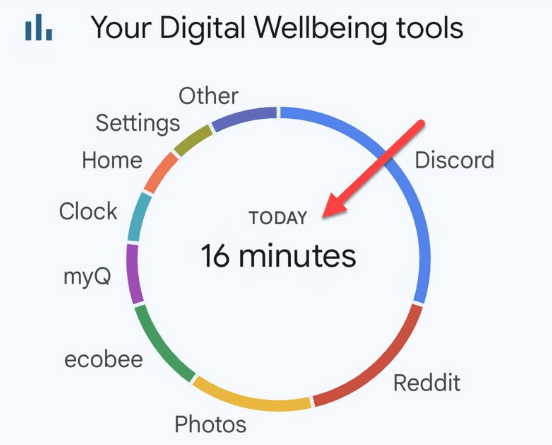
Additional Features in Digital Wellbeing
Digital Wellbeing also offers a few simple tools to help you build healthier phone habits:
-
App Timers:
Set daily limits for specific apps. Once the time is up, the app will pause for the rest of the day. -
Focus Mode:
Pause selected apps when you need to concentrate. You can turn it on manually or set a schedule. -
Bedtime Mode:
Dim your screen and silence notifications during your chosen sleep hours. This helps reduce late-night distractions and supports better sleep.
How to Check Screen Time on Android Without Digital Wellbeing
If your Android phone does not come with Digital Wellbeing, or if you want to know how to see screen time on Android and want more control over screen time settings, you can VigilKids.
VigilKids is easy to use and works across most Android phones and tablets. After installing the app and creating an account, you can check your daily screen activity and set healthy boundaries for yourself or your child.
Key Features of VigilKids:
-
App Time Limits:
Set daily usage limits for apps and websites. This helps reduce unnecessary screen time and encourages better habits. -
App Blocking and Scheduling:
Block specific apps or create a schedule for when apps can be used. For example, you can allow entertainment apps only during the evening. -
Location Tracking:
Use GPS to view your child’s real-time location. You can see where they are at any time using the app. -
Geofencing Alerts:
Set virtual boundaries such as home, school, or a friend’s house. If your child enters or leaves these areas, the app sends you a notification. -
Instant Alerts:
Get notified if there is unusual or concerning activity on the device.
Check Screen Time on Android in Different Android Phone Brands
Different Android phones may label or place screen time features a bit differently depending on the brand. Below are a few tips for checking screen time on popular Android models.
Samsung
Samsung phones usually come with Digital Wellbeing pre-installed. To check your screen time:
- Open the Settings app
- Scroll down and tap Digital Wellbeing & Parental Controls
- You can also find usage information under Battery or Device Care on some models
This works across popular models like Galaxy A series, Galaxy S series, and Galaxy Tab tablets.
Xiaomi and Redmi
On Xiaomi and Redmi devices, screen time tracking is often listed as Screen Time or found under Usage Stats:
- Open Settings
- Go to Digital Wellbeing, Screen Time, or search “usage”
This applies to phones like Redmi Note, Xiaomi Mi, and Poco series.
Motorola
Some Motorola phones may not include Digital Wellbeing by default. If it’s missing:
- Try searching for “Wellbeing” in Settings
- If it’s not there, VigilKids is a simple alternative for viewing and managing screen time
This works well with models like the Moto G and Moto Edge series.
Oppo and Infinix
These brands often use custom systems. You may find screen time tools listed as Digital Balance, Smart Assistant, or Usage Management.
- Check under Settings > Digital Balance or similar
This applies to devices like Oppo Reno, A series, and Infinix Hot or Note series.
Android Tablets and General Devices
On Android tablets, the steps are often the same as phones:
- Open Settings
- Search for Digital Wellbeing, Screen Time, or Usage Stats
These steps apply to brands like Lenovo Tab, Galaxy Tab, and other generic Android tablets.
Bonus. How to Set Screen Time Limits
Once you know how much time you spend on your phone, setting limits can help you focus better and create healthier digital habits. Here are two simple ways to set daily screen time limits on Android with digital wellbeing:
- Step 1.Open the Settings app.
- Step 2.Tap Digital Wellbeing & Parental Controls.
- Step 3.Select Dashboard.
- Step 4.Find the app you want to limit, then tap the hourglass icon next to it.
- Step 5.Set the amount of time you want to allow for that app each day.
- Step 6.Tap OK to save.
Conclusion
Learning how to check screen time on Android is a simple but powerful step. It helps you understand how much time you spend on your phone each day and gives you the chance to make changes if needed. Whether you want to focus more, sleep better, or help your child build healthier habits, knowing your screen time can make a real difference.
If your phone does not include built-in tools or you are looking for more control and features, try using VigilKids. It is an easy and reliable way to manage screen time on any Android device.